
The transition of YouTube from a mobile and desktop-centric platform to a dominant force in the living room has fundamentally changed how we consume digital media. As the platform has evolved to support 4K resolution, High Dynamic Range (HDR), and spatial audio, the demand for a robust big-screen experience has never been higher. However, navigating the various methods of connecting YouTube to a television can be complex, given the fragmented landscape of hardware, operating systems, and connectivity protocols.
Whether you are using a state-of-the-art Smart TV, an external streaming dongle, or a legacy television set, understanding the technical nuances of these connections ensures a high-fidelity viewing experience. This guide explores the diverse ecosystems and methodologies available for bringing the world’s largest video library to your home theater.
The Native Integration: Smart TV Ecosystems and Dedicated Apps
For the majority of modern consumers, the simplest way to access YouTube is through the native application built into a Smart TV’s operating system. Manufacturers like Samsung, LG, and Sony have optimized their hardware to run the YouTube application as a core feature, but the underlying technology differs significantly across platforms.
Android TV and Google TV
Devices running Android TV or the newer Google TV interface offer perhaps the most integrated YouTube experience. Since Google owns both the operating system and the video platform, the synchronization is nearly flawless. To connect, users simply navigate to the “Apps” or “Store” section, download the YouTube app, and sign in using their Google account. The advantage here is the deep integration with Google Assistant, allowing users to search for content via voice commands directly through the remote’s microphone.
Samsung Tizen and LG WebOS
Samsung and LG utilize proprietary operating systems—Tizen and WebOS, respectively. While these are not Google-based, they maintain high-priority partnerships with YouTube. On these devices, the YouTube app is often pre-installed. The technical benefit of using these native apps is their ability to communicate directly with the TV’s display processor, ensuring that 4K and HDR10 content is rendered with maximum color accuracy and minimal latency. When setting these up, ensure that the TV’s firmware is updated to the latest version, as YouTube frequently updates its codec requirements (such as AV1 or VP9) to improve streaming efficiency.
Roku TV and Fire TV
Roku and Amazon’s Fire TV platforms serve as both standalone devices and integrated TV operating systems. These platforms use a “Channel” or “App” store model. One critical tip for these ecosystems is to utilize the “Single Sign-on” feature if available. By signing into the YouTube app on a Roku or Fire TV, you often enable easier authentication for other Google-related services on the same device.
External Hardware: Streaming Sticks, Consoles, and Set-Top Boxes
If your television lacks “smart” capabilities or if the built-in software has become sluggish over time, external hardware provides a powerful alternative. These devices often possess superior processing power compared to built-in TV chips, leading to faster navigation and smoother video playback.
Streaming Dongles: Chromecast, Fire Stick, and Roku
The Google Chromecast changed the industry by removing the need for a traditional remote, relying instead on a “cast” command from a mobile device. Modern versions, such as the Chromecast with Google TV, now include a dedicated interface. Similarly, the Amazon Fire TV Stick and Roku Streaming Stick plug directly into an HDMI port. From a technical standpoint, these devices are ideal because they can be easily moved between different TVs. They rely on the HDMI-CEC (Consumer Electronics Control) protocol, which allows the streaming stick to turn on the TV and switch to the correct input automatically when you start a YouTube video from your phone.
Gaming Consoles: PlayStation and Xbox
Both the Sony PlayStation 5 and the Microsoft Xbox Series X/S are formidable media hubs. The YouTube app on these consoles is designed to take advantage of high-speed GPUs. For gamers, this is often the most convenient method as it eliminates the need for extra HDMI cables. To connect, visit the PlayStation Store or Microsoft Store, download the app, and pair it with your account. A unique feature of console-based YouTube apps is the ability to use a gaming controller for navigation, which some users find more tactile and responsive than traditional infrared remotes.
High-End Set-Top Boxes: Apple TV 4K
The Apple TV 4K offers a premium YouTube experience, particularly for those within the Apple ecosystem. While YouTube on Apple TV previously struggled with 4K support due to codec disagreements between Google and Apple, recent updates have resolved these issues. The Apple TV uses the tvOS platform, which provides a highly polished user interface and seamless integration with AirPlay, allowing users to move a YouTube video from an iPhone to the TV with a single tap.
The Wireless Bridge: Casting, AirPlay, and DIAL Protocols
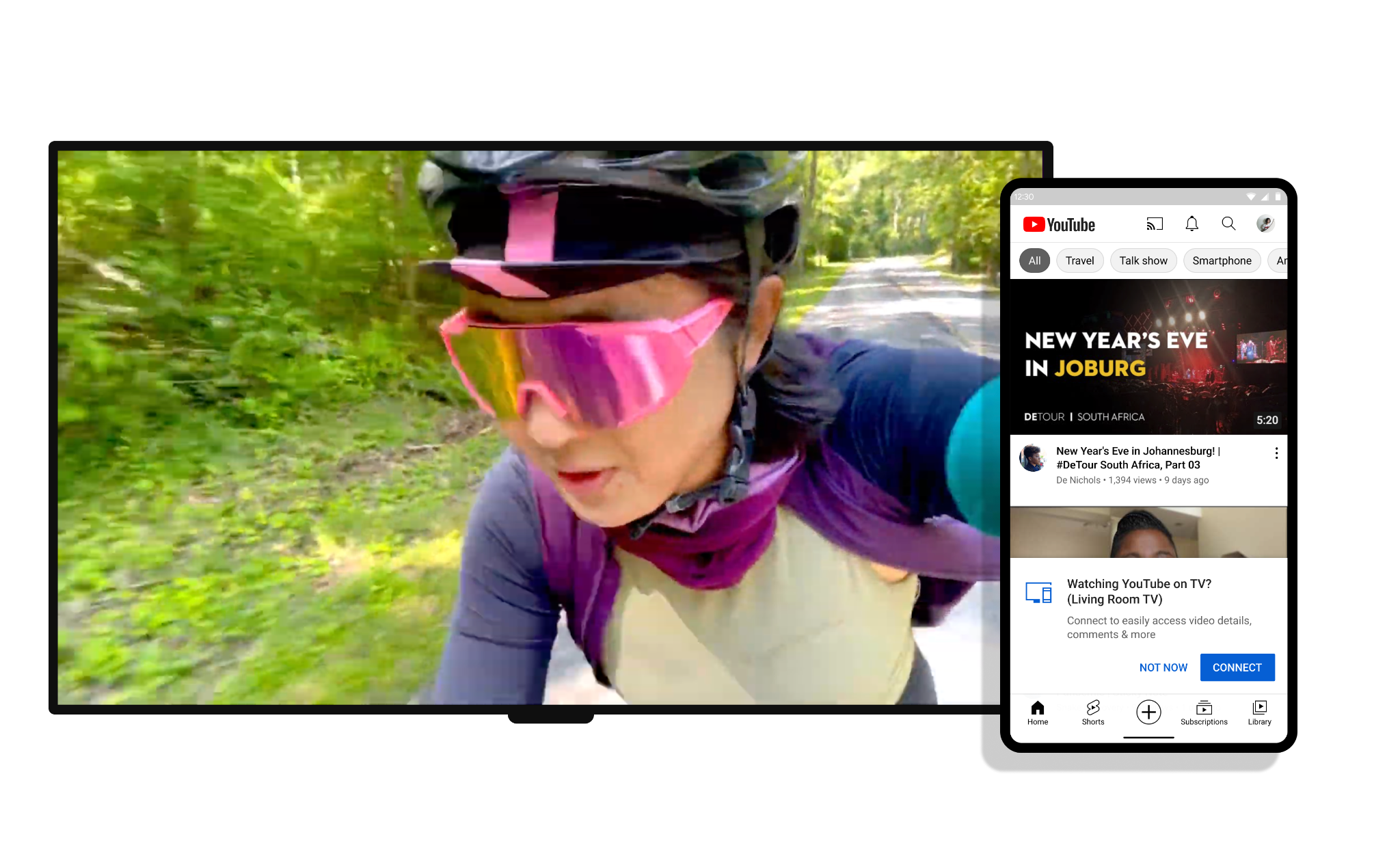
Directly opening an app on the TV is not always the most efficient way to browse content. Often, it is easier to find a video on a smartphone and “send” it to the big screen. This process relies on sophisticated wireless protocols that bridge the gap between mobile and stationary hardware.
Understanding Google Cast and DIAL
Google Cast is the proprietary protocol used by Chromecasts and Android TV devices. It doesn’t actually “stream” the video from your phone to the TV; instead, it sends a URL to the TV’s YouTube app, which then pulls the data directly from the internet. This preserves your phone’s battery life. This system often utilizes DIAL (Discovery-and-Launch), a protocol co-developed by Netflix and Google that allows a secondary device (phone) to discover and start apps on a first device (TV).
Apple AirPlay 2
For users with iPhones and compatible Smart TVs (such as newer models from Vizio, LG, or Sony), AirPlay 2 provides a seamless connection. By tapping the AirPlay icon in the YouTube iOS app, the video is transmitted to the TV. Unlike basic mirroring, AirPlay 2 allows for metadata transmission, meaning you can control volume and playback using the Apple Watch or the iPhone lock screen.
Screen Mirroring vs. Casting
It is important to distinguish between “Mirroring” and “Casting.” Mirroring replicates your phone’s screen exactly, including notifications and aspect ratio mismatches. Casting, specifically within the YouTube app, only sends the video file. For the best technical results, always use the dedicated “Cast” icon within the YouTube player interface rather than the general “Screen Mirror” function of your phone’s OS.
Manual Synchronization: Connecting via TV Code
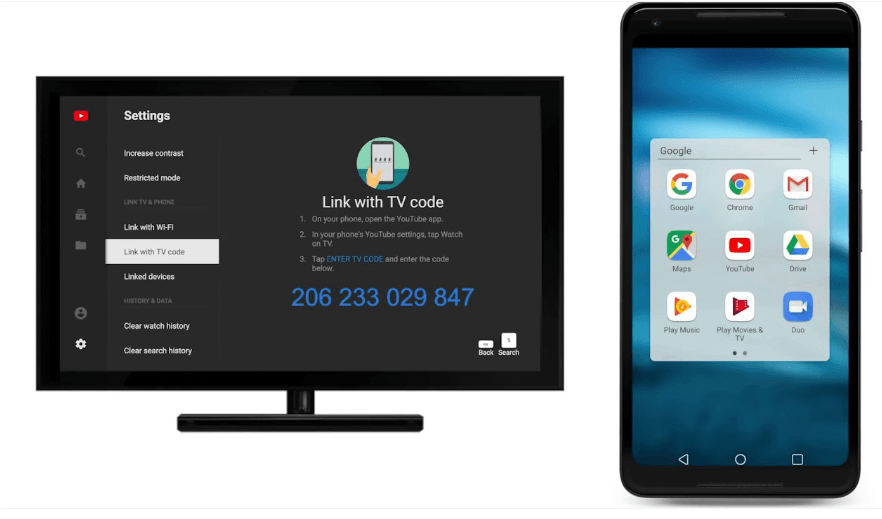
In environments where Wi-Fi networks are complex—such as hotels, university dorms, or offices—automatic discovery protocols like Cast or AirPlay may fail due to AP (Access Point) isolation. In these instances, the “Link with TV Code” method is the most reliable fallback.
The Step-by-Step Pairing Process
To use this method, open the YouTube app on your TV and navigate to the “Settings” menu (usually represented by a gear icon). Select “Link with TV Code.” A blue numerical code will appear on the screen. On your smartphone or tablet, open the YouTube app, tap your profile picture, go to “Settings,” then “Watch on TV,” and select “Enter TV Code.”
Benefits of Manual Linking
The primary technical benefit of this method is that it creates a persistent bond between the devices that does not rely on being on the exact same sub-network, provided both have an active internet connection. This is also an excellent solution for “guest” access, allowing friends to add videos to a queue without needing your Wi-Fi password.
Optimizing the Technical Experience: Network and Quality
Connecting YouTube to your TV is only the first step; optimizing the connection for performance is essential for maintaining high-definition streams without buffering.
Network Stability: Wired vs. Wireless
While modern Wi-Fi 6 (802.11ax) is capable of handling 4K streams, interference in the 2.4GHz band can lead to dropped frames. For the most stable connection, particularly when streaming 4K at 60fps, a hardwired Ethernet connection is recommended. If using Wi-Fi, ensure your TV or streaming device is connected to the 5GHz band of your router, which offers higher data throughput and less congestion than the 2.4GHz band.
Data Privacy and Account Management
When connecting YouTube to a TV in a shared household, managing accounts is crucial. Most TV apps now support multiple profiles. It is advisable to enable “Incognito Mode” if you are watching content on a TV that isn’t yours, or to sign out of your Google account to prevent your watch history from influencing the algorithm on a shared device. Furthermore, checking the security settings in your Google Account dashboard allows you to see every TV and device currently linked to your YouTube profile, providing an easy way to remotely de-authorize devices you no longer use.

Resolution and Codec Settings
Within the TV app’s settings, you can often find a “Stats for Nerds” toggle. Enabling this provides a real-time overlay of your connection speed, the current resolution, and the codec being used (such as VP9 or AV1). If you notice your video quality frequently dipping, this tool can help identify whether the bottleneck is your ISP’s bandwidth or a local hardware limitation. By ensuring your hardware and network are properly configured, you transform YouTube from a simple video site into a professional-grade home cinema experience.
aViewFromTheCave is a participant in the Amazon Services LLC Associates Program, an affiliate advertising program designed to provide a means for sites to earn advertising fees by advertising and linking to Amazon.com. Amazon, the Amazon logo, AmazonSupply, and the AmazonSupply logo are trademarks of Amazon.com, Inc. or its affiliates. As an Amazon Associate we earn affiliate commissions from qualifying purchases.