
SiriusXM has revolutionized in-car entertainment, offering a vast array of ad-free music, talk shows, sports, and news directly to your vehicle, regardless of how far off the grid you venture. The allure of consistent, high-quality audio content without the limitations of local radio or the data consumption of streaming services makes it a compelling choice for many drivers. However, for those new to the ecosystem or looking to upgrade, the process of connecting SiriusXM to your car can seem daunting. This guide demystifies the various connection methods, walking you through each step to ensure you can enjoy crystal-clear satellite radio on every journey. We’ll explore everything from factory-installed systems to mobile app integration, empowering you to choose the best setup for your vehicle and technical comfort level.

Understanding SiriusXM Integration Methods
Connecting SiriusXM to your car isn’t a one-size-fits-all endeavor. The method you choose or are able to use largely depends on your vehicle’s age, its existing audio system, and your preference for convenience versus sound quality. Understanding the fundamental approaches will help you navigate the options and select the most suitable path for your setup.
Factory-Installed Systems
Many modern vehicles come equipped with SiriusXM capabilities straight from the assembly line. This is often the most seamless and highest-quality integration.
- Pre-wired for SiriusXM: If your car is relatively new (typically post-2010 models, though this varies by manufacturer and trim level), it likely has a built-in SiriusXM tuner and antenna. You’ll often see a “SAT” or “XM” button on your car’s stereo system. These systems are designed for optimal performance, utilizing the car’s existing display and controls.
- Activation Process: For factory-installed systems, connecting is less about physical installation and more about activating the service. Your radio will display a unique Radio ID when tuned to channel 0 or 1. This ID is crucial for subscribing to a SiriusXM plan, which can be done online or over the phone. Once activated, the service usually becomes available within minutes, allowing you to seamlessly integrate satellite radio into your driving experience without any additional hardware.
Aftermarket Tuners and Receivers
For vehicles without factory-installed SiriusXM, aftermarket solutions provide an excellent way to add satellite radio functionality. These devices come in various forms, offering flexibility and different levels of integration.
- Dedicated SiriusXM Tuners: These are standalone devices, often referred to as “dock-and-play” radios. They consist of a receiver unit that picks up the satellite signal and a display unit that shows channels, songs, and artists. Examples include models from SXM, such as the Onyx EZR or Stratus radios. They come with an antenna (usually magnetic, for exterior mounting) and power adapter.
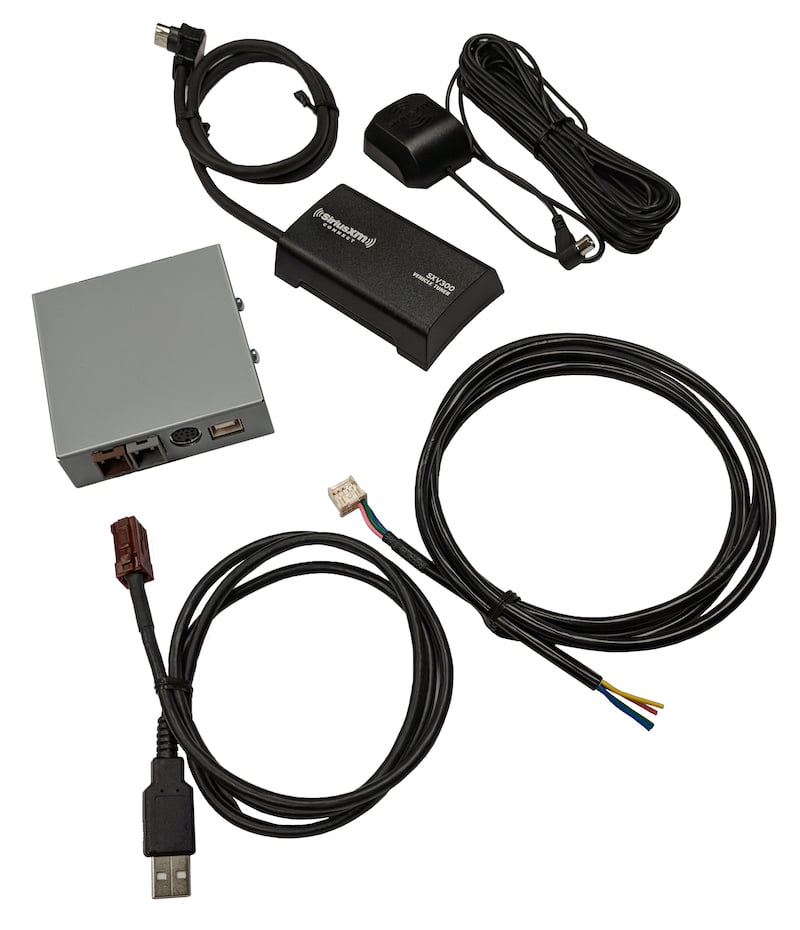
- Compatibility with Car Stereos: Many aftermarket car stereos are “SiriusXM Ready,” meaning they have a port to connect a SiriusXM Vehicle Tuner (often sold separately, like the SXV300V1). This tuner integrates directly with the aftermarket head unit, allowing you to control SiriusXM through the stereo’s interface, much like a factory system. This provides a cleaner look than a dock-and-play unit.
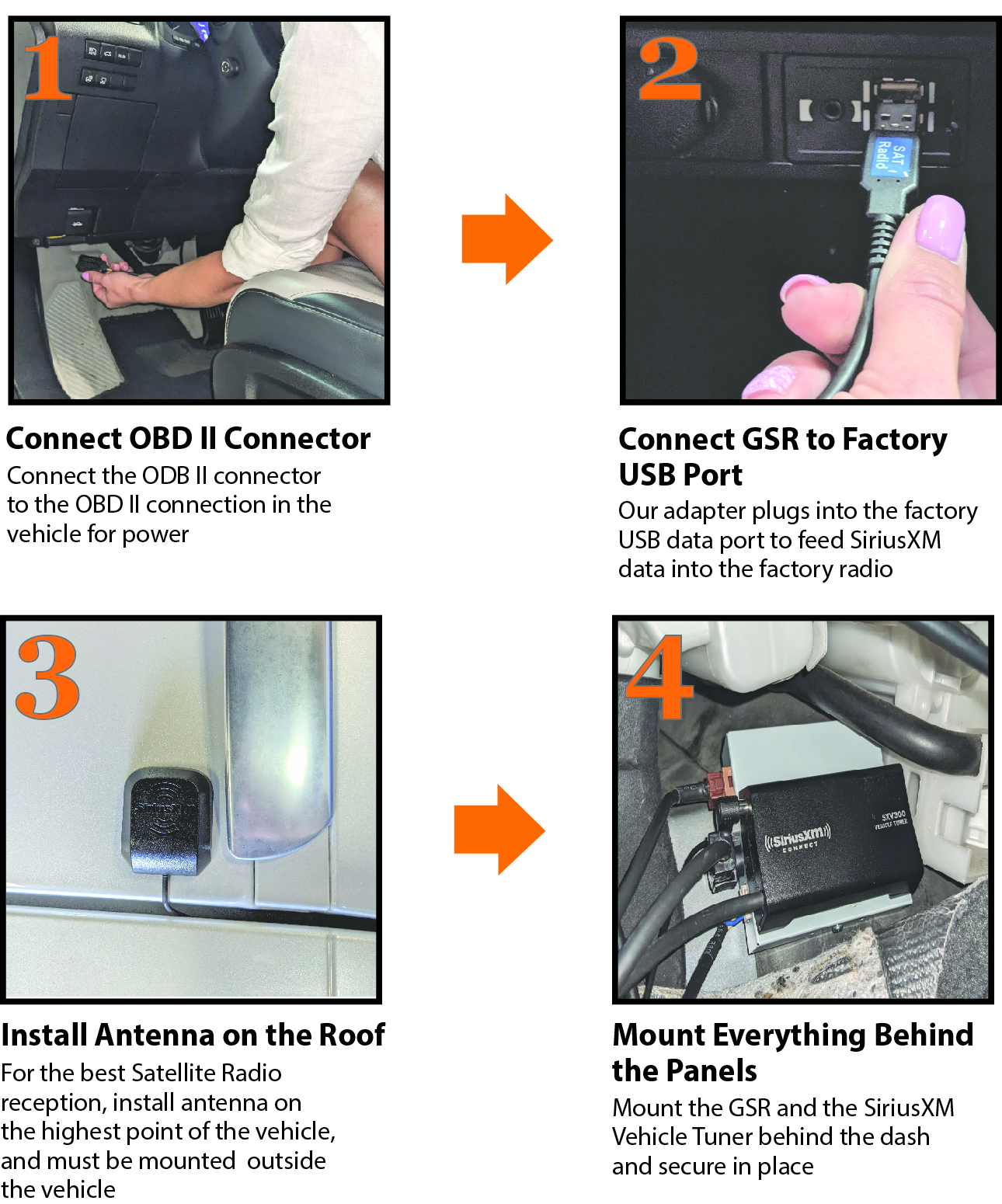
- Installation Considerations: Installing an aftermarket tuner involves routing the antenna cable, securing the receiver, and connecting it to your car’s audio system. This can range from a simple dashboard mount and power plug for dock-and-play units to professional installation for integrated tuners that might require removing parts of the dashboard. Careful cable management is key to a tidy and safe setup.
Mobile App Integration
Beyond dedicated hardware, SiriusXM offers a robust mobile app that allows you to stream content directly through your smartphone. This method leverages your car’s existing connectivity features, such as Bluetooth or auxiliary inputs.
- SiriusXM App as an Alternative: The SiriusXM app provides access to a vast catalog of live channels, on-demand content, and personalized stations. If you have a SiriusXM subscription, you can typically access the app as part of your package, or you can subscribe to an app-only streaming plan.
- Streaming via Smartphone: Once the app is installed on your smartphone, you can connect your phone to your car’s audio system using Bluetooth, a USB cable, or an auxiliary cable. This turns your smartphone into the source for SiriusXM content, with the audio playing through your car’s speakers. While it consumes mobile data, it offers unparalleled flexibility, especially if you frequently switch between vehicles or don’t want to install additional hardware.
Step-by-Step Connection Guides
Once you’ve determined the best type of SiriusXM system for your car, the next step is to physically connect it. The specific process will vary based on whether you’re using a dock-and-play radio, an integrated tuner, or your smartphone.
Connecting via Auxiliary Input (AUX)
The auxiliary input (AUX) is one of the most straightforward and reliable ways to connect an aftermarket SiriusXM radio or your smartphone to your car’s audio system.
- Direct Wired Connection: Both dock-and-play SiriusXM radios and smartphones typically have a 3.5mm headphone jack. You can connect this to your car’s AUX input using a standard 3.5mm audio cable (often called an AUX cable). Simply plug one end into the SiriusXM device/phone and the other into the car’s AUX port. Select “AUX” as the input source on your car stereo.
- Audio Quality Benefits: A direct AUX connection provides a clean, wired audio signal, generally resulting in better sound quality compared to FM transmission. It bypasses potential radio interference and delivers the audio directly to your car’s amplifier.
Utilizing an FM Transmitter/Modulator
If your car stereo lacks an AUX input or Bluetooth, an FM transmitter is often the go-to solution for aftermarket SiriusXM radios.
- Wireless Audio Transmission: Many dock-and-play SiriusXM radios come with a built-in FM transmitter. This feature broadcasts the SiriusXM audio on an unused FM frequency, which your car’s regular FM radio can then pick up. You tune your car radio to the same frequency as the SiriusXM device is transmitting on.
- Finding Clear Frequencies: The key to good sound quality with an FM transmitter is finding a vacant FM frequency in your area. Tune your car radio to an empty station (one with static or no sound) and then set your SiriusXM radio to transmit on that same frequency. Experiment with different frequencies, especially 88.1 MHz, 88.3 MHz, 107.7 MHz, and 107.9 MHz, which are often less crowded. Some SiriusXM radios have a “TuneScan” feature to help identify clear frequencies. Be aware that FM transmission can be susceptible to interference, especially in urban areas, leading to occasional static or signal loss.
Bluetooth Connectivity
Bluetooth offers a wireless and convenient way to play SiriusXM from your smartphone through your car’s speakers.
- Streaming from the SiriusXM App: Ensure your car stereo supports Bluetooth audio streaming. On your smartphone, enable Bluetooth and pair it with your car’s Bluetooth system. Once paired and connected, open the SiriusXM app and start playing content. The audio will wirelessly transmit to your car stereo.
- Hands-Free Considerations: Bluetooth also enables hands-free calling, allowing you to seamlessly switch between SiriusXM audio and phone calls. Many car systems will pause audio when a call comes in and resume once it’s ended. This method combines the benefits of smartphone versatility with the convenience of wireless audio.
USB Connection (for compatible systems)
Some modern vehicles and aftermarket head units offer USB connectivity that can do more than just charge your phone.
- Digital Audio Quality: If your car has a USB port that supports audio playback (often labeled with a music note icon or specifically for Apple CarPlay/Android Auto), you can connect your smartphone via a USB cable. This often provides superior digital audio quality compared to AUX or Bluetooth and can even charge your device simultaneously. Your car’s infotainment system may also display track information and allow basic controls (skip, pause).
- Control Integration: With Apple CarPlay or Android Auto, connecting your phone via USB (or wirelessly, in newer systems) allows for full integration of the SiriusXM app into your car’s display. You can control the app directly from your car’s touchscreen or voice commands, offering the most integrated smartphone experience.
Activating Your SiriusXM Service
Once your hardware is connected, the final, crucial step is to activate your SiriusXM subscription. Without activation, you’ll only be able to hear a preview channel (usually channel 1) and will not have access to the full range of programming.
Locating Your Radio ID
Every SiriusXM radio has a unique Radio ID, which is essential for activating your service.
- On-screen Display: The easiest way to find your Radio ID is to turn on your SiriusXM radio (or tune your factory radio to the XM/Sirius input) and tune to channel 0 or channel 1. The Radio ID (a 12-digit alphanumeric code) will typically be displayed on the screen.
- Sticker on Tuner: For aftermarket tuners, the Radio ID might also be printed on a sticker on the back or bottom of the tuner unit itself. Make sure to note this down before securing the unit in place if you anticipate needing to access it later.
Online Activation Portal
The quickest and most common way to activate your service is through the SiriusXM website.
- Self-service Options: Visit the SiriusXM activation page (siriusxm.com/activate). You’ll need your Radio ID and personal information to set up an account and choose a subscription plan. The online portal guides you through selecting packages, reviewing pricing, and confirming your subscription.
- Package Selection: SiriusXM offers various programming packages, from basic music and talk to comprehensive bundles including sports and streaming access. Review the options carefully to find one that best suits your listening preferences and budget.
Phone Activation
If you prefer speaking with a representative or encounter issues with online activation, phone activation is an alternative.
- Assisted Setup: Call SiriusXM’s customer service number (usually found on their website). A representative will guide you through the activation process, taking your Radio ID and subscription details over the phone.
- Troubleshooting During Activation: If your radio isn’t receiving the activation signal after a few minutes, the representative can often re-send the signal or help troubleshoot common issues, such as poor antenna placement or a temporary service outage. Ensure your vehicle is outdoors with a clear view of the sky during activation to receive the signal effectively.
Optimizing Your SiriusXM Experience
Connecting and activating SiriusXM is just the beginning. To truly enjoy your satellite radio, a few tips can help you enhance audio quality and resolve common issues, ensuring uninterrupted entertainment.
Enhancing Audio Quality
Maximizing sound clarity and fidelity can significantly improve your listening pleasure.
- Minimizing Interference: For FM transmitter users, constantly scan for and switch to the clearest available FM frequency. Avoid placing the SiriusXM antenna near other electronic devices that might generate interference. For wired connections, ensure cables are securely plugged in and not damaged.
- EQ Adjustments: Utilize your car stereo’s equalizer (EQ) settings to fine-tune the audio output. Adjust bass, treble, and mid-range levels to suit your personal preferences and compensate for your car’s acoustics. Some SiriusXM receivers also have their own EQ settings.
Troubleshooting Common Issues
Even with a perfect setup, occasional hiccups can occur. Knowing how to diagnose and address them can save you frustration.
- Signal Loss: If you experience “Acquiring Signal” or “No Signal” messages, ensure your SiriusXM antenna has a clear view of the sky (unobstructed by buildings, parking garages, or heavy tree cover). Check that the antenna cable is securely connected to the receiver. Relocating the antenna to a different spot on your vehicle’s roof or dashboard might improve reception.
- No Audio: Verify that your car stereo is set to the correct input source (AUX, FM frequency, Bluetooth, or USB). Check the volume levels on both your SiriusXM device/phone and your car stereo. Ensure all cables are properly connected.
- Activation Problems: If your service isn’t active after 15-20 minutes post-activation, drive to an open area and leave the radio on channel 1 for a few minutes. If it still doesn’t activate, contact SiriusXM customer service to have them re-send the activation signal.
Exploring Advanced Features
Beyond basic listening, SiriusXM offers a range of features to enrich your experience.
- On Demand Content: Many SiriusXM subscriptions include access to On Demand content via the mobile app or website. This allows you to listen to past shows, interviews, and specific music programs at your convenience.
- Personalization Options: The SiriusXM app often allows you to create personalized stations based on your favorite artists or genres, save favorite channels, and set alerts for sports games or specific shows. Familiarize yourself with these app features to tailor your listening experience.
Connecting SiriusXM to your car might involve a few steps, but with the right approach and a clear understanding of your options, you’ll soon be enjoying a world of unparalleled audio entertainment on the road. Whether through a factory-installed system, an aftermarket tuner, or your smartphone, SiriusXM offers a reliable and diverse soundtrack for every journey.
aViewFromTheCave is a participant in the Amazon Services LLC Associates Program, an affiliate advertising program designed to provide a means for sites to earn advertising fees by advertising and linking to Amazon.com. Amazon, the Amazon logo, AmazonSupply, and the AmazonSupply logo are trademarks of Amazon.com, Inc. or its affiliates. As an Amazon Associate we earn affiliate commissions from qualifying purchases.