
In the world of personal computing, few things are as satisfying as a fresh start. Over months or years of use, even the most powerful Windows machines can begin to feel sluggish. This degradation is often the result of “software rot”—a build-up of temporary files, redundant registry entries, fragmented software remnants, and the inevitable accumulation of bloatware. While built-in “Reset this PC” options exist, they often carry over existing issues or manufacturer-installed junk. For the power user and the performance-seeker alike, the “Clean Install” remains the gold standard for restoring a computer to its peak operational efficiency.

A clean install involves wiping your primary storage drive entirely and installing a fresh, untouched copy of the Windows operating system. This process ensures that you are starting with a blank slate, free from the ghosts of previous software conflicts. In this guide, we will explore the technical nuances of performing a clean install, from preparation to post-installation optimization.
1. Preparation: The Foundation of a Successful Clean Install
Before you touch a single system setting, preparation is paramount. A clean install is a destructive process; everything on your primary drive will be erased. Therefore, the preparation phase focuses on data preservation and the gathering of necessary digital tools.
Backing Up Your Essential Data
The most critical step in any technical overhaul is a robust backup. Since a clean install formats your drive, you must move all indispensable files—documents, photos, saved games, and browser bookmarks—to an external hard drive or a secure cloud service like OneDrive or Google Drive.
Furthermore, do not forget to export application-specific data. For instance, if you use professional software like Adobe Creative Cloud or specialized CAD tools, ensure your licenses are deactivated on the current machine so they can be easily reactivated on the new installation. A common oversight is forgetting the “Downloads” or “AppData” folders, which often house configuration files for niche applications.
Verifying Hardware Compatibility and Licensing
Modern versions of Windows (specifically Windows 10 and Windows 11) utilize digital licensing. In most cases, if your computer was previously activated, Microsoft’s servers will recognize your hardware ID and reactivate Windows automatically once you sign in. However, it is a prudent technical practice to verify this. Navigate to Settings > Update & Security > Activation to ensure your status says “Windows is activated with a digital license.”
For those moving to Windows 11, hardware compatibility is a stricter requirement. You must ensure your system supports TPM 2.0 (Trusted Platform Module) and Secure Boot. You can check this using the PC Health Check app provided by Microsoft. If your hardware is older, you may need to reconsider whether a clean install of the latest OS is the right move or if you should stick with Windows 10.
Creating Bootable Installation Media
To install Windows from scratch, you need a bootable USB flash drive (at least 8GB in size). Microsoft provides a free “Media Creation Tool” for both Windows 10 and 11.
- Download the tool from the official Microsoft website.
- Run the application and select “Create installation media for another PC.”
- Choose your language, edition, and architecture (typically 64-bit).
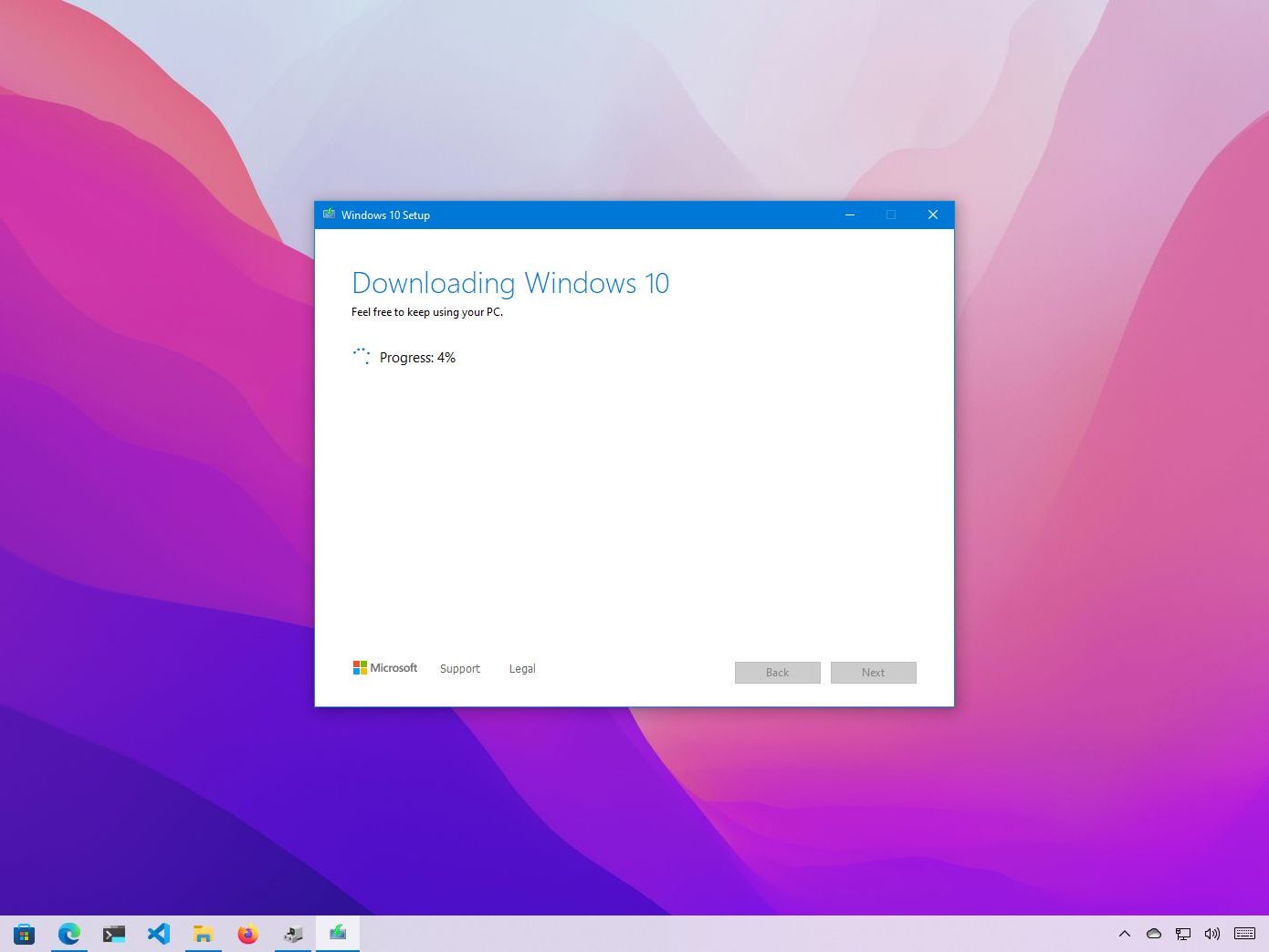
- Select “USB flash drive” and allow the tool to download the Windows ISO and flash it to the drive.
This USB drive will serve as your primary tool for the installation process, acting as an external boot device that bypasses your current operating system.
2. The Installation Process: A Step-by-Step Technical Walkthrough
Once your data is backed up and your USB media is ready, it is time to perform the actual installation. This phase requires entering the computer’s pre-boot environment and directing the hardware to prioritize the USB drive.
Configuring BIOS/UEFI Settings
To start the installation, you must restart your computer and enter the BIOS or UEFI menu. This is usually achieved by tapping a specific key—commonly F2, F12, Delete, or Esc—immediately after powering the machine on.
Within the BIOS/UEFI interface, navigate to the “Boot” tab. You need to change the boot order so that the “USB Storage Device” or “UEFI: [Your USB Name]” is the first priority. Once adjusted, save your changes and exit. The computer will restart and, if successful, load the Windows Setup environment rather than your old desktop.
Partitioning Your Drive for Maximum Efficiency
After selecting your language and keyboard layout, you will be prompted to “Install Now.” Eventually, you will reach a screen asking, “Which type of installation do you want?”
Crucial Choice: Always select “Custom: Install Windows only (advanced).”
This opens the drive management window. Here, you will see a list of partitions on your hard drive. To achieve a truly “clean” install, you should select each partition on your primary drive (Drive 0) and click “Delete.” Continue until you are left with a single entry titled “Drive 0 Unallocated Space.”
Select this unallocated space and click “Next.” Windows will automatically create the necessary system partitions (EFI, MSR, and Primary) and begin the file copying process. This ensures no remnants of the previous OS remain.
Navigating the Out-of-Box Experience (OOBE)
Once the files are copied, the computer will restart. You can remove the USB drive at this point. You will be greeted by the Windows “Out-of-Box Experience,” which guides you through region selection, network connection, and account setup.
For the best digital security and integration, logging in with a Microsoft Account is recommended. However, for those who prefer privacy and local control, you can choose to set up a “Local Account” (though Microsoft makes this increasingly difficult in newer builds, often requiring you to disconnect from the internet during setup). Take this time to carefully review privacy settings, disabling telemetry or advertising IDs as you see fit.
3. Post-Installation Optimization and Drivers
A clean install results in a “vanilla” version of Windows. While it is fast, it may not yet be fully functional until you address the software-hardware communication layer.
Installing Essential Drivers and Windows Updates
The first task upon reaching the new desktop is to run Windows Update. Microsoft has significantly improved its driver repository, and many essential drivers for your chipset, Wi-Fi, and Bluetooth will be installed automatically.
However, for specialized hardware—such as dedicated NVIDIA or AMD graphics cards, high-end sound cards, or RAID controllers—you should visit the manufacturer’s website directly. Installing the “Game Ready” drivers for a GPU or the latest BIOS updates from your motherboard manufacturer ensures that you are squeezing every bit of performance out of your hardware.
Securing Your System and Managing Bloatware
While a clean install from a Microsoft ISO removes manufacturer bloatware (the “trialware” that comes with pre-built PCs), Windows itself often includes pre-installed apps like “Candy Crush” or various social media links in the Start Menu. Take ten minutes to right-click and uninstall these unwanted applications.
Furthermore, ensure that Windows Security is active. In the modern era, Windows Defender is a highly competent antivirus solution that offers real-time protection without the heavy system resource drain associated with third-party suites. Ensure “Real-time protection” and “Cloud-delivered protection” are toggled on.
Restoring Data and Software via Ninite
To save time during the software re-installation phase, many tech professionals use tools like Ninite. Ninite allows you to select a variety of popular applications (Chrome, VLC, Spotify, 7-Zip, etc.) and download a single installer that loads them all automatically without clicking through “Next” menus or accidentally agreeing to browser toolbars. Once your software is back, you can move your backed-up data from your external drive back to your internal “Documents” and “Pictures” folders.
4. Troubleshooting Common Installation Hurdles
Even with careful planning, technical glitches can occur. Understanding how to navigate these common hurdles is the mark of a seasoned tech enthusiast.
Resolving Media Creation Tool Errors
Occasionally, the Media Creation Tool may fail with a cryptic error code like “0x80042405.” This is often due to the USB drive’s format or a conflict with existing system files. To resolve this, try formatting the USB drive to FAT32 manually before running the tool, or use a third-party utility like Rufus. Rufus provides more granular control over partition schemes (GPT vs. MBR) and can often bypass errors that the official Microsoft tool cannot.
Handling Drive Recognition Issues (Intel VMD/RAID)
If you reach the “Where do you want to install Windows?” screen and no drives are visible, your system likely requires a specific storage controller driver. This is common on newer laptops using Intel’s 11th-13th Gen processors with Volume Management Device (VMD) technology.
To fix this, you must download the “Intel Rapid Storage Technology (IRST)” driver from your laptop manufacturer’s site, extract it to a separate folder on your Windows installation USB, and click “Load Driver” during the Windows setup process. Once the driver is pointed to, your SSD will magically appear in the list.
Dealing with Activation Issues
If Windows fails to activate after the install, it is usually because the version installed (Home vs. Pro) does not match the previous license. Ensure you installed the correct edition. If the hardware has changed significantly (like a motherboard replacement), you may need to use the “Activation Troubleshooter” in settings to link your previous digital license to the new hardware configuration.

Conclusion: The Reward of a Clean Slate
A clean installation of Windows is more than just a maintenance task; it is a digital “reset” that can extend the life of your hardware by years. By meticulously preparing your data, performing a clean partition wipe, and optimizing your drivers post-install, you eliminate the technical debt accumulated through years of use. The result is a machine that boots faster, responds snappier, and provides a stable platform for both work and play. In the fast-paced world of technology, knowing how to strip a system down to its core and rebuild it is one of the most valuable skills a user can possess.
aViewFromTheCave is a participant in the Amazon Services LLC Associates Program, an affiliate advertising program designed to provide a means for sites to earn advertising fees by advertising and linking to Amazon.com. Amazon, the Amazon logo, AmazonSupply, and the AmazonSupply logo are trademarks of Amazon.com, Inc. or its affiliates. As an Amazon Associate we earn affiliate commissions from qualifying purchases.