
In today’s fast-paced digital world, the Solid State Drive (SSD) has become the cornerstone of high-performance computing. Long gone are the days when traditional Hard Disk Drives (HDDs) reigned supreme, with their spinning platters and agonizingly slow boot times. SSDs, offering unparalleled speed, durability, and efficiency, are now standard in most modern laptops and desktops. Yet, beneath their sleek, silent operation lies a complex ecosystem of types, interfaces, and protocols. Understanding “what kind of SSD is installed” in your system isn’t just about curiosity; it’s a critical step towards optimizing performance, planning future upgrades, and even troubleshooting potential issues.
This comprehensive guide delves into the nuances of SSD identification, providing you with the knowledge and practical steps to uncover the exact specifications of your drive. From leveraging your operating system’s built-in tools to exploring specialized third-party software and even the art of physical inspection, we’ll equip you to decode your SSD’s identity. This understanding empowers you to make informed decisions, ensuring your tech investments yield the best possible returns and that your system runs at peak efficiency, aligning perfectly with our focus on technology trends and digital security.
The Indispensable SSD: Why Knowing Your Drive Matters
At first glance, an SSD might seem like any other storage device. However, the differences between various SSD types can profoundly impact your computing experience, from application load times to large file transfers and system responsiveness. Failing to understand these distinctions can lead to compatibility headaches, wasted upgrade investments, or simply leaving significant performance on the table.
Beyond Capacity: Understanding Speed and Compatibility
While storage capacity is often the first metric users look at, it’s the underlying technology that truly defines an SSD’s capabilities. A 1TB SSD isn’t just a 1TB SSD; it could be a blazing-fast NVMe PCIe 4.0 drive capable of 7,000 MB/s reads, or a more modest SATA III drive capped at 550 MB/s. This tenfold difference in speed directly translates to how quickly your operating system boots, how swiftly applications launch, and how seamless your workflow feels. For creators working with large video files or gamers demanding instant load times, the difference between these types is monumental.
Furthermore, compatibility is paramount. Not all motherboards support all types of SSDs. For instance, an older motherboard might only have SATA ports, rendering a newer NVMe M.2 drive useless without an adapter. Conversely, a modern motherboard with an M.2 slot might support both SATA-based M.2 and NVMe M.2 drives, but understanding which one you have installed (or which one you plan to install) determines the speed you’ll achieve. Identifying your current SSD’s interface and form factor prevents costly mistakes and ensures seamless integration, directly impacting your digital productivity.
The Foundation for Smart Upgrades and Troubleshooting
Knowing your SSD’s specifications is the bedrock for any intelligent system upgrade. Are you considering expanding your storage? Or perhaps upgrading to an even faster drive? Without knowing your existing SSD type and your system’s available slots, you’re flying blind. For example, if you have a SATA M.2 drive, but your motherboard supports NVMe M.2, an upgrade to NVMe would offer a dramatic performance boost, making your old drive a prime candidate for a secondary storage role.
Beyond upgrades, this knowledge is invaluable for troubleshooting. If your system is underperforming, identifying the exact SSD model allows you to check for firmware updates, diagnose drive health issues with specific tools, or even determine if the drive itself is a bottleneck. It helps narrow down potential causes, saving you time and frustration, and enhancing your digital security by ensuring your hardware is functioning optimally.
Decoding SSD Types: Form Factors and Interfaces Explained
Before we dive into identification methods, it’s crucial to grasp the fundamental differences in SSD technology. SSDs are primarily categorized by their form factor (physical shape and size) and their interface (how they connect to the motherboard and communicate data).
SATA SSDs: The Reliable Workhorses (2.5-inch, mSATA)
SATA (Serial Advanced Technology Attachment) has been the standard interface for storage devices for decades, originating with HDDs. SATA SSDs, while slower than their NVMe counterparts, still offer a significant speed boost over traditional HDDs.
- 2.5-inch SATA SSDs: These are the most common and recognizable SSDs, designed to fit into the same drive bays as traditional 2.5-inch laptop HDDs. They connect via a SATA data cable and a SATA power cable. Their maximum theoretical speed is around 600 MB/s (SATA III), making them suitable for everyday computing, general office tasks, and as cost-effective upgrades for older systems.
- mSATA SSDs: A miniaturized version of SATA, mSATA drives are smaller circuit boards designed for compact devices like ultrabooks and mini-PCs. They plug directly into an mSATA slot on the motherboard. While less common in new devices, you might still encounter them in slightly older compact systems.
NVMe SSDs: The Speed Demons of PCIe (M.2, AIC, U.2)
NVMe (Non-Volatile Memory Express) is a communication protocol designed specifically for SSDs to leverage the high-speed PCIe (Peripheral Component Interconnect Express) bus. Unlike SATA, which was designed for slower HDDs, NVMe allows SSDs to communicate directly with the CPU, vastly reducing latency and increasing bandwidth.
- M.2 NVMe SSDs: The most prevalent type of NVMe SSD, M.2 drives are gumstick-shaped circuit boards that plug directly into an M.2 slot on the motherboard. They utilize the PCIe bus, offering speeds that can range from 3,500 MB/s (PCIe Gen 3) up to 7,000 MB/s or even more (PCIe Gen 4 and 5). M.2 is a form factor, but an M.2 slot can support either SATA or NVMe drives, which is a common point of confusion.
- AIC (Add-in Card) NVMe SSDs: These SSDs resemble graphics cards and plug into a full-sized PCIe slot on the motherboard. They are typically used in high-end workstations or servers for extreme performance, offering superior cooling and potentially higher capacities.
- U.2 NVMe SSDs: Less common in consumer systems, U.2 drives are 2.5-inch enterprise-grade SSDs that connect via a U.2 connector, typically using PCIe lanes. They are often found in servers and high-end workstations requiring hot-swappable storage with NVMe performance.
Understanding M.2: Not All M.2s Are Created Equal
The M.2 form factor is a significant source of confusion. An M.2 slot on your motherboard can support:
- M.2 SATA SSDs: These drives use the M.2 form factor but communicate via the slower SATA protocol. Their performance is limited by the SATA III interface (around 550 MB/s). They typically have two “keys” (notches) on their connector (B+M key).
- M.2 NVMe SSDs: These drives use the M.2 form factor and communicate via the high-speed NVMe/PCIe protocol. They are significantly faster. They typically have a single “key” (M key) on their connector.
It’s crucial to distinguish between an M.2 form factor drive and its underlying protocol (SATA or NVMe/PCIe) as this dictates its performance and compatibility with your motherboard’s M.2 slots. Many motherboards offer M.2 slots that support both, but one might be faster than the other, or one might disable certain SATA ports when in use. This granular understanding is key for maximizing your system’s value and performance.
Practical Methods to Identify Your SSD
Now that we understand the types, let’s explore the practical methods to identify your installed SSD without needing to open your computer case immediately. These methods cater to different operating systems and levels of technical comfort.
Method 1: Harnessing Your Operating System’s Built-in Tools
Your operating system provides several powerful utilities that can reveal critical information about your SSD.
Windows: Task Manager, Disk Management, Device Manager, PowerShell
-
Task Manager (Windows 8/10/11):
- Press
Ctrl + Shift + Escto open Task Manager. - Go to the “Performance” tab.
- Select “Disk” (or “Disk 0”, “Disk 1”, etc.).
- At the top right, you’ll see the name of your SSD (e.g., “SAMSUNG SSD 970 EVO Plus”). Below the graph, it will often indicate “SSD” and sometimes even “NVMe” or “SATA” next to the model name. This is a quick glance but might not provide full detail.
- Press
-
Disk Management:
- Right-click on the Start button and select “Disk Management.”
- In the main pane, you’ll see a list of your drives. Look for your SSD(s).
- Right-click on your SSD (e.g., “Disk 0”) and select “Properties.”
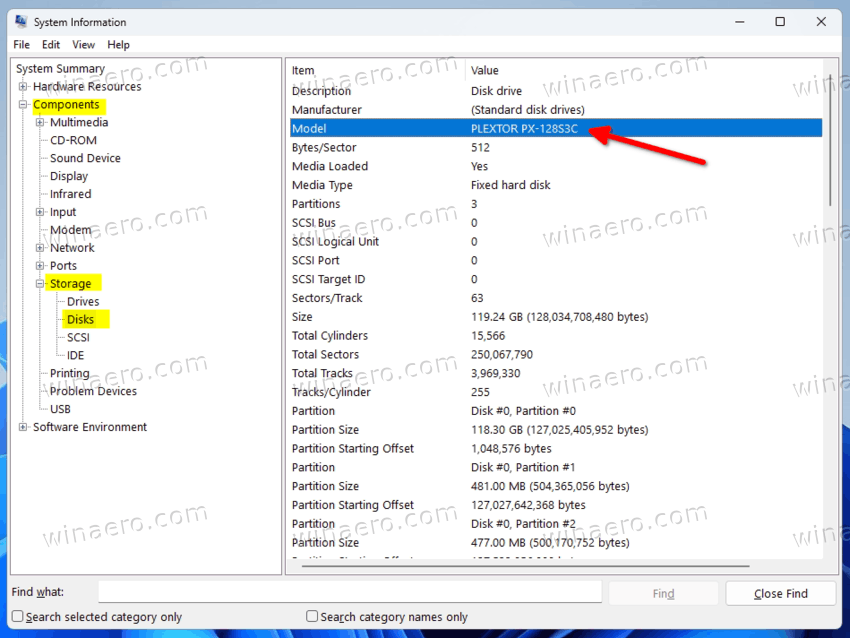
- Go to the “Hardware” tab. This will list the full model name (e.g., “Samsung SSD 970 EVO Plus 1TB”). You can then search for this model online to find its detailed specifications (SATA/NVMe, form factor).

-
Device Manager:
- Right-click on the Start button and select “Device Manager.”
- Expand “Disk drives.”
- You’ll see a list of your installed drives by their model names. Similar to Disk Management, you can look up the model online for full specs.
-
PowerShell / Command Prompt: For those comfortable with the command line, PowerShell offers more detailed information.
- Right-click Start and select “Windows PowerShell (Admin).”
- Type
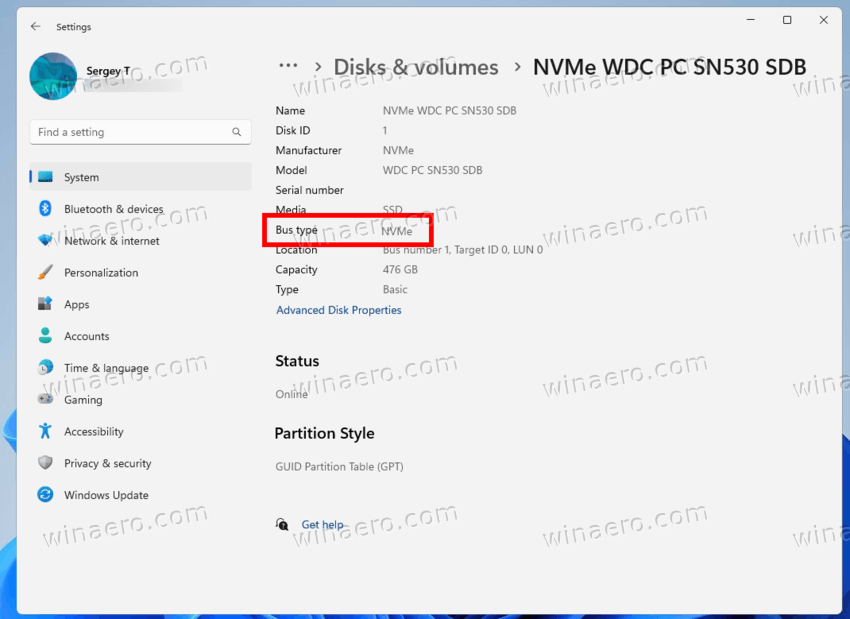
Get-PhysicalDiskand press Enter. - Look at the “BusType” column. “NVMe” or “SATA” will be clearly listed, along with the “FriendlyName” (model). This is arguably the most direct way in Windows to confirm the interface.
macOS: System Information
- System Information:
- Click the Apple menu in the top-left corner.
- Hold down the
Optionkey and click “System Information” (which replaces “About This Mac” when Option is pressed). - In the left sidebar, navigate to “Storage” > “NVMExpress” or “SATA/SATA Express.”
- If it’s NVMe, details like vendor, model, and link speed will be listed under “NVMExpress.” If it’s SATA, you’ll find similar details under “SATA/SATA Express.” This directly tells you the interface type.
Linux: Command Line Utilities
lshw(List Hardware):- Open a terminal.
- Type
sudo lshw -class diskand press Enter (you might need to enter your password). - This command provides a detailed list of all disk drives, including their vendor, product, and often their interface (e.g., “logical name: /dev/nvme0n1” indicating NVMe, or “logical name: /dev/sda” indicating SATA).
lsblk(List Block Devices):- Open a terminal.
- Type
lsblk -o NAME,ROTA,TYPE,SIZE,MODELand press Enter. - SSDs will show
0underROTA(for rotational, meaning non-spinning). TheTYPEandMODELcolumns can help identify the drive.
nvme list(for NVMe drives):- Open a terminal.
- Type
sudo nvme listand press Enter. - If you have NVMe drives, this command will list them with comprehensive details like model number, serial number, and PCIe generation. If no output, you likely don’t have NVMe drives or the
nvme-clipackage isn’t installed.
Method 2: Leveraging Specialized Third-Party Software
While built-in tools are good, dedicated third-party software offers a more comprehensive and user-friendly analysis, often presenting information about drive health, temperature, and specific features.
- CrystalDiskInfo (Windows): This is arguably the most popular and comprehensive tool for SSD information. It displays critical details like:
- SSD model number
- Interface (SATA/NVMe)
- Supported features (e.g., NVMe 1.3, TRIM)
- Firmware version
- Health status and temperature
- Power-on hours and total host writes/reads
- It also clearly indicates if the drive is NVMe and its PCIe generation.
- HWiNFO (Windows): A powerful system information tool that provides extensive details about every hardware component, including SSDs. It will list the drive type, interface, and other technical specifications, sometimes even the controller chip.
- Speccy (Windows): Another comprehensive system information utility from Piriform (makers of CCleaner). It offers a user-friendly interface to view detailed information about your storage devices, including the SSD model, interface, and SMART attributes.
- Disk Drill (macOS): While primarily a data recovery tool, Disk Drill also offers S.M.A.R.T. monitoring for drives, which can display basic information about your SSD’s type and health.
These tools are particularly useful for those seeking deeper insights into their drive’s health and performance metrics, going beyond just identifying the type.
Method 3: The Power of Physical Inspection (and Manufacturer Specs)
When software methods aren’t conclusive, or you’re planning an upgrade, physical inspection becomes necessary. This often involves opening your computer case, which might void warranties or require some technical comfort.
- Visual Identification:
- 2.5-inch SSDs: Easy to spot, they look like small rectangular boxes connected by SATA data and power cables.
- M.2 SSDs: These are slender sticks plugged directly into the motherboard. Carefully note the size (e.g., 2280 indicates 22mm width, 80mm length) and the notch(es) on the connector (M key for NVMe, B+M key for SATA M.2). Often, the drive’s label clearly states “NVMe PCIe” or “SATA.”
- mSATA SSDs: Similar in appearance to M.2 but typically wider and shorter, plugged into an mSATA slot.
- Checking Manufacturer Specifications: If your system is a pre-built desktop or laptop, the manufacturer’s website is a goldmine of information. Search for your exact model number, and the specifications page will typically list the type of storage devices installed or supported (e.g., “512GB NVMe PCIe SSD” or “256GB SATA III SSD”). This is often the safest and most reliable method for factory-installed drives.
Interpreting Your SSD’s Identity: What the Specs Mean
Once you’ve identified your SSD’s model, you’ll likely encounter a string of acronyms and numbers. Understanding these is crucial for fully grasping your drive’s capabilities.
Key Identifiers: Interface, Form Factor, and Protocol
- SATA vs. NVMe: This is the most fundamental distinction. SATA indicates a maximum theoretical speed of 600 MB/s. NVMe, leveraging PCIe, offers speeds orders of magnitude faster (thousands of MB/s).
- PCIe Generation (Gen3, Gen4, Gen5): For NVMe drives, the PCIe generation indicates the speed.
- PCIe Gen 3: Typically up to 3,500 MB/s sequential read.
- PCIe Gen 4: Up to 7,000 MB/s sequential read.
- PCIe Gen 5: Theoretical speeds can exceed 10,000 MB/s.
Your motherboard must support the specific PCIe generation to achieve these speeds. A Gen 4 SSD in a Gen 3 slot will only operate at Gen 3 speeds.
- M.2 Dimensions (e.g., 2280): This refers to the physical size of an M.2 drive (22mm wide, 80mm long). Other common sizes include 2242, 2260, and 22110. Ensure your motherboard’s M.2 slot can accommodate the length of your chosen drive.
- Keying (M-key, B+M-key): As discussed, M-key is typically for NVMe M.2 drives, while B+M-key can be for SATA M.2 or older NVMe implementations. This affects physical compatibility with the M.2 slot.
The Impact on Performance and Upgrade Pathways
Armed with this information, you can now accurately assess your system’s storage performance and plan for future enhancements. If you have a SATA SSD and your motherboard supports NVMe, an upgrade to an NVMe drive will be the most impactful performance boost you can make. If you already have an NVMe Gen 3 drive and your motherboard supports Gen 4, upgrading to a Gen 4 NVMe could further enhance specific workloads. Conversely, if your system is limited to SATA, upgrading to a faster SATA SSD might offer marginal gains compared to other system upgrades like RAM or CPU. This knowledge empowers you to invest wisely, ensuring your tech upgrades deliver tangible improvements, maximizing your return on investment in the long run.
Maximizing Your Investment: Leveraging SSD Knowledge for Optimization
The journey from identifying your SSD to understanding its implications culminates in actionable strategies for system optimization and longevity. This knowledge extends beyond a simple technical detail; it’s a tool for smarter computing and financial planning related to your tech assets.
Strategic Upgrades: Choosing the Right SSD for Your Needs
Identifying your current SSD is the first step in a strategic upgrade path. If you discover your system is running on a SATA SSD but has an available NVMe M.2 slot, upgrading to a new NVMe drive offers the most significant performance leap. This could mean dramatically faster boot times, quicker application launches, and smoother handling of large files—essential for tasks like video editing, 3D rendering, or even just a snappier everyday computing experience.
When selecting a new SSD, your identification skills help you match the drive to your motherboard’s capabilities. Don’t invest in a PCIe Gen 4 NVMe drive if your motherboard only supports Gen 3, as you won’t realize its full speed potential. Conversely, if you have a top-tier motherboard, ensure your new SSD fully utilizes its fastest M.2 slots to get the most out of your hardware. This precise matching of components not only boosts performance but also optimizes your spending, preventing over-investment in features your system can’t fully leverage. For budget-conscious users, this means getting the best possible performance for your dollar, a key aspect of personal finance in technology.
Troubleshooting and Longevity
Beyond upgrades, knowing your SSD type is invaluable for troubleshooting and maintaining drive health. Different SSD types and manufacturers have varying firmware updates, and knowing your exact model allows you to download the correct updates, which can improve stability and performance, or even resolve known issues.
Moreover, monitoring your SSD’s health with tools like CrystalDiskInfo is significantly more effective when you understand what the reported metrics mean for your specific drive type. For example, the expected lifespan and wear levels can differ between consumer-grade SATA SSDs and high-end NVMe enterprise drives. By staying informed about your drive’s specifications and health, you can proactively back up data if a drive shows signs of failure, prevent data loss, and extend the operational life of your storage. This attention to detail contributes to a more secure digital environment and helps you avoid costly data recovery services.
Conclusion
Understanding “what kind of SSD is installed” in your system is a fundamental aspect of modern computer literacy. It’s not just a technicality; it’s a gateway to unlocking your system’s full potential, making informed upgrade decisions, and ensuring the longevity and security of your valuable data. From leveraging the simple tools built into your operating system to exploring advanced third-party software and even undertaking careful physical inspection, you now have a comprehensive toolkit to identify your drive.
By decoding the nuances of form factors like 2.5-inch and M.2, and distinguishing between the performance characteristics of SATA and NVMe interfaces, you gain a powerful advantage. This knowledge empowers you to optimize your system for speed and efficiency, troubleshoot issues effectively, and make strategic investments in future hardware. In an era where technology evolves at breakneck speed, being precisely aware of your hardware, especially critical components like your SSD, ensures you remain at the forefront of digital productivity and technological advancement.
aViewFromTheCave is a participant in the Amazon Services LLC Associates Program, an affiliate advertising program designed to provide a means for sites to earn advertising fees by advertising and linking to Amazon.com. Amazon, the Amazon logo, AmazonSupply, and the AmazonSupply logo are trademarks of Amazon.com, Inc. or its affiliates. As an Amazon Associate we earn affiliate commissions from qualifying purchases.