
In the intricate world of computing, PC drivers often operate as unsung heroes, silently orchestrating the communication between your hardware components and the operating system. Far from being a mere technical detail, properly managed drivers are fundamental to the stable, efficient, and secure operation of any computer. Neglecting driver maintenance can lead to a cascade of issues, from minor glitches and performance bottlenecks to critical system failures and security vulnerabilities. Understanding how to check, update, and manage your PC drivers is an essential skill for any computer user aiming for optimal system health and longevity.
Understanding PC Drivers and Their Critical Role
At its core, a driver is a piece of software that allows your computer’s operating system (OS) to interact with a specific hardware device. Think of it as a translator; without the correct driver, your OS wouldn’t know how to “speak” to your graphics card, printer, webcam, or even your motherboard’s chipset. Each hardware component, regardless of its complexity, requires a driver to function correctly.
The importance of maintaining up-to-date and correctly installed drivers cannot be overstated. Here’s why:
- Optimal Performance: Drivers are often optimized to squeeze the best performance out of your hardware. New driver versions frequently include performance enhancements, especially for components like graphics cards, leading to smoother gaming, faster rendering, and more responsive applications.
- System Stability: Outdated or corrupted drivers are a leading cause of system instability, including crashes, blue screens of death (BSODs), unexpected shutdowns, and freezing. Keeping drivers current minimizes these frustrating occurrences.
- Enhanced Functionality: Hardware manufacturers often release new features or improve existing ones through driver updates. Without the latest drivers, you might miss out on new capabilities or compatibility with newer software.
- Security Patches: Just like operating systems, drivers can have security vulnerabilities. Manufacturers regularly release driver updates that patch these flaws, protecting your system from potential exploits and malware.
- Hardware Compatibility: When you install new hardware or upgrade your OS, new drivers ensure compatibility, allowing the components to work seamlessly together.
Signs that your drivers might be outdated or problematic include frequent system crashes, devices not being recognized or functioning incorrectly, unexplained performance drops, audio or video issues, and error messages related to specific hardware components.
Methods for Checking Drivers on Windows
Windows, being the most common PC operating system, provides several built-in tools to help you check and manage your drivers. These methods form the first line of defense in maintaining driver health.
Device Manager: Your Primary Driver Hub
The Device Manager is arguably the most crucial tool for driver management in Windows. It provides a comprehensive list of all hardware components detected by your system, along with their driver status.
To access Device Manager:
- Right-click the Start button (or press
Win + X). - Select “Device Manager” from the menu.
Once open, you’ll see a tree-like structure categorizing your hardware. Look for any devices marked with a yellow exclamation mark or a red ‘X’.
- A yellow exclamation mark indicates a problem with the device or its driver (e.g., missing, corrupted, or incompatible driver).
- A red ‘X’ usually means the device is disabled.
To check driver details:
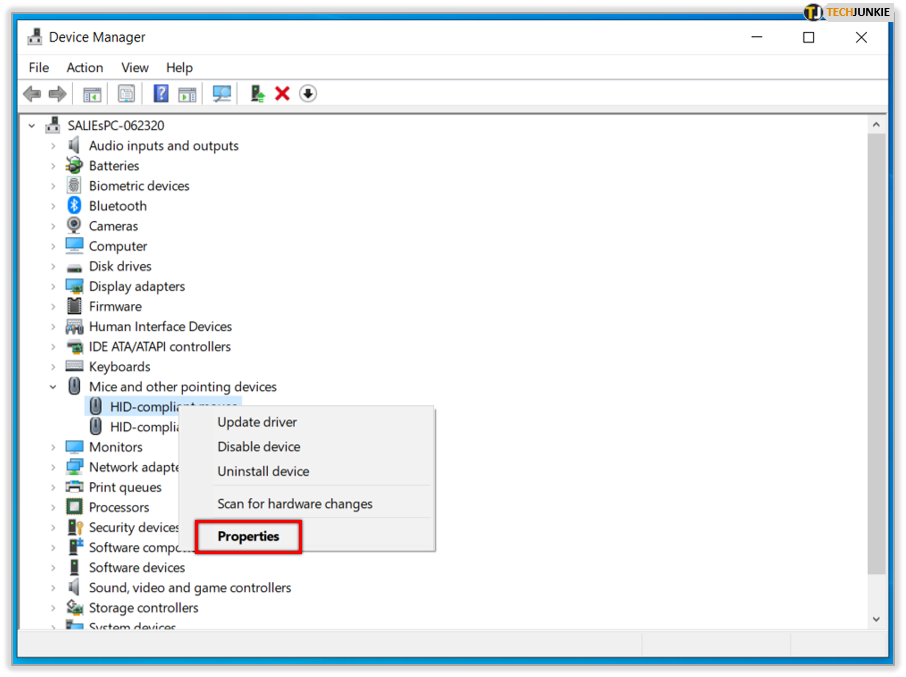
- Expand the category for the device you want to inspect (e.g., “Display adapters,” “Sound, video and game controllers”).
- Right-click on the specific device and select “Properties.”
- Go to the “Driver” tab. Here, you’ll find information such as the Driver Provider, Driver Date, and Driver Version. These details are critical for determining if your driver is up-to-date.
To update drivers via Device Manager:
- From the “Driver” tab in the device’s properties, click “Update Driver.”
- You’ll typically be given two options:
- “Search automatically for updated driver software”: Windows will attempt to find a newer driver online or in its own repository. While convenient, this often only finds generic or slightly older versions compared to manufacturer-specific updates.
- “Browse my computer for driver software”: This option is used when you have downloaded a specific driver file (usually an
.inffile) from the manufacturer’s website. You’ll need to point Windows to the folder where the driver files are located.
System Information and DirectX Diagnostic Tool (DxDiag)
While less direct for driver updates, these tools offer valuable diagnostic information.
- System Information (
msinfo32): To access, typemsinfo32in the Run dialog (Win + R) and press Enter. This utility provides an exhaustive overview of your system’s hardware and software configuration. Under “Software Environment” > “System Drivers,” you can find a list of all installed drivers with their paths, states, and versions. This is useful for auditing what drivers are present. - DirectX Diagnostic Tool (
dxdiag): Specifically useful for troubleshooting graphics and sound issues,dxdiagprovides detailed information about your display and sound drivers. To open it, typedxdiagin the Run dialog (Win + R) and press Enter. Navigate to the “Display” and “Sound” tabs to see the driver version and date for your graphics card and audio devices. This is particularly important for gamers or multimedia professionals.
Windows Update: An Automated but Limited Approach
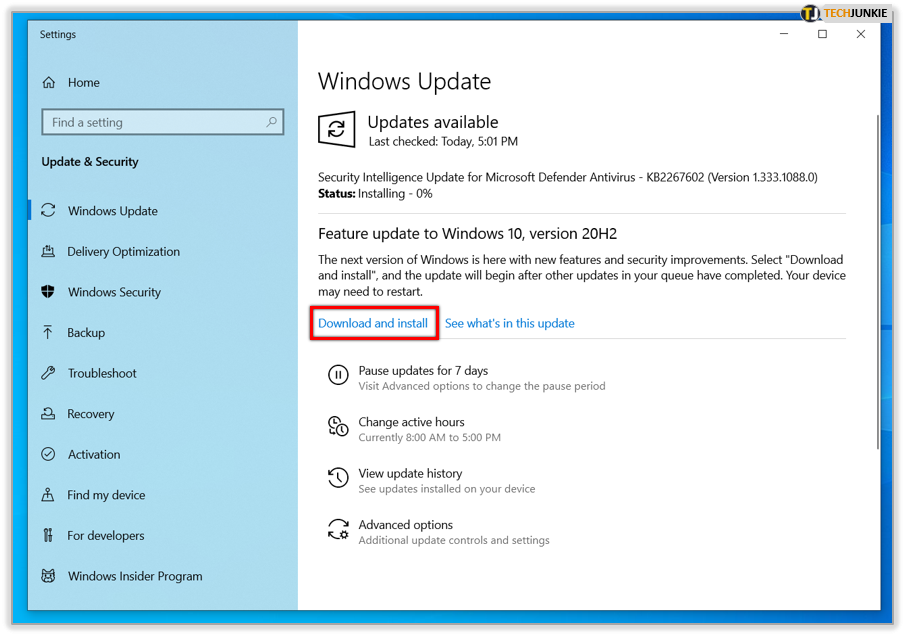
Windows Update automatically downloads and installs certain drivers as part of its regular updates. While this keeps essential system drivers current, it often doesn’t provide the absolute latest drivers for specialized hardware like high-performance graphics cards, which are best sourced directly from the manufacturer.
To check driver updates via Windows Update:
- Go to “Settings” (
Win + I). - Select “Windows Update.”
- Click “Check for updates.”
- Sometimes, critical driver updates will be listed as “Optional updates” under “Advanced options.” Review these to see if any hardware-specific drivers are offered.
Leveraging Manufacturer Support and Advanced Tools
For many critical components, especially graphics cards, chipsets, and network adapters, relying solely on Windows’ built-in tools might not be sufficient. Direct interaction with hardware manufacturers is often the most reliable path to the latest and most optimized drivers.
Visiting Manufacturer Websites: The Gold Standard
The most recommended and reliable method for acquiring driver updates is to download them directly from the original equipment manufacturer (OEM) or the component manufacturer’s website. This ensures you get drivers specifically designed for your hardware, often bundled with additional utility software.
To do this effectively, you need to know:
- Your computer’s make and model: For pre-built systems (Dell, HP, Lenovo, Acer, Asus, etc.), visit their support website, enter your service tag or model number, and navigate to the “Drivers & Software” section.
- Your component’s specific model: For custom-built PCs or individual component upgrades (e.g., NVIDIA GeForce RTX 3080, AMD Ryzen 7 5800X, Intel Wi-Fi 6 AX200), go to the respective manufacturer’s website (e.g., NVIDIA.com, AMD.com, Intel.com).
General Steps for Manufacturer Websites:
- Identify the specific hardware component you need a driver for.
- Go to the manufacturer’s official support or download page.
- Use their search function or navigation to find your product model.
- Select your operating system (e.g., Windows 10 64-bit).
- Download the latest recommended driver package.
- Always create a system restore point before installing new drivers.
- Run the installer, following the on-screen instructions. A clean installation option is often available for graphics drivers, which can help prevent conflicts.
Reputable Driver Update Utilities (with Caution)
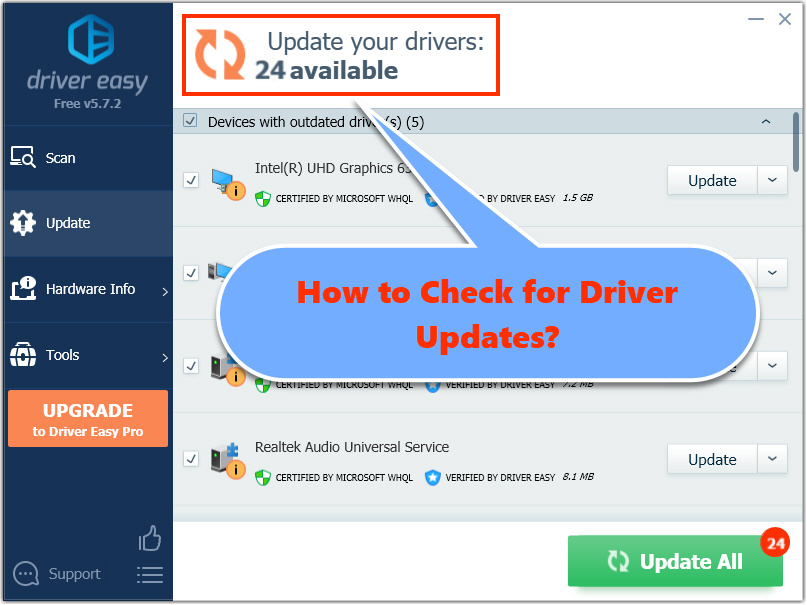
While primarily recommending manual updates from official sources, some users might consider third-party driver update utilities for convenience, especially when dealing with a large number of components or unfamiliar hardware.
Extreme Caution is advised. Many such tools can be problematic, potentially installing incorrect, outdated, or even malicious drivers. If you consider using one:
- Choose highly reputable tools: Research thoroughly and read reviews from trusted tech sites.
- Verify digital signatures: Legitimate drivers are digitally signed by their manufacturers. Check this in the driver properties.
- Always have a system restore point: Create one before running any third-party driver utility.
- Prefer tools that solely identify, not install: Some tools identify outdated drivers and provide links to official downloads, which is a safer approach than automatic installation.
- Avoid “free” tools that demand payment for updates: These are often predatory.
Backup and Restore Drivers
Before undertaking any significant driver updates, especially for critical components, it’s wise to have a backup strategy.
- System Restore Points: Windows System Restore is an invaluable feature. Before installing new drivers, create a manual restore point. If something goes wrong, you can revert your system to a previous stable state.
- Driver Backup Tools: Utilities like Double Driver can back up all your currently installed drivers to a specified folder. This allows you to reinstall them quickly if an update causes issues or you reinstall Windows.
Best Practices for Driver Management
Maintaining a healthy driver ecosystem is an ongoing process that extends beyond a single check. Adopting best practices ensures your PC remains stable and performs at its peak.
Regular Checks and Strategic Updates
- Frequency: Aim to check for critical driver updates (especially for graphics cards, chipsets, and network adapters) quarterly, or whenever you notice performance issues, encounter new software compatibility problems, or experience system instability.
- Event-Driven Updates: Always check for new drivers after a major operating system update (e.g., Windows 10 to Windows 11, or a large feature update for Windows 10). Also, if you install new hardware or experience a specific device malfunction, a driver update should be among your first troubleshooting steps.
Manual vs. Automatic Updates
For crucial components like your graphics card and motherboard chipset, manual updates from the manufacturer’s website are generally superior. They often provide the latest performance optimizations, bug fixes, and features that Windows Update might not offer. For less critical peripherals, allowing Windows Update to manage drivers is often sufficient. Balance convenience with control.
Always Prioritize Official Sources
Reiterate this golden rule: Always download drivers directly from the hardware manufacturer’s official website. This is the safest and most reliable way to ensure compatibility, stability, and security. Avoid generic driver download sites or unknown third-party sources.
Creating System Restore Points as a Safety Net
Before any significant driver installation or update, make it a habit to create a system restore point. This simple step can save you hours of troubleshooting if a new driver causes unforeseen problems. It provides a quick and easy way to roll back your system to a working configuration.
Uninstalling Old or Unused Drivers
Over time, your system can accumulate old or unused drivers, especially if you’ve swapped out hardware components. These can sometimes lead to conflicts or unnecessary resource consumption.
- Using Device Manager: In Device Manager, click “View” > “Show hidden devices.” This will display devices that are not currently connected but still have drivers installed. You can then uninstall drivers for devices you no longer use.
- Advanced Removal (
pnputil): For more advanced users, thepnputilcommand-line utility can be used to list (pnputil /enum-drivers) and uninstall (pnputil /delete-driver oem#.inf /uninstall) specific driver packages. Exercise caution when using this tool.
By systematically checking your PC drivers and adhering to these best practices, you empower yourself to maintain a robust, high-performing, and secure computing environment, preventing common issues before they escalate into major problems.
aViewFromTheCave is a participant in the Amazon Services LLC Associates Program, an affiliate advertising program designed to provide a means for sites to earn advertising fees by advertising and linking to Amazon.com. Amazon, the Amazon logo, AmazonSupply, and the AmazonSupply logo are trademarks of Amazon.com, Inc. or its affiliates. As an Amazon Associate we earn affiliate commissions from qualifying purchases.