
In the ever-evolving landscape of digital entertainment, streaming services have become indispensable for millions. YouTube TV, with its robust offering of live television, sports, and on-demand content, stands as a prime example. As with any subscription-based service, managing your account details, particularly your payment method, is a crucial aspect of maintaining uninterrupted access. Whether you’ve received a new credit card, wish to switch to a different banking option, or simply need to update expired details, understanding the precise steps involved ensures a smooth, hassle-free experience.
This guide will walk you through the technical process of updating your YouTube TV payment information. We’ll explore the reasons behind needing such a change, provide a detailed step-by-step tutorial, address common issues you might encounter, and offer best practices for managing your digital subscriptions securely and efficiently. By the end, you’ll be equipped with the knowledge to confidently manage your YouTube TV billing, ensuring your favorite shows and live events are always within reach.
Understanding the Necessity of Payment Method Updates
Maintaining accurate payment information isn’t just a matter of convenience; it’s fundamental to ensuring continuous service and preventing unexpected disruptions. Several common scenarios necessitate an update to your YouTube TV payment method, each carrying its own set of implications if not addressed promptly. Recognizing these situations can help users proactively manage their subscriptions and avoid service interruptions.
Expired Cards and Account Lapses
Perhaps the most frequent reason for updating payment information is the expiration of a credit or debit card. Financial institutions regularly issue new cards with updated expiration dates and sometimes new security codes (CVVs). When your current card on file with YouTube TV expires, any attempt to renew your subscription will fail, leading to an immediate suspension of service. This can be particularly frustrating if it occurs in the middle of a live sporting event or a binge-watching session. Proactive updating ensures that the system always has valid payment details, allowing for seamless monthly or annual renewals without user intervention.
Beyond simple expiration, cards can also be canceled due to loss, theft, or fraud. In such cases, the existing card on file becomes invalid, and updating your payment method swiftly is crucial not only for service continuity but also for safeguarding your financial security by removing compromised information from your digital accounts.
Switching to a Preferred Payment Method
Users often have multiple payment options at their disposal, such as different credit cards, debit cards, or PayPal accounts. There might be strategic reasons for wanting to switch from one to another. For instance, you might want to consolidate your streaming service payments onto a specific card that offers better rewards points for entertainment spending, or perhaps you’ve opened a new bank account and prefer to link your recurring payments to it.
Conversely, you might decide to remove a particular payment method that you no longer wish to use for recurring charges, or one that is associated with a joint account you no longer manage solo. The flexibility to choose and modify your preferred payment method empowers users to better manage their personal finances and align their digital spending with their broader financial strategies, without YouTube TV directly interfering with the financial decision-making but providing the technical pathway.
Managing Multiple Subscriptions and Billing Cycles
For many, YouTube TV is just one of several digital subscriptions. Efficiently managing these services often involves aligning billing cycles or payment methods to simplify oversight. You might prefer to have all your entertainment subscriptions charged to one card to simplify budgeting or tracking. Or, if you’re a household with shared finances, you might want to ensure YouTube TV is billed to a specific joint account.
Furthermore, some users might want to utilize temporary or virtual cards for subscriptions for enhanced security or to manage spending limits. The ability to easily add and remove these temporary solutions ensures that your subscription remains active while offering advanced security features that many modern payment technologies provide. Properly managing these details through YouTube TV’s account settings is a core technical task for any digital consumer in today’s subscription economy.
Step-by-Step Guide to Updating Your Payment Method on YouTube TV
The process for changing your YouTube TV payment method is straightforward and primarily managed through your Google Account, as YouTube TV is a Google service. This centralization streamlines the process for anyone already familiar with Google’s ecosystem. Following these steps will ensure your payment information is updated accurately and securely.
Accessing Your Google Account Settings
Your journey to updating YouTube TV payment details begins at the heart of your digital identity: your Google Account. It’s the central hub for all Google services, including YouTube, Gmail, Google Drive, and, crucially, YouTube TV.
- Open a web browser: While you can manage some aspects of YouTube TV through its mobile app, for payment method changes, using a web browser on a computer or mobile device offers the most comprehensive and stable experience.
- Navigate to YouTube TV: Go to tv.youtube.com. Ensure you are signed in with the Google Account associated with your YouTube TV subscription. If you’re not signed in, you’ll be prompted to do so.
- Access Settings: In the top-right corner of the YouTube TV interface, click on your profile picture (or initial). A dropdown menu will appear. Select “Settings.”
Navigating to Subscriptions & Services
Once you’re in the YouTube TV settings, you’ll find various categories related to your account, preferences, and billing. The goal is to locate the section dedicated to managing your subscription and its associated payment methods.
- Locate “Membership”: Within the “Settings” menu, you’ll see several tabs on the left-hand side (or top, depending on your device). Look for and click on the “Membership” or “Billing” tab. This section provides an overview of your current YouTube TV plan and your billing details.
- Manage Google Payments: Under the “Membership” section, you’ll typically see details about your current plan, the next billing date, and an option to “Manage Google Payments” or “Update payment method.” This link will redirect you to your Google Pay account settings, where all your saved payment methods across Google services are stored. This redirection is a key security feature, ensuring that sensitive payment data is handled by Google’s dedicated payment system, Google Pay.
Modifying Payment Details
Upon reaching the Google Pay interface, you’ll see a list of all payment methods currently associated with your Google Account. Here, you have the flexibility to update existing information or add entirely new payment options.
- Select the Payment Method to Edit: If you need to update an existing card (e.g., changing its expiration date or CVV), find that specific card in the list. Click on it, and you should see an option to “Edit” or “Update.” Input the new details carefully. This is crucial for expired cards that are otherwise still valid.
- Confirm Changes: After making any edits, always ensure you click “Save” or “Update” to apply the changes. The system will typically confirm the update.
Adding a New Payment Method
Sometimes, rather than editing an existing method, you’ll want to add a completely new one, perhaps a different credit card or a new bank account for payments.
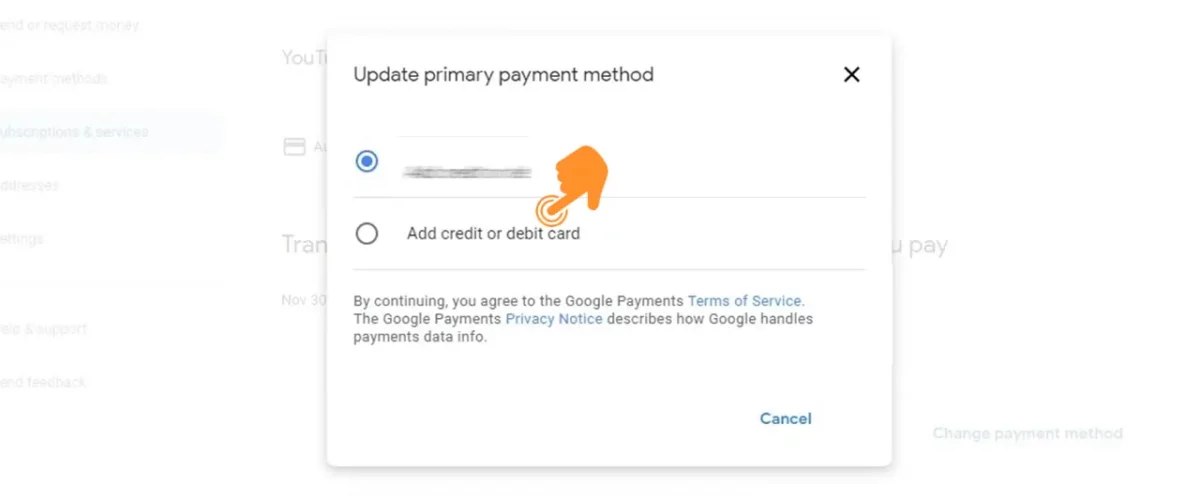
- Click “Add payment method”: On the Google Pay page, you’ll find an option to “Add payment method.” Click this to begin the process.
- Choose Payment Type: You’ll be prompted to select the type of payment method you wish to add (e.g., “Add a credit or debit card” or “Add bank account”).
- Enter Details: Carefully input all the required information for the new payment method: card number, expiration date, CVV, and billing address. For bank accounts, this would involve account and routing numbers.
- Verification (if applicable): Depending on the payment method and your bank, Google Pay might require a quick verification step, such as a small temporary charge to your card or bank account that you’ll need to confirm. This is a security measure.
- Set as Primary (Optional): Once the new payment method is added, you can set it as the primary payment method for your YouTube TV subscription. On the Google Pay page, next to the newly added method, look for an option like “Set as primary” or ensure it’s selected for your YouTube TV subscription.
Removing an Old Payment Method
After successfully adding a new payment method or if you simply no longer wish for a particular card to be associated with your Google Account, you can remove it.
- Select the Method to Remove: On the Google Pay page, locate the payment method you wish to remove.
- Click “Remove”: You’ll typically find a “Remove” or “Delete” option associated with that payment method. Confirm your decision when prompted.
- Important Note: Ensure the payment method you are removing is not currently set as the primary payment method for your active YouTube TV subscription. If it is, you’ll need to set a different payment method as primary first before you can remove the old one. This prevents unintended service interruption.
Common Challenges and Troubleshooting Tips
While changing your payment method is generally straightforward, technical glitches or user errors can occasionally arise. Knowing how to diagnose and address these common challenges can save you time and frustration.
Payment Method Not Accepted
One of the most frequent issues is when a newly entered payment method is declined or not accepted by the system.
- Double-check details: The most common culprit is a simple typo. Re-verify the card number, expiration date, CVV, and billing address. Even a single incorrect digit can lead to a rejection.
- Insufficient funds/credit limit: Ensure the card has sufficient funds or credit available, especially if it’s a prepaid card or if your credit limit is near its maximum. While the initial payment isn’t immediate, the system often performs a small authorization check.
- Bank or card issuer restrictions: Your bank might have security protocols that block online transactions or new subscription charges, especially if it’s an international transaction or a new merchant. Contact your bank or card issuer to confirm there are no holds or restrictions on your card.
- Card type not supported: While rare for major cards, confirm that YouTube TV (or Google Pay) accepts your specific card type (e.g., certain regional debit cards might not be universally accepted).
- Expired or invalid card: Even if you think it’s new, double-check the physical card for its expiration date.
Difficulty Locating Settings
Sometimes, navigating through various menus can be confusing, especially if the user interface has recently updated or if you’re using an unfamiliar device.
- Use the correct account: Ensure you are logged into the specific Google Account that holds the YouTube TV subscription. Many users have multiple Google accounts, and accessing the wrong one will show no subscription.
- Clear browser cache and cookies: Outdated cached data can sometimes interfere with page loading or displaying the correct menu options. Clearing your browser’s cache and cookies, or trying an incognito/private browsing window, can resolve this.
- Try a different browser or device: If you’re encountering issues on one browser or device, attempt the process on another (e.g., switch from Chrome to Firefox, or from a desktop to a laptop).
- Official support pages: If all else fails, refer to Google’s official YouTube TV or Google Pay help pages. They often provide up-to-date visual guides and specific troubleshooting steps.
Changes Not Reflecting Immediately
After updating your payment information, you might not see the changes immediately reflected on your YouTube TV billing page, or you might still receive notifications about a past-due payment.
- Patience is key: It can sometimes take a few minutes for changes made in Google Pay to propagate across all associated Google services, including YouTube TV. Give it some time (15-30 minutes) before panicking.
- Refresh the page/relaunch app: Simply refreshing the web page or closing and reopening the YouTube TV app can often force it to fetch the latest account data.
- Check payment method status in Google Pay: Return to the Google Pay section and confirm that your new payment method is indeed marked as the primary one for YouTube TV and that the old one (if removed) is no longer listed.
- Review billing history: Check your YouTube TV billing history. It should eventually show the upcoming charge being processed with the new payment method. If a payment was pending, the system should retry with the updated details.
Device-Specific Issues
While web browsers are generally recommended, some users might attempt to make changes via the YouTube TV app on smart TVs, gaming consoles, or mobile devices.
- App limitations: Be aware that not all YouTube TV apps (especially on smart TVs or dedicated streaming devices) offer full account management functionality. They often redirect you to a web browser for sensitive actions like payment changes.
- Mobile app vs. browser: While the YouTube TV mobile app does offer some settings, for critical financial changes, it’s often more reliable to use a mobile web browser and follow the desktop steps.
- Outdated app version: Ensure your YouTube TV app is updated to the latest version. Older versions might have bugs or lack the necessary integration for smooth payment management.
Best Practices for Managing Digital Subscriptions
Beyond the immediate task of updating a payment method, adopting broader best practices for managing all your digital subscriptions can significantly enhance your security, financial oversight, and overall user experience. This holistic approach ensures not only continuity of service but also peace of mind.
Regular Review of Payment Methods
Periodically auditing your saved payment methods across all your digital services, not just YouTube TV, is a smart habit.
- Annual check-up: Make it a habit to review your saved cards and bank accounts at least once a year. Remove any expired, unused, or compromised payment methods.
- Consolidate where possible: If you have multiple cards linked, consider if fewer, carefully chosen methods could simplify management and potentially leverage rewards programs more effectively.
- Dedicated card for subscriptions: Some users opt for a dedicated credit card solely for recurring subscriptions. This makes it easier to track spending and isolate potential fraudulent activity.
Utilizing Strong Security Practices
Protecting your payment information extends beyond just updating details; it involves robust security habits.
- Strong, unique passwords: Ensure your Google Account (and all other online accounts) uses a strong, unique password. Never reuse passwords across different services.
- Two-Factor Authentication (2FA): Enable 2FA on your Google Account. This adds an extra layer of security, requiring a second verification step (like a code from your phone) in addition to your password, making it significantly harder for unauthorized users to access your account.
- Beware of phishing: Be extremely cautious of emails or messages asking for your payment information directly. Google will never ask for your full card number via email. Always navigate directly to the official YouTube TV or Google Pay website to make changes.
- Monitor statements: Regularly review your bank and credit card statements for any unauthorized charges. Report suspicious activity immediately.
Understanding Billing Cycles and Auto-Renewal
A clear understanding of how and when you’re billed can prevent surprises and help you manage your budget more effectively.
- Know your billing date: Be aware of your YouTube TV’s monthly or annual billing date. This helps you ensure funds are available and anticipate charges.
- Auto-renewal defaults: Most subscription services, including YouTube TV, are set to auto-renew by default. This is convenient for continuous service but means you’ll keep being charged until you manually cancel. If you’re considering pausing or canceling, ensure you do so before the next billing cycle.
- Cancellation process: Familiarize yourself with the cancellation process for YouTube TV. While this article focuses on payment methods, knowing how to cancel if needed is part of comprehensive subscription management.
Keeping an Eye on Promotional Offers
While not directly related to changing a payment method, staying informed about promotions can indirectly influence your payment strategy.
- Trial periods: Many services offer free trial periods. Be mindful of when these trials end, as your chosen payment method will be charged automatically unless you cancel beforehand.
- Bundles and discounts: Google (and partners) sometimes offer bundles or discounts for using specific payment methods or signing up for longer terms. While not a primary driver for payment changes, it’s worth being aware of these opportunities.
The Broader Implications of Seamless Payment Management
Successfully managing your YouTube TV payment method, and by extension, all your digital subscriptions, offers benefits that extend beyond mere technical proficiency. It’s about empowering you as a consumer in a digital-first world, enhancing your user experience, and streamlining your entire digital life.
Enhancing User Experience
A smooth payment management process directly contributes to a superior user experience. When payment methods are up-to-date and easily changeable, subscribers face fewer interruptions, less frustration, and can focus on enjoying the content they pay for. This reliability builds trust in the service provider and minimizes the technical friction that can often detract from the overall enjoyment of digital products. The ability to quickly update details means an expired card doesn’t mean missing the crucial moments of a live game or the latest episode of a favorite series.
Streamlining Digital Life
In an age where digital subscriptions permeate every aspect of our lives—from entertainment to productivity software—the ability to efficiently manage these recurring payments is paramount. Knowing how to change a payment method for one service translates into confidence for managing others. It’s a foundational tech skill that helps streamline financial oversight, enhance digital security, and ultimately, bring a greater sense of control to one’s online presence. By mastering the technicalities of payment management, users are better equipped to navigate the complexities of the digital economy, ensuring their subscriptions serve their needs without becoming a source of stress or unexpected expenses.
In conclusion, updating your YouTube TV payment method is a straightforward but essential task for any subscriber. By understanding the reasons, following the clear steps outlined, troubleshooting common issues, and adopting best practices for digital subscription management, you can ensure uninterrupted access to your favorite content and maintain optimal control over your digital financial footprint.
aViewFromTheCave is a participant in the Amazon Services LLC Associates Program, an affiliate advertising program designed to provide a means for sites to earn advertising fees by advertising and linking to Amazon.com. Amazon, the Amazon logo, AmazonSupply, and the AmazonSupply logo are trademarks of Amazon.com, Inc. or its affiliates. As an Amazon Associate we earn affiliate commissions from qualifying purchases.