
In an increasingly digital world, managing your online security is paramount. For millions of users, YouTube TV has become a primary source of entertainment, news, and live sports. As with any online service that holds personal information and requires subscription payments, safeguarding your YouTube TV account is crucial. This often begins with the simplest yet most effective line of defense: your password. This comprehensive guide will walk you through the process of changing your YouTube TV password, delve into why regular password management is essential, and explore additional security measures to keep your streaming experience secure and uninterrupted.
The Indispensable Role of Robust Password Management
The digital landscape is a dynamic environment, constantly evolving with new threats and vulnerabilities. While the convenience of online services like YouTube TV is undeniable, it comes with the responsibility of maintaining vigilant digital security. Your password is the primary key to your account, and its strength and how often it’s updated directly correlate with your account’s resilience against unauthorized access.
Bolstering Your Digital Defenses
Think of your password as the lock on your digital front door. A strong, unique password acts as a robust lock, making it significantly harder for malicious actors to gain entry. Regularly changing this “lock” adds another layer of defense, mitigating the risk even if your current password somehow becomes compromised. This proactive approach significantly reduces the window of opportunity for cybercriminals, protecting your personal data, viewing preferences, and billing information linked to your YouTube TV account via your Google profile. It’s not just about preventing direct access to your streaming service; it’s about protecting the broader Google ecosystem that your YouTube TV account is integrated with.
The Risks of Complacency
The dangers of neglecting password hygiene are multifaceted. Weak, reused, or outdated passwords are prime targets for various cyberattacks, including brute-force attempts, credential stuffing, and phishing scams. If a hacker gains access to your YouTube TV account, they could potentially:
- Disrupt your service: Change settings, cancel subscriptions, or incur unauthorized charges.
- Access personal information: While YouTube TV primarily focuses on entertainment, your linked Google account holds a wealth of sensitive data.
- Launch further attacks: Use your compromised account as a springboard to access other connected services if you reuse passwords.
- Spread malware or spam: Utilize your account to distribute malicious content to your contacts or through community features.
The ripple effect of a single compromised password can extend far beyond a mere inconvenience, impacting your privacy and financial security across multiple platforms.
When to Change Your Password Proactively
While a general recommendation is to change important passwords every 3 to 6 months, certain situations warrant immediate action:
- After a data breach: If you receive a notification that a service you use has experienced a data breach, even if it’s not YouTube TV directly, change your passwords for all connected services, especially if you’ve reused passwords.
- Suspicious activity: If you notice unusual viewing history, settings changes, or login attempts from unfamiliar locations on your YouTube TV or Google account.
- Sharing access: If you’ve previously shared your password with a friend or family member and no longer wish for them to have access.
- Using public computers: After logging into your account from a public computer or a device that isn’t yours.
- Periodically, as a best practice: Even without specific triggers, regular updates reinforce your security posture.
Step-by-Step Guide to Changing Your YouTube TV Password
It’s important to understand that YouTube TV is a service provided by Google. Therefore, your YouTube TV password is the same as your Google account password. To change your YouTube TV password, you’ll need to update your Google account password. This integrated approach ensures a seamless experience across all Google services, from Gmail and Google Drive to YouTube and YouTube TV.
Accessing Your Google Account Settings
The first step is to navigate to your Google Account settings, which serves as the central hub for managing all aspects of your Google profile, including security.
- Open your web browser: On your computer or mobile device, go to myaccount.google.com.
- Sign in (if prompted): If you’re not already signed in, enter the email address or phone number associated with your YouTube TV/Google account and your current password.
- Navigate to the Security tab: On the left-hand navigation panel (or often at the top on mobile), you’ll see several options like “Home,” “Personal info,” “Data & privacy,” and “Security.” Click or tap on “Security.”
Navigating to the Security Section
Once you’re in the Security section of your Google Account, you’ll find a wealth of options for managing your account’s safety.
- Find “How you sign in to Google”: Scroll down until you locate the “How you sign in to Google” box.
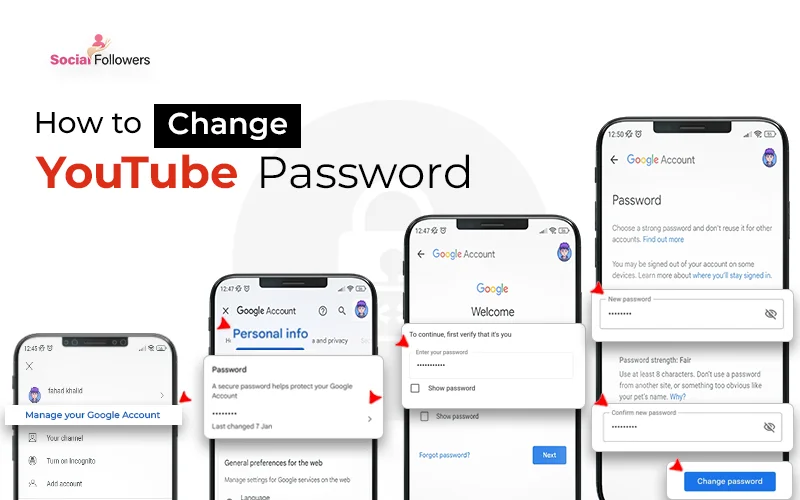
- Select “Password”: Within this box, you’ll see “Password” listed, often accompanied by the date you last changed it. Click or tap on this option.
- Re-authenticate: For security reasons, Google will ask you to re-enter your current password to confirm it’s truly you making the change. Enter your current password and click “Next.” This prevents unauthorized users from changing your password even if they briefly gain access to your open browser.
Executing the Password Change
With your identity re-authenticated, you can now proceed with setting your new password.
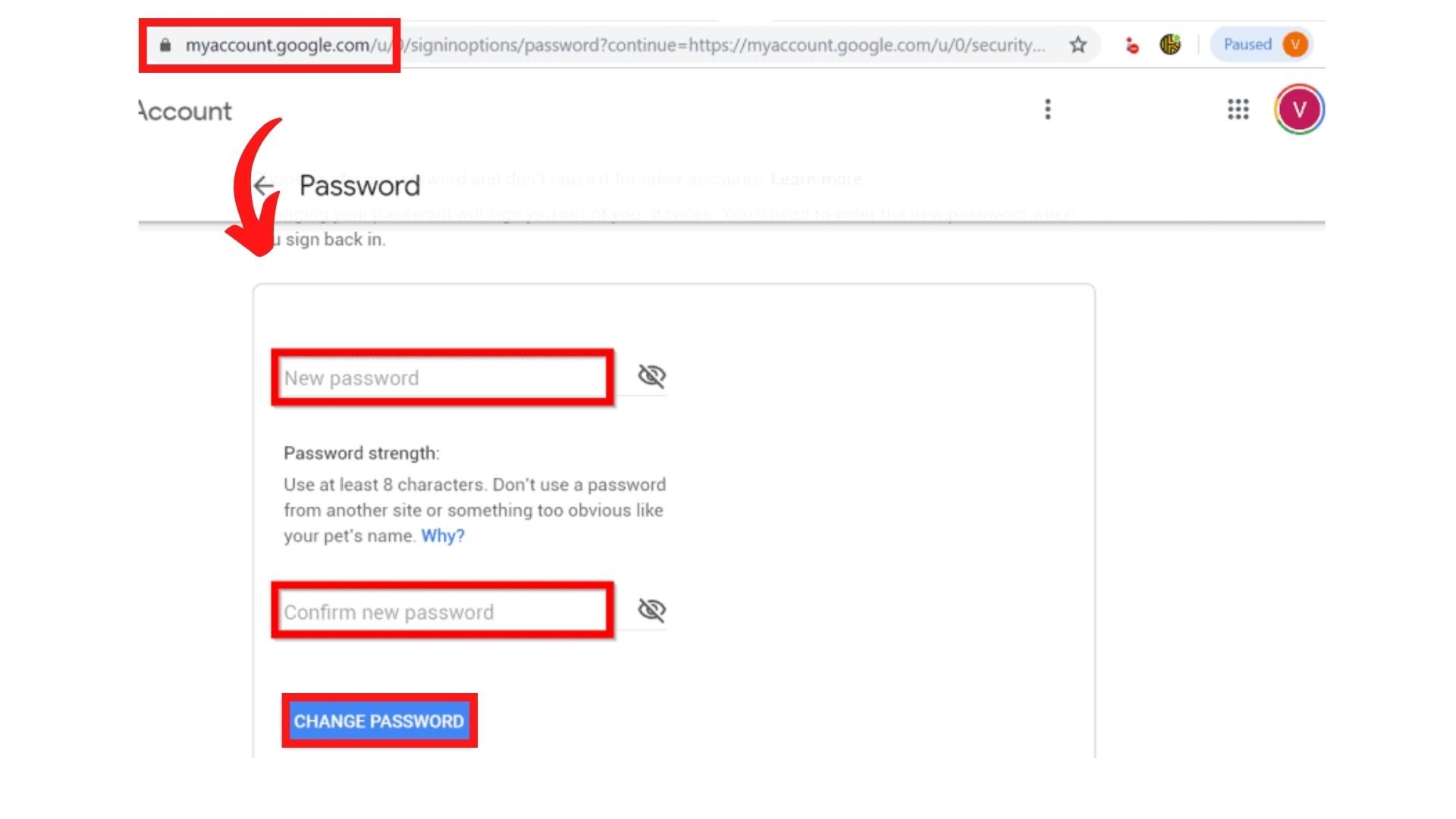
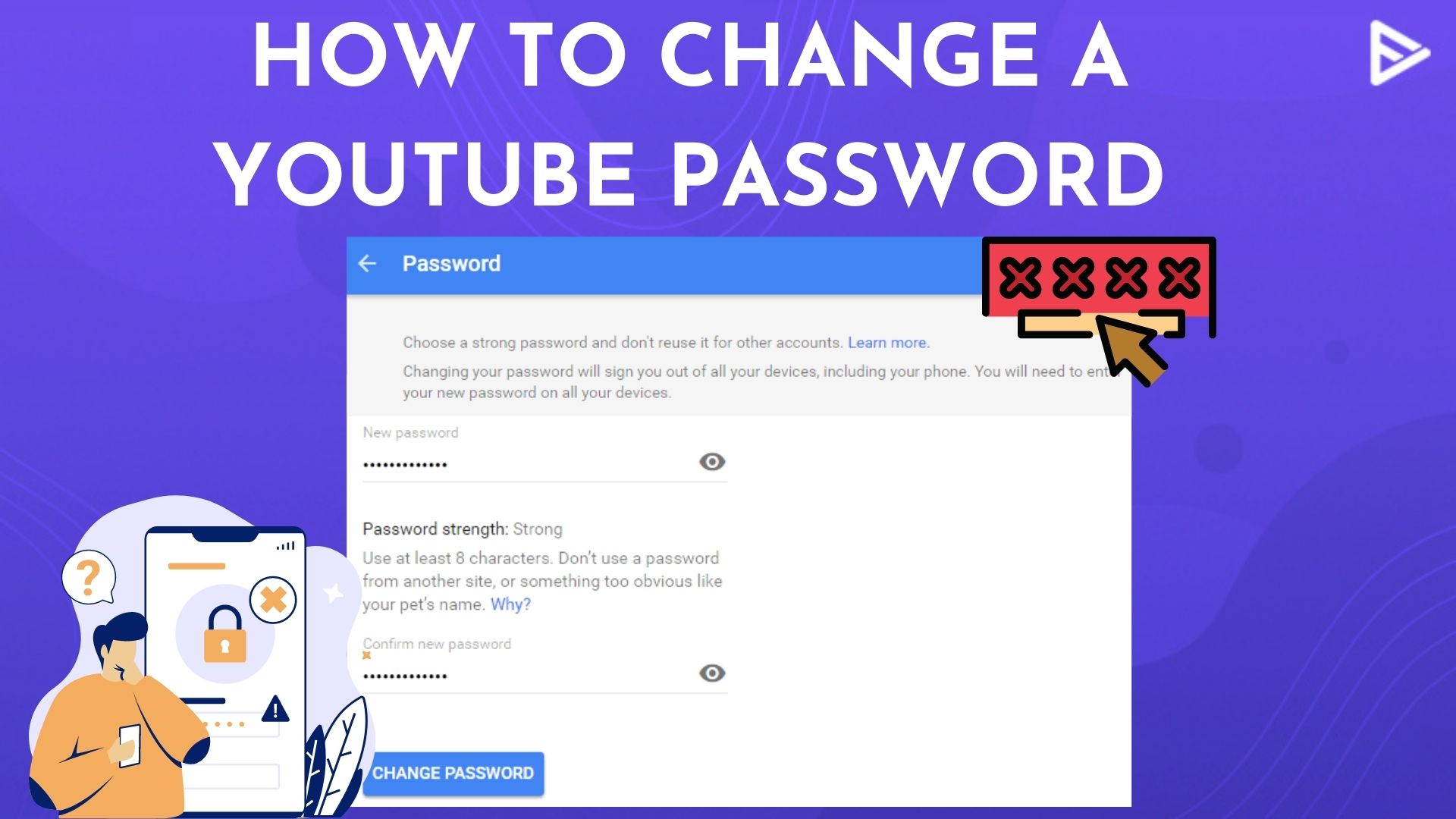
- Enter your new password: You’ll be presented with two fields: “New password” and “Confirm new password.” Enter your desired new password in both fields. Ensure it meets Google’s strength requirements, which typically involve a combination of uppercase and lowercase letters, numbers, and symbols. Google will usually provide a strength indicator to help you create a robust password.
- Click “Change Password”: Once you’ve entered and confirmed your new password, click the “Change Password” button.
- Confirmation: Google will confirm that your password has been successfully changed. You might also receive a security notification via email or on your other logged-in devices, informing you of the password change. This is a normal security measure to alert you in case someone else changed your password without your knowledge.
Confirming and Securing Your Account
After changing your password, take a moment to ensure everything is in order.
- Review other security settings: While you’re in the Security section, it’s an excellent opportunity to review other vital settings like “2-Step Verification” (highly recommended), “Recovery phone,” and “Recovery email.”
- Sign out of other devices (optional but recommended): If you suspect unauthorized access or have logged into your YouTube TV/Google account on public or shared devices, you can choose to sign out of all other sessions. In your Google Account’s Security section, look for “Your devices” and click “Manage all devices.” From there, you can review active sessions and sign out of any suspicious or unwanted ones.
- Test your new password: Log out of YouTube TV and then log back in using your new password to ensure it works correctly.
Crafting a Strong, Memorable Password
Changing your password is only half the battle; creating a strong one is the other, equally critical half. A weak password negates the benefit of even frequent changes. The goal is to create a password that is complex enough to deter automated attacks yet simple enough for you to remember without writing it down.
The Anatomy of a Robust Password
A truly strong password exhibits several key characteristics:
- Length: Aim for at least 12-16 characters, though longer is always better. The longer the password, the exponentially more difficult it is to crack.
- Variety: Incorporate a mix of uppercase letters (A-Z), lowercase letters (a-z), numbers (0-9), and symbols (!@#$%^&*).
- Uniqueness: Never reuse passwords across different accounts. If one service is breached, all accounts with the same password become vulnerable.
- Randomness: Avoid easily guessable information like your name, birthdate, pet’s name, common dictionary words, or sequential numbers/letters (e.g., “password123”).
Strategies for Memorization
Memorizing complex passwords can be challenging, but several techniques can help:
- Passphrases: Instead of a single word, use a string of unrelated words that form a memorable sentence, then add variations. For example, “My blue cat loves to play with a red laser!” could become “MbcLtPwaRl!7.”
- Acronyms: Take the first letter of each word in a phrase and substitute some letters with numbers or symbols. E.g., “I went to the store to buy 3 apples” could be “IwtTS2b3A!”
- Mnemonics: Associate parts of the password with vivid mental images or stories.
- Password Managers: For ultimate security and convenience, consider using a reputable password manager (e.g., LastPass, 1Password, Bitwarden). These tools securely store all your unique, complex passwords, requiring you to remember only one master password. This is considered a best practice in digital security.
Avoiding Common Password Pitfalls
Steer clear of these common mistakes that weaken your passwords:
- Reusing passwords: The single biggest mistake users make.
- Using personal information: Anything easily found on your social media or public records.
- Sequential patterns: “123456,” “abcdef,” “qwerty.”
- Common words or phrases: Dictionary words are easily guessed or found in rainbow tables.
- Writing passwords down: Especially on sticky notes near your computer or in unencrypted files. If you must write them down, keep them in a secure, physical location.
Advanced Security Measures for Your YouTube TV Account
Changing your password is an excellent start, but Google provides even more robust layers of security that YouTube TV users should leverage. These measures provide crucial backup defenses in case your password is ever compromised.
Enabling Two-Factor Authentication (2FA)
This is perhaps the most critical additional security step you can take. 2FA (or 2-Step Verification, as Google calls it) requires a second form of verification beyond just your password. Even if a malicious actor somehow gets your password, they still won’t be able to access your account without this second factor.
- How it works: After entering your password, Google will send a code to your phone (via SMS), prompt you to approve a login attempt through the Google app, or ask for a code from an authenticator app (e.g., Google Authenticator).
- Activation: In your Google Account’s “Security” section, look for “2-Step Verification” and follow the prompts to set it up. It typically involves verifying your phone number.
- Benefits: Dramatically reduces the risk of unauthorized access, even if your password is stolen.
Regularly Reviewing Connected Devices
Your Google Account’s “Your devices” section offers a complete overview of all devices currently logged into your account. This includes phones, tablets, computers, and smart TVs where you’ve used your YouTube TV or other Google services.
- What to look for: Any unfamiliar devices, old devices you no longer own, or devices logged in from unusual locations.
- Action: If you find anything suspicious, you can remotely sign out of that device directly from this page. This immediately revokes access from that particular device. This is especially useful if you’ve sold a device or lost one.
Understanding Google’s Security Checkup
Google offers a “Security Checkup” tool within your Google Account settings, which is like a personalized security audit. It provides actionable recommendations to improve your account’s safety.
- What it checks: It reviews your security event history, connected third-party apps, saved passwords, 2-Step Verification status, and more.
- Benefits: It helps you quickly identify and fix potential vulnerabilities, such as weak passwords, unnecessary app permissions, or inactive recovery options. Performing this checkup periodically ensures you’re always aware of your security posture.
Troubleshooting Common Password Issues
Even with the best intentions, you might encounter issues related to your YouTube TV/Google account password. Knowing how to troubleshoot these common problems can save you time and frustration.
What if You Forget Your Password?
It happens to the best of us. If you can’t remember your password, Google’s account recovery process is designed to help you regain access securely.
- Go to Google’s Account Recovery page: Navigate to accounts.google.com/signin/recovery.
- Enter your email or phone number: Provide the email address or phone number associated with your YouTube TV/Google account.
- Follow the prompts: Google will ask a series of questions to verify your identity. This might include:
- Entering the last password you remember.
- Sending a code to your recovery phone number or email address.
- Asking a security question you set up.
- Prompting you to verify through a device you’re currently logged into.
- Create a new password: Once your identity is confirmed, you’ll be able to set a new password. Make it strong and unique!
Dealing with Account Lockouts
Sometimes, too many failed login attempts or suspicious activity might lead Google to temporarily lock your account to prevent unauthorized access.
- Wait it out: Often, temporary lockouts resolve themselves after a few hours.
- Use account recovery: If waiting doesn’t work, proceed with the account recovery steps mentioned above. Google’s recovery process is designed to distinguish between legitimate users and potential intruders.
- Contact Google Support (as a last resort): If you exhaust all automated recovery options and still can’t access your account, you might need to reach out to Google’s support channels. Be prepared to provide as much verifiable information as possible to prove your ownership.
Recognizing Phishing Attempts
Phishing is a deceptive tactic where attackers try to trick you into revealing your login credentials by impersonating legitimate entities. You might receive emails or messages that look like they’re from Google or YouTube TV, asking you to “verify your account” or “update your billing information.”
- Red flags:
- Suspicious sender email addresses (e.g.,
support@youtube-tv-secure.cominstead ofsupport@youtube.com). - Generic greetings (“Dear User” instead of your name).
- Urgent or threatening language (“Your account will be suspended!”).
- Links that point to unfamiliar URLs (hover over links to see the actual destination without clicking).
- Poor grammar or spelling.
- Suspicious sender email addresses (e.g.,
- Best practice: Never click on links in suspicious emails. Instead, if you receive a request to update information, manually go to the official YouTube TV or Google website (myaccount.google.com) by typing the URL directly into your browser and log in there to check for any alerts or required actions.
By understanding the process of changing your YouTube TV password, appreciating the vital role of strong password hygiene, leveraging Google’s advanced security features, and knowing how to troubleshoot common issues, you can ensure your streaming experience remains secure, private, and enjoyable. Your digital security is a continuous effort, and taking these steps is a significant leap towards a safer online presence.
aViewFromTheCave is a participant in the Amazon Services LLC Associates Program, an affiliate advertising program designed to provide a means for sites to earn advertising fees by advertising and linking to Amazon.com. Amazon, the Amazon logo, AmazonSupply, and the AmazonSupply logo are trademarks of Amazon.com, Inc. or its affiliates. As an Amazon Associate we earn affiliate commissions from qualifying purchases.