
YouTube TV has revolutionized the way many households access live television, offering a robust package of channels, unlimited DVR, and the flexibility of streaming across various devices. However, a core aspect of its functionality, and often a source of confusion for users, revolves around location. Unlike traditional cable, which is tied to a physical address, YouTube TV leverages your digital location—primarily your IP address and device location services—to determine the local channels and regional content available to you. Understanding how to manage and, when necessary, change this location is crucial for an optimal viewing experience, especially for users who move or travel frequently.
This guide delves deep into the mechanics of YouTube TV’s location-based service, providing clear, actionable steps for updating your home area, navigating travel scenarios, and troubleshooting common issues. By mastering these technical aspects, you can ensure consistent access to your preferred local news, sports, and entertainment, wherever you are.
The Geographic Core of YouTube TV: Understanding Your Home Area
At its heart, YouTube TV is designed to replicate the traditional broadcast television experience, but delivered over the internet. This fundamental design choice means that geographic location plays an indispensable role in defining the content you receive. Your “home area” is the cornerstone of your YouTube TV subscription, dictating the availability of specific channels and regional programming.
Why Your Location Matters for Content Access
The most significant impact of your YouTube TV location is on your access to local affiliate channels. These include major broadcast networks like ABC, CBS, FOX, and NBC, along with their associated sub-channels and regional sports networks (RSNs). Broadcasters and sports leagues hold exclusive rights to distribute content within specific geographical territories. YouTube TV, as a legitimate service, must adhere to these licensing agreements.
This means that if you’re in New York City, you’ll receive the NYC affiliates. If you move to Los Angeles, you’d expect to receive LA affiliates. Furthermore, live sports often come with “blackout” restrictions, where specific games are unavailable in certain regions to protect local broadcasters or in-market rights holders. Your YouTube TV location is the primary determinant of whether you fall within a blackout zone, making it a critical factor for sports enthusiasts. Without correctly setting your home area, you might miss out on essential local news, weather, or critical sports matchups relevant to your community.
How YouTube TV Determines Your Home Location
YouTube TV employs a multi-faceted approach to pinpoint your home location, ensuring accuracy and compliance with content distribution rights. Primarily, it relies on your IP address. Your internet service provider (ISP) assigns an IP address to your network, which broadly indicates your geographic region. YouTube TV cross-references this IP address with its database to identify your general vicinity.
Beyond the IP address, if you’re accessing YouTube TV via a mobile device or a streaming device with built-in GPS capabilities, the service may also request access to your device’s precise location services. This adds an extra layer of verification, especially when you’re initially setting up or attempting to change your home area. It’s a robust system designed to prevent subscribers from easily circumventing regional restrictions, ensuring fair play for content providers and rights holders. When you first sign up for YouTube TV, your home area is automatically set based on your detected location at that time.
Distinguishing Home Area from Current Playback Area
It’s crucial to differentiate between your “home area” and your “current playback area.” Your home area is the permanent, billing-related location tied to your subscription, defining your core channel lineup and local content. Your current playback area, conversely, is your temporary physical location when you’re traveling.
YouTube TV allows subscribers to travel within the United States and still access their service. When you’re away from your home area, YouTube TV will detect your new temporary location and adjust some of the available content. You will typically gain access to the local broadcast channels (ABC, CBS, FOX, NBC) of the city you’re currently visiting. However, your DVR recordings remain accessible from your home market, and certain regional sports networks or other channels may still be tied to your home area. This “travel mode” is designed for temporary stays, offering flexibility without requiring a complete change of your permanent subscription details. It’s a thoughtful feature that caters to modern, mobile lifestyles while upholding geographic content restrictions.
Step-by-Step: Updating Your YouTube TV Home Location
Changing your home location on YouTube TV is a straightforward process, but it comes with certain prerequisites and limitations. It’s essential to understand these before attempting to update your settings to avoid frustration.
Prerequisites and Important Considerations Before You Begin
Before you initiate a home area change, ensure you meet the following conditions:
- Physical Presence: You must be physically located within the new desired home area at the time of the change. YouTube TV uses your current IP address and potentially device location to verify your new residence. You cannot, for example, change your home area to a different state while still physically in your old state.
- Frequency Limits: YouTube TV imposes limits on how frequently you can change your home area. Typically, you can update your home location only twice within a 12-month period. This restriction is in place to prevent misuse of the service and frequent circumvention of regional content agreements. If you try to change it more often, you will be blocked and see a message indicating when you can attempt it again.
- Active Internet Connection: Ensure you have a stable internet connection at your new physical location.
- Device Location Services: For mobile devices or certain streaming players, ensure location services are enabled for the YouTube TV app.
Changing Your Location via a Web Browser (Desktop/Laptop)
This is often the most reliable method for updating your home area:
- Access YouTube TV: Open a web browser (Chrome, Firefox, Edge, Safari) and go to tv.youtube.com. Log in to your Google account associated with your YouTube TV subscription.
- Navigate to Settings: In the top right corner of the page, click on your profile picture. From the dropdown menu, select “Settings.”
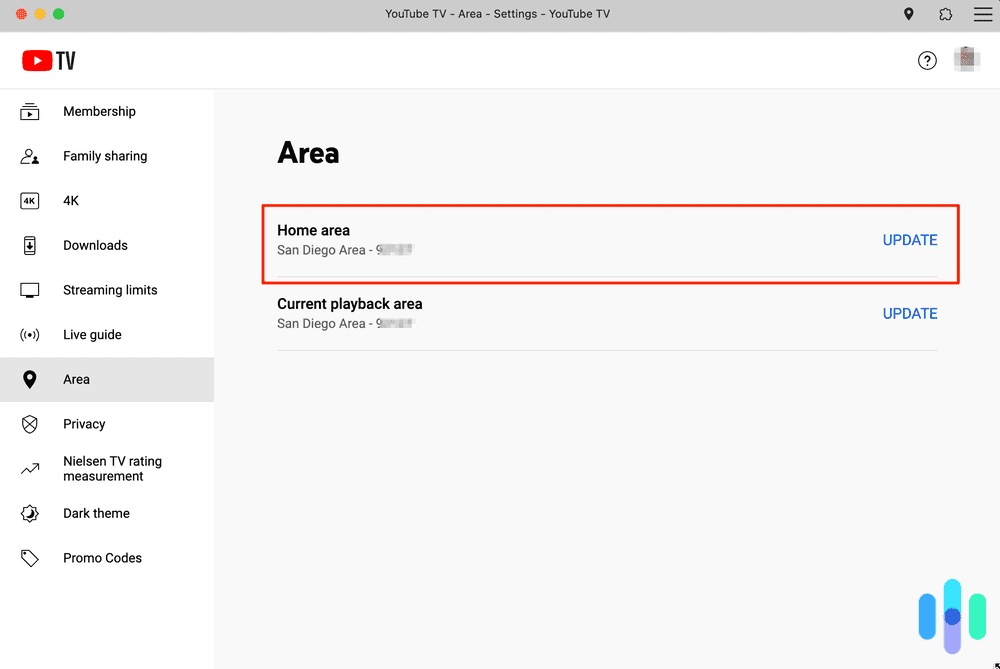
- Go to Area: In the Settings menu, look for the “Area” or “Location” section. Click on it.
- Update Home Area: You will see your current home area listed. There should be an option to “Update” or “Change” your home area. Click on this.
- Verify Location: YouTube TV will then attempt to detect your current physical location using your IP address. If it detects that you are in a new valid area, it will prompt you to confirm this new location as your home area.
- Confirm Change: Follow the on-screen prompts to confirm the change. Once confirmed, your home area will be updated, and your channel lineup will reflect the local broadcasters of your new region.
Updating Your Home Area Using the YouTube TV Mobile App
If you prefer using your smartphone or tablet, the process is slightly different but equally effective:
- Open YouTube TV App: Launch the YouTube TV app on your mobile device (iOS or Android). Ensure the app is updated to the latest version.
- Access Profile/Settings: Tap on your profile picture, usually located in the top right corner of the app screen.
- Go to Settings: From the menu that appears, tap on “Settings.”
- Select Location: Within the Settings menu, navigate to “Location” or “Area.”
- Update Home Area: Similar to the web browser method, you’ll see your current home area. Tap on the option to “Update home area” or “Change location.”
- Grant Location Permission (if prompted): The app may request access to your device’s precise location services to verify your physical presence in the new area. Grant this permission when prompted.
- Confirm New Location: The app will detect your current location. If it’s different from your old home area and a valid new location, you’ll be prompted to confirm it.
- Complete Update: Confirm the change, and your YouTube TV subscription will now be linked to your new home area.
Verifying Your New Home Area and Available Channels
After successfully updating your home area, it’s a good practice to verify that the change took effect as intended.
- Check Settings Again: Go back to the “Area” or “Location” section in your YouTube TV settings (either via web or app) to confirm that the displayed home area now matches your new location.
- Review Live Guide: Open the Live Guide within YouTube TV. You should see the local broadcast channels (ABC, CBS, FOX, NBC) corresponding to your new home area listed prominently.
- Test Local Content: Try tuning into one of the local channels to ensure you’re receiving the correct regional programming.
- Check Channel Lineup: In the “Settings” > “Live Guide” section, you can often review your full channel lineup, which should now reflect your new geographic location.
If you encounter any discrepancies or errors, it may be necessary to restart your device or clear the app’s cache before re-checking.
Navigating Location Changes While Traveling: The “Away” Experience
YouTube TV is designed for flexibility, allowing you to enjoy your subscription even when you’re not at home. Understanding how it manages temporary location shifts is key to a seamless experience on the go.
How YouTube TV Handles Temporary Location Shifts
When you travel away from your designated home area, YouTube TV intelligently adjusts its offerings. It detects your current physical location and allows you to access the local broadcast channels (ABC, CBS, FOX, NBC) of the city you’re visiting. This means you can still catch local news and weather for your temporary surroundings, which is a significant advantage over traditional cable.
Crucially, while you get new local channels, your “home” features remain tied to your primary subscription. Your unlimited cloud DVR recordings are always accessible, regardless of where you are traveling. This ensures you never miss a show that you’ve recorded back home. Most national channels included in your package also remain available, providing consistent access to your favorite content.
Understanding Travel Mode Limitations
While convenient, YouTube TV’s travel mode does come with some limitations. You can typically watch YouTube TV in a “traveling” state for up to three months. If you remain outside your home area for longer than this period, YouTube TV may prompt you to either return to your home area or update your home location permanently. This ensures compliance with content licensing agreements, which often restrict continuous access to content outside of a defined service area.
Additionally, certain regional sports networks (RSNs) and other highly localized channels may only be available when you are physically within your designated home area, even when traveling. This is due to strict blackout rules and regional broadcasting rights that are tied directly to your home subscription.
When to Update Your Home Area vs. Relying on Travel Mode
The decision to update your home area versus relying on travel mode largely depends on the duration and nature of your relocation:
- Rely on Travel Mode for Temporary Stays: If you’re going on vacation, a business trip, or visiting family for a few weeks or even a couple of months, using travel mode is ideal. It provides temporary local access without the hassle of changing your primary subscription details, allowing you to retain access to your home’s RSNs and local content when you return.
- Update Home Area for Permanent Moves: If you are physically moving to a new city or state and intend to reside there for an extended period (more than a few months), you should update your home area. This will correctly align your subscription with your new permanent residence, granting you consistent access to the local channels and RSNs relevant to your new community. Remember the twice-per-year limit on changing your home area.
Making the correct choice ensures you always have access to the most relevant content for your current situation, avoiding service interruptions or content limitations.
Troubleshooting Common YouTube TV Location Issues
Despite YouTube TV’s robust system, users occasionally encounter problems with location detection. These can range from “not in home area” errors to persistent incorrect location identification. Understanding common causes and solutions is key to resolving these technical glitches efficiently.
“Not in Home Area” Errors and Solutions
This is one of the most common error messages for YouTube TV users, particularly those who travel or attempt to use the service outside their registered home area.
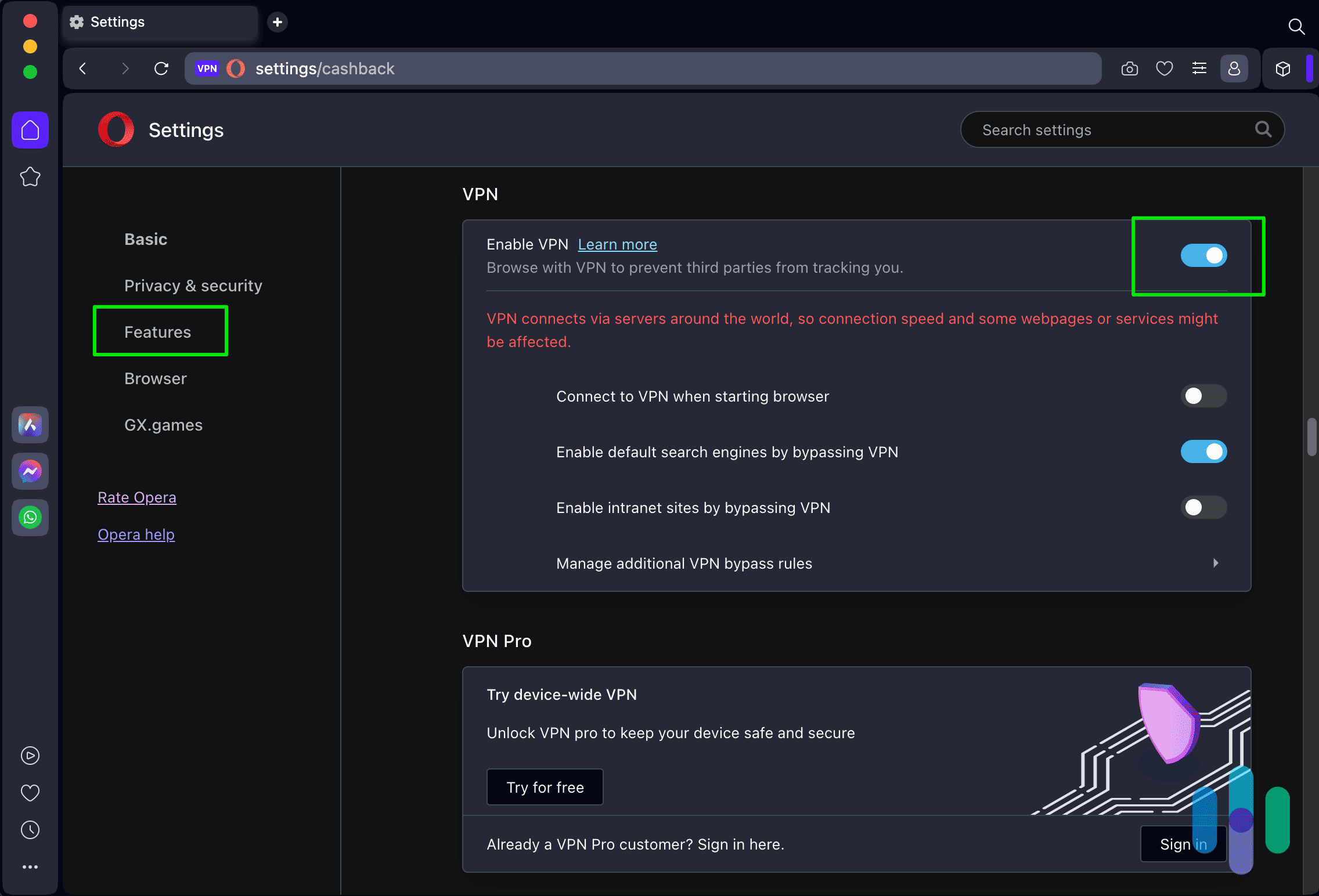
- VPN/Proxy Detection: The most frequent cause of this error is the use of a Virtual Private Network (VPN) or proxy service. YouTube TV employs sophisticated detection methods to identify and block connections from VPNs, as using them can circumvent geo-restrictions, violating content licensing agreements and YouTube TV’s Terms of Service. If you are using a VPN, you must disable it to access YouTube TV correctly.
- Incorrect Home Area Set: If you have moved recently but haven’t updated your home area, YouTube TV will correctly identify that you are not in your registered home area. The solution is to follow the steps outlined earlier to update your home area to your current physical location.
- IP Address Discrepancy: Sometimes, an ISP might assign you an IP address that geographically points to a different city or region than your actual location. This is rare but can happen. Try restarting your router and modem to get a new IP address. If the issue persists, contact your ISP to inquire about your IP’s geolocation.
- Exceeded Travel Limit: If you’ve been traveling for an extended period (typically over three months) and haven’t updated your home location, YouTube TV may restrict access until you return to your home area or perform a permanent update.
Dealing with Incorrect Location Detection
Even without a VPN, your device or network might sometimes report an incorrect location to YouTube TV.
- Router Restart: A simple restart of your home router and modem can often resolve IP-related location issues by forcing a new connection and potentially a more accurate IP geolocation.
- Clear Browser/App Cache: Accumulated cache data can sometimes interfere with location detection.
- Browser: Clear your browser’s cache and cookies, then restart the browser.
- Mobile App: Go to your device’s app settings, find YouTube TV, and clear its cache and data. Then restart the app.
- Check Device Location Services:
- Mobile Devices: Ensure location services are enabled for the YouTube TV app in your phone’s privacy settings. Also, check that your device’s general location settings are accurate.
- Smart TVs/Streaming Devices: Verify that your smart TV or streaming device (Roku, Fire TV, Apple TV, Chromecast) has its location services enabled and correctly set, if applicable. Some devices use Wi-Fi triangulation which can sometimes be less precise than GPS.
- Check Google Location History (Android/Web): If you’re signed into your Google account, ensure your Google Location History (if enabled) is not reporting an incorrect general location that might confuse the service.
- Verify IP Address Geo-location: You can use a third-party website (e.g., whatismyipaddress.com, iplocation.net) to check where your current IP address is believed to be located. If this shows an incorrect location, contacting your ISP is the next step.
The Role of VPNs and Proxies (and why they’re generally not supported)
While VPNs are excellent tools for privacy and security, their use with streaming services like YouTube TV for geo-unblocking is generally problematic and unsupported.
- Technical Reasons for Detection: Streaming services invest heavily in VPN detection technologies. They can identify IP addresses belonging to known VPN providers and block them. They also look for inconsistencies between IP address location and other location data (like device GPS).
- Terms of Service Violation: Using a VPN to bypass geo-restrictions usually violates the terms of service of streaming providers, including YouTube TV. Consistent attempts can lead to account suspension or termination.
- Unreliability: Even if a VPN temporarily works, it’s often a cat-and-mouse game. Streaming services constantly update their detection methods, rendering many VPN servers ineffective over time. You may experience buffering, poor quality, or sudden blocks.
For a reliable and compliant YouTube TV experience, it is strongly advised to disable any VPN or proxy when accessing the service and manage your location through the official methods provided.
The Broader Impact of Your YouTube TV Location
Beyond simply accessing local channels, your YouTube TV location has wider implications for your subscription, affecting everything from your monthly bill to your sports viewing options.
Billing Implications and Sales Tax
Your YouTube TV subscription cost can vary slightly depending on your home area. This is primarily due to local and state sales taxes that are applied to streaming services in different jurisdictions. When you change your home area, YouTube TV will adjust your monthly bill to reflect the applicable taxes for your new location. While the base subscription price remains consistent across the country, these tax variations can lead to minor fluctuations in your total monthly payment. It’s important to review your billing details after a location change to understand any new charges.
Access to Sports and Special Events
For many subscribers, sports are a primary reason for having YouTube TV. As previously mentioned, your home location is critical for determining which local sports teams you can watch and whether you’re subject to regional blackouts. If you move from one city to another, your access to regional sports networks (RSNs) will change to reflect the teams and broadcasts available in your new home area. For instance, if you move from Boston to Dallas, you’ll lose access to the Boston-based RSNs and gain access to the Dallas-based ones, provided they are part of your YouTube TV package. Special events and national broadcasts are generally consistent, but local team coverage is strictly tied to your home location.

Long-Term Management of Your YouTube TV Subscription
Effectively managing your YouTube TV location ensures a smooth, uninterrupted streaming experience. For those who anticipate frequent moves or extended travel, it’s beneficial to periodically review your home area settings and understand the implications of permanent changes versus temporary travel mode.
- Frequent Movers: If you know you’ll be moving more than once a year, plan your home area changes carefully, remembering the two-per-year limit. For very short-term relocations, it might be more practical to leverage travel mode until you settle into a more permanent residence.
- Contacting Support: If you encounter persistent technical difficulties with location detection, or if you believe there’s an error in your detected home area that you cannot resolve, contacting YouTube TV support directly is your best course of action. They can help diagnose complex issues related to IP address inconsistencies or account-specific problems.
By understanding the intricate relationship between your physical location and your YouTube TV experience, you can proactively manage your settings and ensure that your favorite live TV, local content, and on-demand programming are always just a few clicks away, wherever life takes you within the United States. Maintaining an accurate home area is not just a technicality; it’s a fundamental aspect of maximizing the value and enjoyment of your YouTube TV subscription.
aViewFromTheCave is a participant in the Amazon Services LLC Associates Program, an affiliate advertising program designed to provide a means for sites to earn advertising fees by advertising and linking to Amazon.com. Amazon, the Amazon logo, AmazonSupply, and the AmazonSupply logo are trademarks of Amazon.com, Inc. or its affiliates. As an Amazon Associate we earn affiliate commissions from qualifying purchases.