
The transition from traditional linear cable to over-the-top (OTT) streaming services has fundamentally redefined the domestic media landscape. Among the leaders of this digital revolution is YouTube TV, a service that successfully bridges the gap between the familiar comfort of live television and the sophisticated functionality of modern software. However, for users accustomed to the physical number pads of legacy remote controls, the lack of “channel numbers” on YouTube TV can initially feel like a hurdle. Understanding how to navigate this interface efficiently is not just about changing a program; it is about mastering a digital ecosystem designed for speed, personalization, and cross-platform synergy.
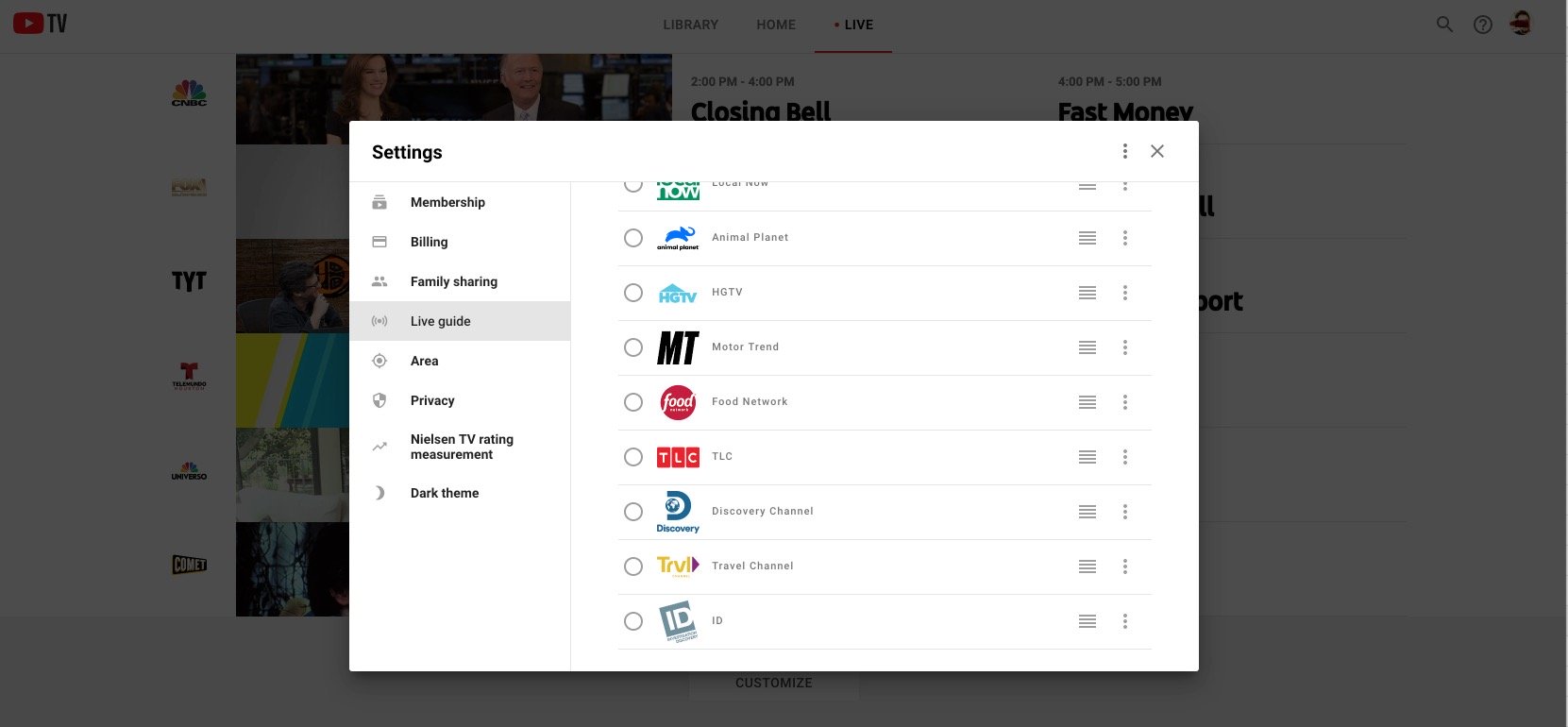
In the world of modern UI/UX design, YouTube TV utilizes a gesture-heavy and menu-driven architecture. Whether you are accessing the service via a smart TV, a mobile device, or a web browser, the mechanics of “channel surfing” have been reimagined to prioritize visual data and user habits.
Navigating the YouTube TV Interface: The Core Methods
To effectively change channels on YouTube TV, one must first understand the three-tier hierarchy of its interface: Library, Home, and Live. While the “Live” tab is the most direct equivalent to a traditional television experience, the software offers several high-tech shortcuts to move between streams without returning to a main menu.
Using the Live Guide
The Live Guide is the primary engine for channel discovery. On most streaming devices (such as Roku, Apple TV, or Amazon Fire Stick), navigating to the top of the screen and selecting the “Live” tab will bring up a vertical grid. This grid provides a real-time preview of what is currently broadcasting across all subscribed networks. Unlike cable, which relies on numerical sequences, the YouTube TV Live Guide is sorted alphabetically by default, though it is highly customizable. To change channels here, simply scroll vertically through the list and select the desired network with your remote’s “OK” or “Select” button.
The “Mini-Guide” Shortcut
One of the most powerful tech features within the YouTube TV app is the “mini-guide.” While you are currently watching a program, you do not have to exit to the main menu to see what else is on. By pressing “Down” on your remote’s directional pad (D-pad) twice, a horizontal row of thumbnails appears at the bottom of the screen. This allows you to browse other live channels while the current program continues to play in the background. This feature is particularly useful for sports fans who wish to monitor multiple scores simultaneously without missing a moment of the action.
Recent Channels and Quick Switch
For those who miss the “Last” button on traditional remotes, YouTube TV has integrated a digital equivalent. When viewing a live stream, pressing and holding the “Select” or “Enter” button on your remote will often trigger a quick-switch mechanism to the last viewed channel. Additionally, the first few slots in the mini-guide (accessed by pressing down) are typically populated by your most recently watched networks, providing a data-driven shortcut to your favorite content.
Advanced Navigation: Voice Commands and Cross-Platform Integration
As an Alphabet Inc. product, YouTube TV is deeply integrated into the Google Assistant ecosystem. This allows for a hands-free navigation experience that surpasses the capabilities of traditional infrared remotes.
Google Assistant and Voice Control
If you are using a Chromecast with Google TV, an Android TV, or have your account linked to a Google Home speaker, you can change channels using natural language processing. Commands such as “Hey Google, switch to ESPN” or “Play CNN on YouTube TV” will instantly bypass all menus and launch the stream. This represents a significant shift in tech accessibility, allowing users to navigate hundreds of channels without ever touching a button. For users with mobility challenges or those who simply prefer a streamlined smart-home experience, voice navigation is the pinnacle of OTT convenience.
Mobile-to-TV Casting
The YouTube TV mobile app serves as more than just a portable screen; it acts as a sophisticated secondary controller. Because mobile interfaces are often faster for scrolling through long lists than TV remotes, many power users prefer to browse the Live Guide on their smartphones. Once a desired channel is found, the “Cast” icon (the rectangle with a Wi-Fi signal in the corner) allows the user to send that stream directly to their smart TV. This cross-device handshake ensures that the heavy lifting of navigation happens on the most responsive device available.
Customizing Your Live Guide for Maximum Efficiency
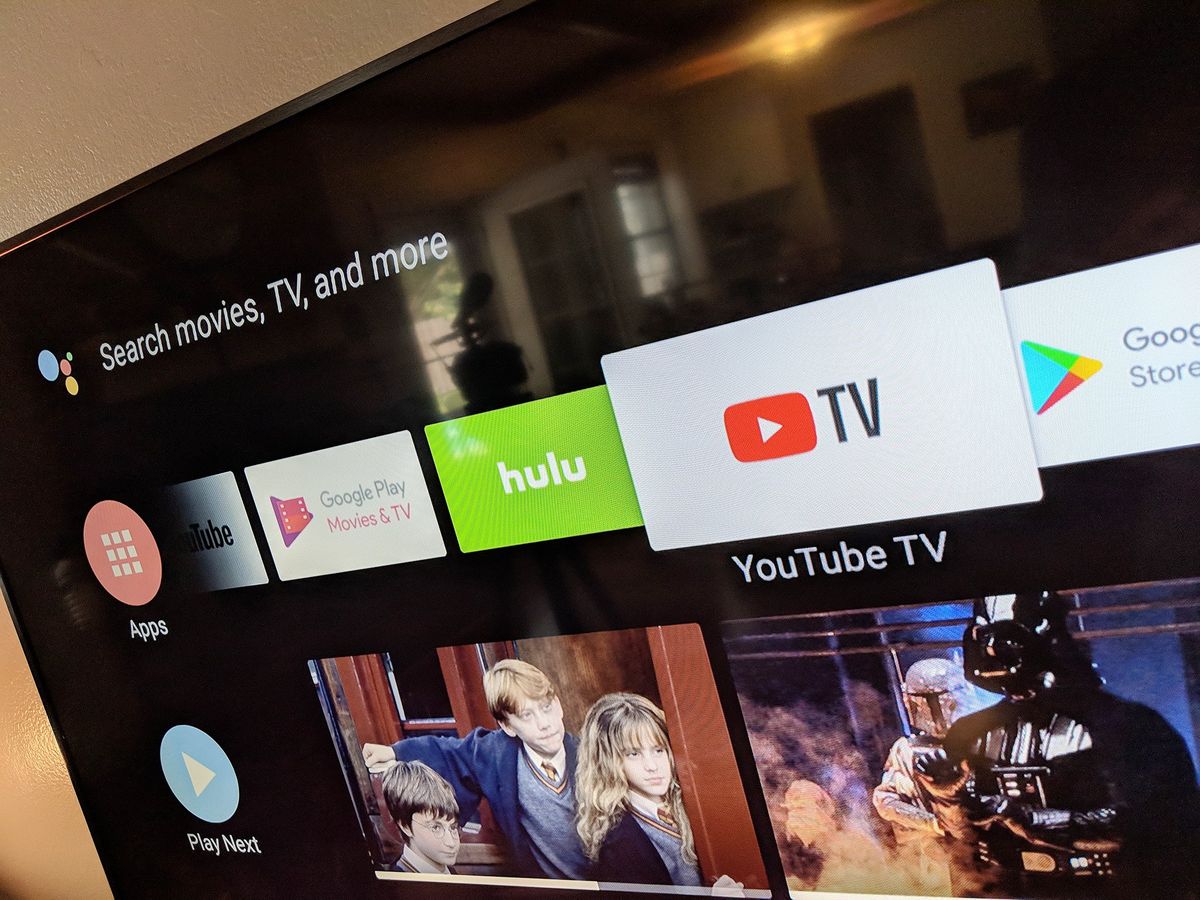
The true technological advantage of YouTube TV over traditional cable is the ability to manipulate the metadata of the channel lineup. You are not beholden to the broadcaster’s preferred order; instead, you can rewrite the UI to suit your viewing patterns.
Reordering Channels via the Mobile App
To customize your channel order, you must access the settings menu, typically via a web browser or the mobile app. Under the “Live” section of the settings, you can switch from the “Default” view to a “Custom” view. Here, you can drag and drop channels to the top of the list. If you primarily watch local news and three specific sports networks, you can pin those to the top four slots. The next time you open the app on your television, your most-watched channels will be the first things you see, effectively eliminating the need for extensive scrolling.
Filtering and Hiding Content
In an era of “choice overload,” the ability to hide content is just as important as the ability to find it. YouTube TV allows users to uncheck channels they never watch. This declutters the interface and optimizes the app’s performance by reducing the amount of thumbnail data the device needs to load in the Live Guide. Furthermore, the UI includes top-level filters for “Sports,” “News,” and “Movies,” which use backend tagging to instantly reorganize the guide based on genre.
Technical Troubleshooting and Performance Optimization
Changing channels involves more than just a UI interaction; it triggers a complex series of data requests. Understanding the technical side of these transitions can help users maintain a seamless experience.
Reducing Channel Change Latency
When you select a new channel, the app must terminate one HLS (HTTP Live Streaming) or DASH stream and initiate another. This often results in a brief “spinning circle” or a second of low-resolution video as the buffer fills. To minimize this latency, ensure your streaming device is connected via the 5GHz Wi-Fi band or, ideally, an Ethernet cable. Lowering the “Join-in-Progress” time is often a matter of bandwidth overhead; the more data your pipe can handle, the faster the “channel flip” feels.
App Synchronization Issues
Occasionally, a user might find that their custom channel order isn’t reflecting on their smart TV. This is usually a synchronization error within the app’s cache. A quick fix involves navigating to the “Area” or “Account” settings on the TV and refreshing the location/account data. Because YouTube TV relies on cloud-based profiles, ensuring your device is properly synced to the Google servers is essential for a consistent navigation experience.
Dealing with Remote Lag
In some instances, the delay in changing channels isn’t caused by the internet connection, but by the hardware processing power of the streaming stick or smart TV. Devices with more RAM and faster processors (like the Apple TV 4K or Nvidia Shield) handle the graphic-heavy Live Guide with much more fluidity than budget-tier built-in smart TV apps. If you find the interface sluggish, clearing the app cache or opting for a high-performance external streaming player can drastically improve the speed of channel navigation.

The Future of the Live TV Interface
As we look toward the future of software-defined television, the concept of a “channel” continues to evolve. We are moving away from a world of static lists toward an AI-driven, predictive interface. YouTube TV already uses machine learning to suggest “Top Picks for You” at the top of the Home tab, often predicting what channel you want to watch before you even open the Live Guide.
Ultimately, mastering how to change channels on YouTube TV is about embracing the shift from a passive hardware experience to an active software experience. By utilizing the mini-guide, voice commands, and custom sorting, users can transcend the limitations of old-school broadcasting and enjoy a truly personalized media environment. The technology is no longer just delivering a signal; it is learning how to serve you better with every click of the remote.
aViewFromTheCave is a participant in the Amazon Services LLC Associates Program, an affiliate advertising program designed to provide a means for sites to earn advertising fees by advertising and linking to Amazon.com. Amazon, the Amazon logo, AmazonSupply, and the AmazonSupply logo are trademarks of Amazon.com, Inc. or its affiliates. As an Amazon Associate we earn affiliate commissions from qualifying purchases.