
In an increasingly digital world, managing our online subscriptions and accounts has become a core aspect of our digital literacy. YouTube, an undeniable titan of digital content, often figures prominently in our online lives, whether through its free video platform or its premium subscription services like YouTube Premium and YouTube TV. While “cancelling YouTube” might sound straightforward, the reality is nuanced, encompassing a range of actions from merely discontinuing a paid subscription to the more permanent deletion of an entire channel or even a Google account. This guide delves into the technical intricacies of each scenario, providing clear, actionable steps and insights for users looking to streamline their digital footprint or simply cut ties with a specific service.
Understanding the Nuances of “Cancelling YouTube”
Before embarking on any cancellation process, it’s crucial to understand what “cancelling YouTube” truly means for you. The term can be a catch-all for various actions, each with distinct implications for your data, content, and access to other Google services. Identifying your specific goal is the first, most critical step in navigating this process effectively.
Differentiating Account Deletion from Subscription Cancellation
The most common misunderstanding arises from conflating the permanent deletion of a YouTube channel or Google account with the termination of a paid subscription.
- Subscription Cancellation: This refers to stopping recurring payments for services like YouTube Premium, YouTube TV, or individual channel memberships. When you cancel a subscription, your access to premium features (ad-free viewing, downloads, exclusive content, live TV) typically continues until the end of your current billing cycle. After that, your account reverts to the free, ad-supported version of YouTube, or you lose access to YouTube TV entirely. Crucially, your YouTube channel, watch history, subscriptions to other channels, and uploaded videos remain intact. This is the less drastic and more common interpretation of “cancelling YouTube.”
- Account or Channel Deletion: This is a much more severe action. Deleting a YouTube channel means removing all associated videos, playlists, comments, and analytics data. If that channel is your primary Google account, deleting it implies the removal of your entire Google ecosystem – Gmail, Google Drive, Google Photos, Calendar, and any other linked Google services. This is a permanent and often irreversible step with significant ramifications for your digital identity.
Implications of Subscription Cancellation for Your Digital Experience
Cancelling a YouTube subscription is primarily about managing access to enhanced features. For YouTube Premium, this means forfeiting ad-free playback, background play on mobile, offline downloads, and access to YouTube Music Premium. For YouTube TV, it means losing access to live TV channels, DVR capabilities, and on-demand content. In both cases, your core YouTube identity remains, allowing you to continue watching free content, subscribing to channels, and interacting with the platform, albeit with advertisements. This is often an economic or preference-based decision, not a technical purge of your digital presence.
Implications of Channel or Google Account Deletion
The technical implications here are far-reaching. Deleting a YouTube channel will irrevocably remove all content you’ve uploaded, along with associated comments, messages, playlists, and watch history. If this channel is linked to your primary Google account, the action extends beyond YouTube. You stand to lose:
- Emails and Contacts: All Gmail correspondence and contact lists.
- Cloud Data: All files stored on Google Drive, Google Docs, Sheets, Slides.
- Photos and Videos: Everything backed up on Google Photos.
- Calendar Events: All scheduled appointments and events.
- App Data: Progress and purchases in Android apps linked to the account.
- Other Google Services: Access to Google Play purchases, Google My Business, Google Ads, and more.
Given these profound implications, thorough consideration and preparation, including data backup, are paramount before proceeding with account deletion.
Step-by-Step Guide to Cancelling YouTube Subscriptions
For most users, “cancelling YouTube” means terminating a paid subscription. This process is designed to be relatively straightforward, accessible from various devices.
Cancelling YouTube Premium or YouTube TV on a Desktop/Web Browser
This is typically the most comprehensive method, offering a clear interface for managing your subscriptions.
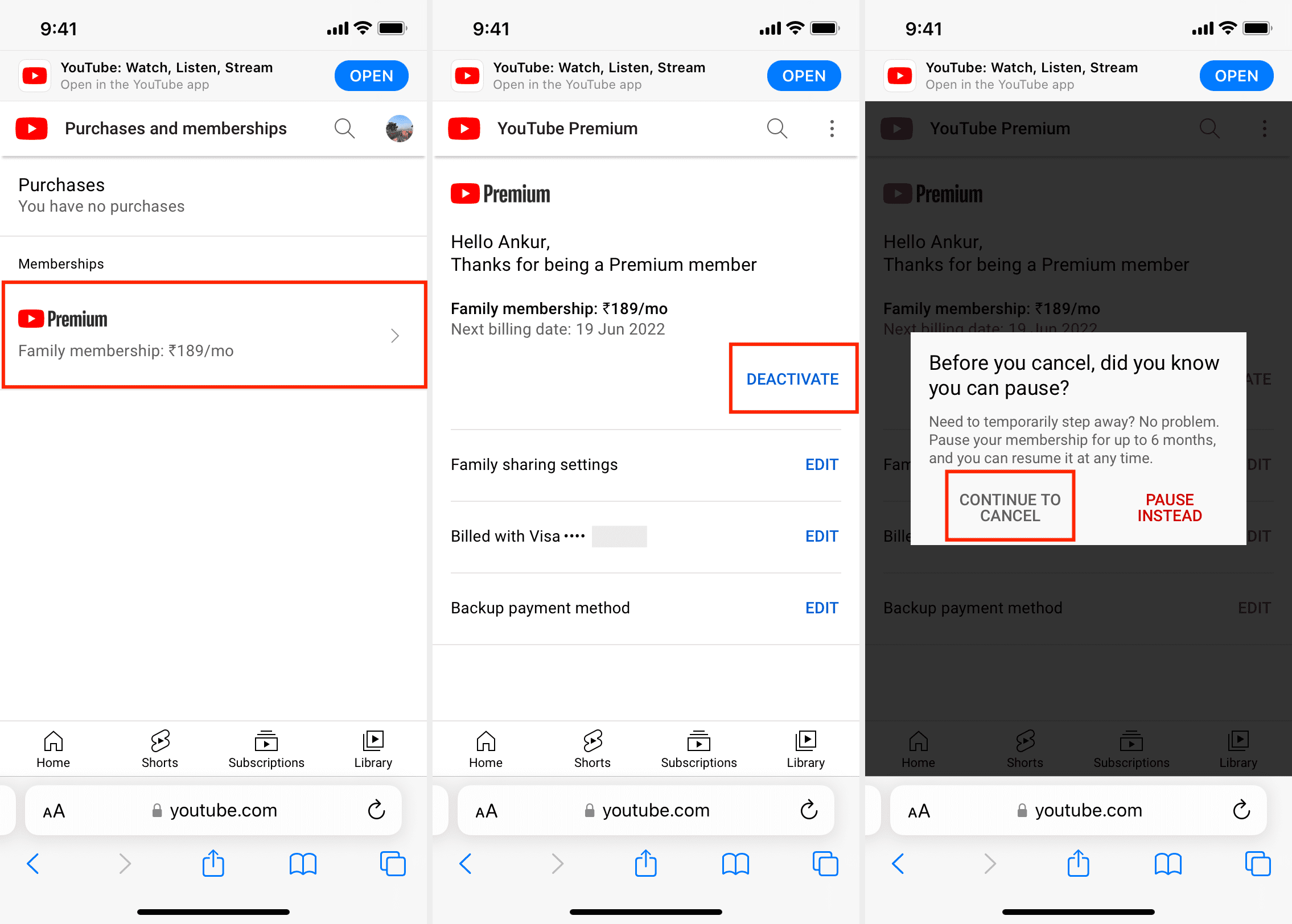
- Access YouTube: Go to youtube.com and ensure you are logged into the Google account associated with your subscription.
- Navigate to Purchases & Memberships: Click on your profile picture in the top right corner. From the dropdown menu, select “Purchases and memberships.”
- Locate Your Subscription: Find the YouTube Premium or YouTube TV membership you wish to cancel.
- Initiate Cancellation: Click “Manage membership” or “Deactivate” next to the relevant subscription.
- Follow Prompts: You’ll be presented with options to pause your membership or proceed with cancellation. Choose “Cancel membership” and follow any subsequent prompts to confirm your decision. YouTube may offer a reason for cancellation survey; completing this is optional but can provide valuable feedback.
- Confirmation: You should receive an email confirming your cancellation, noting the date until which your premium features will remain active.
Cancelling YouTube Premium or YouTube TV on Mobile (Android/iOS)
The process on mobile devices is similar but varies slightly depending on your operating system, as subscriptions can be managed directly through Google Play (Android) or Apple App Store (iOS).
For Android Devices:
- Open YouTube App: Launch the YouTube app and log in.
- Access Account Settings: Tap your profile picture in the top right corner, then select “Purchases and memberships.”
- Manage Subscription: Locate your YouTube Premium or YouTube TV subscription and tap “Manage membership.”
- Google Play Management: This will redirect you to Google Play Subscriptions. Tap on the relevant YouTube subscription.
- Cancel Subscription: Select “Cancel subscription” and follow the on-screen prompts to confirm.
For iOS Devices (iPhone/iPad):
- Open YouTube App: Launch the YouTube app and log in.
- Access Account Settings: Tap your profile picture in the top right corner, then select “Purchases and memberships.”
- Manage Subscription: Locate your YouTube Premium or YouTube TV subscription and tap “Manage membership.”
- Apple Subscription Management: This will likely redirect you to your device’s Settings app, under “Subscriptions.”
- Cancel Subscription: Tap on your YouTube subscription, then select “Cancel Subscription” and confirm.
What to Expect After Subscription Cancellation
Upon successful cancellation, your subscription will typically remain active until the end of your current billing period. You will not be charged again. Once the billing cycle concludes, your account will revert to its free status, meaning ads will reappear, and premium features will no longer be accessible. Importantly, your YouTube channel, uploaded videos (if any), watch history, and subscriptions to other channels will remain unaffected.
The More Drastic Step: Deleting Your YouTube Channel or Google Account
For those seeking a more comprehensive departure from YouTube or the entire Google ecosystem, deleting a channel or the associated Google account is the path. This requires careful consideration due to its irreversible nature and the potential loss of data.
How to Delete a Specific YouTube Channel (While Keeping Google Account)
If you have multiple YouTube channels under one Google account or wish to remove only your YouTube presence without deleting your entire Google account, this is the method.
- Log into YouTube Studio: Go to studio.youtube.com using the Google account linked to the channel you want to delete.
- Navigate to Settings: In the left-hand menu, click on “Settings.”
- Channel Settings: Select “Channel,” then “Advanced settings.”
- Remove YouTube Content: Scroll down and click “Remove YouTube content.” You may be prompted to enter your password for verification.
- Choose Deletion Option: You’ll be presented with two options:
- “I want to hide my channel”: This makes your videos and channel private but doesn’t permanently delete them. You can reactivate later.
- “I want to permanently delete my content”: Select this option. You’ll need to check the boxes confirming you understand what will be deleted (videos, playlists, subscriptions, comments, messages, watch history).
- Confirm Deletion: Click “Delete my content” and confirm by typing your channel name or email address.
It can take a few days for the content to be fully deleted. During this time, your channel may appear partially or entirely hidden.

The Ramifications of Deleting Your Entire Google Account
This is the most impactful action. Deleting your Google account means completely severing ties with not just YouTube, but all associated Google services.
- Data Backup is Crucial: Before doing anything, use Google Takeout (takeout.google.com) to download all your data (emails, photos, Drive files, YouTube videos, etc.). This step cannot be overstated, as recovery after deletion is often impossible.
- Access Google Account Settings: Go to myaccount.google.com and log in.
- Data & Privacy: In the left navigation panel, click “Data & privacy.”
- Delete Your Google Account: Scroll down to “More options” and click “Delete your Google Account.”
- Review and Confirm: Google will present a comprehensive list of all services and data you will lose. Carefully review this list. You must check the boxes acknowledging your understanding and responsibility.
- Final Confirmation: Click “Delete Account.”
Once confirmed, your Google account and all associated data, including your YouTube channel and everything else, will be scheduled for deletion. There’s usually a short grace period (often around 20 days) during which you might be able to recover your account if you change your mind, but this is not guaranteed and requires prompt action.
Data Backup and Preservation Before Deletion
Given the permanent nature of account deletion, creating backups of your essential data is non-negotiable. Google Takeout is the primary tool for this, allowing you to export data from various Google services into downloadable archives. Prioritize anything irreplaceable: personal documents, photos, videos, important emails, and contacts. Ensure your backups are stored securely on an external drive or another cloud service not linked to the account you’re deleting.
Navigating Common Cancellation Hurdles and Tech Tips
Even with clear instructions, users can encounter issues. Understanding common challenges and having technical solutions ready can smooth the process.
Troubleshooting Billing Issues and Unrecognized Charges
If you cancel a subscription but still see charges, or if you encounter unrecognized YouTube-related charges:
- Check All Accounts: Verify that you’re logged into the correct Google account. Many users have multiple accounts, and subscriptions might be tied to a less frequently used one.
- Family Plans: If you’re part of a Google Family Group, the subscription might be managed by the family manager, or linked to their payment method.
- Third-Party Billing: Some YouTube subscriptions, especially older ones, might have been purchased through third-party services (e.g., your mobile carrier). Check your bank statements for details or contact YouTube support directly.
- Grace Periods: Remember that cancellations are effective at the end of the current billing cycle. A charge at the beginning of a cycle might be for the period you’ve already paid for.
- Contact Support: If all else fails, Google/YouTube support is the ultimate resource for billing discrepancies. Provide screenshots and transaction IDs for faster resolution.
Managing Multiple Accounts or Family Plans
The complexity of managing digital services increases with multiple accounts.
- Centralized Management: Google’s “Family Link” or simply ensuring all family members manage their subscriptions from a single, designated “family manager” account can prevent confusion.
- Clear Documentation: Maintain a simple spreadsheet or document listing which Google account is tied to which subscription, and when recurring payments are due.
- Profile Switching: Regularly check profile settings in the YouTube app or website to ensure you’re logged into the intended account when making changes.
Re-subscribing or Reactivating Services
If you decide to return to YouTube Premium or YouTube TV after cancellation, the process is usually straightforward:
- Simply Subscribe Again: Navigate to the “Purchases and memberships” section (as outlined in the cancellation steps) or visit the respective service’s landing page (e.g., youtube.com/premium or tv.youtube.com).
- Use the Same Account: It’s generally best to resubscribe using the same Google account to maintain continuity of your preferences and watch history.
- Pricing Changes: Be aware that promotional pricing or legacy plans may no longer be available upon resubscription, and you might be charged the current standard rate.
Enhancing Digital Security Post-Cancellation
Even after cancelling or deleting, a review of your overall digital security is a good practice.
- Review Connected Apps: Check your Google Account’s “Security” section (myaccount.google.com/security) for “Third-party apps with account access.” Revoke access for any apps you no longer use or trust, especially if you were deleting an account.
- Password Hygiene: Ensure you use strong, unique passwords for any remaining critical accounts.
- Two-Factor Authentication (2FA): Always enable 2FA on your primary Google account and other important services for an added layer of protection.
Beyond Cancellation: A Broader Look at Digital Subscription Management
The act of cancelling YouTube, whether a subscription or an entire account, serves as a microcosm for the larger challenge of managing our digital lives. As technology intertwines more deeply with daily routines, proficient digital citizenship demands strategic oversight of our online presence.
The Rise of Subscription Fatigue and Digital Hoarding
The proliferation of digital services has led to a phenomenon known as “subscription fatigue,” where users feel overwhelmed by the number of recurring payments and online commitments. Simultaneously, “digital hoarding” – the accumulation of unused apps, forgotten accounts, and redundant data – clutters our digital spaces, often without our conscious awareness. Reviewing and cancelling services like YouTube is an essential practice to combat these trends, decluttering not just our finances but also our mental load associated with digital management.
Best Practices for Reviewing and Managing Your Digital Footprint
Proactive management is key. Regularly scheduled digital audits (e.g., quarterly or semi-annually) can help maintain control:
- Inventory Your Subscriptions: Keep a list of all recurring digital subscriptions, their costs, and renewal dates. Tools exist to help track these automatically.
- Assess Value vs. Cost: For each subscription, objectively evaluate if the value you derive justifies the monetary and time investment.
- Consolidate and Simplify: Where possible, consolidate services or use free alternatives if premium features are no longer essential.
- Review Privacy Settings: Regularly check and update privacy settings across all major platforms to control data sharing.
Utilizing Account Management Tools and Privacy Settings
Modern platforms, including Google and YouTube, offer robust tools for managing your data and privacy. Familiarize yourself with these:
- Google Dashboard: Provides an overview of all Google products you use and your data within them.
- Activity Controls: Allows you to pause or manage your Web & App Activity, Location History, YouTube History, and more, impacting personalization and data collection.
- Ad Settings: Lets you control how Google personalizes ads for you.
By actively engaging with these technical controls, users can exert greater autonomy over their digital experiences, making informed decisions about what to keep, what to pause, and what to ultimately cancel.

Conclusion
Cancelling YouTube is more than just clicking a button; it’s a deliberate act of digital management that can range from a simple subscription adjustment to a significant re-evaluation of one’s online presence. Whether you’re seeking to save money, declutter your digital life, or fundamentally alter your relationship with Google’s ecosystem, understanding the technical steps and implications is paramount. By following this guide, users can confidently navigate the process, making informed decisions that align with their personal, financial, and digital privacy goals, ensuring a more intentional and secure online future.
aViewFromTheCave is a participant in the Amazon Services LLC Associates Program, an affiliate advertising program designed to provide a means for sites to earn advertising fees by advertising and linking to Amazon.com. Amazon, the Amazon logo, AmazonSupply, and the AmazonSupply logo are trademarks of Amazon.com, Inc. or its affiliates. As an Amazon Associate we earn affiliate commissions from qualifying purchases.