
The digital landscape has shifted dramatically from traditional linear television to Over-the-Top (OTT) streaming services. Among the leaders in this space is YouTube TV, a service that has redefined how millions of households consume live broadcasts, sports, and on-demand content through a cloud-based infrastructure. However, the fluid nature of the software-as-a-service (SaaS) economy means that users frequently rotate between platforms based on content availability, pricing adjustments, or technical preferences.
Canceling a YouTube TV account is not merely a matter of stopping a payment; it involves navigating a specific user interface (UI), understanding the implications for your Google ecosystem, and managing data retention policies. This guide provides a comprehensive technical walkthrough on how to successfully terminate or pause your subscription across various devices and platforms.

Navigating the YouTube TV Ecosystem: Understanding Your Subscription
Before initiating the cancellation process, it is essential to understand the technical architecture of a YouTube TV membership. Unlike traditional cable contracts, YouTube TV operates on a month-to-month billing cycle. This means your access is tied to a specific “billing date,” and your permissions within the app are governed by this timestamp.
The Difference Between Pausing and Canceling
YouTube TV offers a unique software feature known as “Pausing.” This is a technical middle ground designed for users who may be traveling or waiting for a specific sports season to return. When you pause your membership, you can choose a duration ranging from 4 weeks to 6 months.
From a technical standpoint, pausing freezes your billing cycle but retains your settings and “Library” (DVR) recordings. However, your recordings are subject to the standard 9-month expiration policy even while the account is paused. Cancellation, conversely, is a permanent move that eventually leads to the purging of your personalized data and preference history after a set period.
Billing Cycles and Prorated Access
One of the most common technical questions regarding cancellation is whether a user receives a refund for unused days. Google’s policy for YouTube TV is straightforward: there are no prorated refunds. When you trigger the cancellation command in the software, the system logs a “pending termination” status. Your account remains fully functional until the end of the current billing interval. For example, if your cycle ends on the 30th and you cancel on the 5th, your digital credentials will remain valid for the remaining 25 days.
Step-by-Step Walkthrough: Canceling via Web Browser
The most reliable way to manage your YouTube TV subscription is through a desktop web browser. This interface provides the most granular control over account settings and avoids the limitations sometimes found in mobile application wrappers.
Accessing Membership Settings
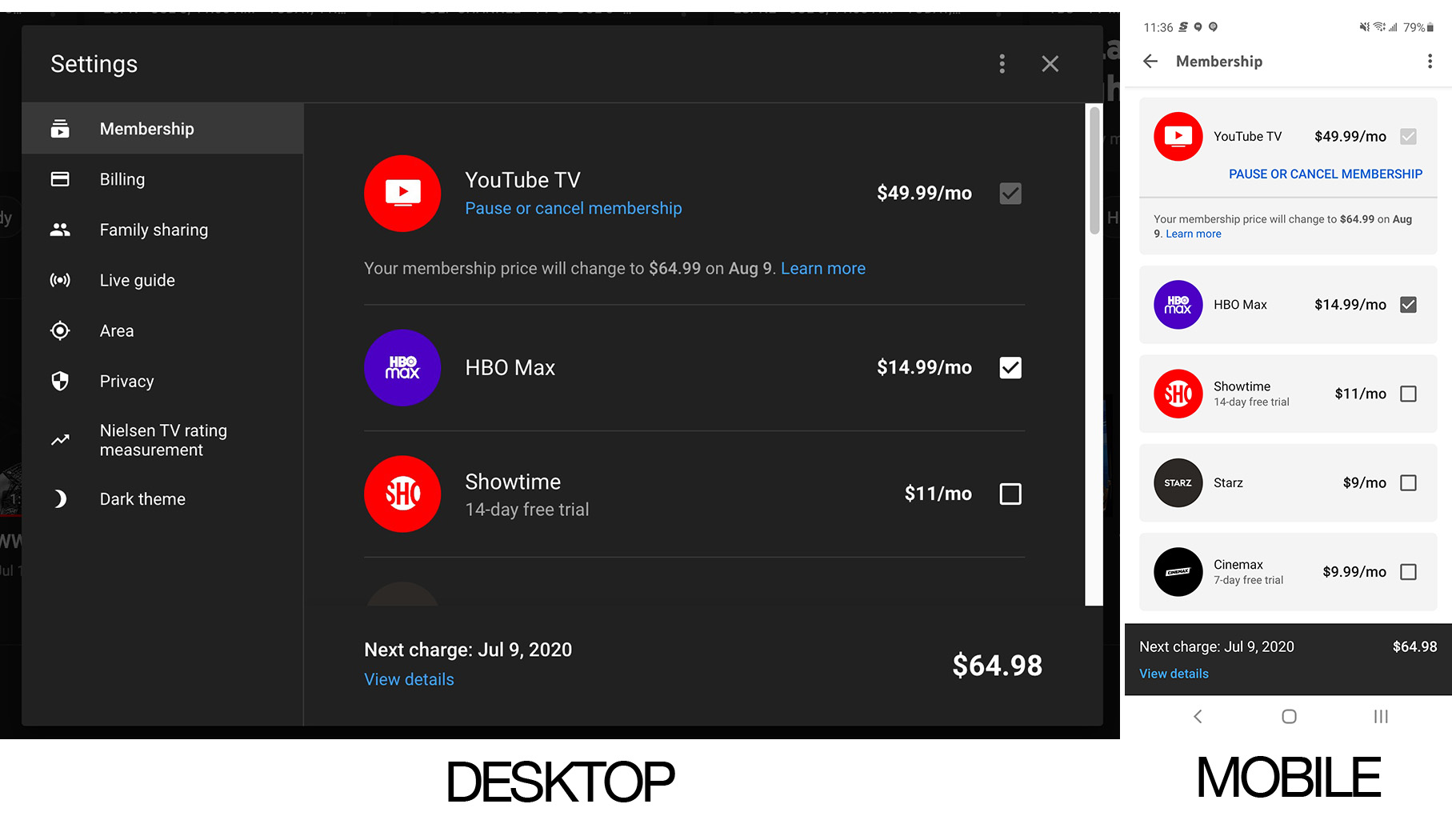
To begin, navigate to the YouTube TV website and ensure you are logged into the primary account holder’s Google profile. In the world of multi-user households, it is a technical requirement that the “Family Manager” performs the cancellation. Sub-accounts or “Family Members” do not have the administrative permissions to terminate the billing agreement.
-
Click on your profile avatar in the top-right corner of the interface.
-
Select Settings from the dropdown menu.
-
Within the sidebar, ensure you are on the Membership tab.
The Multi-Step Confirmation Process
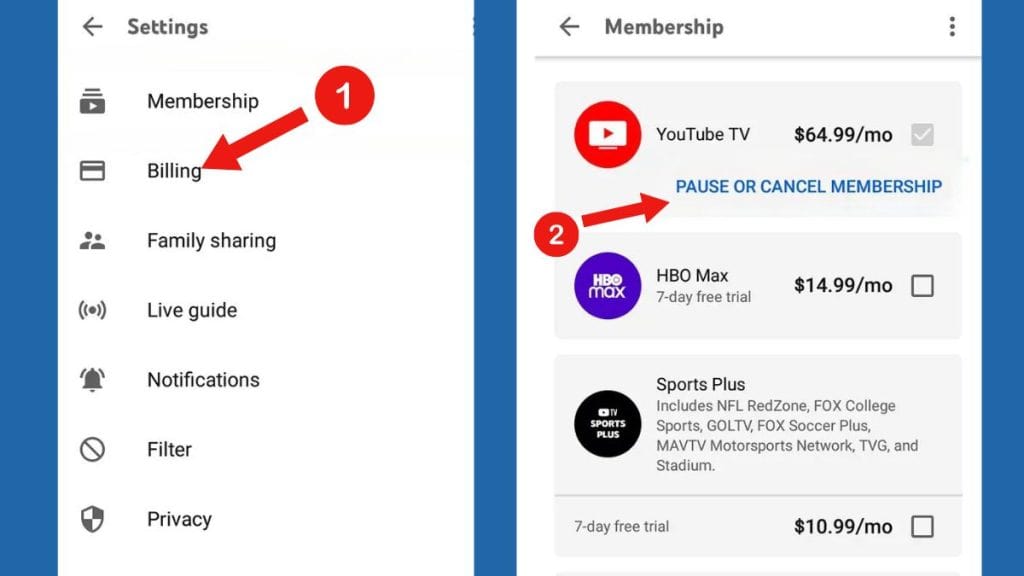
Modern UI design often incorporates “friction” to ensure a user does not accidentally cancel a service. YouTube TV utilizes a multi-step confirmation logic. Once you click “Manage” next to your membership status, you will be presented with the option to either “Pause” or “Cancel.”
Selecting “Cancel” will prompt the system to ask for a reason. This data is logged into Google’s churn analytics to help developers improve the service. After selecting a reason, you must click through a final confirmation screen. The process is only complete when the UI displays a confirmation message and sends an automated transition email to your registered Gmail account. Always archive this email, as it contains the technical timestamp of your request, which is vital in case of a billing dispute.
Mobile Management: iOS and Android Procedures
Managing subscriptions on mobile devices introduces another layer of complexity, particularly regarding the underlying operating system and its respective app store.
The Android and Google Play Integration
For Android users, the YouTube TV app is deeply integrated with the Google Play Store’s billing API. You can initiate the cancellation within the YouTube TV app by following a path similar to the web version (Profile > Settings > Membership). However, you can also manage this at the OS level. By opening the Google Play Store app and navigating to “Subscriptions,” you can view the metadata for your YouTube TV account and terminate the link directly from there. This is often the preferred method if the app itself is unresponsive.
Handling Third-Party Billing (Apple/iTunes)
A significant technical hurdle occurs for users who originally signed up for YouTube TV through an iOS device during the period when Google allowed in-app purchases via the Apple App Store. If your billing is handled by Apple, you cannot cancel through the YouTube TV website or an Android device.
On an iPhone or iPad, you must:
-
Open the Settings app.
-
Tap your Apple ID name at the top.
-
Navigate to Subscriptions.
-
Locate YouTube TV and select Cancel Subscription.
If you do not see YouTube TV listed in your Apple ID subscriptions, it is highly likely you are billed directly by Google, and you should revert to the web-based cancellation method.
Post-Cancellation: Data Retention and Hardware Management
Once the cancellation is finalized, the technical status of your account changes. It is important to understand what happens to your digital footprint within the app.
What Happens to Your DVR Library?
YouTube TV’s primary selling point is its unlimited Cloud DVR. These recordings are not stored on your physical device but on Google’s remote servers. When you cancel, your “Library” remains intact for exactly 21 days after your access expires. If you decide to restart your subscription within this three-week window, your recorded shows, “Watched” history, and custom live-channel sorting will be restored. After 21 days, the system performs a data purge, and these personalized configurations are lost.
Deactivating Add-on Packages
It is a common technical error to assume that canceling the base YouTube TV package does not affect “Add-on” networks like HBO Max, Showtime, or the 4K Plus package. In the YouTube TV architecture, add-ons are “child” subscriptions to the “parent” base plan. When the base plan is terminated, all associated add-ons are automatically scheduled for termination as well. You do not need to cancel them individually unless you intend to keep the base plan and only remove specific premium features.
Troubleshooting Common Cancellation Obstacles
Despite a streamlined UI, technical glitches can occur that prevent a smooth cancellation. Understanding how to troubleshoot these issues is essential for any tech-savvy user.
Stuck in a Billing Loop
Occasionally, a user may find that they have canceled their account, yet charges continue to appear on their bank statement. This usually points to a “Duplicate Account” error. Because YouTube TV is tied to a Google account, users with multiple Gmail addresses may have inadvertently started a subscription on a secondary profile. The technical solution is to log into every known Google account and check the “Payments & Subscriptions” tab in the Google Account Management console (myaccount.google.com).
The “Cancel” Button is Missing
If the “Cancel” button is not visible in the settings menu, it typically indicates one of three technical states:
-
Third-Party Billing: As mentioned, your subscription may be managed by Apple, or perhaps a mobile carrier (like Verizon or T-Mobile) if you received the service as part of a hardware bundle.
-
Administrative Lock: If you are part of a Google Family Group, only the Family Manager has the administrative token required to change the membership status.
-
App Cache Issues: If using a mobile app, a corrupted cache can prevent UI elements from loading. Clearing the app cache or attempting the cancellation in an “Incognito” or “Private” browser window usually resolves this.
Finalizing the Transition
The move away from YouTube TV is a testament to the flexibility of modern software-driven entertainment. By following these technical steps, you ensure that your digital identity is managed correctly, your data is handled according to your preferences, and your financial integrations are cleanly severed. Whether you are migrating to a competing service or simply taking a break from the digital noise, understanding the underlying mechanics of account management is key to maintaining control over your technological life.
aViewFromTheCave is a participant in the Amazon Services LLC Associates Program, an affiliate advertising program designed to provide a means for sites to earn advertising fees by advertising and linking to Amazon.com. Amazon, the Amazon logo, AmazonSupply, and the AmazonSupply logo are trademarks of Amazon.com, Inc. or its affiliates. As an Amazon Associate we earn affiliate commissions from qualifying purchases.