
The landscape of modern entertainment has shifted fundamentally from traditional coaxial cables and satellite dishes to sophisticated cloud-based streaming architectures. YouTube TV, Google’s premier Virtual Multichannel Video Programming Distributor (vMVPD), has emerged as a leader in this space, leveraging Google’s massive global infrastructure to deliver low-latency live broadcasts and unlimited cloud DVR storage. However, as the digital subscription economy expands, users frequently find themselves needing to audit their software services, rotate through different streaming platforms for exclusive content, or simply optimize their digital overhead.
Navigating the deactivation of a high-level SaaS (Software as a Service) product like YouTube TV requires more than just clicking a button; it involves understanding the underlying account architecture, data retention policies, and the technical nuances of cross-platform billing. This guide provides an exhaustive breakdown of the cancellation process, the technical implications for your data, and the best practices for managing your digital footprint within the Google ecosystem.

Navigating the Interface: The Technical Workflow of Cancellation
Canceling a subscription within the Google ecosystem is designed to be user-friendly, yet it is governed by specific UI pathways that differ depending on the hardware and operating system you are utilizing. Because YouTube TV is integrated directly into your Google Account’s billing API, the process is streamlined but requires precise navigation to ensure the “kill signal” is sent to the recurring billing server.
Canceling via Web Browser (Desktop and Laptop)
The most reliable method for managing any cloud service is through a desktop-class browser (Chrome, Firefox, or Safari), as it provides the most comprehensive view of your account’s metadata.
-
Authentication: Access the YouTube TV web portal and ensure you are logged into the “Family Manager” account. In the Google ecosystem, only the primary account holder—the one who established the billing relationship—has the administrative privileges required to terminate the contract.
-
Accessing the Settings API: Click on your profile avatar in the upper right-hand corner and select “Settings.” This section acts as the control panel for your service’s configuration.
-
Membership Management: Within the settings sidebar, the “Membership” tab displays your current tier, add-on packages (like 4K Plus or Sports Plus), and billing status.
-
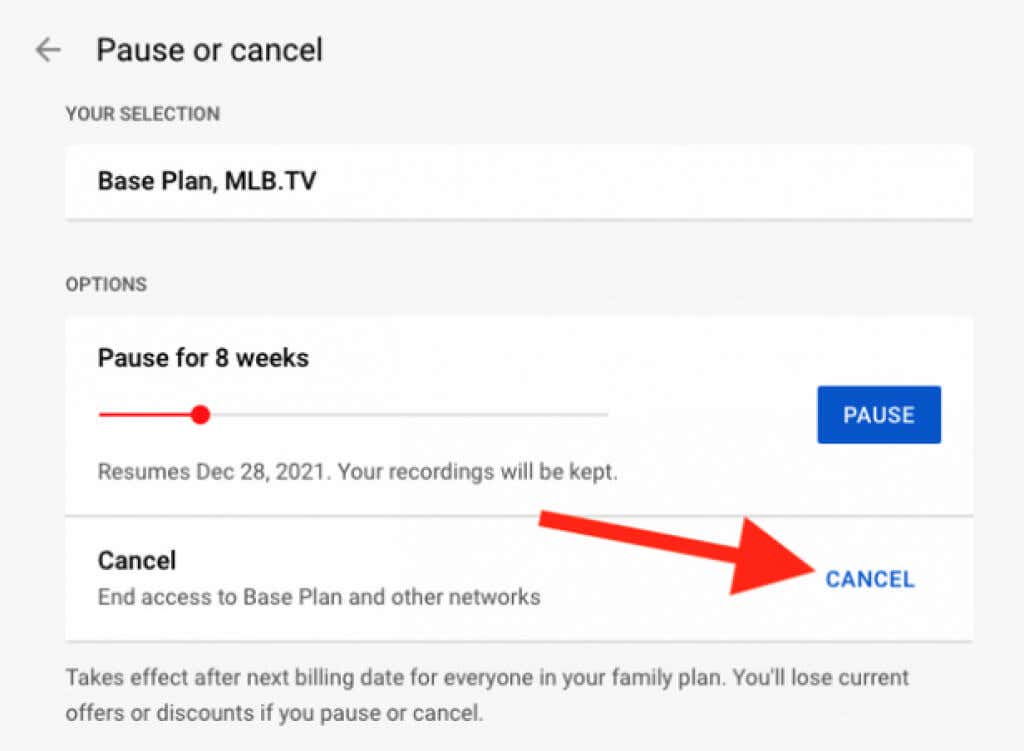
The Deactivation Sequence: Click the “Manage” button next to your membership status. You will be presented with two primary options: “Pause” or “Cancel.” To proceed with a full termination, select “Cancel Membership.”
-
Feedback Loops: Google utilizes a standard exit survey. From a technical standpoint, this data is used for churn analysis and product optimization. You may select a reason or skip, then confirm the cancellation. Once confirmed, a “Cancelation Pending” flag is applied to your account, which will remain active until the end of your current billing cycle.
Mobile App Integration: Android vs. iOS
The technical architecture of mobile cancellations varies significantly due to the differing philosophies of the Google Play Store and the Apple App Store.
-
Android Devices: Since YouTube TV is a first-party Google application, the Android app integrates directly with the Google Play Billing Library. You can cancel within the app’s settings menu, which simply redirects the command to your Google Account’s subscription management page.
-
iOS/iPadOS Devices: Apple’s ecosystem presents a unique challenge. To avoid the “Apple Tax” (the 30% commission on in-app purchases), Google does not allow users to sign up for or cancel YouTube TV directly within the iOS app. If you try to manage your membership on an iPhone, you will likely find the options grayed out or redirected. iOS users must use a mobile web browser (like Safari or Chrome) to navigate to the YouTube TV website and follow the desktop instructions outlined above.
The “Pause” vs. “Cancel” Architecture: Understanding Data Retention
One of the more sophisticated technical features of YouTube TV is its “Pause” functionality. When a user initiates the cancellation sequence, Google often offers the ability to pause the subscription for a duration of 4 to 24 weeks. This is not merely a billing delay; it is a state of “suspended animation” for your digital preferences and metadata.
The Mechanics of Paused Accounts
When you pause your membership, your billing is halted immediately after the current cycle ends. However, the technical advantage of pausing is the preservation of your Library and Cloud DVR data.
-
Metadata Persistence: Your “watched” history, personalized recommendations, and custom channel lineups are cached on Google’s servers.
-
DVR Recordings: Unlike a full cancellation, a paused account keeps your recorded programs intact, though you cannot view them until the service is resumed. This is a critical distinction for users who have built a substantial library of archival content or sporting events.
The Technical Consequences of Full Cancellation
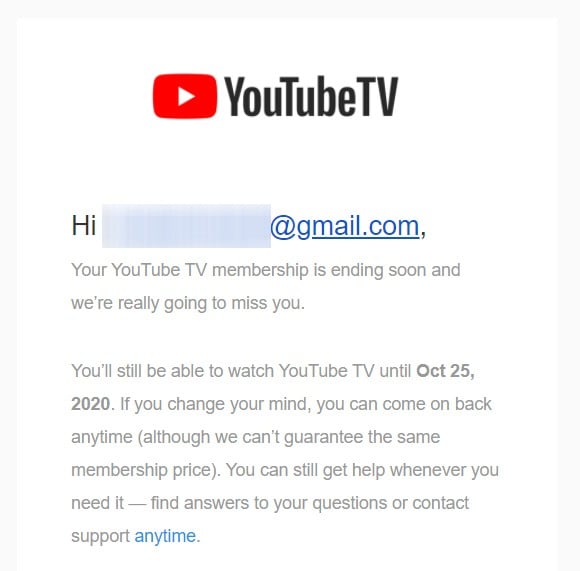
A full cancellation initiates a different data handling protocol. While Google typically retains your basic account settings for a grace period (often 21 days following the end of the billing cycle), a permanent termination will eventually lead to the purging of your Cloud DVR recordings.
-
Storage De-provisioning: Once the grace period expires, the pointers to your recorded content in Google’s distributed storage network are deleted. While the actual video files (which are shared across the user base) remain on Google’s servers, your unique access tokens are revoked.
-
Impact on Add-ons: Canceling the base plan automatically triggers the deactivation of all third-party network add-ons (such as Max, Showtime, or NFL RedZone). These are “nested” subscriptions that rely on the YouTube TV parent framework for authentication.
Security, Privacy, and the Google Ecosystem
YouTube TV is not a standalone silo; it is a node within the broader Google Cloud Platform. Canceling your subscription has implications for your digital security and the way your data is shared across Google’s various services.
Revoking Permissions and Third-Party Access
When you use YouTube TV, you often grant permissions to third-party hardware (Smart TVs, Roku, Apple TV, or gaming consoles). After canceling your subscription, it is a best practice for digital hygiene to audit these permissions.
-
Google Account Security: Visit your Google Account “Security” tab.
-
Third-Party Apps with Account Access: Identify any devices or apps that still hold OAuth tokens for YouTube TV.
-
Token Revocation: If you do not plan on returning to the service, revoking these tokens ensures that these devices no longer have an active handshake with your Google account, reducing your overall attack surface.
Family Sharing and Workspace Conflicts
For users who utilize YouTube TV’s “Family Group” feature, cancellation affects up to five additional users. From a technical standpoint, the Family Manager’s cancellation acts as a “master switch.” The sub-accounts lose access simultaneously.
- Workspace Accounts: It is important to note that YouTube TV cannot be managed or subscribed to via a Google Workspace (formerly G Suite) account for business. If you have been using a personal Gmail account for your subscription while logged into a Workspace browser profile, ensure that your browser’s “Identity Provider” (IdP) isn’t causing a conflict when you attempt to reach the billing settings. Often, “Access Denied” errors during cancellation are the result of the browser trying to authenticate with a corporate Workspace ID rather than the personal ID associated with the YouTube TV billing.
Troubleshooting Technical Obstacles in the Cancellation Process
Sometimes, the standard UI path is obstructed by technical glitches, third-party billing complexities, or cache issues. Understanding how to bypass these hurdles is essential for a clean break from the service.
Third-Party Billing Complications
A significant number of users subscribe to YouTube TV through third-party providers such as Verizon, Frontier, or T-Mobile as part of a bundle. In these instances, Google’s “Membership” tab will not have a “Cancel” button.
- The Technical Link: The billing is handled via a specialized API integration between Google and the ISP (Internet Service Provider). To cancel, you must log into your ISP’s account management portal. Once you terminate the service there, the ISP sends an automated signal to Google to de-provision your access.
Clearing Cache and Re-authenticating
If you have confirmed your cancellation but the app continues to function or shows “Active,” you are likely encountering a cached session.
- The Token Expiration: Streaming apps use “JSON Web Tokens” (JWT) or similar session tokens to maintain your login. These tokens have an expiration time. To force an update, you should sign out of the app and sign back in, or manually clear the application cache on your device. This forces the app to ping the Google billing server for a fresh status check, which will then reflect the “Canceled” or “Expired” status.
Optimizing Your Technical Setup Post-YouTube TV
Once you have successfully navigated the deactivation of your subscription, the focus shifts to optimizing your hardware and looking toward the next evolution of your digital setup.
Exporting Data and Transitioning
While there is no direct “Export DVR” button due to Digital Rights Management (DRM) restrictions, users can still preserve their viewing habits. Tools like “Google Takeout” allow you to download your search and watch history from YouTube and YouTube TV. This JSON or HTML data can be useful if you plan to move to a different service and want to maintain a record of your preferences for manual entry into a new algorithm.
Evaluating Technical Alternatives
The decision to cancel is often the precursor to adopting a new software stack for entertainment. From a technical perspective, users should evaluate alternatives based on several metrics:
-
Bitrate and Codecs: Services like FuboTV or Hulu + Live TV offer different compression algorithms. If you are sensitive to motion artifacts or macroblocking in high-speed sports, research the VP9 or H.264 implementation of your next provider.
-
UI Latency: The speed of the Electronic Programming Guide (EPG) varies wildly between apps. YouTube TV is known for low-latency navigation; ensure your next choice meets those performance benchmarks on your specific hardware (e.g., Fire Stick vs. Nvidia Shield).
-
Integration: Consider how the next service integrates with “Live” tabs on Android TV or the “TV” app on Apple TV.
By understanding the technical architecture of the YouTube TV cancellation process—from the UI workflows and data retention policies to the security implications of OAuth tokens—you can ensure a seamless transition. Managing your digital subscriptions with technical precision allows for a more efficient, secure, and personalized relationship with the software that powers your daily life.
aViewFromTheCave is a participant in the Amazon Services LLC Associates Program, an affiliate advertising program designed to provide a means for sites to earn advertising fees by advertising and linking to Amazon.com. Amazon, the Amazon logo, AmazonSupply, and the AmazonSupply logo are trademarks of Amazon.com, Inc. or its affiliates. As an Amazon Associate we earn affiliate commissions from qualifying purchases.