
In the rapidly evolving landscape of streaming technology, YouTube TV has emerged as a powerhouse, offering a sophisticated interface and a robust selection of live channels. However, the tech-savvy consumer knows that agility is key in the digital age. Whether you are streamlining your digital footprint, migrating to a different Virtual Multichannel Video Programming Distributor (vMVPD), or simply taking a break from the “always-on” entertainment cycle, knowing how to navigate the technical layers of a subscription cancellation is essential.
Canceling a service like YouTube TV is more than just clicking a button; it involves understanding the software ecosystem, platform-specific billing cycles, and the technical implications of data retention. This guide provides a deep dive into the technical process of terminating your YouTube TV subscription across various platforms, while offering insights into the underlying digital infrastructure of modern streaming services.
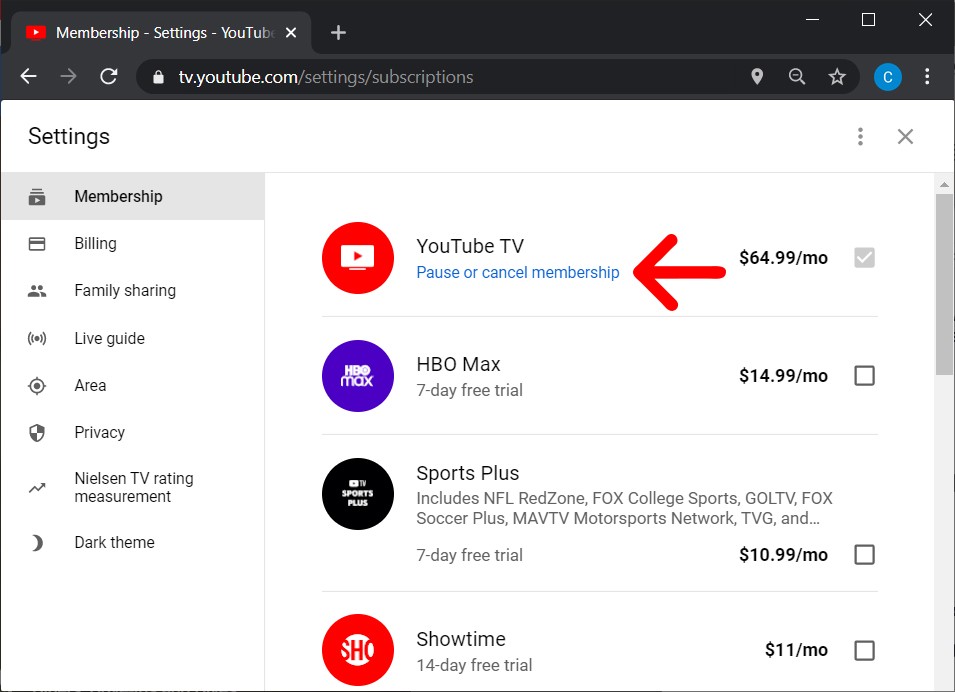
The Technical Roadmap: Step-by-Step Cancellation via Web and Mobile
The architecture of Google’s services is designed for cross-platform synchronization. However, the user interface (UI) can vary significantly depending on whether you are accessing the service through a desktop browser or a mobile application. Understanding these nuances ensures that your request is processed correctly and that you aren’t hit with unexpected charges in the next billing cycle.
Canceling via Desktop Browser
For most users, the web browser remains the most reliable environment for managing account settings. Google’s backend management for YouTube TV is integrated into the broader Google account infrastructure but maintains its own dedicated portal.
- Navigate to the Source: Open your preferred browser and go to the YouTube TV website. Ensure you are logged into the primary account associated with the subscription.
- Access Settings: Click on your profile avatar in the top-right corner. This triggers a dropdown menu that acts as the gateway to the service’s administrative tools. Select “Settings.”
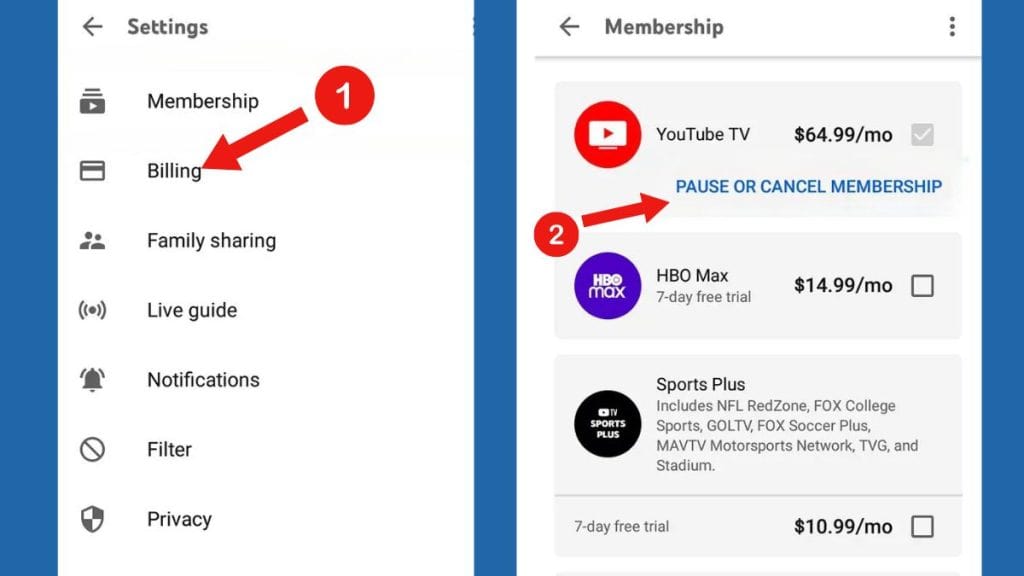
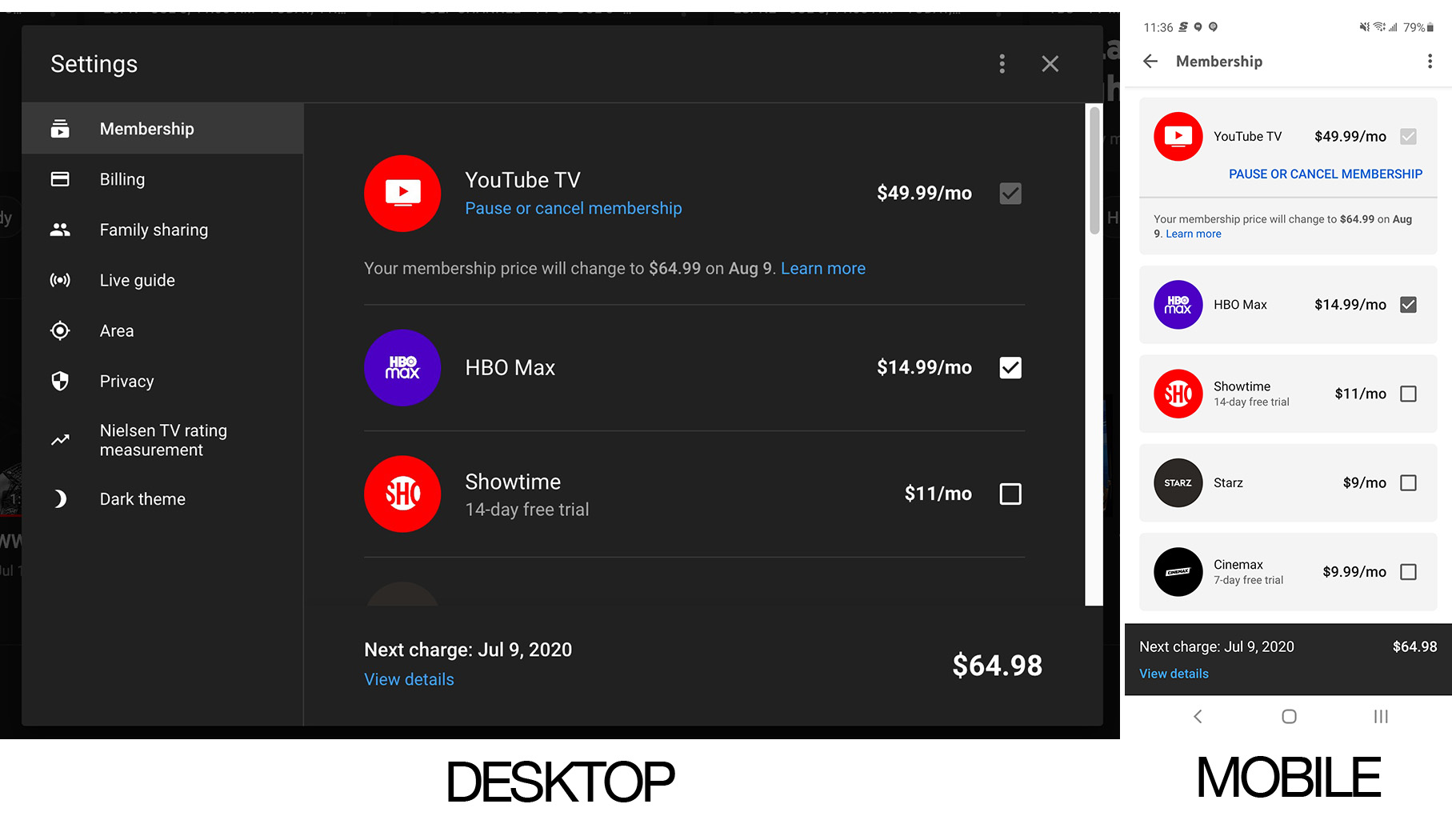
- The Membership Tab: Within the settings dashboard, the “Membership” tab is the primary interface for subscription status. Here, you will see your current plan, add-ons, and billing date.
- Initiating Termination: Click the “Manage” button next to your membership status. From here, you will be presented with the option to “Cancel membership.”
- The Feedback Loop: Google employs a standard UX practice of asking for a reason for cancellation. While this serves their internal data analytics, selecting a reason and confirming is the final technical hurdle to deactivate the recurring billing script.
Mobile App Procedures (Android and iOS)
The mobile experience introduces a layer of complexity, particularly regarding which “store” handles your billing. On Android, the process mirrors the web experience closely because of the deep integration with the Google Play Store.
On iOS, however, the technical path is different. If you subscribed to YouTube TV via the Apple App Store, the “Membership” tab in the YouTube TV app will not allow you to cancel directly. Instead, you must navigate through the iOS system settings, enter your Apple ID, and manage “Subscriptions” within the Apple ecosystem. This distinction is vital for users to understand, as deleting the app does not terminate the underlying API-driven billing agreement.
Verifying the Deactivation
After completing the steps, the software should generate an automated confirmation email. From a technical security standpoint, it is prudent to check your “Billing” history within the app to ensure the status has transitioned from “Active” to “Canceled” or “Ending on [Date].” This ensures that the server-side update has successfully synchronized with your client-side interface.
Strategic Pausing: The Technical Alternative to Full Termination
YouTube TV offers a unique feature that differentiates it from many of its competitors: the ability to “Pause” a membership. This is a sophisticated piece of account management logic that allows users to halt billing without purging their user profile data or DVR library.
How the Pause Logic Functions
When you choose to pause your subscription rather than cancel it, you are essentially placing a “hold” on the billing script for a duration of 4 to 24 weeks. Technically, your account remains in a dormant state. You lose access to live streaming immediately after your current billing cycle ends, but your personalized settings remain intact on Google’s servers.
This feature is particularly useful for users who only subscribe for specific events—such as the NFL season or an election cycle. By pausing, you avoid the need to re-configure your “Custom” channel lineups and re-authenticate your connected devices when you decide to return.
Data Retention and the Cloud DVR
The primary technical benefit of pausing over canceling relates to the Cloud DVR. YouTube TV’s storage is theoretically unlimited, but it is bound by time-based deletion scripts. In a standard cancellation, your recorded programs are typically purged after 21 days. However, when you pause, Google preserves your DVR library and your “preferences metadata” (the algorithm that suggests shows based on your history).
For users who have spent months “training” their recommendation engine, the pause feature is a vital tool for maintaining the integrity of their personalized data environment while optimizing their financial tech stack.
Navigating Third-Party Billing and Ecosystem Lock-In
One of the most common technical frustrations in the streaming world is the “third-party billing” trap. This occurs when a user signs up for YouTube TV through a bundle—such as through an Internet Service Provider (ISP) like T-Mobile or Frontier, or via a platform like Roku or Apple.
Identifying the Billing Controller
If your “Settings” menu states that your subscription is “Managed by [Third Party],” the standard Google cancellation buttons will be grayed out or redirected. In this scenario, the “source of truth” for your subscription resides in an external database.
To cancel, you must log into the third-party portal. This involves a different set of authentication protocols. For example, if T-Mobile manages your billing, the cancellation must be triggered via the T-Life app or the T-Mobile account dashboard. This cross-platform communication is handled via Secure APIs, but latency in these APIs can sometimes lead to “ghost subscriptions” where one service thinks you are canceled while the other continues to charge.
The Problem with App Store “Tax” and Management
Technically, when you subscribe via Apple or Google Play, these platforms act as a middleman. They take a percentage of the transaction and, in return, provide a centralized place for the user to manage all their apps. If you are looking to streamline your digital life, utilizing these centralized hubs is efficient. However, it often makes it harder to take advantage of direct-to-consumer promotions or specific troubleshooting steps offered by YouTube TV’s direct support team.
The Technical Aftermath: Data Privacy and Device De-authorization
Once the subscription is successfully canceled, there are several “digital hygiene” steps that tech-forward users should take to ensure their account security and privacy are maintained.
Clearing Cache and Revoking Permissions
YouTube TV persists on many devices—Smart TVs, gaming consoles, and streaming sticks. Even after a subscription is canceled, the app may remain logged in, storing OAuth tokens and cached data.
- OAuth Revocation: Go to your Google Account Security settings and review “Third-party apps with account access.” If you do not plan on returning to the service, revoking access ensures that the YouTube TV application no longer has permission to ping your Google profile for data.
- Cache Management: On devices like Shield TV or Chromecast with Google TV, it is a good practice to “Clear Cache” and “Clear Data” for the YouTube TV app. This removes locally stored thumbnails, search history, and login credentials, freeing up flash storage on your hardware.
Understanding the 21-Day Grace Period
Google’s data retention policy for canceled accounts is relatively transparent. They typically hold your library and preferences for 21 days. From a data engineering perspective, this “soft delete” allows for easy recovery if a user realizes they made a mistake. After this window, the pointers in the database that link your User ID to specific DVR recordings are scrubbed. If you plan to migrate to a service like Hulu + Live TV or FuboTV, you should consider this 21-day window as your “transition period” to finish any saved content.
Evaluating the Tech Stack: Why Users Transition Away
To understand the “how” of cancellation, one must also look at the “why” from a technical and market perspective. The vMVPD space is becoming increasingly crowded, and the technical requirements of users are shifting.
Performance and Bitrate Comparison
Some users move away from YouTube TV due to specific technical preferences regarding video encoding and bitrates. While YouTube TV offers 4K Plus as an add-on, some enthusiasts find that competitors offer different compression algorithms that better suit high-end OLED displays or specific sports broadcasting requirements.
Integration with Smart Home Ecosystems
The decision to cancel is often driven by a move toward a different tech ecosystem. A user deeply embedded in the Apple ecosystem might find that the integration between the Apple TV hardware and the “Up Next” queue works more seamlessly with services that support the Apple TV App integration—a feature where YouTube TV has historically had a complex relationship.
Conversely, those moving toward a completely “open source” or Plex-based media server environment may find that the walled garden of a vMVPD no longer fits their technical philosophy.
Conclusion: Taking Control of Your Digital Environment
Canceling YouTube TV is a straightforward technical process, but doing it correctly requires an understanding of the platforms, billing cycles, and data policies involved. By navigating the settings with precision—whether through a browser, an Android device, or a third-party iOS subscription—you ensure that your digital transition is seamless and secure.
In an era of “subscription fatigue,” the ability to audit, pause, and terminate digital services is a fundamental skill for the modern tech user. By following the steps outlined in this guide and maintaining high standards for digital hygiene, you can ensure that your technology serves your needs, rather than the other way around. Whether you are moving to a new platform or simply reclaiming your time, you now have the technical roadmap to exit the YouTube TV ecosystem with confidence.
aViewFromTheCave is a participant in the Amazon Services LLC Associates Program, an affiliate advertising program designed to provide a means for sites to earn advertising fees by advertising and linking to Amazon.com. Amazon, the Amazon logo, AmazonSupply, and the AmazonSupply logo are trademarks of Amazon.com, Inc. or its affiliates. As an Amazon Associate we earn affiliate commissions from qualifying purchases.