
The modern digital landscape is defined by the “subscription economy,” a model where software-as-a-service (SaaS) and content-on-demand have shifted from ownership to access. Within this ecosystem, Amazon Prime Video has positioned itself not just as a streaming service, but as a central hub or “aggregator” for dozens of other networks through its “Channels” feature. Paramount Plus is one of the most popular integrations within this framework. However, managing these nested subscriptions requires a specific technical understanding of how Amazon’s interface interacts with third-party providers.
Whether you are looking to cut down on digital bloat, switch to a direct-to-consumer billing model, or simply take a break from the service, knowing how to navigate the Amazon Prime dashboard is essential. This guide provides a comprehensive breakdown of the cancellation process, the technical reasons behind the interface structure, and how to manage your digital footprint effectively.
Navigating the Ecosystem of Amazon Prime Video Channels
To understand why canceling Paramount Plus on Amazon Prime is different from canceling a standalone subscription, one must understand the technical architecture of Amazon Channels. When you subscribe to Paramount Plus via Prime, Amazon acts as the billing intermediary and the hosting platform. You are not technically a “Paramount Plus direct customer”; you are an Amazon Prime Video Channel subscriber.
The Integration Architecture
Amazon uses a unified API to integrate third-party content into its own UI. This means that when you watch a show like Star Trek: Strange New Worlds, the video file is often served through Amazon’s Content Delivery Network (CDN), even though the content belongs to Paramount. This integration simplifies the user experience by allowing one-click purchasing and a single billing statement. However, it creates a layer of abstraction that can make account management confusing for the average user.
Why Users Opt for Prime Channels
The primary draw of this tech integration is convenience. By keeping Paramount Plus within the Prime ecosystem, users avoid the need to download additional apps on smart TVs or streaming sticks. It also consolidates search queries; searching for a movie in the Prime interface will pull results from all subscribed channels simultaneously. Despite these benefits, many tech-savvy users eventually move toward standalone apps to access exclusive features, such as interactive content or live feeds that may occasionally lag or be restricted within the Prime wrapper.
Step-by-Step Guide to Canceling Your Paramount Plus Subscription
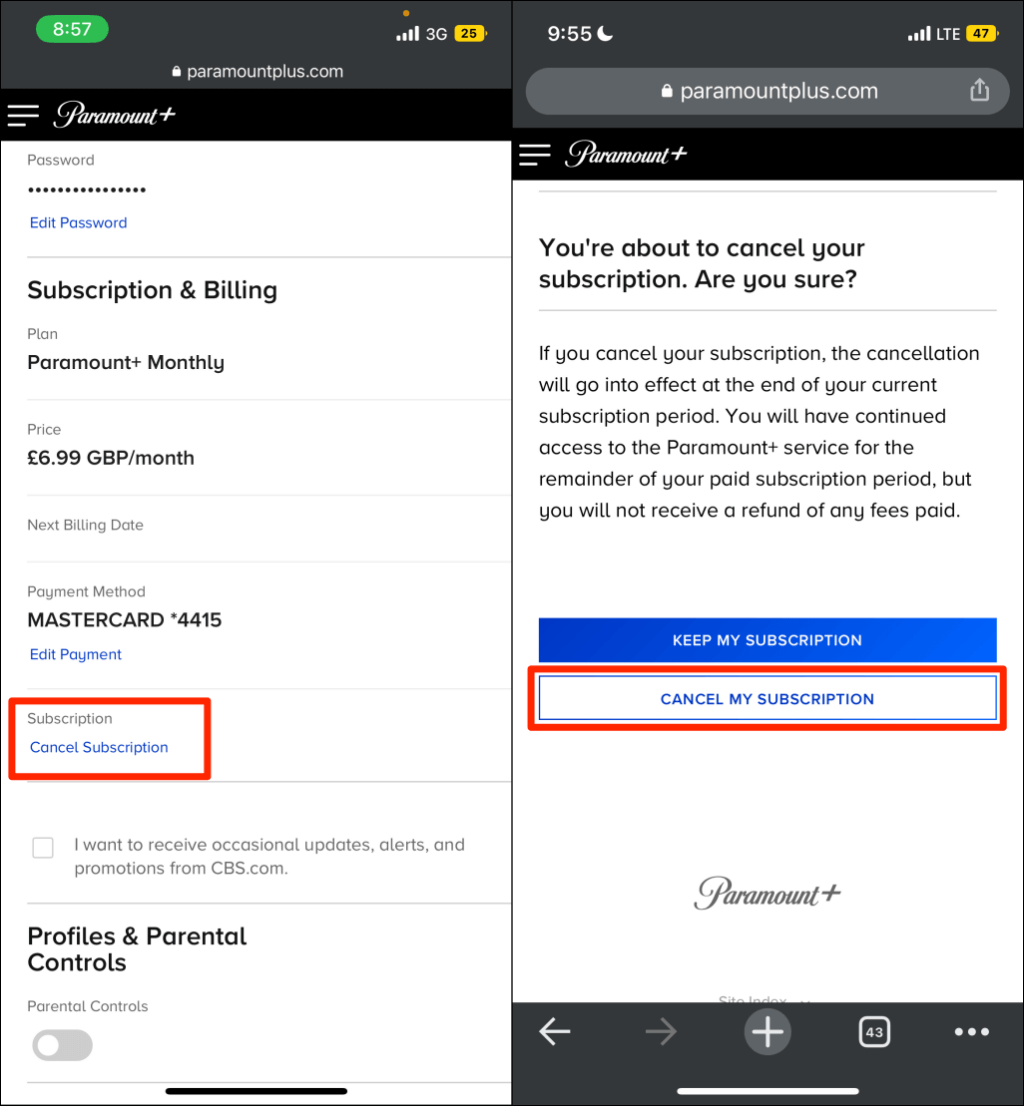
Because Paramount Plus is bundled within the Amazon ecosystem, you cannot cancel the service through the Paramount Plus website or app if you signed up via Prime. The “handshake” between the two platforms dictates that the platform which handles the billing—in this case, Amazon—must handle the termination.
Accessing the Account Management Interface
To begin the process, you must bypass the standard “Settings” menu found in the Prime Video streaming app on many devices, as these often lack the administrative depth required for subscription changes. It is highly recommended to use a desktop browser or a mobile browser in “Desktop Mode” for full functionality.
-
Navigate to the Amazon Homepage: Log in to the account associated with your Prime membership.
-
Accounts & Lists: Hover over the “Accounts & Lists” dropdown in the top right corner and select “Memberships & Subscriptions.”
-
Prime Video Channels: Locate the section specifically titled “Prime Video Channels.” This is a distinct sub-directory from your main Prime membership or your physical product subscriptions.
-
Find Paramount Plus: Scroll through your active channels until you see the Paramount Plus logo.
-
Cancel Channel: Click the “Cancel Channel” link.
Confirming the Deactivation
Amazon’s UX design often includes “retention flows”—prompts designed to keep you subscribed. You may be offered a discount to stay or asked to confirm multiple times that you wish to forfeit access. Technically, you are not deleting your account; you are disabling the “Auto-Renew” toggle in Amazon’s billing database.
Once you confirm, the status of your subscription will change from “Active” to “Ending on [Date].” This reflects the technical reality of digital entitlements: since you have paid for a specific period (usually a month), your access token remains valid until the end of that billing cycle.
Managing via the Mobile App
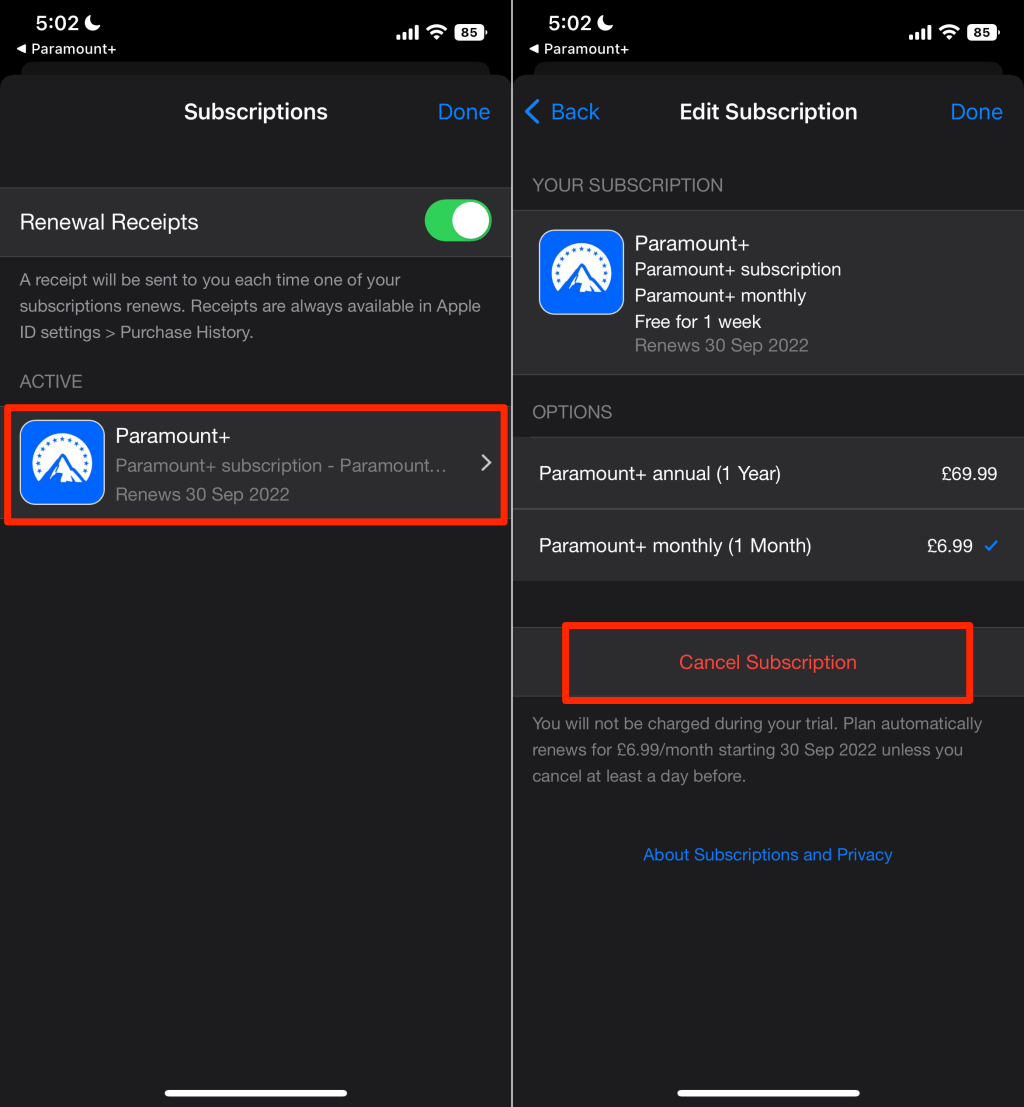
If you must use the mobile app, navigate to “My Stuff,” tap the gear icon for “Settings,” and look for “Manage Account.” On many mobile operating systems (especially iOS), you may be redirected to a web browser due to the complexities of in-app purchase regulations and the “Apple Tax.” Direct web-based management remains the most reliable technical path.
Technical Troubleshooting and Post-Cancellation Access
Even after following the steps, users occasionally encounter technical hurdles. Understanding the backend logic of these platforms can help in resolving issues without needing to contact customer support.
Why Your Subscription Might Still Appear Active
If you have canceled but still see “Paramount Plus” as an active channel, it is likely due to cache synchronization. Amazon’s servers and your local device (Smart TV, Fire Stick, or Phone) may take several hours to “handshake” and update the entitlement status.
- The Solution: Sign out and sign back into the Prime Video app. This forces a fresh API call to Amazon’s servers to verify your current subscription status.
Billing Discrepancies
Sometimes, a user may see a charge even after cancellation. This usually happens if the cancellation was performed too close to the renewal date. In the world of automated billing, there is often a 24-to-48-hour “processing window” where the system prepares the next invoice. If you cancel during this window, the automated trigger may have already fired. In this instance, documenting the “Ending on” date provided in your confirmation email is vital for securing a refund.
Accessing Content on the Standalone App
One frequent technical question is whether an Amazon Prime Paramount subscription can be used on the standalone Paramount Plus app. The answer is yes, but it requires a secondary step called “Account Linking.”
-
Go to the Paramount Plus website.
-
Choose the “Link with Partner” or “Verify Service Provider” option.
-
Select Amazon as your provider.
This creates a bridge between your Amazon credentials and a Paramount Plus account. If you cancel on Amazon, this bridge is severed once the billing cycle ends. If you intend to move to a direct subscription, you will need to create a new, independent account with Paramount directly.
Digital Hygiene: Optimizing Your Subscription Stack
Canceling a service is more than just a way to save money; it is a component of “digital hygiene.” In an age of data breaches and intrusive tracking, maintaining a lean list of active subscriptions reduces your attack surface and limits the amount of metadata being shared between third-party aggregators.
The Push Toward “Super-Bundles”
The tech industry is currently seeing a trend toward “Super-Bundling.” Companies like Amazon, Apple, and Verizon are vying to be the single interface through which you manage your entire digital life. While this simplifies the user experience, it creates a “walled garden” effect. When you cancel Paramount Plus on Prime, you are effectively asserting control over your digital borders, choosing which platforms have access to your viewing habits and credit card information.
Using Subscription Management Tools
For users who find it difficult to keep track of multiple Prime Video Channels, several fintech and digital management tools can help. Apps that utilize Open Banking APIs can scan your transaction history to identify recurring “AMZN Digital” charges. Furthermore, setting up calendar alerts for “T-minus 2 days” before a subscription renews is a simple but effective low-tech solution to prevent unwanted automated renewals.
Security and Permissions
When you subscribe to a channel via Prime, you are granting Amazon permission to share certain telemetry data with the content provider. By canceling, you initiate a process where, eventually, the data sharing for that specific “Channel ID” ceases. For those concerned with digital privacy, periodically auditing these third-party integrations ensures that your data isn’t being harvested by services you no longer actively use.
Conclusion: The Power of Intentional Tech Usage
The process of canceling Paramount Plus on Amazon Prime highlights the intricate relationship between modern software platforms. It isn’t just about clicking a button; it’s about navigating a sophisticated web of API integrations, billing cycles, and user interface designs.
By mastering these tools, you move from being a passive consumer to an intentional user of technology. Whether you are streamlining your streaming library to improve your device’s performance or re-evaluating your digital expenses, understanding the technical “how” behind the “cancel” button is an essential skill in the 21st-century digital economy. Managing your subscriptions effectively ensures that your technology works for you, rather than you working to maintain a bloated and unnecessary digital ecosystem.
aViewFromTheCave is a participant in the Amazon Services LLC Associates Program, an affiliate advertising program designed to provide a means for sites to earn advertising fees by advertising and linking to Amazon.com. Amazon, the Amazon logo, AmazonSupply, and the AmazonSupply logo are trademarks of Amazon.com, Inc. or its affiliates. As an Amazon Associate we earn affiliate commissions from qualifying purchases.