
In the current era of fragmented media, the “Golden Age of Streaming” has evolved into a complex ecosystem of niche platforms, proprietary apps, and cross-channel integrations. AMC Plus (AMC+) represents a significant player in this landscape, offering a curated selection of prestige dramas and horror content. However, as consumers navigate “subscription fatigue,” the technical process of managing these services becomes a vital digital literacy skill.
Whether you are looking to rotate your subscriptions to explore a different library or simply thinning out your digital footprint, canceling AMC Plus is not a one-size-fits-all process. Because the service is distributed across various hardware interfaces and billing partners, the “unsubscribe” button is often hidden behind layers of UI/UX design. This guide provides a deep technical dive into deactivating AMC Plus across every major platform.

Understanding the Subscription Ecosystem: Why Cancellation Methods Differ
The primary hurdle in canceling any modern streaming service is the “billing intermediary.” When you sign up for AMC Plus, you aren’t always subscribing directly through AMC Networks. Instead, you are often interacting with a third-party API or a platform-specific marketplace.
Direct vs. Third-Party Billing
If you signed up via the AMC Plus website using a credit card, you are billed directly by the provider. However, if you signed up through an app on your smartphone, a smart TV, or as an “add-on” channel to another service like Amazon Prime Video, your billing data is siloed within that third-party environment. This creates a technical disconnect; AMC’s customer support cannot cancel a subscription managed by Apple or Amazon, just as a Roku technician cannot access your Google Play billing history.
The Role of UI “Dark Patterns”
In the software world, “dark patterns” refer to user interface designs that intentionally make it difficult for users to perform certain actions—like canceling a recurring payment. While not always malicious, the nested menus and confirmation loops found in streaming apps are designed to reduce “churn” (the rate at which customers unsubscribe). Understanding the logical flow of these menus is the first step toward successful account management.
Platform-Specific Technical Workflows for Deactivation
To effectively cancel your service, you must first identify your “Point of Entry.” Below are the technical workflows for the most common distribution channels.
Canceling via the AMC Plus Web Portal
For those who subscribed directly through the official website, the process is handled via the web-based dashboard.
- Authentication: Navigate to the official AMC Plus website and log in with your administrative credentials.
- Account Navigation: Click on the “Settings” icon (often represented by a gear or a profile silhouette).
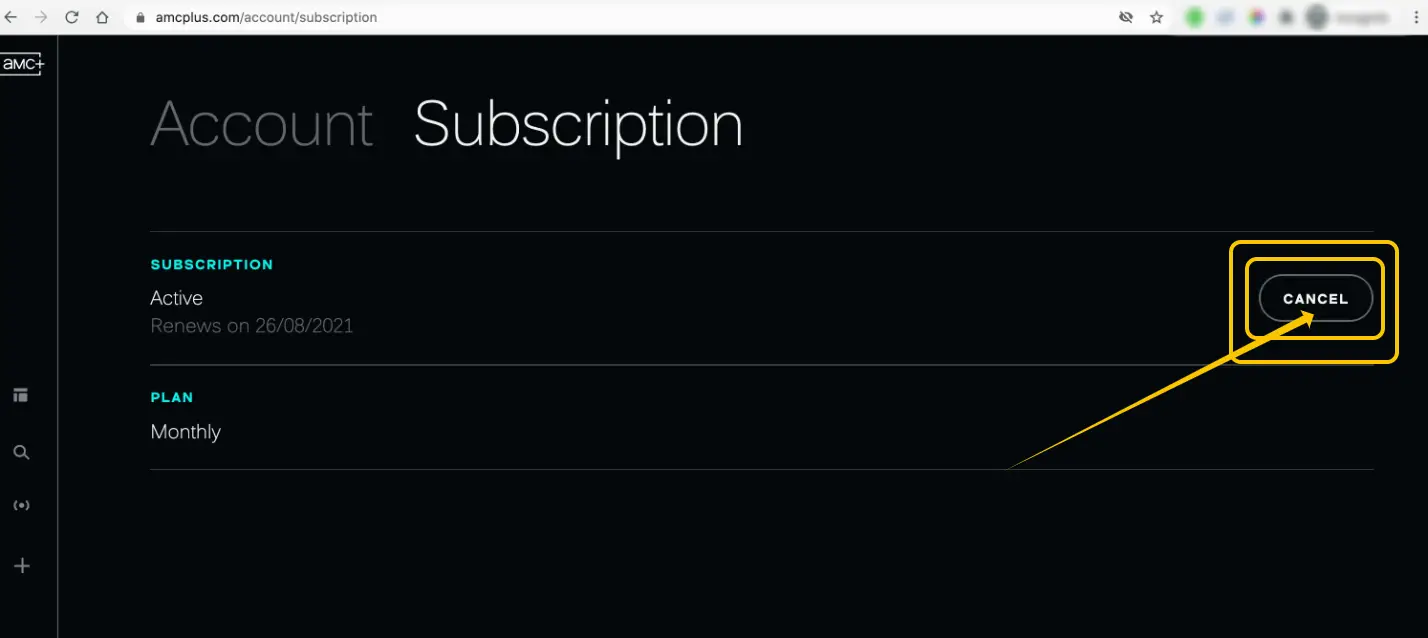
- Subscription Management: Locate the “Subscription” tab. This section communicates directly with AMC’s backend billing server.
- The Cancellation Trigger: Click “Cancel.” You will likely be presented with a retention offer (e.g., a discounted month). Bypassing this requires a final confirmation to update the database status of your account from “Active” to “Pending Cancellation.”
Managing Subscriptions on iOS and Apple TV
If you subscribed via an iPhone or an Apple TV, your contract is with Apple’s App Store ecosystem, governed by your Apple ID.
- Accessing the Settings App: On your iOS device, open the “Settings” application.
- Apple ID Interface: Tap your name at the top to enter the Apple ID management screen.
- Subscriptions API: Tap “Subscriptions.” This loads a list of all active third-party services linked to your Apple account.
- Modification: Select AMC Plus and tap “Cancel Subscription.” This sends an immediate instruction to Apple’s servers to cease the recurring billing cycle at the end of the current period.
Navigating the Amazon Prime Video Channel Interface
One of the most common ways to consume AMC Plus is through “Prime Video Channels.” In this scenario, AMC Plus acts as a sub-module within the Amazon infrastructure.
- Account & Lists: Log in to Amazon via a web browser and navigate to “Account & Lists.”
- Memberships and Subscriptions: This is a separate dashboard from your standard Amazon orders. Click on “Other Subscriptions” or “Prime Video Channels.”
- Channel Actions: Locate AMC Plus under the “Your Channels” section. Select “Cancel Channel.”
- Verification: Amazon will prompt you to confirm. Once confirmed, the AMC Plus metadata will remain accessible until the expiration date, but the “Auto-Renew” flag will be toggled to “Off.”
Technical Troubleshooting: When the “Cancel” Button is Missing
Occasionally, users encounter a technical glitch where the option to cancel is nowhere to be found. This usually indicates a synchronization error between the app and the billing server.
Cache and Session Conflicts
If you are logged into the AMC Plus app but cannot see subscription details, the app may be displaying a cached version of your profile. In technical terms, the local JSON data stored on your device is not reflecting the live state of the server.
- Solution: Perform a hard refresh on your browser (Ctrl+F5) or clear the app cache on your mobile device. If the issue persists, log out and log back in to force the app to fetch a fresh “token” from the server.
Cross-Platform Credential Mismatch
A common user error involves having multiple email addresses. You may be logged into the AMC Plus app with “Email A,” while your billing is actually tied to a Roku or Amazon account under “Email B.” To resolve this, check your digital receipts in your email inbox to verify which service sent the original “Welcome” or “Billing” notification.
The “App-Only” Limitation
Many smart TV apps (such as those on Samsung or LG TVs) allow you to watch content but do not provide the technical infrastructure to manage billing. If you are searching through your TV settings to cancel, you are likely in a dead end. You must move to a desktop browser or the mobile device used for the initial setup.
Data Privacy and Digital Footprint Management
Canceling a subscription is only the first half of a complete digital exit strategy. Once the billing has been halted, there are secondary technical considerations regarding your data.
Requesting Data Deletion
Under regulations such as the GDPR (General Data Protection Regulation) or CCPA (California Consumer Rights Act), users have the right to request that their data be purged. Simply canceling a subscription keeps your profile, watch history, and payment methods stored in AMC’s “Inactive User” database. If you wish to minimize your digital footprint, you should contact their technical support to request a formal account deletion.
Removing Third-Party App Permissions
If you used “Sign in with Google” or “Sign in with Apple” to create your AMC Plus account, the service still has a technical “handshake” with your primary identity provider. After canceling, navigate to your Google or Apple security settings and “Remove Access” for AMC Plus. This revokes the OAuth token and prevents the service from further accessing your basic profile information.
The Strategy of the “Subscription Cycle”
In the broader tech landscape, the process of canceling and re-subscribing—often called “Service Cycling”—is becoming a standard way to manage digital resources. Instead of maintaining a dozen “Always On” subscriptions, savvy tech users activate services for 30-day “sprints” to binge specific content.
Utilizing Subscription Trackers
To manage this technical overhead, many users are turning to subscription management software (SaaS) like Rocket Money or specialized features within banking apps. These tools use Plaid or similar APIs to scan your transaction history, identify recurring “merchant codes” associated with streaming services, and sometimes even automate the cancellation process on your behalf.
Confirming the Termination
The final technical step in any cancellation is the “Audit.” Always ensure you receive a confirmation email. This email serves as a cryptographic proof of your request. If a charge appears in the next billing cycle, this digital receipt is your primary evidence for a chargeback or a support ticket.
Conclusion: Mastering Your Digital Stack
Navigating the technicalities of “how to cancel AMC Plus” is a microcosm of the larger challenge of managing a modern digital life. By understanding the relationship between billing intermediaries, platform-specific APIs, and UI design, you transition from a passive consumer to an active manager of your software stack.
Whether you are using a browser, an iOS device, or a third-party aggregator like Roku or Amazon, the key is to identify the source of the billing and follow the logical path of the platform’s subscription management interface. Once the “Auto-Renew” is disabled, you have successfully reclaimed control over your digital subscriptions and the data associated with them.
aViewFromTheCave is a participant in the Amazon Services LLC Associates Program, an affiliate advertising program designed to provide a means for sites to earn advertising fees by advertising and linking to Amazon.com. Amazon, the Amazon logo, AmazonSupply, and the AmazonSupply logo are trademarks of Amazon.com, Inc. or its affiliates. As an Amazon Associate we earn affiliate commissions from qualifying purchases.