
Calculating percentages is a fundamental skill in various fields, from personal budgeting to complex scientific analysis. While the underlying mathematics is straightforward, efficiently performing these calculations using a digital tool – be it a physical calculator, a smartphone app, or a web-based utility – requires an understanding of its specific interface and functions. This guide will demystify the process, ensuring you can confidently harness the power of your chosen calculator for all your percentage needs.
Mastering Basic Calculators: The Dedicated ‘%’ Key
Most standard scientific and financial calculators, as well as many basic arithmetic models, feature a dedicated percentage (%) key. Understanding how this key interacts with other operations is crucial for accurate and efficient calculations. Its function often varies slightly depending on the specific operation being performed.

Finding a Percentage of a Number
This is perhaps the most common percentage calculation: determining what a certain percentage of a given total is. For example, finding 20% of 150.
Steps:
-
Enter the base number:
150 -
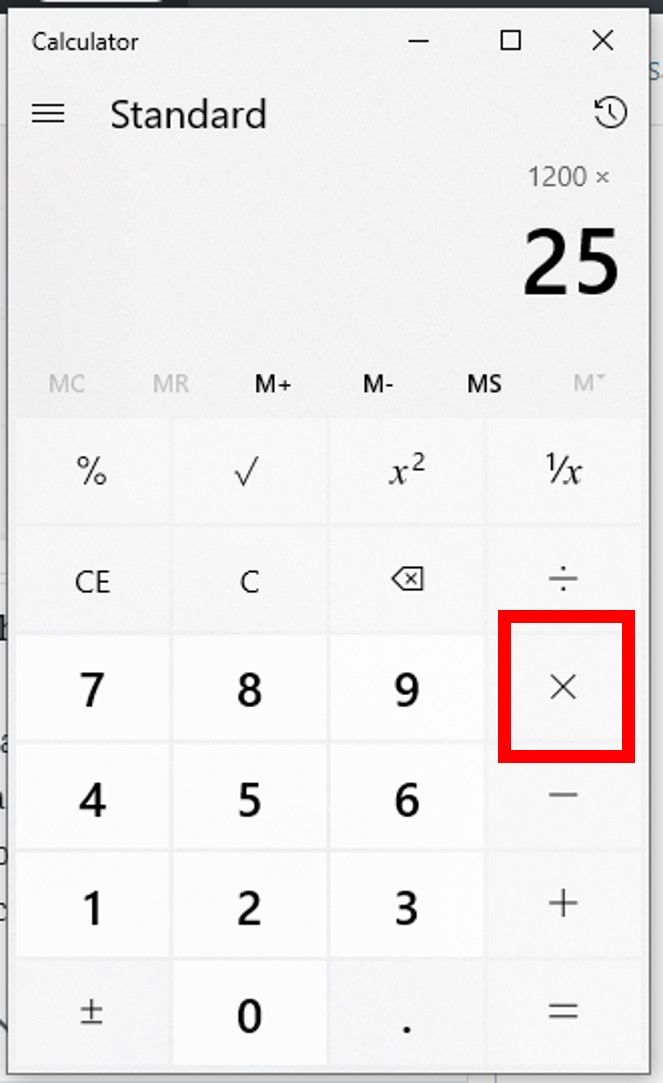
Press the multiplication key:
× -
Enter the percentage you want to find:
20 -
Press the percentage key:
% -
(Optional, but often necessary on older calculators) Press the equals key:
=
The display should show 30. Some calculators might show 20% briefly before converting to 0.2 and then multiplying. Modern calculators often integrate the percentage calculation directly, meaning 150 × 20% directly yields 30 without an extra equals sign. Experimentation with your specific device is key.
Adding or Subtracting a Percentage
Often, you need to increase or decrease a number by a certain percentage, such as calculating a price after a discount or adding tax.
To add a percentage (e.g., add 10% to 200):
-
Enter the base number:
200 -
Press the addition key:
+ -
Enter the percentage to add:
10 -
Press the percentage key:
% -
Press the equals key:
=
The display should show 220. On many calculators, pressing % after 10 will calculate 10% of 200 (which is 20), and then the + operation will add this result to the original 200.
To subtract a percentage (e.g., subtract 15% from 300):
-
Enter the base number:
300 -
Press the subtraction key:
- -
Enter the percentage to subtract:
15 -
Press the percentage key:
% -
Press the equals key:
=
The display should show 255. Similar to addition, the calculator typically calculates 15% of 300 (which is 45) and then subtracts this value from 300.
Percentage Change Calculations
Calculating the percentage increase or decrease between two numbers is a common task, useful for tracking growth, decline, or comparison. The formula for percentage change is: ((New Value - Old Value) / Old Value) × 100. While some advanced calculators might have a direct function for this, it’s typically a multi-step process on standard devices.
Example: From 50 to 75 (increase)
-
Calculate the difference:
75 - 50 = 25 -
Divide the difference by the original value:
25 ÷ 50 = 0.5 -
Multiply by 100 to express as a percentage:
0.5 × 100 = 50
So, 50% increase.
Example: From 100 to 80 (decrease)
-
Calculate the difference:
80 - 100 = -20(or just100 - 80 = 20and remember it’s a decrease) -
Divide the absolute difference by the original value:
20 ÷ 100 = 0.2 -
Multiply by 100:
0.2 × 100 = 20
So, 20% decrease.
Smartphone and Digital Calculators: Beyond the Basics
Modern smartphone calculator apps (on iOS, Android, and other platforms) and desktop calculator utilities often provide a more intuitive interface, sometimes with more powerful functions than their physical counterparts. While they also include a ‘%’ button, their underlying logic can sometimes differ, or they may offer alternative ways to achieve the same result.
App-Specific Nuances (iOS vs. Android)
iOS Calculator (Standard Mode):
The iOS calculator app often interprets the % key in a context-sensitive manner.
-
To find 20% of 150:
150 × 20 % =->30 -
To add 10% to 200:
200 + 10 % =->220 -
To subtract 15% from 300:
300 - 15 % =->255
The iOS calculator is generally very user-friendly in how it handles the % key, often displaying the intermediate percentage value before applying it to the previous operation.
Android Calculator (Standard Mode):
Android calculators can vary by device manufacturer, but many behave similarly to basic physical calculators.
-
To find 20% of 150:
150 × 20 %->30(often no need for=) -
To add 10% to 200:
200 + 10 %->220(sometimes requires=at the end, depending on the app) -
To subtract 15% from 300:
300 - 15 %->255(similarly, may or may not require=)
It’s always recommended to test your specific phone’s calculator app with a known percentage calculation to understand its exact behavior.
Scientific Mode (Landscape View):
When rotated to landscape, most smartphone calculators switch to a scientific mode, offering more advanced functions. While the basic percentage key typically works the same, you might find more robust memory functions or parenthesis capabilities that allow for more complex multi-step percentage calculations without losing intermediate values.
Chaining Operations and Memory Functions
Digital calculators, especially on smartphones, excel at chaining operations. You can perform multiple additions, subtractions, multiplications, and divisions, including percentage calculations, sequentially.
Example: Calculate a 20% discount, then add 5% tax:
-
Original price:
100 -
Subtract 20% discount:
100 - 20 % = 80 -
Add 5% tax to the new price:
+ 5 % = 84
The result is 84. This chained operation uses the previously calculated 80 as the new base for the 5% tax calculation.
Memory functions (M+, M-, MR, MC) are also invaluable.
-
M+: Adds the displayed number to memory. -
M-: Subtracts the displayed number from memory. -
MR(Memory Recall): Displays the number stored in memory. -
MC(Memory Clear): Clears the memory.
These are particularly useful for scenarios where you need to calculate several percentages and sum them up, or use an intermediate percentage result in a later, unrelated calculation.
Online Calculators and Specialized Tools
Beyond built-in device calculators, the web offers a plethora of specialized percentage calculators and spreadsheet software that provide enhanced flexibility and features. These tools are often designed to simplify specific percentage-related tasks or handle larger datasets.
Web-Based Percentage Calculators
Numerous websites host free online calculators specifically designed for percentages. These often provide dedicated input fields for different types of percentage problems:
-
“What is X percent of Y?”
-
“X is what percent of Y?”
-
“What is the percentage increase/decrease from X to Y?”
-
“Add/subtract X percent to/from Y.”
Advantages:
-
Clarity: Dedicated input fields make it clear what values to enter.
-
Explanation: Many provide step-by-step explanations of the calculation.
-
No specific button logic to learn: You just input numbers and click “calculate.”
-
Accessibility: Available on any device with a web browser.
These are excellent for quick, unambiguous calculations, especially if you’re unsure how your physical or app calculator’s % key behaves for a specific scenario.
Spreadsheet Software for Complex Percentage Tasks
For more complex or recurring percentage calculations, spreadsheet software like Microsoft Excel, Google Sheets, or Apple Numbers is an indispensable tool. Spreadsheets allow you to organize data, apply formulas, and update calculations dynamically.
Key features for percentages:
-
Direct decimal conversion: To calculate 20% of 150, you can type
=0.20*150or=20%*150into a cell. -
Cell references: If your base number is in cell A1 and the percentage in B1, you can use
=A1*B1(if B1 contains0.20) or=A1*B1%(if B1 contains20). This makes it easy to change values and see instant updates. -
Formulas for percentage change:
=(B2-A2)/A2(where B2 is new value, A2 is old value). Format the result as a percentage. -
Conditional formatting: Highlight cells based on percentage thresholds.
-
Data analysis tools: Pivot tables and charts to visualize percentage distributions and trends.
For any professional or academic context involving frequent percentage calculations with datasets, mastering spreadsheet percentage functions is a significant productivity enhancer.
Advanced Scenarios and Practical Tech Application
Beyond basic arithmetic, percentages play a critical role in various real-world applications. Understanding how to apply your calculator efficiently to these scenarios can streamline your daily tasks.
Calculating Discounts and Markups
These are common in retail and business.
Discount: A item costs $85, and you have a 15% discount.
-
Using a calculator’s
%key:85 - 15 % =->72.25 -
Manual calculation (using tech):
85 × 0.15 = 12.75(discount amount).85 - 12.75 = 72.25
Markup: A product costs a store $40 to buy, and they want a 25% markup on their cost.
-
Using a calculator’s
%key:40 + 25 % =->50 -
Manual calculation (using tech):
40 × 0.25 = 10(markup amount).40 + 10 = 50
Understanding Tax and Gratuity
Similar to discounts, calculating sales tax or tips involves adding a percentage to a base amount.
Sales Tax: An item is $65, and sales tax is 8.25%.
-
Using a calculator’s
%key:65 + 8.25 % =->70.3625. Round to70.36. -
Manual calculation:
65 × 0.0825 = 5.3625.65 + 5.3625 = 70.3625.
Gratuity (Tip): A meal costs $48.50, and you want to leave an 18% tip.
-
Using a calculator’s
%key:48.50 × 18 % =->8.73(tip amount). -
Then,
48.50 + 8.73 = 57.23(total cost). -
Alternatively, to get total directly:
48.50 + 18 % =->57.23
Real-World Percentage Growth and Decline
From population statistics to investment returns, percentages describe change over time.
Population Growth: A city had 150,000 residents last year and grew by 3.5% this year.
- Using a calculator:
150000 + 3.5 % =->155250residents.
Investment Decline: An investment portfolio of $10,000 experienced a 7% decline.
- Using a calculator:
10000 - 7 % =->9300(new portfolio value).
These examples highlight how seamlessly calculator technology integrates with everyday percentage computations, making complex calculations accessible and quick.
Optimizing Your Calculation Workflow: Tips and Tricks
While calculators simplify percentage calculations, a few best practices can further enhance accuracy and efficiency.
Accuracy and Precision
-
Decimal Places: Be mindful of the number of decimal places your calculator displays and your required precision. For currency, typically round to two decimal places at the final step.
-
Full Number Input: When possible, input the full numbers rather than rounding prematurely. For example, use
8.25for 8.25%, not8.3unless explicitly required. -
Understand Your Calculator’s Logic: As noted, different calculator models handle the
%key uniquely. Spend a few minutes testing basic scenarios to understand how your specific device or app operates.

Double-Checking Your Work
-
Reverse Calculation: If you calculated a discounted price, try adding the same percentage back to see if you arrive at the original price (or close to it, accounting for rounding).
-
Estimate: Before performing a calculation, quickly estimate the answer in your head. For example, 20% of 150 should be around one-fifth of 150, which is 30. If your calculator shows 3 or 300, you know something is wrong.
-
Alternative Method: If critical, perform the calculation using a different method (e.g., convert percentage to decimal manually and multiply) or on a different calculator to verify the result.
By understanding the functionality of your chosen calculator and employing these best practices, you can perform percentage calculations with speed, accuracy, and confidence across all your digital devices.
aViewFromTheCave is a participant in the Amazon Services LLC Associates Program, an affiliate advertising program designed to provide a means for sites to earn advertising fees by advertising and linking to Amazon.com. Amazon, the Amazon logo, AmazonSupply, and the AmazonSupply logo are trademarks of Amazon.com, Inc. or its affiliates. As an Amazon Associate we earn affiliate commissions from qualifying purchases.