
In the rapidly evolving digital landscape, establishing an online presence is no longer a luxury but a necessity for businesses of all sizes. For those venturing into e-commerce, the technical complexities of building a robust and scalable online store can often seem daunting. This is where platforms like Shopify shine, democratizing the process of creating a professional, functional, and visually appealing e-commerce website without requiring extensive coding knowledge. This comprehensive guide will walk you through the technical intricacies and step-by-step process of building a website on Shopify, empowering you to launch your online store with confidence and precision.
1. Understanding the Shopify Ecosystem
Before diving into the practical build, a foundational understanding of what Shopify offers and how its ecosystem functions is crucial. This insight will help you leverage its full potential and make informed decisions throughout your development process.
What is Shopify and Why Choose It?
Shopify is a leading cloud-based e-commerce platform that provides a complete solution for creating and managing an online store. It’s a “Software as a Service” (SaaS) product, meaning you pay a monthly subscription to use its robust infrastructure, hosting, and suite of tools. Its primary appeal lies in its user-friendliness, scalability, and comprehensive feature set, making it suitable for everyone from nascent startups to established enterprises.
The reasons for choosing Shopify are manifold:
-
Ease of Use: Its intuitive drag-and-drop interface and streamlined administrative panel simplify complex tasks.
-
All-in-One Solution: Shopify handles everything from product listings and payment processing to shipping logistics and marketing tools, reducing the need for multiple third-party integrations (though it supports many).
-
Scalability: The platform is designed to grow with your business, effortlessly handling increasing traffic and product volumes.
-
Security & Reliability: Shopify manages hosting, SSL certificates, and PCI compliance, ensuring a secure and reliable shopping environment.
-
Extensive App Store: A vast marketplace of apps extends core functionality, allowing for customization to fit niche business requirements.
-
24/7 Support: Access to technical support helps resolve issues promptly, minimizing downtime.
Key Components of Your Shopify Store
Understanding the core technical components will demystify the platform and highlight areas you’ll interact with frequently:
-
Shopify Admin Panel: This is your central dashboard. From here, you manage products, orders, customers, themes, apps, and all other aspects of your store. Its well-organized navigation provides quick access to various functionalities.
-
Themes: These are pre-designed templates that dictate the visual layout and user experience of your storefront. Themes are built using Liquid (Shopify’s templating language), HTML, CSS, and JavaScript, offering varying degrees of customization.
-
Apps: Functionality extensions available through the Shopify App Store. They integrate seamlessly with your store to add features like advanced analytics, email marketing, loyalty programs, or inventory management.
-
Payment Gateways: Integrations that enable your store to accept online payments. Shopify Payments is the native option, but numerous third-party gateways (e.g., PayPal, Stripe) are also supported.
-
Hosting: Shopify provides fully managed hosting, which means you don’t need to worry about server maintenance, uptime, or bandwidth – a significant technical advantage for non-developers.
Getting Started: Account Setup and Basic Configuration
The journey begins with setting up your Shopify account.
-
Sign Up for a Free Trial: Visit the Shopify website and initiate your free trial. You’ll need to provide basic information, including your desired store name (which becomes your default
your-store-name.myshopify.comURL). -
Navigate the Admin Panel: Upon successful sign-up, you’ll land in your Shopify Admin. Take a moment to familiarize yourself with the left-hand navigation menu (Home, Orders, Products, Customers, Analytics, Marketing, Discounts, Online Store, Apps, Settings).
-
General Settings Configuration:
-
Store Details: Go to
Settings > Store detailsto verify and update your store name, contact information, store currency, and time zone. These technical details are crucial for accurate order processing and customer communication. -
Payments: Under
Settings > Payments, activate Shopify Payments (recommended for simplicity and competitive rates) or connect a third-party payment provider. This involves providing business banking information and adhering to compliance standards. -
Shipping & Delivery: Configure your shipping zones, rates, and package sizes under
Settings > Shipping and delivery. This technical setup defines how products are delivered to your customers and calculates associated costs. -
Taxes: Set up tax rates based on your business location and the regions you’ll be shipping to, ensuring correct tax calculations at checkout.
-
2. Designing Your Storefront: Themes and Customization
Your store’s design is the first impression customers have, and Shopify provides powerful tools to craft a visually appealing and functional interface.
Choosing the Right Shopify Theme
A theme is the visual foundation of your store. Shopify offers a robust theme store with both free and paid options.
-
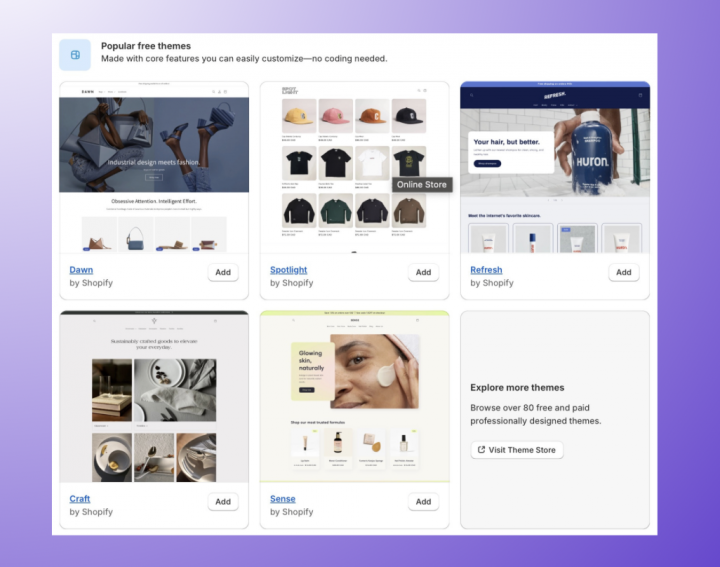
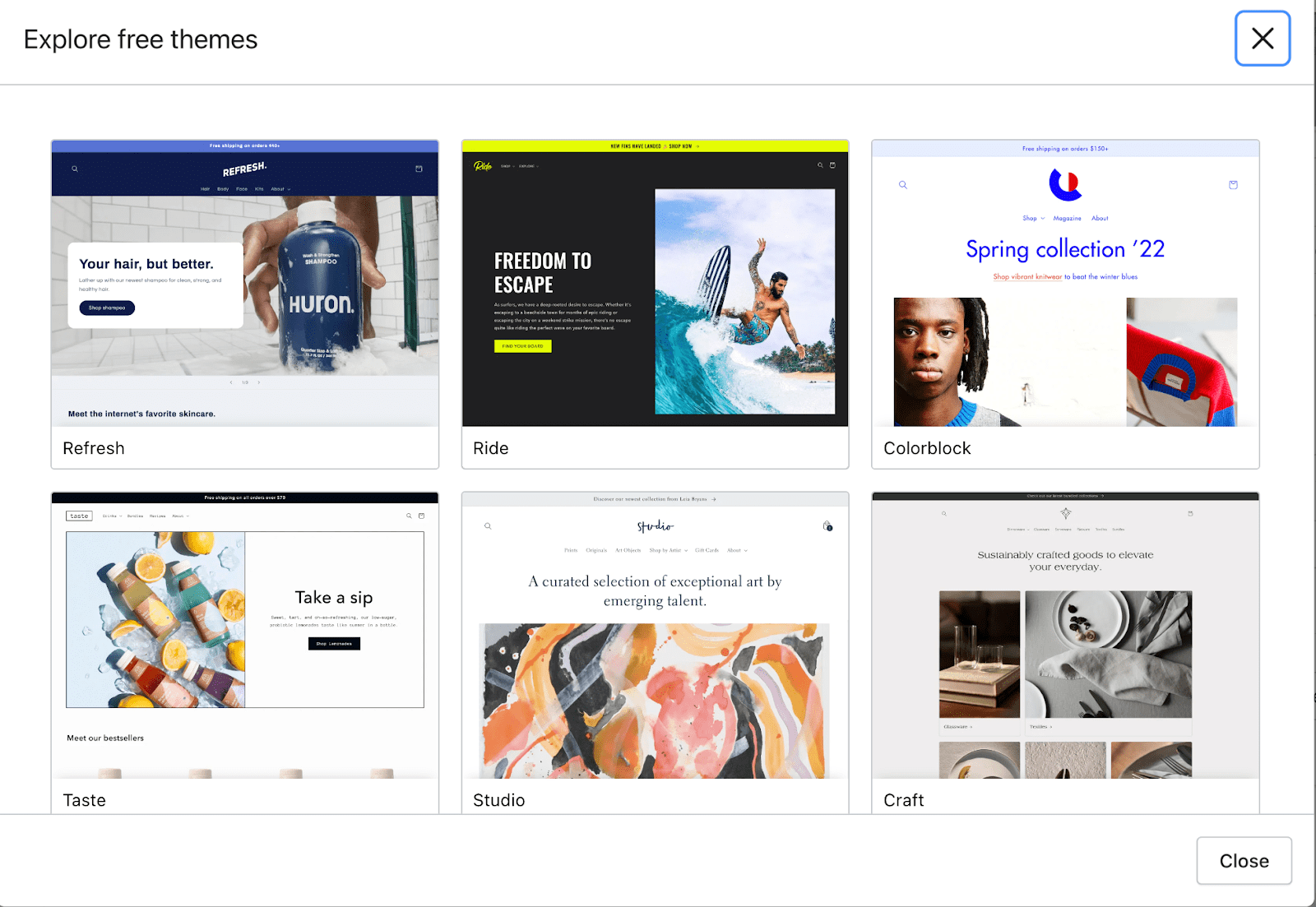
Free Themes: Shopify’s free themes (e.g., Dawn, Refresh, Sense) are expertly designed, mobile-responsive, and optimized for performance. They offer a great starting point, especially for new businesses.
-
Paid Themes: Premium themes often come with more advanced features, unique layouts, and specialized sections tailored for specific industries. While an investment, they can provide a distinct competitive edge and reduce the need for custom coding.
When choosing, consider:
-
Industry Fit: Does the theme’s aesthetic align with your brand and product type?
-
Features: Does it offer the specific sections or functionalities you anticipate needing (e.g., quick view, mega menus, product filtering)?
-
Mobile Responsiveness: Crucial for today’s mobile-first shoppers. All Shopify themes are responsive, but some perform better than others.
-
Reviews and Support: For paid themes, check user reviews and the developer’s support reputation.
Once selected, click “Add theme” or “Buy theme” from the Shopify Theme Store, and it will be installed into your admin under Online Store > Themes.
Theme Editor Walkthrough: Layout and Styling
With your theme installed, it’s time to customize it using Shopify’s intuitive drag-and-drop theme editor. Navigate to Online Store > Themes, then click “Customize” on your active theme.
The theme editor is divided into:
-
Sections: These are content blocks on your pages (e.g., header, footer, image banner, product grid, text columns). You can add, remove, reorder, and configure individual settings for each section.
-
Blocks: Elements within sections (e.g., text, images, buttons within an image banner section).
-
Theme Settings: Global styling options that apply across your entire store (e.g., colors, typography, layout, social media links, favicon).
Technical aspects of customization involve:
-
Image Optimization: Use appropriately sized and compressed images to ensure fast loading times. Shopify automatically serves images responsively, but starting with optimized assets is key.
-
Font Selection: Choose fonts that enhance readability and align with your brand identity. The editor allows selection from Google Fonts or system fonts.
-
Color Palette: Configure primary, secondary, and accent colors to maintain brand consistency.
-
Navigation Menus: Under
Online Store > Navigation, you can create and edit menus (e.g., main menu, footer menu) and link them to pages, collections, or external URLs. This is a critical technical step for user experience (UX).
Advanced Customization: Introduction to Liquid and CSS
While Shopify’s theme editor offers extensive visual customization, advanced users or those with specific design requirements might delve into the theme’s code.
-
Liquid: Shopify’s open-source template language, used to load dynamic data from your store (products, collections, customer info) into your theme.
-
CSS (Cascading Style Sheets): Used to control the visual presentation of your HTML elements.
To access theme code, go to Online Store > Themes, click the “Actions” dropdown on your active theme, and select “Edit code.” Here, you’ll find files like theme.liquid (the main layout file), various section and snippet files, and CSS files (often within an assets folder).
Caution: Directly editing theme code requires a good understanding of HTML, CSS, and Liquid. Always duplicate your theme before making code changes to create a backup, preventing potential irreversible errors that could break your storefront.
3. Populating Your Store with Products
The core of any e-commerce website is its products. Accurately and appealingly presenting your offerings is vital for conversions.
Adding Products: Details, Variants, and Media
The Products section in your Admin Panel is where you’ll manage your inventory.
-
Product Title & Description: Craft compelling and SEO-friendly titles and detailed descriptions. Use rich text formatting for readability.
-
Media: Upload high-quality product images and videos. Technical best practices include:
-
Consistent aspect ratios for a uniform look.
-
Alt text for all images to improve accessibility and SEO.
-
Optimizing file sizes to maintain fast page load speeds.
-
-
Pricing: Set your price and compare-at price (for sales).
-
Inventory: Assign a unique SKU (Stock Keeping Unit) for each product/variant and manage inventory quantities. Shopify can track inventory automatically.
-
Shipping: Specify whether the product requires shipping and its weight, crucial for accurate shipping cost calculations.
-
Variants: For products with multiple options (e.g., size, color), define variants. Each variant can have its own SKU, price, image, and inventory level. This is a powerful technical feature for managing diverse product lines.
-
Search Engine Listing Preview: Optimize the SEO title and meta description for each product to improve its visibility in search engine results.
Organizing Products: Collections and Tags
Effective product organization enhances customer experience and navigation.
-
Collections: These are groups of related products. You can create two types:
-
Manual Collections: You manually add or remove products.
-
Automated Collections: Products are automatically added based on specific conditions (e.g., all products with “T-Shirt” in the title, or all products priced under $50, or products with a specific tag). This automated technical process saves significant time.
-
-
Product Tags: Keywords or phrases assigned to products for internal organization or to create dynamic filters on your storefront. Tags are a flexible technical tool for categorization beyond collections.
To manage collections, go to Products > Collections in your Admin. After creating collections, remember to link them to your store’s navigation menus.
Managing Inventory and Shipping Settings
Accurate inventory management prevents overselling and builds customer trust.
-
Inventory Tracking: Shopify’s robust inventory system allows you to track stock levels, receive low-stock alerts, and even manage inventory across multiple locations.
-
Shipping Profiles: Under
Settings > Shipping and delivery, you can create custom shipping profiles to define specific rates for different product groups, locations, and weight ranges. This technical configuration is vital for transparent shipping costs. -
Shipping Zones: Configure regions where you’ll ship products and assign specific rates (e.g., flat rate, calculated rates from carriers like USPS/DHL).
4. Enhancing Functionality with Shopify Apps
While Shopify is feature-rich, its App Store is where you unlock specialized functionalities to meet unique business demands.
Exploring the Shopify App Store
The Shopify App Store (apps.shopify.com) is a marketplace hosting thousands of applications developed by third parties. These apps integrate seamlessly with your Shopify store, expanding its capabilities without custom coding.
-
Categories: Apps are organized into categories like Marketing, Store Design, Sourcing & Selling Products, Orders & Shipping, Customer Support, and Productivity.
-
Search & Filters: Utilize the search bar and filters to find apps based on specific needs, pricing models (free, paid, subscription), and user ratings.
-
Reviews & Documentation: Always review an app’s ratings, read user reviews, and check its documentation to understand its features, limitations, and support quality before installation.
Essential App Categories for E-commerce
Consider these app categories to enhance various technical and operational aspects of your store:
-
Marketing & SEO: Apps for email marketing (e.g., Klaviyo, Mailchimp), social media integration, SEO optimization (e.g., Plug-in SEO, All in One SEO), and pop-ups for lead capture.
-
Customer Service: Live chat solutions (e.g., Tidio, Gorgias), FAQ apps, and helpdesk integrations to streamline customer support.
-
Inventory & Order Management: Advanced tools for inventory sync, dropshipping automation (e.g., Oberlo, DSers), and order fulfillment.
-
Reporting & Analytics: Apps that provide deeper insights into sales, customer behavior, and marketing performance beyond Shopify’s native analytics.
-
Product Reviews: Essential for building trust and social proof (e.g., Loox, Yotpo, Judge.me).
-
Website Performance: Apps for image compression, page speed optimization, and broken link checkers.
Installing and Integrating Apps
Installing an app is a straightforward technical process:
-
Find the App: Locate the desired app in the Shopify App Store.
-
Add App: Click the “Add app” button. You’ll be redirected to your Shopify Admin.
-
Review Permissions: Carefully review the permissions the app requests (e.g., read/write access to products, orders, customers). Ensure you understand what data the app will access and why.
-
Install App: Click “Install app” to complete the installation.
-
Configuration: Most apps require some initial configuration within their settings, often accessible directly from your Shopify Admin under the
Appssection.
Technical Consideration: While apps add functionality, too many unoptimized apps can slow down your store’s loading speed, negatively impacting user experience and SEO. Regularly review your installed apps and uninstall any that are no longer needed.
5. Setting Up Payments and Launching Your Store
With your store designed, products listed, and essential apps integrated, the final technical steps involve configuring payments and preparing for your grand opening.
Configuring Payment Gateways
Accepting payments securely and efficiently is paramount for any online store.
-
Shopify Payments: This is Shopify’s in-house payment processor. Activating it is highly recommended as it simplifies setup, reduces transaction fees (no additional Shopify fees for using it), and integrates seamlessly with your store. You’ll need to provide business and banking details for verification.
-
Third-Party Providers: If Shopify Payments isn’t available in your region or you prefer other options, you can integrate external gateways like PayPal, Stripe, Authorize.net, or various region-specific providers. Navigate to
Settings > Paymentsand select “Add payment methods.” Be aware that using third-party providers incurs both the gateway’s processing fees and an additional transaction fee from Shopify (unless you are on the Shopify Plus plan). -
Manual Payment Methods: Options like Cash on Delivery (COD), bank deposits, or money orders can also be enabled, though they require manual processing.
Ensure all payment methods are thoroughly tested before launch to prevent issues during live transactions.
Domain Setup: Connecting a Custom Domain
While your store initially exists on a myshopify.com subdomain, a custom domain (e.g., yourbrand.com) is essential for professionalism and branding.
-
Buy a New Domain: You can purchase a domain directly through Shopify (
Settings > Domains) for a seamless setup, or from external registrars like GoDaddy, Namecheap, or Google Domains. -
Connect Existing Domain: If you already own a domain, you’ll need to point its DNS records to Shopify.
-
In your domain registrar’s settings, you’ll typically update the A record to point to Shopify’s IP address (
23.227.38.65). -
You’ll also update the CNAME record for
wwwtoshops.myshopify.com. -
Shopify provides detailed instructions within
Settings > Domainsunder “Connect existing domain.” This technical configuration propagates across the internet, which can take up to 48 hours.
-
-
Set as Primary Domain: Once connected, set your custom domain as the primary domain in Shopify to ensure all traffic goes to your branded URL. Shopify automatically handles SSL certificates for all connected domains, ensuring secure HTTPS connections.

Pre-Launch Checklist and Going Live
Before removing your password protection and opening your store to the public, a final technical and operational review is critical:
-
Test Orders: Place a few test orders (using real payment methods and then refunding, or using Shopify’s test mode) to ensure the entire checkout flow, payment processing, and order confirmation emails are working correctly.
-
Mobile Responsiveness: Thoroughly test your store on various mobile devices and browsers to confirm optimal display and functionality.
-
Link Check: Verify all internal and external links are working, including navigation menus, product links, and social media icons.
-
Legal Pages: Ensure all required legal pages are in place:
-
Privacy Policy (
Settings > Policies) -
Refund Policy
-
Terms of Service
-
Shipping Policy
These build trust and fulfill legal requirements.
-
-
SEO Basics: Confirm your store’s
Online Store > Preferencesare optimized with a compelling homepage title and meta description. -
Analytics Integration: Ensure Google Analytics and other tracking tools (if used) are correctly integrated.
-
Remove Password Protection: When you’re ready, navigate to
Online Store > Preferencesand uncheck “Enable password.” Your store is now live!
Building a website on Shopify is an empowering journey that transforms a business idea into a tangible online presence. By meticulously following these technical steps, leveraging Shopify’s robust features, and continuously optimizing your store, you can create a powerful e-commerce platform poised for success in the digital marketplace. The initial setup is just the beginning; continuous learning, testing, and adaptation will be key to sustaining and growing your online venture.
aViewFromTheCave is a participant in the Amazon Services LLC Associates Program, an affiliate advertising program designed to provide a means for sites to earn advertising fees by advertising and linking to Amazon.com. Amazon, the Amazon logo, AmazonSupply, and the AmazonSupply logo are trademarks of Amazon.com, Inc. or its affiliates. As an Amazon Associate we earn affiliate commissions from qualifying purchases.