
The transition from traditional linear cable to over-the-top (OTT) streaming services has redefined the modern home theater experience. For owners of Samsung Smart TVs, YouTube TV represents one of the most robust alternatives to satellite and cable, offering a sophisticated blend of live broadcast television and cloud-based convenience. However, integrating this service into the Samsung ecosystem requires an understanding of the Tizen operating system, hardware compatibility, and network optimization.
This guide provides a comprehensive technical walkthrough for installing, activating, and optimizing YouTube TV on Samsung hardware, ensuring a seamless high-definition viewing experience.
Compatibility Requirements and Pre-installation Checklist
Before initiating the installation process, it is essential to verify that your hardware meets the necessary specifications. Samsung utilizes its proprietary Tizen OS for its smart platform, and while the library of available applications is vast, legacy hardware may face limitations.
Supported Samsung TV Models
YouTube TV is generally compatible with Samsung Smart TV models released from 2016 to the present. These models run on various iterations of the Tizen platform that support the specific video codecs and security protocols required by Google for YouTube TV playback. If you own a model manufactured prior to 2016 (such as those running the older Orsay architecture), the native app will likely be unavailable in the Samsung App Store. In such cases, external hardware like a Chromecast, Roku, or Apple TV is required to bridge the gap.
Network Infrastructure and Bandwidth
Streaming live television is a data-intensive task that requires a stable and high-speed internet connection to prevent buffering and resolution downgrades. To maintain a consistent 1080p stream, a minimum download speed of 7 Mbps is recommended per device. If you intend to utilize the YouTube TV 4K Plus add-on for Ultra High Definition content, your network must consistently deliver at least 25 Mbps.
Furthermore, while Wi-Fi is convenient, the 2.4GHz band is often prone to interference from household appliances. For the best results, connect your Samsung TV via the 5GHz Wi-Fi band or, ideally, through a wired Ethernet connection to the router. This minimizes latency and ensures the highest possible bitrate.
Account Preparation
Ensure you have an active YouTube TV subscription or a valid trial period associated with your Google account. It is often more efficient to handle billing and account setup via a desktop browser or mobile device before attempting to log in on the television hardware.
Step-by-Step Installation and Activation Process
Once compatibility is confirmed, the installation process is straightforward, though it requires a few steps within the Samsung Smart Hub interface.
Accessing the Samsung App Store
-
Power on the TV and press the Home button on your Samsung OneRemote to bring up the Smart Hub ribbon at the bottom of the screen.
-
Navigate to the left to select the “Apps” icon (represented by four small squares).
-
Once the Apps menu opens, navigate to the top-right corner and select the Search icon (magnifying glass).
Searching and Downloading
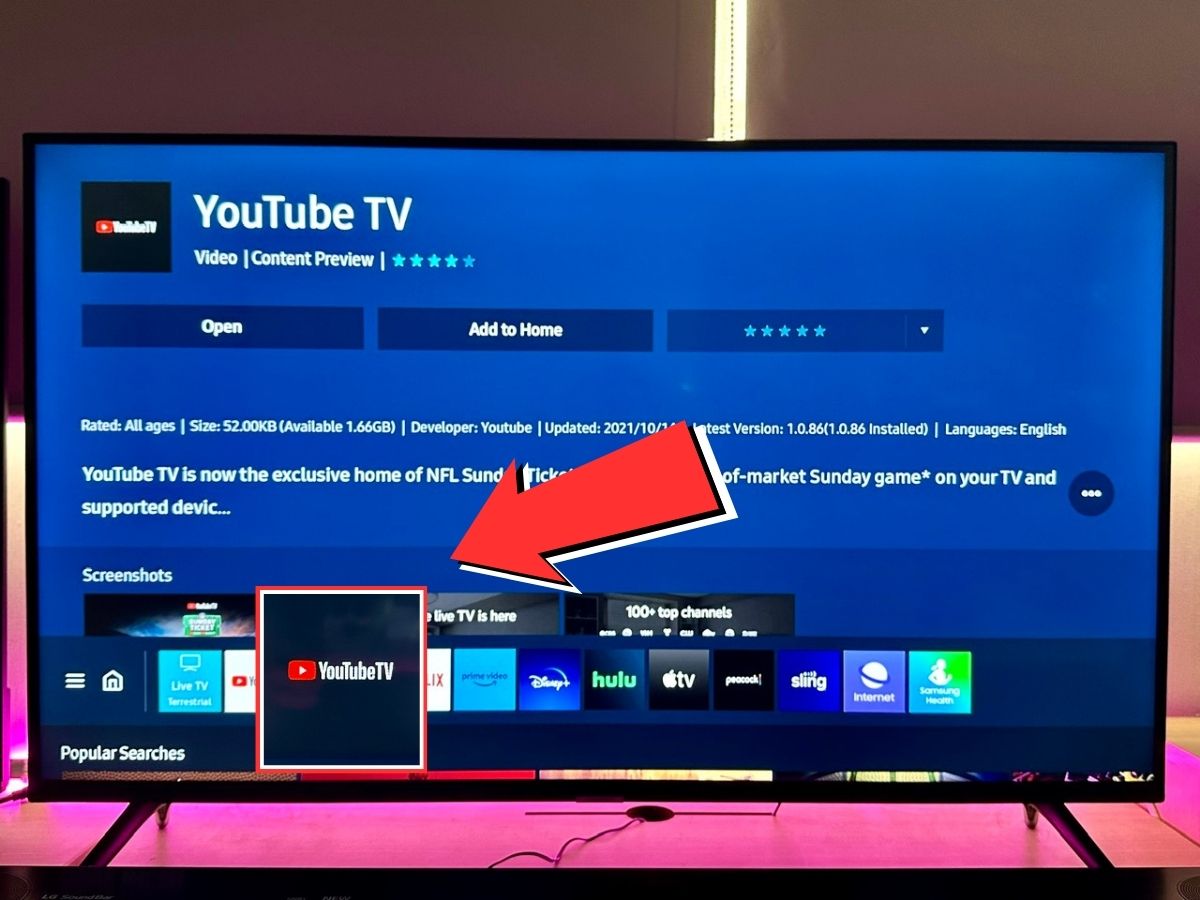
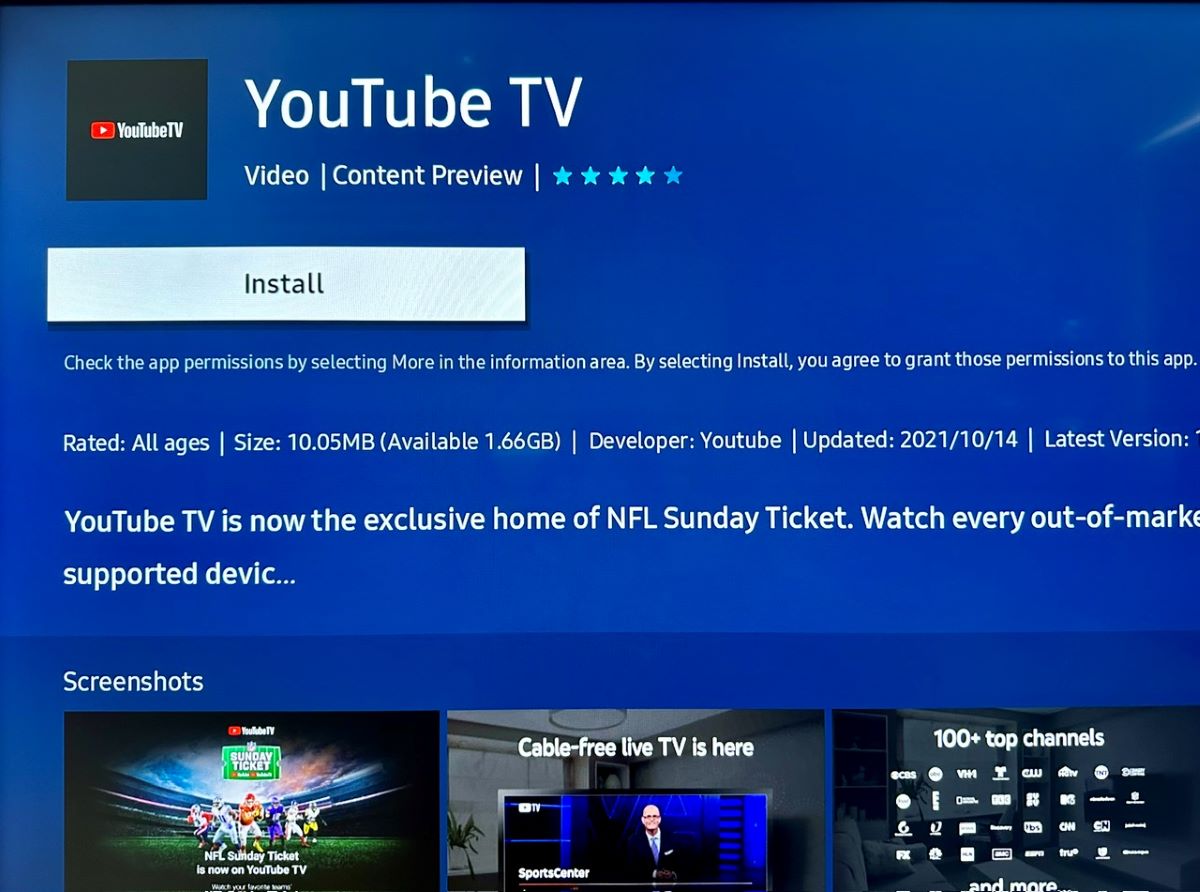
Using the on-screen keyboard, type “YouTube TV.” As you type, the system will provide auto-suggestions. Select “YouTube TV” from the results. On the application’s information page, select “Install.” The TV will download the package and integrate it into the Tizen UI. After the installation is complete, it is highly recommended to select the “Add to Home” option. This places the YouTube TV tile in your main ribbon for immediate access.
The Activation Handshake
Upon launching the app for the first time, you will be prompted to sign in. Rather than typing a complex password using a remote control, YouTube TV utilizes a secondary-device authentication method:
-
A 6-digit activation code will appear on your Samsung TV screen.
-
On your smartphone or computer, navigate to
tv.youtube.com/start. -
Enter the code displayed on your TV.
-
Select the Google account associated with your subscription.
-
Grant the necessary permissions. The TV screen will automatically refresh and log you into your personalized profile.

Optimizing the YouTube TV Experience on Tizen OS
Simply installing the app is the first step; optimizing the settings ensures you are getting the most out of Samsung’s display technology and YouTube TV’s feature set.
Customizing the Live Guide
One of the most powerful features of YouTube TV is the ability to reorganize the channel lineup. Because the Samsung interface is built for speed, having your most-watched channels at the top of the list reduces navigation friction. This customization must be done via the mobile app or web browser under Settings > Live Guide. Once you arrange the channels there, the changes will reflect globally across your Samsung TV.
Utilizing Cloud DVR and Voice Commands
Samsung TVs often feature integrated voice assistants like Bixby, Amazon Alexa, or Google Assistant. You can use these to launch the app directly by saying, “Open YouTube TV.” Within the app, the unlimited Cloud DVR allows you to “Add to Library” any show or sporting event. Because this is cloud-based, it does not utilize any of the internal storage on your Samsung TV, which is often limited.
Managing Picture and Audio Settings
To ensure the best visual output, navigate to your Samsung TV’s Expert Settings in the Picture menu while the YouTube TV app is active.
-
Digital Clean View: Turn this to “Low” or “Off” for high-quality HD streams to avoid losing fine detail.
-
Judder Reduction: For live sports, a slight increase in judder reduction can smooth out fast-motion plays, though it should be used sparingly to avoid the “soap opera effect” on scripted dramas.
-
Audio Output: If you are using a soundbar or home theater system, ensure the TV is set to “Pass-through” or “Auto” in the sound settings to allow YouTube TV’s 5.1 surround sound (where available) to reach your external speakers properly.
Troubleshooting Common Technical Issues
Even with high-end hardware, software conflicts can occur. Understanding how to troubleshoot these issues can save time and prevent the need for a factory reset.
App Crashes and Freezing
If the YouTube TV app becomes unresponsive, the most effective fix is a “cold boot” of the television. Hold down the Power button on your Samsung remote until the TV turns off and then turns back on again, showing the Samsung Galaxy / Tizen logo. This clears the system’s volatile memory (RAM) and restarts the application environment.
“This Device is Not Supported” or Playback Errors
If you encounter playback errors, check for firmware updates. Navigate to Settings > Support > Software Update > Update Now. Manufacturers frequently release patches that improve app stability and security handshakes (DRM). Additionally, if the app fails to load, try clearing the app cache. This is found under Settings > Support > Device Care > Self Diagnosis > TV Device Manager.
Location Permissions and Local Channels
YouTube TV relies on your IP address and device location to provide local network affiliates (ABC, NBC, CBS, FOX). If you are seeing the wrong local channels, you may need to re-verify your area. Open the YouTube TV app on your phone, go to Profile > Settings > Area, and update your “Current Playback Area” while your phone is connected to the same Wi-Fi network as the TV.
The Future of Integrated Streaming Ecosystems
The integration of YouTube TV into Samsung’s Tizen platform is a testament to the maturation of smart TV ecosystems. As we move toward a more “app-centric” viewing model, the hardware’s role shifts from being a passive display to an active computing node.
The Role of 4K and HDR
As YouTube TV expands its 4K offerings, the hardware processing power of Samsung’s Neo QLED and OLED lineups becomes critical. These TVs utilize AI-driven upscaling to enhance non-4K content, making standard HD streams from YouTube TV appear sharper and more vibrant. This synergy between software delivery and hardware processing defines the premium tier of modern cord-cutting.
Smart Home Synergy
Beyond simple viewing, the Samsung-YouTube TV partnership fits into a broader smart home strategy. Through the Samsung SmartThings app, users can automate their environment—for instance, dimming the lights automatically when the YouTube TV app is launched. This level of technical integration demonstrates that adding YouTube TV to your Samsung TV is not just about changing how you watch television, but about how the television functions as a central hub in a digitally connected home.
By following these protocols, users can ensure that their hardware and software are perfectly synchronized, providing a reliable, high-performance portal to live television and on-demand content.
aViewFromTheCave is a participant in the Amazon Services LLC Associates Program, an affiliate advertising program designed to provide a means for sites to earn advertising fees by advertising and linking to Amazon.com. Amazon, the Amazon logo, AmazonSupply, and the AmazonSupply logo are trademarks of Amazon.com, Inc. or its affiliates. As an Amazon Associate we earn affiliate commissions from qualifying purchases.