
The evolution of home entertainment has moved away from traditional cable toward a streamlined, app-based ecosystem. At the heart of this transition are Roku’s powerful hardware and the global content engine that is YouTube. Integrating these two platforms allows users to bridge the gap between user-generated content and professional cinematography on a large-format display. While the process is designed to be user-friendly, understanding the technical nuances of the Roku OS and how it handles third-party applications can ensure a more stable and high-quality viewing experience.
Adding YouTube to your Roku TV involves more than just a simple download; it requires an understanding of the Roku Channel Store, account synchronization, and network optimization. This guide provides an in-depth look at the installation protocols, configuration settings, and troubleshooting steps necessary to master your Roku-based streaming environment.

The Roku Ecosystem and Application Architecture
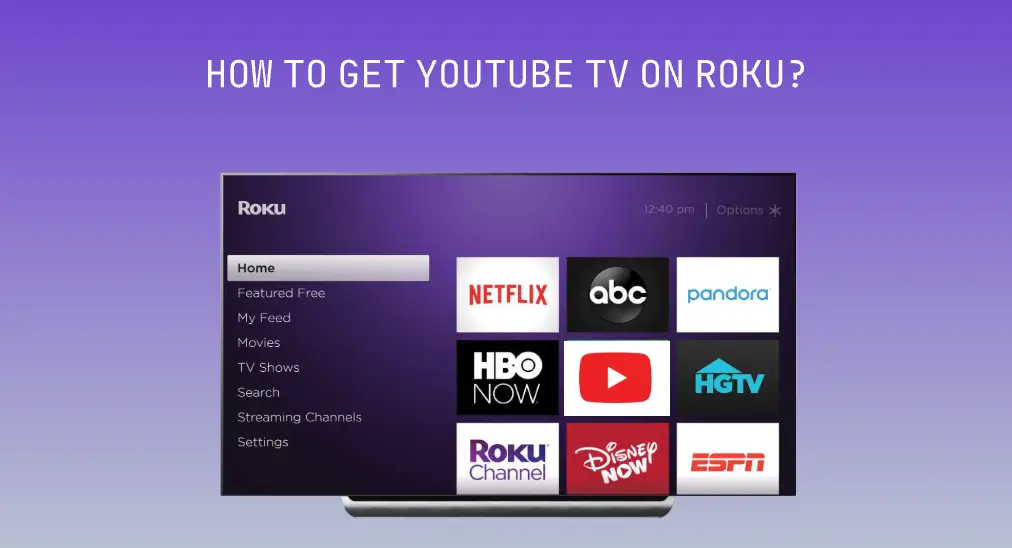
To understand how to add YouTube to your device, it is helpful to understand the underlying architecture of Roku OS. Unlike some smart TV platforms that use a mobile-first operating system, Roku uses a proprietary Linux-based OS designed specifically for media consumption. Apps on Roku are referred to as “Channels.” When you add YouTube, you are essentially installing a specialized piece of software optimized for the Roku remote and the specific hardware specifications of your TV model.
The Roku Channel Store serves as the centralized repository for these applications. It manages versioning and ensures that the software you download is compatible with your specific hardware generation. Whether you are using a dedicated Roku streaming stick or a built-in Roku TV from manufacturers like TCL, Hisense, or Westinghouse, the interface remains consistent, providing a unified experience for the end-user.
Step-by-Step Installation Protocols
There are three primary methods to add YouTube to your Roku device: directly through the TV interface, via the Roku mobile application, or through the web-based account portal. Each method achieves the same result by syncing the “Channel” to your Roku account’s cloud-based library.
Method 1: The Roku Channel Store (On-Device)
This is the most direct method and the one utilized by the majority of users.
-
Navigate to the Home Screen: Press the “Home” button on your Roku remote.
-
Access the Store: Use the directional pad to scroll down to “Streaming Store” or “Search.” In newer versions of the OS, “Search” is often the most efficient route.
-
Search for YouTube: Type “YouTube” into the on-screen keyboard. As you type, the system will populate results. Select “YouTube” (not to be confused with YouTube TV, which is a separate subscription-based service for live television).
-
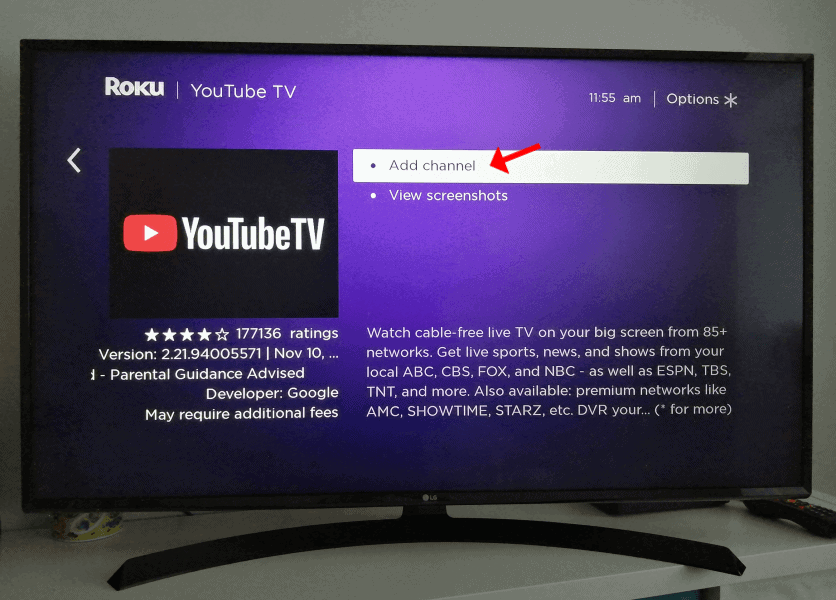
Add Channel: Select the YouTube icon and click “Add Channel.” If you have a PIN set for your Roku account, you will be prompted to enter it now.
-
Initialization: The system will download and install the application. Once complete, you can select “Go to channel” to launch it immediately.
Method 2: The Roku Mobile App
For users who prefer a mobile interface or find typing with a remote cumbersome, the Roku mobile app (available on iOS and Android) offers a seamless way to manage your channel lineup.
-
Connect to Network: Ensure your smartphone and your Roku TV are connected to the same Wi-Fi network.
-
Select Your Device: Open the app and tap the “Devices” tab to pair with your Roku TV.
-
Navigate to Channels: Tap the “Channels” icon, then select the “Channel Store” tab.
-
Find and Install: Search for YouTube and tap “Add.” The app will remotely trigger the installation on your TV.
Method 3: Web-Based Management
If you are away from your home or managing multiple devices across a household, you can add YouTube via the Roku website. By logging into your account at my.roku.com, you can browse the Channel Store and add apps to your account. The next time your Roku TV performs an automatic system check (usually once every 24 hours or upon boot-up), it will recognize the new addition and begin the download.
Advanced Configuration and Personalization
Once the YouTube channel is added, the technical work moves toward optimization. To get the most out of the experience, users should focus on account synchronization and visual fidelity settings.
Synchronizing Your Google Account
The true power of YouTube on Roku is realized when you sign in. This allows you to access your subscriptions, watch history, and personalized recommendations.
-
The Activation Process: When you first open the YouTube app on Roku, select “Sign In.” The app will provide an activation code.
-
Device Linking: On a computer or mobile device, go to
youtube.com/activateand enter the code displayed on your TV. This secure handshake links the TV app to your Google account without requiring you to type a complex password using an on-screen keyboard.
Optimizing 4K and HDR Playback
Many modern Roku TVs support 4K (Ultra HD) and HDR (High Dynamic Range). However, these features are dependent on both the content being streamed and the network bandwidth available.
-
Check Display Type: Navigate to the Roku “Settings” menu, then “Display Type.” Ensure it is set to “Auto” or the highest resolution your TV supports.
-
YouTube In-App Settings: While playing a video on YouTube, press the “Up” button on the remote, navigate to “More,” and select “Quality.” You can manually select 2160p (4K) if the video supports it.
-
Codec Considerations: YouTube uses various codecs like VP9 and AV1. Roku hardware is specifically designed to decode these efficiently, but a stable internet connection of at least 25 Mbps is recommended for consistent 4K playback.
Managing YouTube Kids and Profiles
For households with multiple users, the YouTube app on Roku supports profile switching. This is critical for maintaining separate viewing histories. Furthermore, the integration of “YouTube Kids” as a separate experience or a profile within the main app provides a filtered environment for younger viewers, ensuring that content remains age-appropriate through algorithmic and manual curation.
Troubleshooting and System Maintenance
Despite the stability of the Roku OS, technical glitches can occur. These can range from the app failing to launch to persistent buffering.
Addressing App Crashes and Freezes
If the YouTube app becomes unresponsive, the first step is a system restart. This clears the cache and refreshes system memory.
-
Soft Reset: Navigate to Settings > System > Power > System Restart.
-
App Refresh: If only the YouTube app is failing, you can remove it by pressing the “Star” (*) button on the remote while highlighting the YouTube icon on the home screen. Select “Remove channel.” After a restart, reinstall the app from the store to ensure a clean software state.
Resolving Connectivity Issues
YouTube is a data-intensive application. If you experience low resolution or constant buffering, the issue likely lies with the network layer.
-
Network Check: Go to Settings > Network > Check connection. This utility tests the signal strength and the internet download speed specifically at the TV’s location.
-
Bandwidth Management: If your TV is far from the router, consider using the 5GHz band for less interference or, if your Roku device has an Ethernet port, a hardwired connection for maximum stability.
Updating Firmware and Software
Compatibility issues often arise when the Roku OS or the YouTube app is out of date. While these usually update automatically, you can trigger a manual check by going to Settings > System > System Update > Check Now. Keeping the firmware current ensures that the hardware can handle the latest video encryption and streaming protocols utilized by YouTube.
The Future of Streaming: Why the Roku-YouTube Partnership Matters
The integration of YouTube into the Roku platform represents a peak in the “Software as a Service” (SaaS) and “Hardware as a Service” (HaaS) convergence. For the technical enthusiast, this setup offers more than just entertainment; it offers a highly customizable digital dashboard. With the rise of “YouTube TV” as a cable replacement and the increasing quality of 8K content on the horizon, the synergy between these two giants will continue to define the standards of the streaming industry.
By following the proper installation and optimization protocols, users can transform their Roku TV into a professional-grade media center. Whether you are leveraging the app for educational content, technical tutorials, or cinematic experiences, the ability to effectively manage this integration is a vital skill in the modern digital landscape. Understanding the underlying technology ensures that you aren’t just watching TV—you are mastering a sophisticated digital ecosystem.
aViewFromTheCave is a participant in the Amazon Services LLC Associates Program, an affiliate advertising program designed to provide a means for sites to earn advertising fees by advertising and linking to Amazon.com. Amazon, the Amazon logo, AmazonSupply, and the AmazonSupply logo are trademarks of Amazon.com, Inc. or its affiliates. As an Amazon Associate we earn affiliate commissions from qualifying purchases.