
For billions of users worldwide, Google Play is more than just an app store; it’s a vibrant ecosystem offering a vast array of digital content, from essential productivity tools and captivating games to blockbuster movies, best-selling books, and premium subscriptions. Maintaining a healthy Google Play balance ensures seamless access to this rich digital landscape, allowing for instant purchases without the need to repeatedly input payment details. Whether you’re a casual user looking to buy a new game, a parent managing app purchases for your children, or someone looking to leverage promotional credits, understanding how to add to your Google Play balance is a fundamental skill for any Android device owner.
This guide will demystify the process, exploring the various direct and indirect methods available to top up your Google Play funds, ensuring you’re always ready to acquire the digital content you desire. We’ll delve into the mechanics of gift cards, the benefits of earning rewards, and how to effectively manage your payment methods for a smooth and secure experience.
I. Decoding the Google Play Balance: What It Is and Why It Matters
Before we dive into the “how-to,” it’s crucial to understand what your Google Play balance represents and why it’s a valuable asset in the digital realm.
A. The Digital Wallet for Android Enthusiasts
Your Google Play balance functions like a digital wallet specifically for the Google Play Store. It holds funds that can be used to purchase any digital content available on the platform, including:
- Apps and Games: From free-to-play titles with in-app purchases to premium, paid applications.
- Movies and TV Shows: Rent or buy your favorite films and series.
- Books and Audiobooks: Expand your digital library.
- Subscriptions: Pay for services like Google Play Pass, YouTube Premium (when billed through Google Play), and various app subscriptions.
Unlike a general bank account or credit card, the Google Play balance is confined to the Google Play ecosystem, offering a dedicated and often more secure way to manage your digital entertainment budget.
B. The Benefits of a Healthy Balance
Maintaining a sufficient Google Play balance offers several distinct advantages:
- Convenience: Purchases are swift and effortless. With funds already loaded, you can acquire content with a single tap, bypassing the need to enter credit card details every time. This is especially useful for impulse buys or when internet connectivity is spotty for secure payment processing.
- Budgeting and Control: A dedicated balance helps you manage your spending on digital content. By loading a specific amount, you can set a budget and avoid overspending on apps, games, or movies. This is particularly beneficial for parents who wish to control their children’s in-app purchases without completely restricting access.
- Access to Promotions: Many promotional offers, sweepstakes, and Google Opinion Rewards credits directly add to your Google Play balance, providing a cost-effective way to get premium content.
- Security: By pre-loading funds, you limit the exposure of your primary credit card or bank account details for every small transaction. In the event of unauthorized access to your Google Play account (though robust security measures are in place), the potential financial loss is capped at your balance amount.
C. How to Check Your Current Funds
Before adding funds, it’s wise to know your current balance. You can easily check this through:
-
Google Play Store App:
- Open the Google Play Store app on your Android device.
- Tap your profile icon (usually in the top-right corner).
- Tap “Payments & subscriptions.”
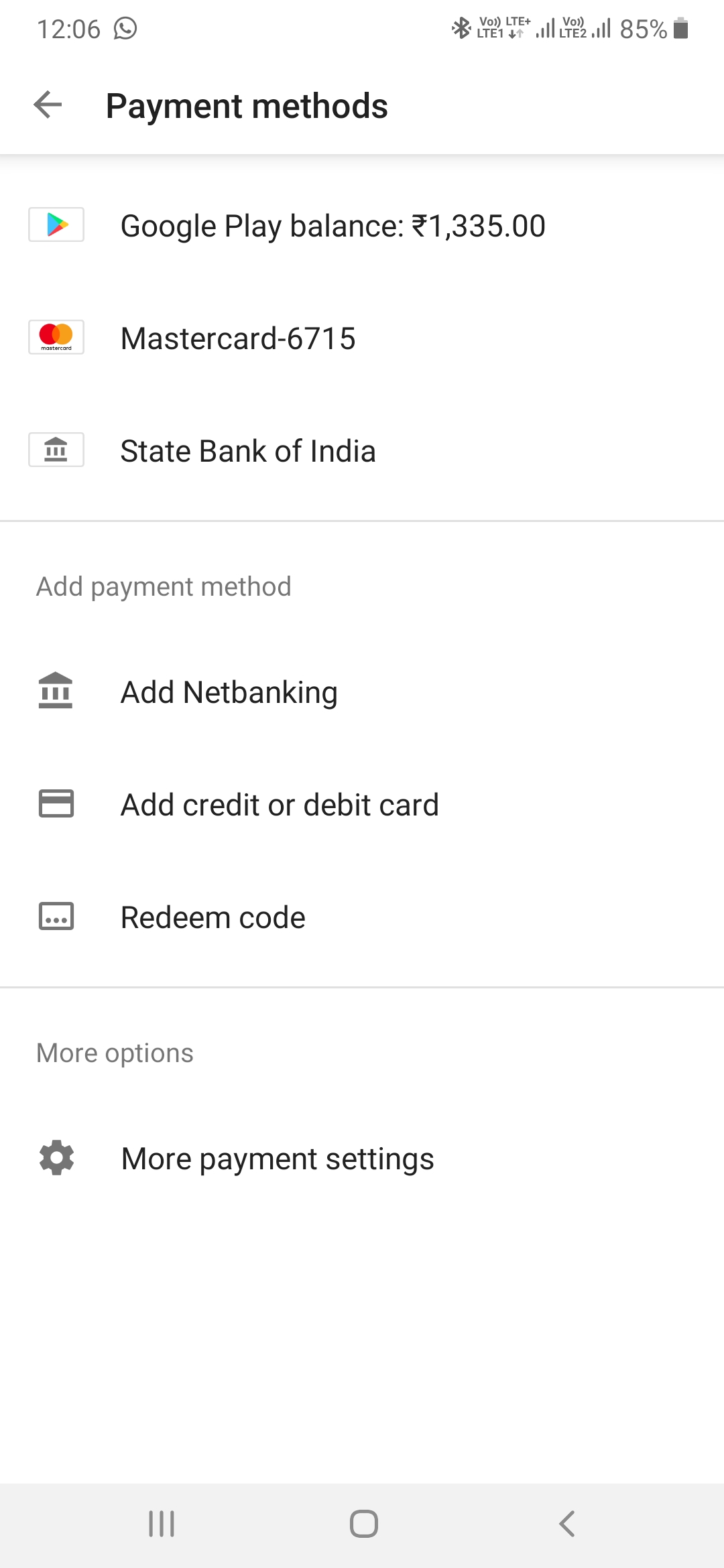
- Tap “Payment methods.” Your Google Play balance will be clearly displayed at the top of the list of payment methods.
-
Web Browser:
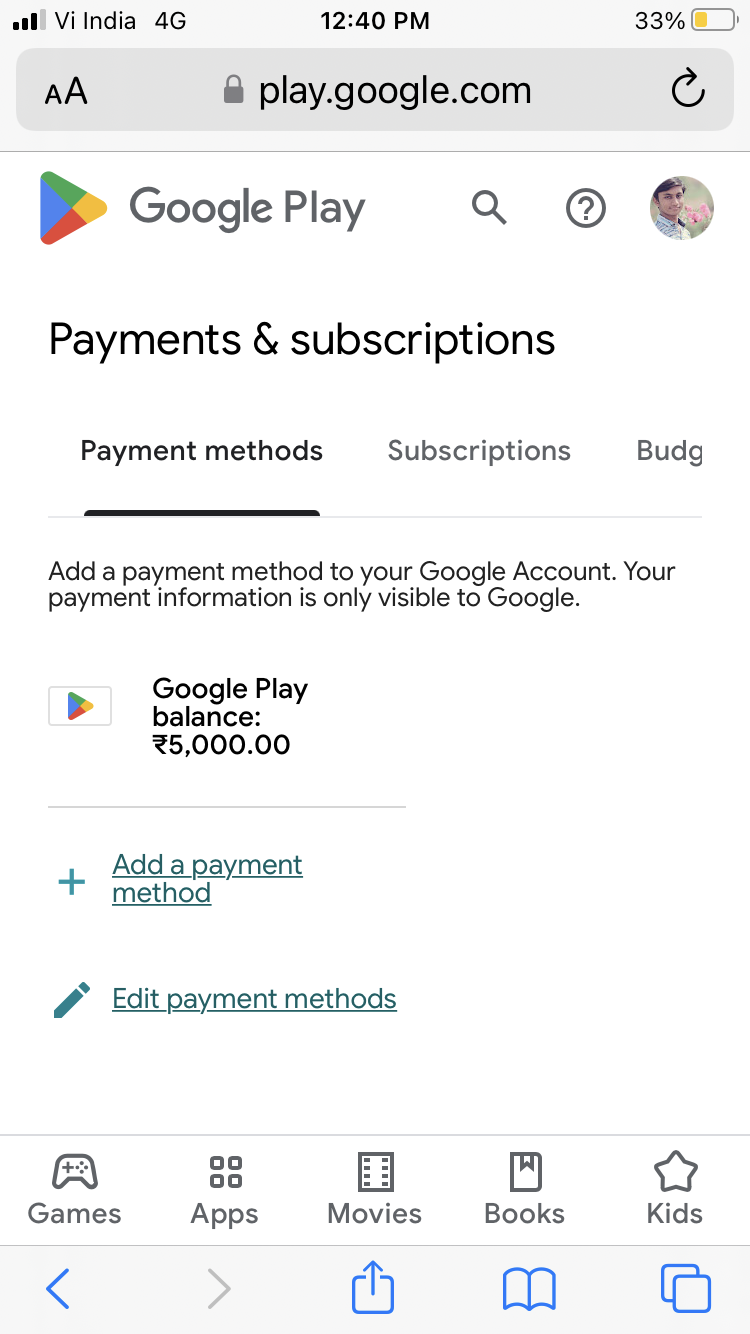
- Go to play.google.com/redeem on your computer or mobile browser.
- Sign in with your Google account if prompted.
- Your current Google Play balance will be shown on this page before you even attempt to redeem anything.
Knowing your balance helps you determine how much you need to add to reach your desired spending power.
II. Direct Methods to Top Up Your Google Play Balance
When it comes to explicitly adding funds to your Google Play balance, there are two primary and direct methods that put money directly into your digital wallet.
A. The Ubiquitous Google Play Gift Card: A Step-by-Step Guide
Google Play gift cards are by far the most popular and straightforward way to add a specific amount of money to your balance. They come in various denominations and are widely available.
1. Acquiring Gift Cards: Physical vs. Digital
- Physical Gift Cards: These can be purchased from a vast network of retailers, including supermarkets, electronics stores, convenience stores, and department stores. Look for displays near the checkout counters or in dedicated gift card sections. They typically come with a scratch-off panel revealing a unique redemption code.
- Digital Gift Cards (eGift Cards): Many online retailers (including Google’s own store, Amazon, PayPal, and various gift card websites) offer digital Google Play gift cards. These are emailed directly to you (or the recipient) with the redemption code. They offer instant delivery and are a convenient option for last-minute gifts or self-purchases.
2. Redeeming Your Gift Card Through the Google Play Store App
This is the most common method for Android users:
- Step 1: Open the Google Play Store App: Launch the app on your Android smartphone or tablet.
- Step 2: Access Your Account Menu: Tap your profile icon (usually a circle with your initial or profile picture) in the top-right corner of the screen.
- Step 3: Navigate to Payments: From the menu that appears, tap on “Payments & subscriptions.”
- Step 4: Select “Redeem gift code”: Within the “Payments & subscriptions” menu, you’ll see an option labeled “Redeem gift code.” Tap this.
- Step 5: Enter the Code: Carefully enter the 16-character code found on your physical gift card (scratch off the silver strip if necessary) or from your digital gift card email. Ensure there are no typos.
- Step 6: Confirm Redemption: Tap “Redeem.” You’ll see a confirmation screen showing the amount being added to your Google Play balance. Tap “Confirm” to finalize the process.
- Step 7: Verify Balance: Your Google Play balance will be updated instantly. You can verify this by checking your payment methods as described in Section I.C.
3. Redeeming Via Web Browser
If you’re on a computer or prefer using a web browser:
- Step 1: Visit the Redemption Page: Open a web browser and go to play.google.com/redeem.
- Step 2: Sign In: Ensure you are signed in to the Google account you wish to add the balance to. If not, sign in.
- Step 3: Enter the Code: Type or paste the 16-character gift card code into the provided field.
- Step 4: Click “Redeem”: Click the “Redeem” button.
- Step 5: Confirm and Check Balance: Confirm the amount, and your balance will be updated. You can view your balance by going to play.google.com/store/account/paymentmethods.
B. Earning Balance Through Google Opinion Rewards
Google Opinion Rewards is a legitimate and popular app that directly contributes to your Google Play balance (or PayPal balance in some regions). It’s a fantastic way to earn small amounts of credit by simply sharing your opinions.
1. How Google Opinion Rewards Works
- Download the App: Install the “Google Opinion Rewards” app from the Google Play Store.
- Complete Surveys: The app will periodically send you short surveys. These surveys are typically quick, asking questions about your shopping habits, opinion on logos, travel plans, or recent YouTube videos you’ve watched.
- Earn Credit: For each completed survey, you earn a small amount of Google Play credit (ranging from a few cents to over a dollar per survey). This credit is automatically added to your Google Play balance.
- Frequency: The frequency of surveys varies based on your demographics, location, and how often Google has surveys relevant to you. Answering honestly and accurately increases your chances of receiving more surveys.
2. Maximizing Your Earning Potential
- Enable Location History: While optional, enabling location history (if you’re comfortable with it) can lead to more surveys related to places you’ve visited, like specific stores.
- Be Honest: Provide genuine answers. Google’s algorithms are designed to detect inconsistent responses, which could lead to fewer surveys.
- Check Regularly: Open the app periodically to see if new surveys are available, though you’ll also receive notifications.
- Keep Notifications On: Ensure you have notifications enabled for the app so you don’t miss new surveys.
While not a method for adding large, fixed amounts like gift cards, Google Opinion Rewards is an excellent, passive way to accrue free Google Play balance over time, which can significantly offset the cost of apps or in-app purchases.
III. Indirect Funding and Managing Your Purchase Power
While gift cards and Opinion Rewards directly increase your Google Play balance, most purchases on the Play Store are made using linked payment methods. Understanding how these work and how to manage them is crucial for ensuring you always have the “power” to make purchases, whether they draw from your balance or directly from a card.
A. Setting Up and Managing Diverse Payment Methods
Even with a Google Play balance, you’ll likely want to have backup payment methods for purchases that exceed your balance or simply because you prefer using them. Google Play supports a variety of payment options.
1. Credit/Debit Cards
- Adding a Card:
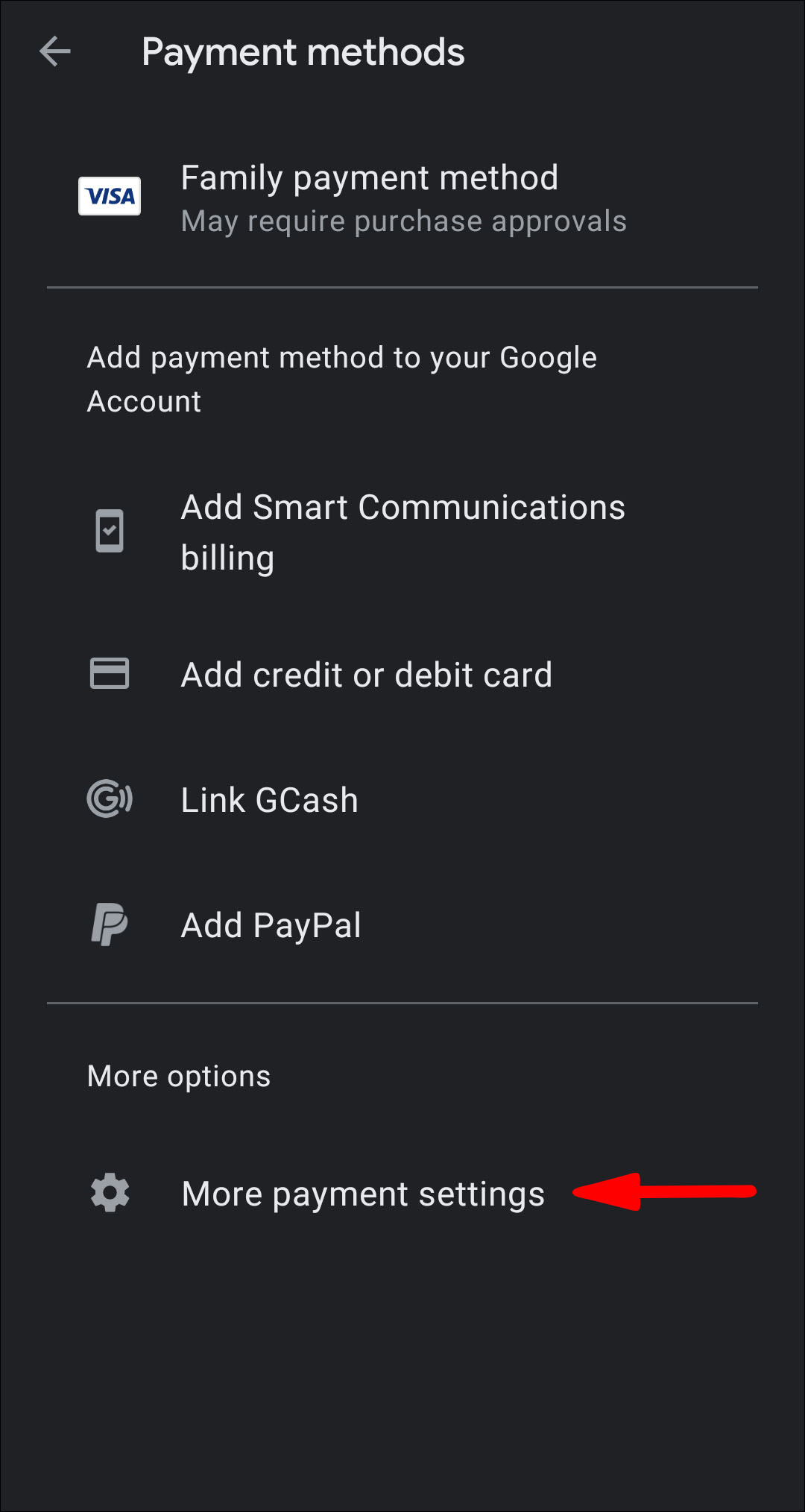
- Go to the Google Play Store app > Profile icon > “Payments & subscriptions” > “Payment methods.”
- Tap “Add credit or debit card.”
- Enter your card number, expiration date, CVC, and billing address.
- Tap “Save.”
- Managing Cards: From the “Payment methods” screen, you can update existing cards, remove old ones, or change your primary payment method.
2. PayPal
- Adding PayPal:
- Go to the Google Play Store app > Profile icon > “Payments & subscriptions” > “Payment methods.”
- Tap “Add PayPal.”
- You’ll be redirected to the PayPal website to log in and authorize the connection to your Google account.
- Follow the on-screen prompts to complete the linking process.
3. Carrier Billing
- Availability: This option allows you to charge purchases directly to your mobile phone bill. It’s only available with specific mobile carriers and in certain regions.
- Adding Carrier Billing:
- Go to the Google Play Store app > Profile icon > “Payments & subscriptions” > “Payment methods.”
- If available, you’ll see an option like “Add [Your Carrier Name] billing.”
- Follow the prompts to enable it. This usually involves a one-time verification.
B. Understanding How Purchases Impact Your Balance (and linked payment methods)
When you make a purchase on the Google Play Store, the system follows a specific hierarchy for payment:
- Google Play Balance First: The system will always attempt to use your Google Play balance first if the balance is sufficient to cover the entire purchase.
- Backup Payment Method: If your Google Play balance is insufficient, or if you explicitly select another payment method, the purchase will be charged to your chosen credit/debit card, PayPal, or carrier billing.
- Split Payments: In some cases, if your Google Play balance covers part of the cost but not all of it, the remaining amount will be charged to your primary or selected backup payment method. This allows you to utilize even small amounts of balance effectively.
While credit/debit cards, PayPal, and carrier billing don’t directly “add” to your Google Play balance in the same way gift cards do, they enable the “purchase power” that allows you to acquire content from the store. Effectively, they fund your ability to get content, whether that content is paid for from your existing balance or directly through these methods.
IV. Optimizing Your Google Play Experience: Security and Troubleshooting
Ensuring your Google Play account and funds are secure, and knowing what to do if you encounter issues, are vital aspects of a seamless digital experience.
A. Safeguarding Your Google Play Account and Balance
Protecting your Google account is paramount, as it grants access not only to your Google Play balance but also to other Google services.
1. Two-Factor Authentication (2FA)
- Enable 2FA: This is the single most effective security measure. It requires a second verification step (like a code from your phone) in addition to your password when signing into a new device.
- How to Set Up: Go to your Google Account (myaccount.google.com) > “Security” > “2-Step Verification.”
2. Transaction Monitoring
- Review Purchase History: Regularly check your Google Play order history (Play Store app > Profile icon > “Payments & subscriptions” > “Budget & history”) to spot any unauthorized transactions.
- Email Receipts: Google sends email receipts for every purchase. Keep an eye on these.
3. Parental Controls for Shared Devices
- Require Authentication for Purchases: If you share your device or have children using it, set Google Play to require a password or fingerprint for every purchase.
- Content Restrictions: Set age restrictions for apps, games, movies, and books to prevent access to inappropriate content.
- How to Set Up: Play Store app > Profile icon > “Settings” > “Family” > “Parental controls.”
B. Common Issues and How to Resolve Them
Even with careful management, you might occasionally run into problems. Knowing how to troubleshoot can save you time and frustration.
1. Redemption Problems
- Invalid Code: Double-check that you’ve entered the 16-character code correctly. Typos are common.
- Already Redeemed: Ensure the card hasn’t been redeemed previously, perhaps by another family member or by you accidentally.
- Region Mismatch: Google Play gift cards are region-specific. A card purchased in one country might not be redeemable in another. Your Google Play account’s country must match the gift card’s country.
- Damaged Card: If it’s a physical card, ensure the code is legible. If scratched off too hard, it might be unreadable.
2. Payment Processing Failures
- Insufficient Funds: If using a credit/debit card or carrier billing, ensure there are enough funds available.
- Expired Card: Check the expiration date of your linked credit/debit card.
- Incorrect Information: Verify that all card details (number, CVC, billing address) are correct.
- Bank Restrictions: Sometimes, your bank might flag a transaction as suspicious and block it. Contact your bank to approve the transaction.
- Google Account Suspension/Restriction: In rare cases, issues with your Google account itself might prevent purchases.
3. Contacting Google Play Support
If you’ve tried troubleshooting and can’t resolve the issue, Google Play support is your next step.
- Access Support: In the Google Play Store app, tap your profile icon > “Help & feedback” > “Contact us.”
- Be Prepared: Have your gift card code (if applicable), Google account email, device information, and a clear description of the problem ready.
- Patience: Support resolution times can vary, but they are generally helpful in resolving account and payment issues.
By understanding the various ways to add to your Google Play balance, managing your payment methods effectively, and practicing good security habits, you can ensure a smooth, enjoyable, and secure experience within the vast Google Play ecosystem. Whether you’re a heavy app user or just occasionally download content, a well-managed Google Play balance is your gateway to a world of digital possibilities.
aViewFromTheCave is a participant in the Amazon Services LLC Associates Program, an affiliate advertising program designed to provide a means for sites to earn advertising fees by advertising and linking to Amazon.com. Amazon, the Amazon logo, AmazonSupply, and the AmazonSupply logo are trademarks of Amazon.com, Inc. or its affiliates. As an Amazon Associate we earn affiliate commissions from qualifying purchases.