
In the modern digital landscape, the Google Play Store serves as the central artery for the Android ecosystem. It is more than just a marketplace for apps; it is a massive repository of entertainment, productivity tools, and cloud services. Whether you are looking to unlock the premium features of a productivity app, purchase the latest blockbuster movie, subscribe to Google One storage, or gain an edge in a competitive mobile game, having a ready-to-use balance is essential.
Understanding how to add money to Google Play efficiently and securely is a fundamental skill for any tech-savvy user. This guide explores the various technical methods available for funding your account, from traditional payment links to digital rewards and gift card redemptions, ensuring you can manage your digital lifestyle without friction.
1. Navigating the Google Play Payment Ecosystem
Before diving into the “how-to,” it is crucial to understand what the Google Play balance actually is. Technically, your Google Play balance is a non-transferable digital credit associated with your Google Account. This credit can be used across various Google services, including the Play Store, YouTube, and Google TV.
Understanding the Unified Wallet
Google has integrated its payment systems deeply into its infrastructure. When you add funds, they are tied to your specific “Payments Profile.” This profile is region-locked, meaning that if you add funds in US Dollars while your account is set to the United States, you cannot use those funds if you move your account settings to another country. This technical restriction is designed to comply with international financial regulations and regional pricing strategies.
Why Use a Pre-Loaded Balance?
Many users prefer adding a specific amount of money to their balance rather than linking a direct credit card for every transaction. This method offers a layer of digital security by limiting the exposure of your primary banking details to a single initial transaction. Furthermore, it serves as a budget-management tool, allowing users to cap their digital spending—a feature particularly useful for parents managing family accounts.
2. Direct Funding Methods: Linking Cards and Digital Wallets
The most common way to add money to your Google Play account is by linking a direct payment source. Google supports a wide array of financial technologies, depending on your geographic location.
Adding Credit or Debit Cards
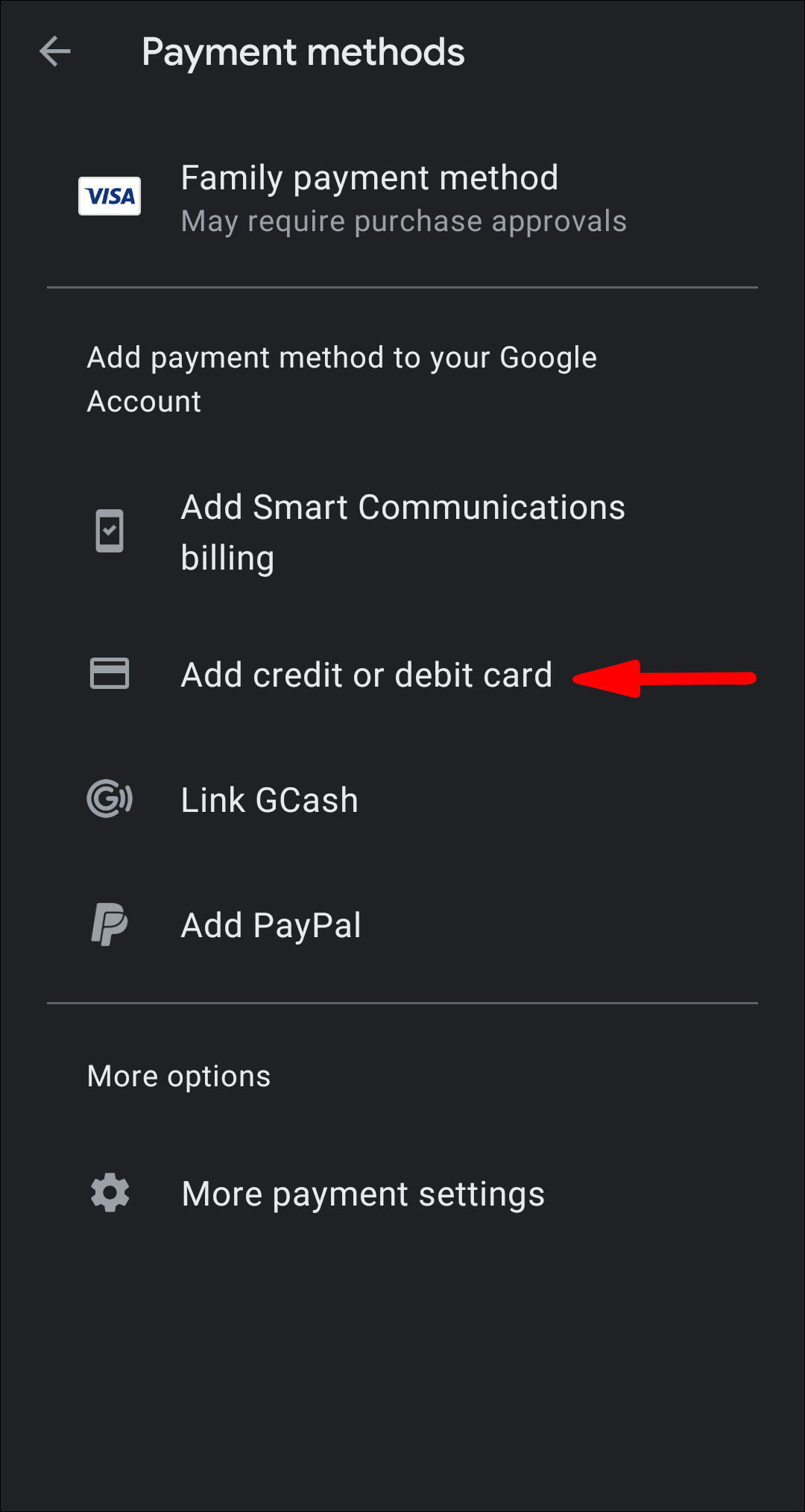
Linking a card is the most straightforward technical process. To do this on a mobile device:
- Open the Google Play Store app.
- Tap the profile icon at the top right.
- Select Payments & subscriptions > Payment methods.
- Tap Add credit or debit card.
Google’s backend uses encrypted tokenization to store your card data. This means the merchant (Google) doesn’t store your actual card number in a way that is easily retrievable, but rather a “token” that represents your permission to charge the account.
Integration with Third-Party Wallets (PayPal and Beyond)
For users who prefer an intermediary, PayPal is a popular option in many regions. By linking PayPal, you add an extra layer of privacy between Google and your bank. In specific markets, Google also supports localized fintech solutions, such as UPI in India, Pix in Brazil, or various mobile carrier billing options. Carrier billing is a unique tech feature where the cost of your digital purchase is simply added to your monthly mobile phone bill, bypasses the need for a traditional bank account entirely.
Desktop Management via Google Pay
You can also manage these settings via the web interface. By visiting play.google.com or pay.google.com, you can synchronize your payment methods across all devices signed into your Google account. This cross-platform synchronization is handled through Google’s cloud infrastructure, ensuring that a card added on your laptop is immediately available for a purchase on your Android tablet.
3. The Digital Redemption Path: Gift Cards and Promo Codes
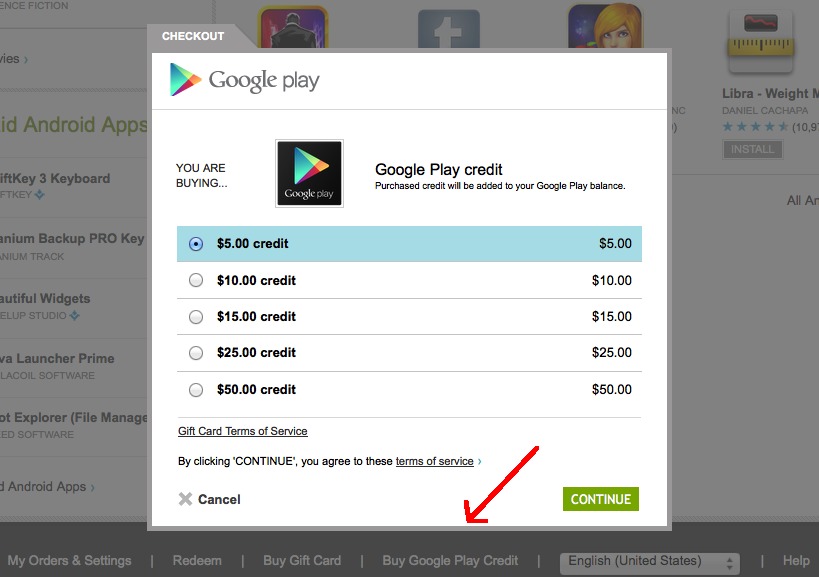
If you do not wish to link a bank account or credit card, the “Redeem” function is your primary technical gateway. This involves converting a physical or digital alphanumeric code into a liquid balance within your account.
Redeeming Physical and Digital Gift Cards
Google Play gift cards are available at thousands of retail locations and online storefronts. Each card contains a unique 16-to-20-digit code.
- Mobile Redemption: Within the Play Store app, go to Payments & subscriptions > Redeem code. You can even use your phone’s camera to scan the physical card, utilizing Optical Character Recognition (OCR) technology to input the code automatically.
- Web Redemption: Navigate to
play.google.com/redeem, enter the code, and the balance is instantly applied to your account.
Troubleshooting Code Failures
From a technical standpoint, code redemption can sometimes fail due to “Regional Mismatch” or “Locked Accounts.” Google employs strict geolocation checks. If you purchased a gift card in the UK but your Google account is registered in the US, the redemption will fail. This is a common hurdle for users who travel or receive gifts from international friends. To resolve this, your account’s “Home Country” in the Google Pay settings must match the currency of the gift card.
Promotional Credits and Bundles
Occasionally, tech manufacturers like Samsung or Google itself will offer “Play Credits” as a bonus for purchasing a new device. These are often applied via a promotional link or a pre-installed app. Unlike standard gift cards, these promotional credits often have an expiration date, which can be monitored under the “Payment methods” tab in your account settings.
4. Earning Balance Through the Google Ecosystem
One of the most interesting ways to add money to Google Play doesn’t involve spending “real-world” money at all. Google has developed several apps and programs that reward users with digital credit in exchange for data or loyalty.
Google Opinion Rewards
This is a micro-survey tool developed by Google Surveys. Once installed, the app will occasionally send you short surveys based on your shopping habits or recent location history (utilizing your phone’s GPS data).
- How it works: You answer a few questions about a store you visited or a video you watched.
- The Reward: Upon completion, Google deposits a small amount—ranging from $0.10 to $1.00—directly into your Google Play balance.
For consistent users, this can accumulate enough over a few months to pay for apps or movie rentals without any out-of-pocket expenditure.
Google Play Points
Google Play Points is a loyalty program that rewards users for every dollar spent on the platform.
- Earning Tiers: As you earn more points, you move from Bronze to Silver, Gold, and Platinum levels.
- Technical Utility: These points can be “recycled” back into Google Play Credit. For example, 100 points might be redeemable for $1.00 in Play Credit. This creates a circular economy within the store, where spending leads to rewards, which in turn leads to more funds for future purchases.
5. Security Protocols and Managing Digital Spend
Adding money to your account is only half the battle; managing it securely is the hallmark of a savvy tech user. With the rise of “in-app purchases” (IAPs), it is easy for a balance to disappear quickly if not managed correctly.
Implementing Authentication for Purchases
To prevent unauthorized use of your added funds, you should always enable biometric or password authentication.
- Go to Settings in the Play Store.
- Tap Authentication.
- Select Require authentication for purchases.
By choosing “For all purchases,” you ensure that even if someone has access to your unlocked phone, they cannot spend your Google Play balance without your fingerprint, face scan, or Google password.
Budgeting and Spending History
Google Play provides a “Budget & history” feature that allows you to set a monthly spending limit. While this doesn’t technically stop you from spending (it’s a visual notification rather than a hard cap), it is a vital tool for tracking your digital footprint. From a technical perspective, this tool aggregates all your transaction metadata—dates, amounts, and categories—giving you a clear overview of where your money is going.
Family Link and Managed Balances
For households with multiple Android users, “Google Family Link” allows a family manager to oversee how funds are added and spent. You can set up a “Family Payment Method,” where the head of the household adds money to a central pool, or you can require approval for every purchase made by child accounts. This technical hierarchy ensures that funds are added and used responsibly across the entire family unit.

Conclusion
Adding money to Google Play is a versatile process that bridges the gap between traditional finance and the digital app economy. Whether you are manually linking a debit card, redeeming a gift card found under the Christmas tree, or earning small increments through Google Opinion Rewards, the process is designed to be seamless across the Android ecosystem. By understanding the underlying mechanics—from regional locks to authentication protocols—you can ensure that your digital wallet remains funded, secure, and ready for your next download.
aViewFromTheCave is a participant in the Amazon Services LLC Associates Program, an affiliate advertising program designed to provide a means for sites to earn advertising fees by advertising and linking to Amazon.com. Amazon, the Amazon logo, AmazonSupply, and the AmazonSupply logo are trademarks of Amazon.com, Inc. or its affiliates. As an Amazon Associate we earn affiliate commissions from qualifying purchases.