
In the vast and ever-expanding digital ecosystem, Google Play stands as a central hub for Android users, offering a galaxy of apps, games, movies, books, and more. For many, managing digital purchases can be a streamlined experience, and one of the most convenient ways to do so is by utilizing your Google Play Balance. This digital wallet, tied directly to your Google account, allows for quick, secure, and often budget-friendly transactions without the constant need for credit card details.
Whether you’re looking to fund an in-app purchase, gift digital content, manage a child’s spending, or simply prefer not to link your primary bank card, knowing how to add money to your Google Play Balance is an essential skill for any avid Android user. This comprehensive guide will walk you through the various methods, provide step-by-step instructions, and offer insights into optimizing your digital funds within the Google Play universe. Dive in to master the art of topping up your Google Play Balance and unlock a seamless digital experience.
Understanding the Google Play Balance Ecosystem
Before we delve into the mechanics of adding funds, it’s crucial to grasp what the Google Play Balance is and why it’s such a valuable component of the Android experience. Far more than just a simple store credit, it represents a versatile and secure digital currency within Google’s vast content marketplace.
What Exactly is Google Play Balance?
At its core, your Google Play Balance is a digital credit system directly associated with your Google account. It acts as a pre-funded wallet exclusively for purchases within the Google Play Store and related services. Think of it as a virtual debit card specifically for Google Play content. When you add money to this balance, it’s immediately available for use across the entire Play Store, from downloading premium apps to subscribing to your favorite streaming services or buying the latest blockbuster movie. It consolidates your purchasing power into one easily managed location, separate from your bank accounts or primary credit cards.
The Versatility of Your Digital Wallet
The scope of what you can purchase with your Google Play Balance is incredibly broad, making it a truly versatile digital wallet. It’s not just for apps and games; the Google Play Store is a comprehensive entertainment and productivity hub. You can use your balance to:
-
Buy premium apps and games: Access a world of paid applications and unlock full game experiences.
-
Make in-app purchases: Enhance your gaming experience with virtual currency, unlock features in productivity apps, or subscribe to exclusive content.
-
Rent or buy movies and TV shows: Enjoy the latest blockbusters or classic series directly from the Play Store.
-
Purchase audiobooks and e-books: Expand your digital library with a vast selection of literature.
-
Subscribe to services: Use your balance for recurring subscriptions like YouTube Premium, Google Play Pass, or other app-based services (though some might require a backup payment method).
This wide range of usability ensures that any funds you add to your balance can be put to good use across your digital lifestyle.
Why Maintain a Google Play Balance?
There are several compelling reasons why users opt to maintain and top up their Google Play Balance, ranging from financial management to enhanced security:
-
Budgeting and Expense Control: Loading a specific amount onto your balance allows you to set a clear budget for your digital entertainment or productivity spending. Once the balance is depleted, you know it’s time to pause or re-evaluate. This is especially useful for parents managing children’s in-app purchases.
-
Enhanced Security: By using a pre-funded balance, you reduce the direct exposure of your primary credit card or bank account details to individual transactions. Should your Google account ever be compromised (though robust security measures are in place to prevent this), the financial risk is limited to the balance itself, rather than your entire bank account.
-
Convenience for Gifting: Google Play Gift Cards are popular gifts. Recipients can easily add these funds to their balance and choose exactly what they want, eliminating the guesswork of picking a specific app or game.
-
No Credit Card Required: For users who don’t have a credit card, prefer not to use one online, or are minors, Google Play Balance provides an accessible way to participate in the digital marketplace.
-
Managing Multiple Users: In households with multiple Android devices or users, a shared Google Play Balance (managed through Family Link for children) can simplify content sharing and expenditure tracking.
Understanding these benefits highlights why adding money to your Google Play Balance is not just a technical task, but a strategic decision for a more secure and controlled digital experience.
Direct Methods for Funding Your Google Play Account
When it comes to putting money into your Google Play Balance, the methods are generally straightforward, revolving primarily around digital gift cards and credits. Unlike a typical bank account where you might directly transfer funds, the Google Play ecosystem relies on specific mechanisms to ensure security and manageability.
Redeeming Google Play Gift Cards
This is by far the most common and universally accessible method for adding funds directly to your Google Play Balance. Google Play Gift Cards are essentially prepaid vouchers that carry a specific monetary value.
-
Where to Buy:
-
Physical Gift Cards: These can be purchased from a wide array of retail stores, including electronics outlets, supermarkets, convenience stores, and general merchandise stores. Look for them alongside other gift cards near the checkout or in dedicated gift card aisles. They come in various denominations (e.g., $10, $25, $50, $100) or as variable load cards where you choose the amount.
-
Digital Gift Codes (eCodes): Many online retailers, including Amazon, PayPal, and even the Google Store in some regions, offer digital versions of Google Play Gift Cards. These are typically emailed to you instantly or within a short timeframe after purchase, containing a unique redemption code. This is convenient for last-minute gifts or when you can’t get to a physical store.
-
-
How They Work: Each gift card, whether physical or digital, comes with a unique 16-character alphanumeric code. Once this code is redeemed, the corresponding amount is instantly added to your Google Play Balance, becoming available for immediate use. It’s crucial to ensure the gift card’s region matches your Google Play account’s country, as codes are often region-locked.
Earning Credits Through Google Opinion Rewards
While not a direct “adding money” method in the traditional sense, Google Opinion Rewards is an excellent, albeit passive, way to accrue Google Play Balance over time. This free app, developed by Google, pays you for answering short surveys.
-
How it Works: After downloading and signing up for Google Opinion Rewards, you’ll occasionally receive notifications for surveys. These surveys typically take less than a minute to complete and cover topics such as your opinions on brands, public awareness, or recent browsing habits.
-
Earning Potential: Each completed survey rewards you with a small amount of Google Play credit, usually ranging from a few cents to over a dollar. These credits are automatically added to your Google Play Balance.
-
Passive Income: It’s a fantastic way to slowly but steadily build up your balance without spending any money, perfect for covering those smaller app purchases or in-app upgrades. The frequency of surveys can vary based on your demographics and location.
Promotional Codes and Special Offers
Periodically, Google or its partners may distribute promotional codes that can add a specific monetary value or discount directly to your Google Play Balance, or grant free access to content.
-
Sources: These codes might be given out during special events, as part of marketing campaigns for new devices or apps, or as loyalty rewards. Keep an eye on your email from Google, social media announcements from official Google Play channels, or promotions from related tech websites.
-
Redemption: Like gift card codes, these promotional codes are entered into the “Redeem” section of the Google Play Store. Always check the terms and conditions, including expiry dates and any regional restrictions, as these often apply.
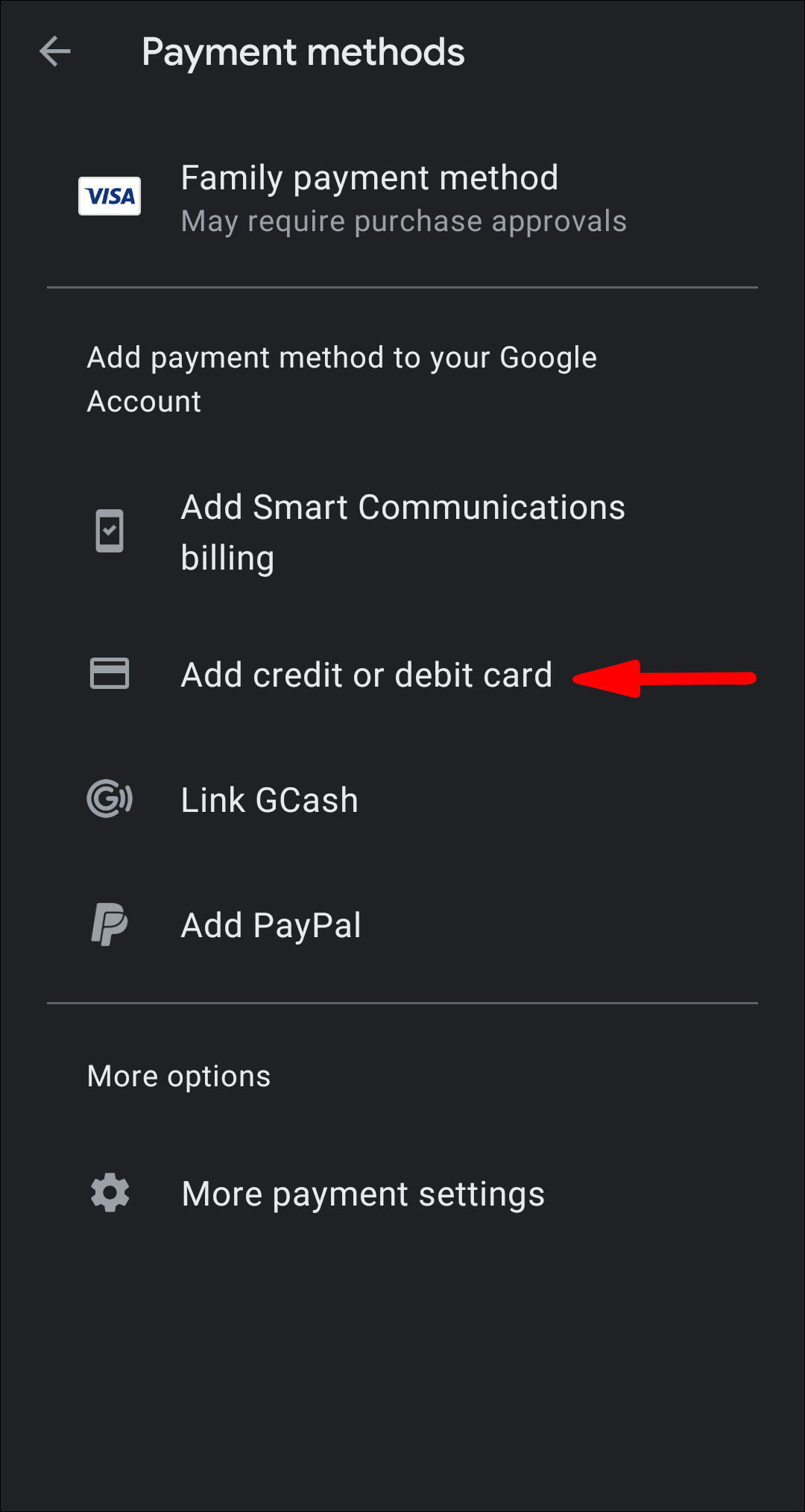
It’s important to note that direct bank transfers or linking your credit/debit card to “top up” a generic balance are not standard features of Google Play in most regions. Purchases made using linked payment methods are typically direct transactions for specific content, rather than adding to a general balance (unless a refund subsequently adds funds). Therefore, gift cards and earned credits are your primary and most reliable methods for consistently adding money to your Google Play Balance.
A Step-by-Step Guide to Redeeming Gift Cards and Codes
Redeeming a Google Play Gift Card or a promotional code is a simple and quick process, whether you’re using your Android device or a web browser. Follow these instructions to swiftly add funds to your account.
Redeeming via the Google Play Store App
This is the most common method for Android users, as it’s directly accessible from your device.
-
Open the Google Play Store App: Locate and tap the colorful Google Play Store icon on your Android phone or tablet.
-
Access the Menu: Tap on your profile icon (usually in the top-right corner).
-
Select “Payments & subscriptions”: From the menu that appears, tap on this option.
-
Choose “Redeem gift code”: Within the “Payments & subscriptions” section, you’ll find “Redeem gift code”. Tap on it.
-
Enter Your Code: Carefully type or paste the 16-character alphanumeric code from your gift card or promotional offer into the provided field. Double-check for any typos.
-
Confirm Redemption: Tap the “Redeem” button.
-
Review and Confirm Account: A confirmation dialog will appear, showing the amount being added and the Google account it will be applied to. Ensure it’s the correct account, then tap “Confirm.”
-
Success! You’ll receive a confirmation message, and the funds will instantly be added to your Google Play Balance.
Redeeming via a Web Browser
If you prefer using a computer or don’t have your Android device handy, you can also redeem codes through any web browser.
-
Navigate to the Google Play Redeem Page: Open your preferred web browser and go to play.google.com/redeem.
-
Sign In: If you’re not already signed in, you’ll be prompted to log in with the Google account you wish to add the funds to.
-
Enter Your Code: Type or paste the 16-character alphanumeric code into the “Enter code” field.
-
Click “Redeem”: Click the blue “Redeem” button.
-
Review and Confirm Account: Similar to the app, a confirmation window will appear. Verify the amount and the Google account, then click “Confirm.”
-
Success! A confirmation message will confirm the successful addition of funds to your balance.
Verifying Your Balance
After redeeming a code, it’s always a good idea to check your updated balance to ensure the funds have been successfully applied.
-
Via the Google Play Store App:
-
Open the Google Play Store app.
-
Tap your profile icon (top-right).
-
Tap “Payments & subscriptions”.
-
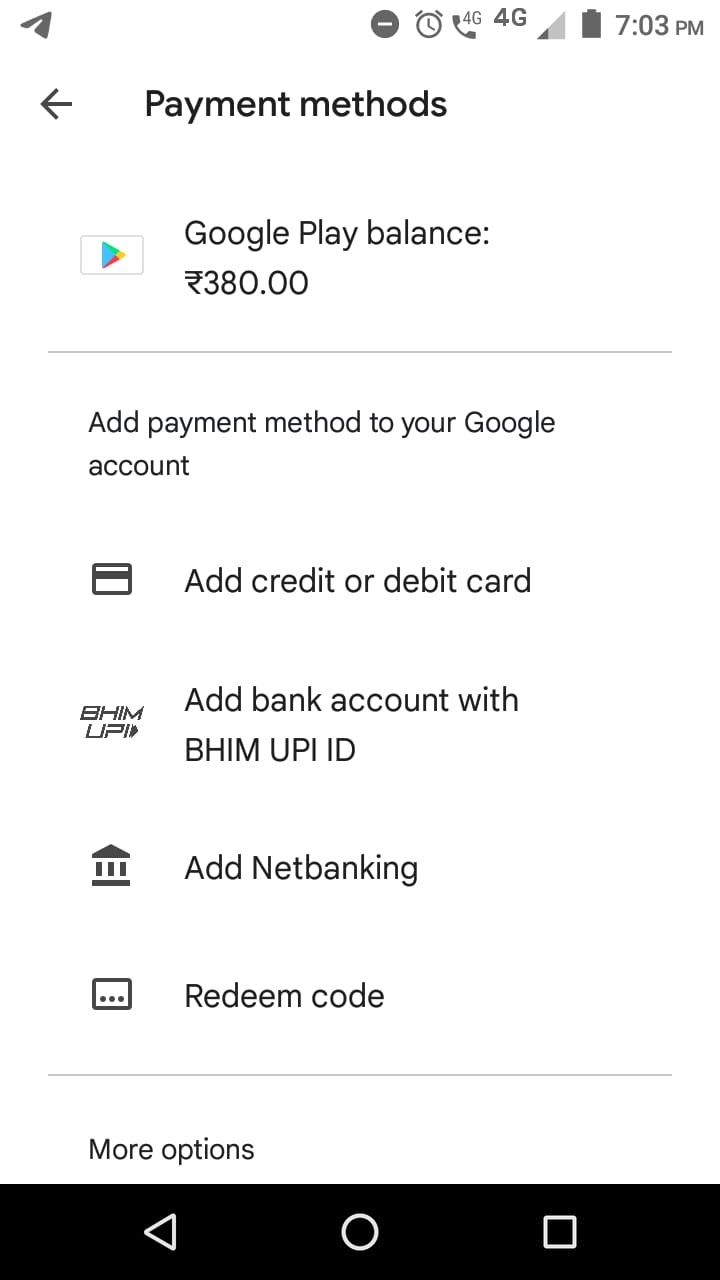
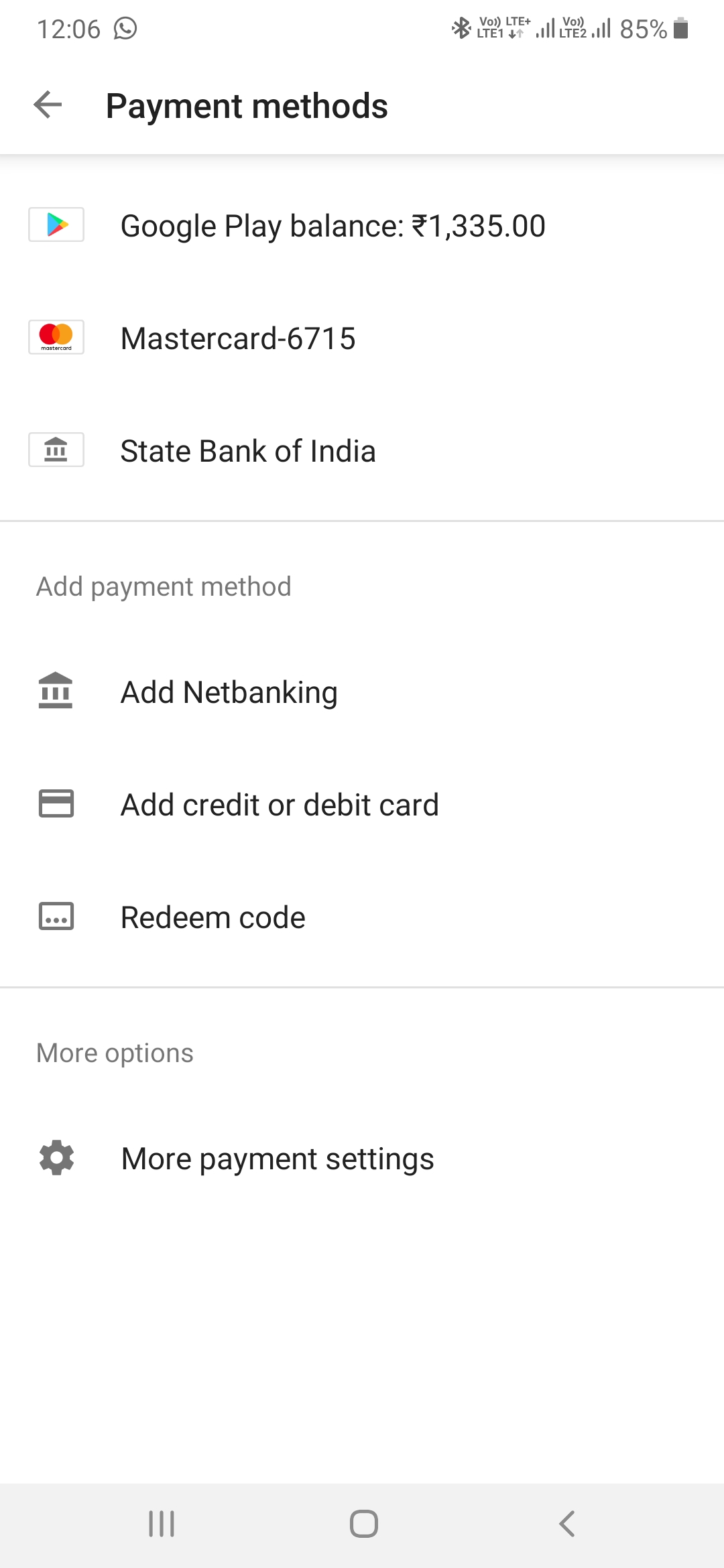
Select “Payment methods”.
-
Your “Google Play Balance” will be displayed at the top of the list, showing the current total.
-
-
Via a Web Browser:
-
Go to play.google.com/store.
-
Ensure you’re signed into the correct Google account.
-
On the left-hand menu, click “Account”.
-
Under the “Payment methods” section, your “Google Play Balance” will be clearly visible.
-
With these simple steps, you can confidently add and verify funds to your Google Play Balance, preparing you for seamless digital purchases.
Optimizing and Managing Your Google Play Funds
Adding money to your Google Play Balance is just the first step. To truly make the most of this digital asset, effective management and understanding of its associated features are key. This involves monitoring your spending, troubleshooting potential issues, and employing security best practices.
Monitoring Your Spending and Transaction History
Keeping an eye on your Google Play Balance and how it’s being used is crucial for budgeting and understanding your digital consumption.
-
Accessing Order History:
-
On Device: Open the Google Play Store app, tap your profile icon, then “Payments & subscriptions”, and finally “Budget & history”. Here, you’ll see a detailed list of all your Google Play purchases, including those made with your balance, credit cards, or other payment methods. You can filter by type (apps, movies, etc.) and date.
-
On Web: Go to play.google.com/store/account and sign in. Under the “Order History” section, you’ll find a comprehensive record of all your transactions. This web interface often provides more detailed filtering options and a clearer overview.
-
-
Tracking Balance Changes: While the order history shows purchases, checking your Google Play Balance regularly (as described in the previous section) will give you an immediate snapshot of your available funds. This helps you track how quickly you’re spending and when a top-up might be necessary.
Troubleshooting Common Redemption Issues
Occasionally, you might encounter an issue when trying to redeem a Google Play Gift Card or code. Here are some common problems and their solutions:
-
Invalid Code Error:
-
Typo: Double-check that you’ve entered all 16 characters correctly, paying attention to similar-looking characters (e.g., ‘O’ and ‘0’, ‘I’ and ‘1’, ‘B’ and ‘8’).
-
Damage: If it’s a physical card, ensure the code isn’t scratched or smudged.
-
-
Code Already Redeemed: If you receive this message, it means the code has already been successfully used. Check your Google Play Balance (and potentially a family member’s or friend’s balance if you shared it) to see if the funds were added previously. If you suspect unauthorized use, contact Google Play support immediately.
-
Region Mismatch: Google Play Gift Cards are typically country-specific. If your Google Play account’s country setting does not match the country where the gift card was purchased, you won’t be able to redeem it. You cannot change your Google Play country frequently; it usually requires you to be physically present in the new country and update your payment profile. Ensure you purchase cards valid for your account’s region.
-
Expired Code: While less common for standard gift cards, some promotional codes have expiry dates. Check the terms and conditions of any promotional code.
-
Scratched Off PIN: If the silver strip on a physical card is too aggressively scratched off, making the code unreadable, you might need to contact the retailer where you bought the card, often requiring the original receipt.
-
Contacting Google Play Support: If you’ve exhausted these troubleshooting steps and still can’t redeem your code, the best course of action is to contact Google Play support. Have your code, proof of purchase (receipt), and Google account details ready.
Security Best Practices for Your Google Play Account
Protecting your Google Play Balance and account is paramount to a secure digital experience.
-
Safeguard Gift Codes: Treat Google Play Gift Card codes like cash. Keep physical cards in a secure location until redeemed, and do not share digital codes with untrusted individuals.
-
Strong, Unique Passwords: Use a complex password for your Google account that is unique from passwords used on other services.
-
Two-Factor Authentication (2FA): Enable 2FA on your Google account. This adds an extra layer of security, requiring a second verification step (like a code from your phone) even if someone has your password. This is crucial for protecting your digital funds.
-
Monitor Account Activity: Regularly check your Google Play order history for any unfamiliar transactions. If you spot anything suspicious, change your Google password immediately and contact Google support.
-
Beware of Scams: Be vigilant against phishing attempts or scams that promise free Google Play credit in exchange for personal information. Google will never ask for your password via email.
Leveraging Family Library and Subscriptions
Your Google Play Balance integrates seamlessly with other Google services, allowing you to maximize its value.
-
Family Library: If you use Google Play Family Library, eligible apps, games, movies, and books purchased with your Google Play Balance can be shared with up to five other family members. This extends the value of your purchases across your household.
-
Subscriptions: While many subscriptions default to a credit card, you can often use your Google Play Balance to pay for services like Google Play Pass or even ongoing app subscriptions, provided you have sufficient funds. This is another way to utilize your pre-paid balance for recurring digital services.
By actively managing and securing your Google Play Balance, you transform it into a powerful and flexible tool for all your digital content needs within the vast Google ecosystem. This proactive approach ensures a smooth, enjoyable, and secure experience, allowing you to focus on the content you love rather than worrying about transaction details.
aViewFromTheCave is a participant in the Amazon Services LLC Associates Program, an affiliate advertising program designed to provide a means for sites to earn advertising fees by advertising and linking to Amazon.com. Amazon, the Amazon logo, AmazonSupply, and the AmazonSupply logo are trademarks of Amazon.com, Inc. or its affiliates. As an Amazon Associate we earn affiliate commissions from qualifying purchases.