
In an increasingly digital world, the way we manage our finances and conduct transactions has undergone a profound transformation. Gone are the days when physical wallets bulging with cards and cash were the sole proprietors of our purchasing power. Today, digital wallets, led by innovators like Google Pay, have revolutionized the payment landscape, offering unparalleled convenience, enhanced security, and a streamlined experience right from our smartphones, smartwatches, and even web browsers.
Google Pay, a robust digital payment platform developed by Google, allows users to store credit, debit, loyalty, and gift cards securely, enabling quick, contactless payments in stores, within apps, and on the web. It’s more than just a payment method; it’s an ecosystem designed to simplify and secure your financial interactions. This guide delves into the specifics of adding a card to Google Pay, ensuring you can unlock its full potential while understanding the underlying technology that keeps your money safe. By embracing this technology, you’re not just making a payment; you’re participating in the future of commerce, characterized by efficiency, innovation, and formidable digital security.

The Evolution of Digital Payments and Google Pay’s Role
The journey from bartering to banknotes, and now to digital bits and bytes, represents humanity’s continuous quest for more efficient and secure methods of exchange. Digital payments are not merely a trend; they are a fundamental shift in how value is transferred, driven by technological advancements and evolving consumer expectations. Google Pay stands at the forefront of this evolution, offering a powerful yet user-friendly interface to manage and utilize your financial instruments.
From Plastic to Pixels: The Digital Shift
For decades, credit and debit cards represented the pinnacle of payment convenience. They freed consumers from carrying large sums of cash, offering a secure, traceable, and widely accepted means of transaction. However, even plastic cards come with their limitations: the risk of loss, the need to carry multiple cards, and the physical act of swiping or inserting, which can be slower and less secure than newer methods. The advent of smartphones and near-field communication (NFC) technology paved the way for a paradigm shift, allowing our most personal devices to double as our wallets. This transition from physical plastic to digital representations – “pixels” – on a screen marked a pivotal moment, ushering in an era of unprecedented payment fluidity and security.
Understanding Google Pay’s Ecosystem
Google Pay is not monolithic; it’s a versatile platform designed to integrate seamlessly into various aspects of daily life. At its core, it enables contactless payments (tap-to-pay) at compatible terminals by leveraging NFC technology, effectively turning your device into a virtual credit card. But its capabilities extend far beyond this. The Google Pay ecosystem encompasses:
- In-app and Online Purchases: Expediting checkout processes without repeatedly entering card details.
- Peer-to-Peer Payments: (In regions where available) Sending and receiving money among friends and family.
- Loyalty Programs and Gift Cards: Consolidating physical cards into a digital format, reducing wallet clutter.
- Public Transit Tickets and Event Passes: Streamlining access to services and entertainment.
- Offer Redemption: Integrating discounts and cashback directly into the payment process.
This multifaceted approach positions Google Pay not just as a payment app, but as a comprehensive digital assistant for managing a significant portion of a user’s financial and transactional activities.
Why Google Pay Matters for Modern Consumers
For modern consumers, time is a precious commodity, and security is paramount. Google Pay addresses both these concerns head-on. The speed of a contactless transaction saves valuable seconds, making queues shorter and daily errands more efficient. More importantly, Google Pay employs robust security measures that often surpass those of physical cards. Tokenization, a key security feature, replaces your actual card number with a unique encrypted token for each transaction, rendering your sensitive information virtually inaccessible to fraudsters. This blend of speed, convenience, and superior security makes Google Pay an indispensable tool for anyone navigating the complexities of modern commerce. It represents a commitment to empowering users with control over their finances in an intelligent, secure, and user-friendly manner.
Preparing for a Seamless Setup: What You Need
Before diving into the process of adding a card to Google Pay, it’s crucial to ensure you have all the necessary components and conditions in place. Proper preparation minimizes potential roadblocks and ensures a smooth, secure setup experience. Think of it as laying the groundwork for a robust digital payment system on your device.
Essential Requirements: Device and App
The cornerstone of using Google Pay is a compatible device and the correct application.
- Device Compatibility: Google Pay is primarily designed for Android smartphones running Android 5.0 (Lollipop) or higher, and it must support Near Field Communication (NFC) for in-store tap-to-pay functionality. Most modern Android devices meet these criteria. Google Pay is also available on Wear OS smartwatches and can be used for online/in-app purchases on iOS devices, though tap-to-pay on iOS is exclusively through Apple Pay.
- Google Pay App: Ensure you have the official Google Pay app installed from the Google Play Store (for Android) or the Apple App Store (for iOS for specific functionalities). Always download apps from official sources to avoid malicious duplicates. Once installed, you’ll need to sign in with your Google Account.
Card Compatibility Check
Not all cards are created equal, and while Google Pay supports a vast array, it’s wise to verify your specific card’s compatibility.
- Major Networks: Google Pay generally accepts credit and debit cards from major payment networks like Visa, Mastercard, American Express, and Discover.
- Issuing Banks: The critical factor is whether your bank supports Google Pay. Most large and many smaller financial institutions have partnered with Google Pay. If your card isn’t accepted, it’s typically due to your bank not yet supporting the service. A quick check on your bank’s website or Google Pay’s official support page can confirm compatibility. Prepaid cards and some corporate cards may have limitations.
Security Fundamentals: Device Locks and Google Account
Security is paramount when dealing with digital payments. Google Pay relies heavily on your device’s security features and your Google Account’s integrity.
- Device Screen Lock: For contactless payments to work, your Android device must have a screen lock enabled (PIN, pattern, password, fingerprint, or face unlock). This is a mandatory security measure, preventing unauthorized use of your cards if your phone falls into the wrong hands.
- Google Account Security: Your Google Account acts as the central hub for your Google Pay information. Ensure it’s secured with a strong, unique password and, ideally, two-factor authentication (2FA). This adds an extra layer of protection, making it significantly harder for unauthorized users to access your payment methods even if they somehow acquire your password. Regularly reviewing your Google Account’s security settings is a good practice.
By meticulously attending to these prerequisites, you lay a solid foundation for a secure, efficient, and hassle-free experience with Google Pay, ready to transform your device into a powerful digital wallet.
Step-by-Step Guide: Adding Your Card to Google Pay
Adding a card to Google Pay is a straightforward process designed for user convenience, yet it incorporates crucial security checks to protect your financial information. Follow these steps to integrate your credit or debit card into your digital wallet seamlessly.
Initiating the Process: Opening the App
The journey begins within the Google Pay application.
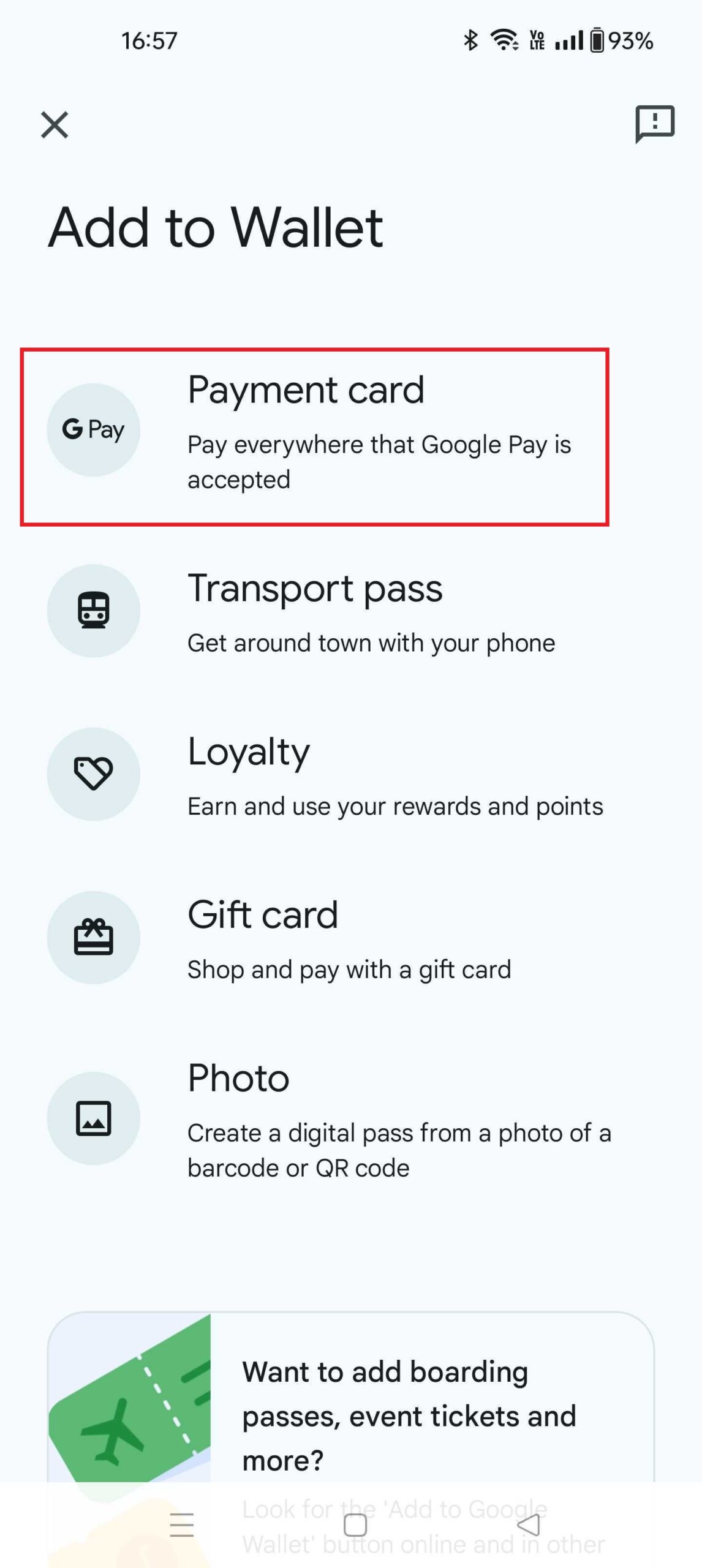
- Open the Google Pay App: Locate and tap the Google Pay icon on your device’s home screen or app drawer.
- Navigate to the Payment Section: Once the app is open, you’ll typically see a bottom navigation bar. Look for a tab or icon labeled “Payment,” “Cards,” or a similar identifier. Tap on this to access your payment methods.
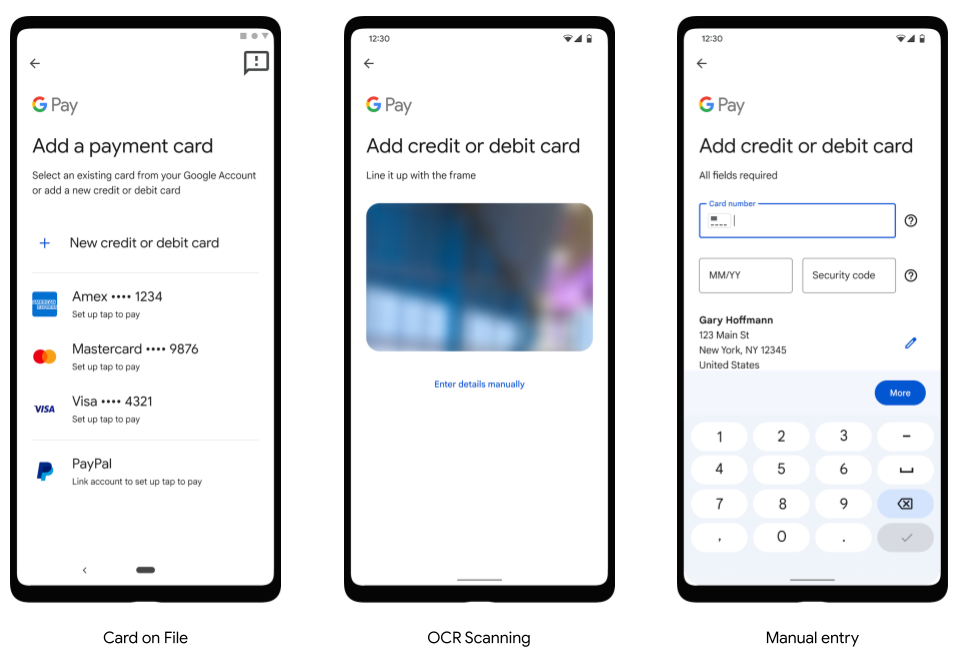
- Add a New Card: Within the payment section, you should see an option to “Add a card” or a “+” icon. Tap this to begin the card addition process. You might be given options like “Credit or debit card,” “Loyalty card,” “Gift card,” etc. Select “Credit or debit card.”
Capturing Card Details: Camera vs. Manual Entry
Google Pay offers two primary methods for inputting your card details, each with its own advantages.
- Using the Camera:
- The app will likely prompt you to use your device’s camera to scan your card. Position your card within the frame on the screen.
- The app will automatically detect and populate the card number, expiry date, and sometimes your name. This is often the quickest and most error-proof method.
- Pros: Fast, reduces manual input errors.
- Cons: Requires good lighting and a clear, undamaged card.
- Manual Entry:
- If scanning isn’t an option or fails, you can choose to “Enter details manually.”
- You will then be prompted to type in your card number, expiration date (month/year), and the CVV/CVC (the 3 or 4-digit security code on the back/front of your card).
- Pros: Works in any condition, useful for virtual cards.
- Cons: Prone to typos, requires careful input.
- Provide Additional Information: After entering card details, you might need to input your billing address associated with the card. Ensure this information is accurate to avoid verification issues.
Verification for Enhanced Security
This is a critical security step where your bank confirms your identity and authorizes the card for digital use.
- Bank Interaction: Google Pay will securely transmit your card details to your issuing bank for verification.
- Verification Methods: Your bank will typically offer one or more methods to confirm you are the legitimate cardholder:
- SMS Code: A one-time passcode (OTP) sent to the phone number associated with your bank account.
- Email Code: An OTP sent to your registered email address.
- Bank App Notification: A push notification to your bank’s mobile app, requiring you to approve the addition.
- Phone Call: A call to your bank’s automated or live customer service.
- Temporary Transaction: In rare cases, a small, temporary charge might appear on your statement which you’d need to confirm.
- Complete Verification: Follow the instructions provided by your bank. Once verified, your card will be successfully added to Google Pay.
Setting a Default Card and Managing Multiple Cards
After your first card is added, you might want to customize your setup or add more.
- Setting a Default Card: If you add multiple cards, Google Pay will allow you to designate one as your “default” card. This card will be automatically selected for tap-to-pay transactions unless you choose another before tapping. You can usually do this by going to the card’s details within the app and selecting “Set as default.”
- Managing Multiple Cards: You can add as many compatible cards as you like. To switch between them for a payment, simply open the Google Pay app, select the desired card, and then proceed with your transaction. You can also reorder, edit billing details, or remove cards from this section at any time.
By meticulously following these steps, you will have successfully added your chosen payment cards to Google Pay, ready to enjoy the convenience and security of digital transactions.
Maximizing Security and Troubleshooting Common Issues
While Google Pay is designed with robust security measures and user-friendliness in mind, understanding its security architecture and knowing how to troubleshoot common issues can significantly enhance your experience and peace of mind.
Google Pay’s Robust Security Architecture
Google Pay employs a multi-layered security approach to protect your financial data, going beyond what physical cards typically offer.
- Tokenization: This is the cornerstone of Google Pay’s security. When you add a card, your actual card number is not stored on your device or transmitted during a transaction. Instead, it’s replaced with a unique encrypted digital account number (a “token”). This token is tied to your specific device and Google Account. If a merchant’s system is breached, fraudsters only get access to this token, which is useless without the specific Google Pay cryptographic keys, rather than your actual card number.
- Encryption: All data exchanged between your device, Google’s servers, and the payment terminals is heavily encrypted, preventing eavesdropping and data interception.
- Device Lock Integration: As mentioned, your device must have a screen lock. For contactless payments, your phone needs to be unlocked (or in some cases, just awake) to authorize a transaction, adding another layer of physical security.
- Fraud Monitoring: Google, in conjunction with your bank, employs advanced fraud detection systems that continuously monitor transactions for suspicious activity, often catching potential fraud before you even notice.
Best Practices for Digital Wallet Security
Beyond Google’s built-in safeguards, your personal habits play a critical role in maintaining the security of your digital wallet.
- Strong, Unique Passwords: Use a strong, unique password for your Google Account. Never reuse passwords across different services.
- Two-Factor Authentication (2FA): Enable 2FA on your Google Account. This adds an essential second layer of security, requiring a code from your phone or a security key in addition to your password.
- Keep Your Device Updated: Regularly install operating system and app updates. These updates often include critical security patches that protect against newly discovered vulnerabilities.
- Monitor Transactions: Periodically review your bank statements and the transaction history within the Google Pay app to spot any unauthorized activity promptly.
- Be Wary of Phishing: Google will never ask for your passwords or full card details via email or unsolicited calls. Be skeptical of suspicious communications.
Common Hiccups and Quick Fixes
Even with careful preparation, you might encounter minor issues. Here’s how to address some common problems:
- Card Not Supported: If your card isn’t accepted, first verify if your bank is a Google Pay partner. If it is, ensure the card type (credit/debit) is supported. Sometimes, specific card variants (e.g., certain prepaid cards or corporate cards) might be excluded. Contact your bank for clarification.
- Verification Failures: If your bank’s verification process fails, double-check that the information you provided (billing address, phone number, email) matches what your bank has on file. Try an alternative verification method if offered. If issues persist, contact your bank directly; they might need to manually enable your card for Google Pay.
- NFC Issues/Payment Not Going Through:
- Ensure NFC is enabled in your device settings.
- Check that Google Pay is set as your default payment app (Settings > Connected devices > NFC > Contactless payments).
- Make sure your phone is unlocked and held close enough to the payment terminal.
- Sometimes a simple device restart can resolve temporary NFC glitches.
- App Crashes or Freezes: Clear the app’s cache (Settings > Apps > Google Pay > Storage > Clear cache). If that doesn’t work, reinstalling the app might resolve persistent issues.
- Device Compatibility Errors: If your device is older, it might lack NFC or be running an outdated Android version. Check your device specifications and update your OS if possible.
What to Do If Your Device is Lost or Stolen
Losing your phone can be distressing, but Google Pay has built-in safeguards.
- Find My Device: Use Google’s “Find My Device” service (findmydevice.google.com) to remotely locate, lock, or erase your device. Locking your phone immediately prevents anyone from accessing your Google Pay app.
- Remote Card Suspension: Even if your device is locked, you can suspend or remove your cards from Google Pay remotely through your Google Account settings. Google Pay doesn’t store your actual card numbers on the device, so even if a thief gains access, your full card details are not exposed.
- Contact Your Bank: As an extra precaution, inform your bank about the lost/stolen device.
By understanding Google Pay’s security mechanisms and adopting sound personal security practices, you can confidently leverage digital payments while safeguarding your financial well-being.
Beyond Payments: Unlocking Google Pay’s Full Potential
While adding a card to Google Pay is primarily about facilitating secure and convenient payments, the platform’s utility extends far beyond mere transactions. Google Pay is designed to be a comprehensive digital wallet that integrates various aspects of your financial and transactional life, reducing clutter and enhancing overall efficiency.
Loyalty Programs and Gift Cards
One of the most appealing features of Google Pay is its ability to consolidate your myriad loyalty cards and gift cards. Instead of rummaging through a physical wallet packed with plastic, you can store digital versions of these cards directly within the app.
- Streamlined Rewards: Simply add your loyalty cards (e.g., from grocery stores, coffee shops, airlines) by scanning their barcodes or entering their membership numbers. When checking out, select the loyalty card in Google Pay and present it to the scanner before making your payment.
- Digital Gift Cards: Similarly, you can add gift cards, either by scanning the barcode or manually entering the details. This prevents you from forgetting or losing physical gift cards and ensures they are always accessible when you need them. This feature not only declutters your wallet but also ensures you never miss out on earning points or redeeming discounts.
Public Transit and Event Tickets
Google Pay is increasingly integrating with public transportation systems and event ticketing platforms, offering a seamless travel and entertainment experience.
- Tap-to-Ride Transit: In many major cities worldwide, you can add your transit passes (e.g., from Clipper, Suica, OMNY) to Google Pay. This allows you to simply tap your phone or smartwatch on the turnstile or bus reader to pay for your ride, eliminating the need for physical cards or fumbling for exact change.
- Digital Event Passes: For concerts, flights, movies, or other events, you can often save your digital tickets directly to Google Pay. This means your boarding pass or event entry ticket is readily available on your device, accessible with a tap, and can even display timely notifications about gate changes or show times. This integration simplifies check-ins and reduces the stress associated with managing multiple physical tickets.
Peer-to-Peer Transactions (Where Available)
While its availability varies by region and specific Google Pay app versions, the platform also offers peer-to-peer (P2P) payment capabilities.
- Sending and Receiving Money: In supported countries, you can link your bank account or debit card to Google Pay to send money to friends and family directly from the app. This is incredibly useful for splitting bills, contributing to group gifts, or simply transferring funds quickly and securely.
- Requesting Money: Similarly, you can request money from others, simplifying the process of reminding someone about a shared expense. These P2P transactions often leverage instant transfer capabilities, ensuring funds are available quickly.
By exploring these additional functionalities, users can truly unlock the full power of Google Pay, transforming it from a mere payment tool into an indispensable digital assistant for managing a wide array of daily financial and logistical tasks. It represents a significant step towards a truly cashless, cardless, and hassle-free future.
Conclusion
The transition to digital wallets like Google Pay marks a pivotal moment in the evolution of personal finance and commerce. By offering a secure, convenient, and feature-rich platform, Google Pay empowers users to manage their payments, loyalty programs, and even transit tickets with unprecedented ease. Adding a card to Google Pay is not just a technical step; it’s an embrace of a smarter, more secure way to interact with the financial world.
We’ve explored the essential prerequisites, walked through the step-by-step process of adding your card, delved into the formidable security architecture that protects your data, and provided solutions for common troubleshooting scenarios. Furthermore, we’ve highlighted how Google Pay’s utility extends beyond basic transactions, offering a consolidated hub for loyalty programs, event tickets, and even peer-to-peer money transfers.
In an era where technology continually reshapes our daily lives, adopting digital payment solutions like Google Pay is no longer a niche choice but a sensible and increasingly necessary step. It offers the speed and efficiency that modern life demands, coupled with robust security features that safeguard your financial information against evolving threats. By leveraging Google Pay, you’re not just simplifying your wallet; you’re securing your transactions and streamlining your digital life, ready for the future of payments.
aViewFromTheCave is a participant in the Amazon Services LLC Associates Program, an affiliate advertising program designed to provide a means for sites to earn advertising fees by advertising and linking to Amazon.com. Amazon, the Amazon logo, AmazonSupply, and the AmazonSupply logo are trademarks of Amazon.com, Inc. or its affiliates. As an Amazon Associate we earn affiliate commissions from qualifying purchases.