
The Multi-User Advantage: Why Add Accounts to YouTube TV?
YouTube TV has revolutionized how many households consume live television and on-demand content, blending the convenience of streaming with the familiarity of traditional cable. However, its true power, especially in a multi-person household, lies in its robust account management features. Far beyond just allowing multiple people to watch, adding separate accounts unlocks a personalized and efficient viewing experience for everyone.
Personalization and Preferences
One of the most significant advantages of adding individual accounts to YouTube TV is the unparalleled personalization it offers. Each linked Google account creates a distinct user profile within the YouTube TV ecosystem. This means:

- Tailored Recommendations: YouTube TV’s algorithm learns individual viewing habits. With separate accounts, each user receives recommendations for shows, movies, and live events that genuinely align with their interests, rather than a mixed bag based on a communal history.
- Custom Watchlists: Every user can build and manage their own watchlist, saving shows and movies they want to watch later without cluttering another family member’s queue.
- Individual Playback History: Progress on watched content is saved per user. If one person is halfway through a movie, another can start watching something else from scratch, and their progress will be independently tracked.
Stream Management and DVR
Beyond personal preferences, individual accounts play a critical role in managing concurrent streams and DVR recordings, which are core features of the YouTube TV service.
- Efficient Concurrent Streams: A standard YouTube TV subscription typically allows for three simultaneous streams. When each family member has their own account and is signed in, these streams can be utilized independently on different devices. This prevents conflicts where one person’s viewing prevents another from watching their desired content.
- Personalized Cloud DVR: YouTube TV boasts an unlimited cloud DVR storage. With separate accounts, each user benefits from this. They can record their favorite shows, sports events, and movies without worrying about storage limits or inadvertently deleting recordings important to someone else. All recordings are stored for nine months, and each account has its own DVR library, ensuring a clean and organized viewing space.
Simplified Family Access
Adding accounts simplifies access for family members while maintaining a centralized billing system. The primary account holder manages the subscription and payments, but all added family members enjoy full access to the service, including the live channels, on-demand library, and DVR functionality, all under their unique profile. This setup reduces friction, eliminates the need for password sharing, and ensures a smoother, more enjoyable experience for everyone under one roof.
Setting the Stage: Prerequisites for Account Management
Before diving into the step-by-step process of adding accounts, understanding the foundational requirements ensures a smooth setup. YouTube TV leverages the existing Google ecosystem, making account management intuitive for those familiar with Google services.
Active YouTube TV Subscription
The most fundamental prerequisite is an active and current YouTube TV subscription. Only the primary account holder, who initiated the subscription, has the authority to manage family members and billing. If you’re a new user, you’ll need to sign up for YouTube TV first, typically by linking a Google account to the service.
Google Accounts for Each User
YouTube TV operates on the Google account infrastructure. Therefore, every individual you wish to add as a separate user (with their own profile, recommendations, and DVR) must have their own Google account. This is usually not an issue as Google accounts are widely used for Gmail, YouTube, Android devices, and more. If a family member doesn’t have one, creating a new Google account is a simple, free process that takes just a few minutes. It’s important to remember that these should be individual Google accounts, not shared ones.
Understanding the Google Family Group
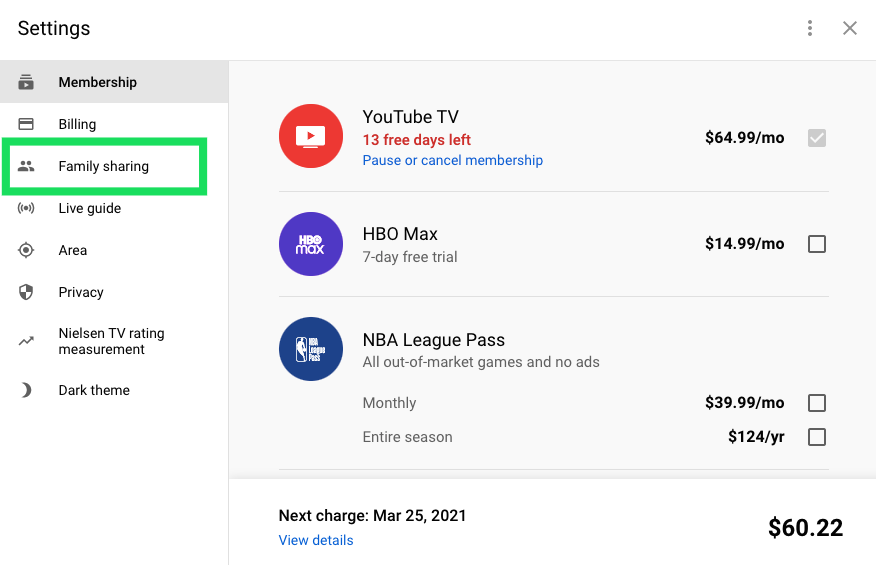
This is perhaps the most crucial piece of the puzzle for multi-user YouTube TV access. YouTube TV’s family sharing functionality is deeply integrated with Google’s Family Group feature. A Google Family Group allows up to six family members (including the family manager) to share eligible Google products, including paid apps, family calendar, Google Play purchases, and crucially, YouTube TV.
- Family Manager: The person who signs up for YouTube TV automatically becomes the “family manager” of a Google Family Group (or can join an existing one if they are already the manager). This individual is responsible for inviting others to the group and manages all billing for shared Google services.
- Family Members: Once invited and accepted into the Google Family Group, members gain access to shared services like YouTube TV. Each member, when signed into YouTube TV with their Google account, will have their own personalized profile.
- The “Household” Requirement: Google’s terms of service for Family Groups, particularly regarding YouTube TV, specify that all members of the Family Group must reside in the same household. This is enforced by periodically checking the IP addresses of devices using the service. While not a prerequisite for setting up the accounts, it’s a critical operational constraint to be aware of to avoid service interruptions.
Ensure your Google Family Group is set up and that all desired users are members before attempting to fully integrate them into YouTube TV for a seamless experience. If you haven’t set up a Google Family Group, you can do so through your Google account settings or via the Google Family Link app.
Step-by-Step Guide: Adding Users to Your YouTube TV Service
Adding accounts to YouTube TV primarily involves two distinct but related processes: inviting members to your Google Family Group (which grants them access to YouTube TV) and then signing in with their individual Google account on a device to create their unique profile.
Inviting Members via Google Family Group (Primary Method)
This is the foundational step to grant others access to your YouTube TV subscription.
- Access Google Family Group Settings:
- Open a web browser on your computer or mobile device.
- Go to
families.google.comor navigate to your Google Account settings (myaccount.google.com) and find “People & sharing,” then “Family group.” - Ensure you are signed in with the Google account that is the YouTube TV primary subscriber (the family manager).
- Invite Family Members:
- Click on “Invite family member” or a similar option.
- You will be prompted to enter the email address (which must be a Google account) of the person you want to invite.
- Review the invitation details, which explain what services will be shared.
- Send the invitation.
- Accept the Invitation:
- The invited person will receive an email with a link to join the Google Family Group.
- They must open this email and click on the “Accept Invitation” link.
- They will be prompted to confirm their Google account and accept the terms of joining the family group.
- Once accepted, they are officially part of your Google Family Group and, by extension, have access to your YouTube TV subscription.
Signing In on a Device (Switching User Profiles)
Once a family member has accepted the invitation to your Google Family Group, they can then sign in to YouTube TV on any supported device (smart TV, streaming stick, computer, mobile device) using their own Google account. This action creates their individual YouTube TV profile.
- Open YouTube TV App/Website:
- Launch the YouTube TV app on your smart TV, streaming device (Roku, Fire TV, Apple TV, Chromecast, etc.), or mobile device.
- Alternatively, go to
tv.youtube.comon a web browser.
- Navigate to Profile/Account:
- On a TV app, you’ll typically find a profile icon in the top-right or top-left corner of the screen (often represented by an avatar or initial).
- On the web, click your profile picture in the top-right corner.
- On mobile, tap your profile picture.
- Switch or Add Account:
- Look for an option like “Switch Account,” “Add Account,” or “Manage Accounts.”
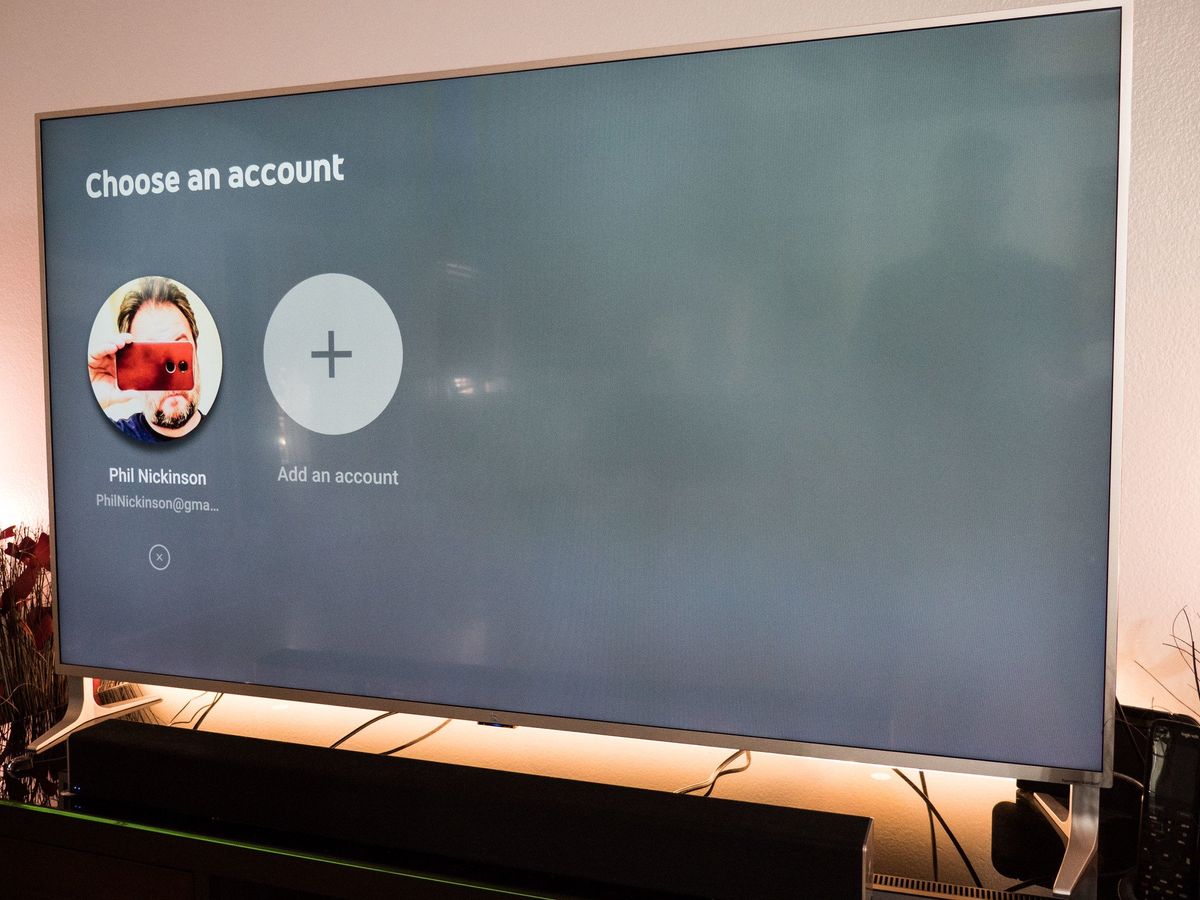
- If other accounts are already signed in, you’ll see a list. Select “Add account” or “Sign in with a new account.”
- Sign In:
- Enter the Google account credentials (email and password) of the newly added family member.
- Follow any on-screen prompts for verification, such as two-factor authentication or device activation (which might involve entering a code displayed on the TV into a web browser on another device).
- Confirm Profile Activation:
- Once successfully signed in, the YouTube TV interface should now reflect the newly added user’s profile. This means their recommendations, watch history, and DVR library will be unique to them. They can now navigate YouTube TV as an independent user.
Managing Existing Accounts and Profiles
The family manager can remove members from the Google Family Group at any time through families.google.com. When a member is removed from the family group, they lose access to shared services like YouTube TV. On individual devices, any user can sign out of their profile, and the primary account holder (or any user with access to the device settings) can also remove accounts from a specific device if necessary. This helps manage device usage, especially if a device is being replaced or shared outside the household.
Maximizing Your YouTube TV Experience with Multiple Accounts
Successfully adding multiple accounts is just the first step. To truly leverage the power of YouTube TV for everyone in the household, it’s important to understand the nuances of concurrent streams, DVR management, and how to troubleshoot common issues.
Understanding Concurrent Streams and Location Restrictions
A standard YouTube TV subscription permits up to three simultaneous streams. This means three different members of your Google Family Group can watch YouTube TV at the same time on three different devices, each signed into their respective accounts.
- Household Requirement: Crucially, all three concurrent streams must originate from within the same “home” network. YouTube TV periodically checks the IP address of devices streaming content to ensure they are all located at the registered home address.
- Changing Home Location: If you move, the family manager needs to update the home location in YouTube TV settings. This can typically be done twice within a 12-month period. Attempts to stream from outside the home network can lead to errors and potential service suspension if detected as a violation of terms.
- Add-on Streams: For larger families or those with higher streaming needs, YouTube TV offers an “Unlimited Streams” add-on. This allows up to three simultaneous streams outside your home network, in addition to unlimited streams within your home, provided everyone is still part of the same Google Family Group and adheres to the “same household” rule.
Managing DVRs and Libraries
Each individual account within YouTube TV comes with its own unlimited cloud DVR storage. This feature is a game-changer for households with diverse viewing habits.
- Independent Recording: Each user can set their own recordings. If one person wants to record every episode of a specific show, it will appear in their library, not everyone else’s.
- Shared Content vs. Individual Recordings: While recordings are individual, if multiple members record the same show, YouTube TV intelligently stores only one copy of that specific recording to save storage space (though it’s “unlimited,” this is an efficiency measure). Each user still sees the recording in their own library.
- On-Demand Access: All members have access to YouTube TV’s video-on-demand library, which includes content from various channels and networks. This content isn’t part of the DVR but is available to everyone with an active subscription.
Troubleshooting Account Access Issues
Occasionally, users might encounter issues when trying to access or manage accounts. Here are common problems and their solutions:
- “Unable to play in current location” / Location Errors: This typically means YouTube TV has detected that the device is streaming from outside the registered home network. Ensure you are streaming from your home internet connection. If you have moved, the family manager must update the home location in the settings.
- “Too many streams” Error: If you see this, it means you’ve exceeded your concurrent stream limit (usually three). Check if other family members are actively streaming. If you consistently hit this limit, consider the “Unlimited Streams” add-on.
- Account Not Showing Up: Double-check that the family member has correctly accepted the invitation to your Google Family Group. Also, ensure they are signing in with the correct Google account.
- Sign-in Problems: Verify the Google account username and password. If issues persist, try signing in to other Google services (like Gmail) to confirm the credentials are correct. Google’s account recovery options might be needed if the password is forgotten.
- Billing and Subscription Issues: Only the family manager can manage the YouTube TV subscription, including payments, plan changes, and add-ons. If a family member encounters a billing-related error, they should contact the family manager.
Best Practices for Seamless Family Sharing
To ensure that adding accounts to YouTube TV remains a benefit rather than a source of frustration, adopting a few best practices can make all the difference for a harmonious streaming environment.
Regular Review and Security
- Review Family Group Members: Periodically check your Google Family Group (
families.google.com) to ensure only authorized individuals are part of it. If someone has moved out or no longer needs access, remove them. - Secure Account Passwords: Encourage all family members to use strong, unique passwords for their Google accounts and to enable two-factor authentication (2FA) for added security. This protects not only their YouTube TV access but their entire Google ecosystem.
- Monitor Device Sign-ins: If you notice unfamiliar devices streaming from your YouTube TV account, you can review and sign out of devices remotely through your Google account security settings.
Communicating Usage and Expectations
- Discuss Stream Limits: Have an open conversation about the three-stream limit (or more if you have the add-on). This helps prevent conflicts and ensures everyone understands how to manage concurrent viewing, especially during peak times.
- Home Location Awareness: Reinforce the understanding that YouTube TV is intended for use within a single household. Explain why it’s essential for family members to primarily use the service from the home network.
- Recording Courtesy: While individual DVRs are robust, a brief chat about common recording habits can still be helpful, especially if there’s overlap in content or if someone plans to record an entire season of a particularly obscure show that might subtly affect recommendations for others (though less likely with individual profiles).
Adhering to Terms of Service
The terms of service for YouTube TV, particularly concerning family groups and household definitions, are in place to ensure fair use and prevent unauthorized sharing. By adhering to these guidelines—primarily the “same household” rule for all family group members—you help maintain uninterrupted service and avoid potential account suspensions. Understanding and respecting these terms is crucial for a long-lasting and positive YouTube TV experience for everyone in your family.
aViewFromTheCave is a participant in the Amazon Services LLC Associates Program, an affiliate advertising program designed to provide a means for sites to earn advertising fees by advertising and linking to Amazon.com. Amazon, the Amazon logo, AmazonSupply, and the AmazonSupply logo are trademarks of Amazon.com, Inc. or its affiliates. As an Amazon Associate we earn affiliate commissions from qualifying purchases.