
The landscape of television has shifted dramatically over the last decade, moving away from traditional cable infrastructure toward sophisticated, cloud-based streaming services. YouTube TV has emerged as a frontrunner in this transition, offering a robust platform that blends the familiarity of live television with the flexibility of modern software. One of the most powerful technical features of YouTube TV is its ability to support multiple users under a single subscription. However, unlike traditional apps where you might simply share a password, YouTube TV utilizes a more secure and personalized system through Google Family Sharing.

Understanding how to add an account on YouTube TV is essential for households looking to maximize their subscription. This guide provides a deep dive into the technical steps, the underlying infrastructure of family groups, and how to manage multiple profiles across various hardware ecosystems.
Understanding the Multi-User Ecosystem of YouTube TV
Before diving into the “how-to,” it is crucial to understand the architecture of YouTube TV’s user management. Unlike some streaming competitors that use a simple “profile” system similar to a guest list, YouTube TV integrates directly with Google’s Family Sharing API. This means that every person you add to your YouTube TV account is actually using their own distinct Google Account.
The Difference Between Account Sharing and Individual Profiles
When you add a user to YouTube TV, you are not simply giving them your password. Instead, you are inviting their independent Google identity to access your subscription benefits. This technical distinction is vital for privacy and data integrity. Because each user logs in with their own credentials, their watch history, personalized recommendations, and specific “Library” (Cloud DVR) remain entirely private. One family member’s penchant for reality TV will not influence the sports-heavy recommendations of another.
Requirements and Limitations for Family Groups
To maintain service quality and comply with licensing agreements, Google imposes specific technical requirements on family groups:
-
The Six-Member Limit: A YouTube TV subscription allows for one “Family Manager” and up to five additional family members. This brings the total to six unique accounts per subscription.
-
Age Requirements: Family members must be at least 13 years old to have their own managed account within the group.
-
Geographic Constraints: This is perhaps the most critical technical hurdle. All family members must live in the same household and primarily reside in the same “Home Area” as the Family Manager. YouTube TV uses IP addresses and device location services to verify that all accounts are checking in from the same geographic region periodically.
-
Google Account Status: You cannot add a Google Workspace (formerly G Suite) account to a family group. Only personal @gmail.com accounts are eligible.
Step-by-Step Guide to Adding a New Member via Google Family Sharing
The process of adding an account is managed primarily through the “Family Manager” profile. This is the account that originally purchased the subscription and is responsible for billing.
Setting Up the Family Manager Profile
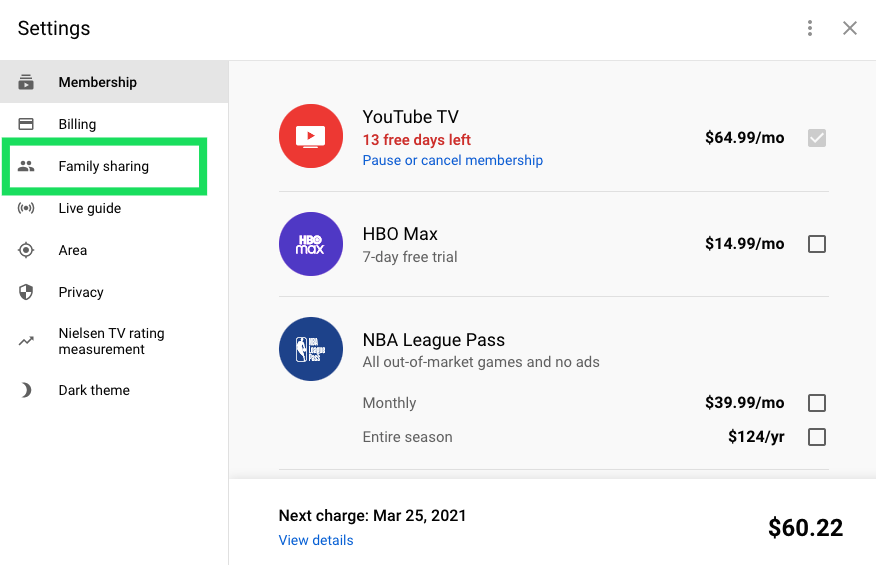
If you have not yet established a family group, the first step is initialization. Navigate to the YouTube TV settings on a web browser or mobile device. Under the “Family Sharing” tab, you will find the option to “Set Up.” Google will guide you through a series of prompts to confirm your identity and the subscription you wish to share. This process links your payment method to the family group, though it does not give other members access to your credit card information for their own private purchases unless explicitly enabled via Google Play permissions.
Inviting Members Through the YouTube TV Interface
Once the family group is active, adding a member is a matter of sending a digital invitation:
-
Open the YouTube TV app or visit tv.youtube.com.
-
Click on your profile picture in the top right corner and select Settings.
-
Navigate to Family Sharing.
-
Select Manage.
-
Click on Invite Family Member.
-
Enter the email address of the person you wish to add.
The system will send a secure link to the recipient. It is important to note that the invitation expires after a set period, usually 14 days, for security reasons.
Accepting Invitations and Finalizing Account Setup
The recipient must take action to finalize the link. Upon receiving the email, they should click “Accept Invitation.” They will be prompted to sign in with their own Google credentials. At this stage, YouTube TV will perform a “Home Area” check. If the recipient is on a mobile device, they may need to enable location permissions to prove they are within the same broadcast region as the manager. Once accepted, the new account is immediately granted access to the full suite of YouTube TV channels and features.
Managing Multiple Profiles on Different Devices
One of the complexities of modern tech is the variety of hardware we use. Adding and switching between accounts on a smartphone is a different technical experience than doing so on a Smart TV or a streaming stick like a Roku or Apple TV.
Navigating Profiles on Smart TVs and Streaming Sticks
On “living room devices”—which include devices like Chromecast with Google TV, Amazon Fire TV, and Samsung Smart TVs—the interface is designed for shared use.
To add an account to a TV:
-
Launch the YouTube TV app.
-
Select the profile icon in the top left or right corner (depending on the firmware version).
-
Select Switch Account.
-
Choose Add Account.
-
The TV will display a QR code or a short alphanumeric code.
-
The new user must visit
google.com/deviceon their smartphone or laptop, log in to their account, and enter the code displayed on the TV.
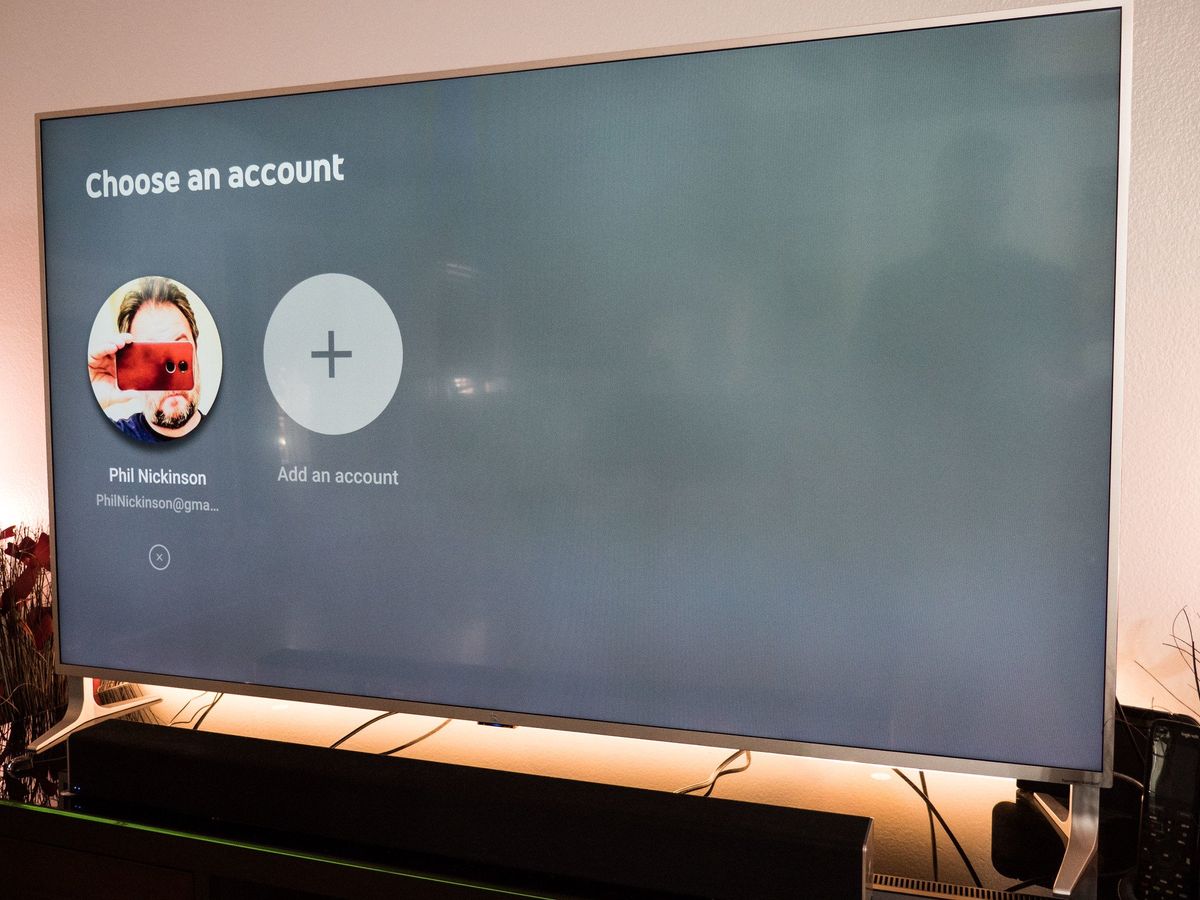
This method is highly secure because it avoids the need to type complex passwords into a TV remote, which is susceptible to “shoulder surfing” or input errors.
Managing Accounts via Mobile and Web Browsers
On mobile devices, YouTube TV leverages the existing accounts already signed into the OS. On an Android device, if the user has multiple Google accounts synced to the phone, YouTube TV will allow them to toggle between them effortlessly. On iOS, users may need to sign in manually within the app, but the app can store these credentials in the iCloud Keychain for encrypted, one-tap access in the future.
Troubleshooting Common Log-in and Synchronization Issues
Technical friction often occurs during the account-adding process. Common issues include:
-
“Invitation Already Accepted” Errors: This usually occurs if the user is already part of another Google Family group. Google only allows a user to be part of one family group at a time. The user must leave their old group before joining the new one.
-
Location Mismatch: If a family member is trying to join while on a VPN or in a different city, the setup will fail. Ensure VPNs are disabled and the device’s GPS is active during the initial handshake.
-
App Refresh Issues: Sometimes, after being added, the new account still sees a “Sign Up” prompt. The technical fix is usually a “Hard Close” of the app or clearing the app cache in the device settings to force a fresh pull of the user’s subscription status from Google’s servers.
Maximizing the Benefits of Individual User Accounts
The primary technical reason to add individual accounts rather than sharing one is the segregation of data. YouTube TV’s backend is designed to optimize the experience for the specific viewer.
Personalized Recommendations and Watch History
Each account added to YouTube TV maintains its own “Home” screen. This screen is populated using machine learning algorithms that analyze viewing habits. If one user spends hours watching news cycles while another watches sports highlights, their respective interfaces will reflect those preferences. This data remains siloed, ensuring that one person’s viewing habits do not “pollute” the algorithm for everyone else.
Unlimited Cloud DVR for Every Member
Perhaps the most impressive technical feat of YouTube TV is the Unlimited Cloud DVR. When you add a new account, that user gets their own private DVR space. They can record an unlimited number of shows simultaneously, and these recordings are kept for nine months. Crucially, these recordings are private; other family members cannot see what is in your library, and your recordings do not count against any shared storage limit, as the storage is hosted on Google’s massive server infrastructure, not on the local device.
Concurrent Streaming Limits and Data Optimization
While you can add up to five additional accounts, there is a technical limit on simultaneous streams. By default, YouTube TV allows for three concurrent streams across all devices. This means that if four family members try to watch at the exact same time, the fourth person will receive a notification that the limit has been reached. For households with higher needs, Google offers a “4K Plus” add-on that allows for unlimited concurrent streams on the home Wi-Fi network.
Security and Privacy Considerations for Shared Accounts
Whenever multiple accounts are linked together, digital security becomes a paramount concern. Managing a YouTube TV family group requires a basic understanding of modern security protocols.
Securing Your Primary Google Account
Since the Family Manager’s account controls the billing and the invitations, it is the highest-value target. Managers should ensure that Two-Factor Authentication (2FA) is enabled. If the Manager’s account is compromised, the attacker could theoretically remove family members or change the subscription tier. Using a hardware security key or an authenticator app provides a higher tier of security than SMS-based codes.
Managing Permissions and Parental Controls
For families adding younger users, the technical setup should involve Google’s “Family Link.” This allows the Manager to set content filters and viewing limits. While YouTube TV does not have the same granular “Kids Profile” as the standard YouTube app, it does respect the age-restricted settings of the underlying Google account. Managers can also see which devices are currently logged in and remove access to any device that looks suspicious or is no longer in use.
Best Practices for Digital Security in Shared Ecosystems
To maintain a healthy technical environment, users should:
-
Avoid Shared Passwords: Each family member should have a unique, strong password for their individual Google account.
-
Audit Member Lists: Every few months, the Family Manager should review the “Family Sharing” settings to ensure that only current household members have access.
-
Update Software Regularly: Ensure that the YouTube TV app and the device OS (Roku, Fire OS, tvOS) are up to date. Updates often include security patches for the OAuth protocols used to link accounts.
By understanding the technical nuances of Google’s Family Sharing and the specific requirements of the YouTube TV platform, users can create a seamless, personalized, and secure entertainment hub. Adding an account is more than just a convenience; it is the key to unlocking the full potential of a modern, data-driven streaming service.
aViewFromTheCave is a participant in the Amazon Services LLC Associates Program, an affiliate advertising program designed to provide a means for sites to earn advertising fees by advertising and linking to Amazon.com. Amazon, the Amazon logo, AmazonSupply, and the AmazonSupply logo are trademarks of Amazon.com, Inc. or its affiliates. As an Amazon Associate we earn affiliate commissions from qualifying purchases.