
Cash App has become an indispensable digital tool for millions, simplifying peer-to-peer payments, direct deposits, and even investing. At its core, the application’s utility hinges on its seamless integration with your bank accounts and payment cards. Linking a card to your Cash App account unlocks its full potential, allowing you to fund transactions, send money, and manage your finances with unparalleled ease directly from your smartphone. Understanding the straightforward process of adding a new card, as well as the underlying technical considerations, is crucial for optimizing your experience with this popular financial technology platform.
Understanding Cash App and Card Integration
Integrating your debit or credit card with Cash App transforms it from a mere app into a powerful financial hub. This connectivity is a cornerstone of modern digital banking, enabling rapid and secure movement of funds. The application is engineered to establish a secure link between your chosen card and your Cash App balance, facilitating various transactions without the need for physical cash or traditional banking interfaces.
Why Link a Card to Cash App?
The primary advantage of linking a card is the ability to instantly add funds to your Cash App balance or send money directly from your linked card. This bypasses the often slower bank transfer process, offering immediate liquidity. For instance, if you need to send money to a friend urgently, a linked debit card allows for an instant transfer, drawing funds directly from your bank account via the card. Furthermore, some Cash App features, such as Cash Card boosts or direct deposits, are significantly enhanced or even dependent on having an active, verified card linked to your account. The architecture ensures that these operations are not only fast but also encrypted and compliant with financial industry security standards.
Types of Cards You Can Link
Cash App primarily supports debit cards issued by Visa, MasterCard, American Express, and Discover. These cards are directly tied to your bank account, making them the most common and efficient method for funding and withdrawing. While you can often link a credit card, its functionality might be more limited. Credit cards are typically used to send money, incurring a standard 3% fee, as Cash App treats these transactions as cash advances. They cannot be used for withdrawing funds from your Cash App balance. It’s important to differentiate between these card types and understand their respective implications for transaction fees and service availability within the application’s ecosystem. Prepaid cards may also be linked, though their compatibility can vary, and they generally cannot be used for direct deposits or certain other advanced features due to their inherent limitations as non-bank-affiliated cards.
Step-by-Step Guide: Adding a Card
The process of adding a card to Cash App is designed to be intuitive and user-friendly, guiding you through a few simple screens within the application interface. Following these steps ensures a smooth integration of your payment method.
Preparation: What You’ll Need
Before you begin, ensure you have the physical card or access to all its details. You will need:
- The 16-digit card number
- The card’s expiration date (month/year)
- The CVV (Card Verification Value), typically a 3- or 4-digit code on the back of the card
- Your billing ZIP code associated with the card.
It’s also advisable to have a stable internet connection on your mobile device to prevent any interruptions during the linking process. Ensuring your Cash App is updated to the latest version can also prevent compatibility issues.
The Process: From Home Screen to Confirmation
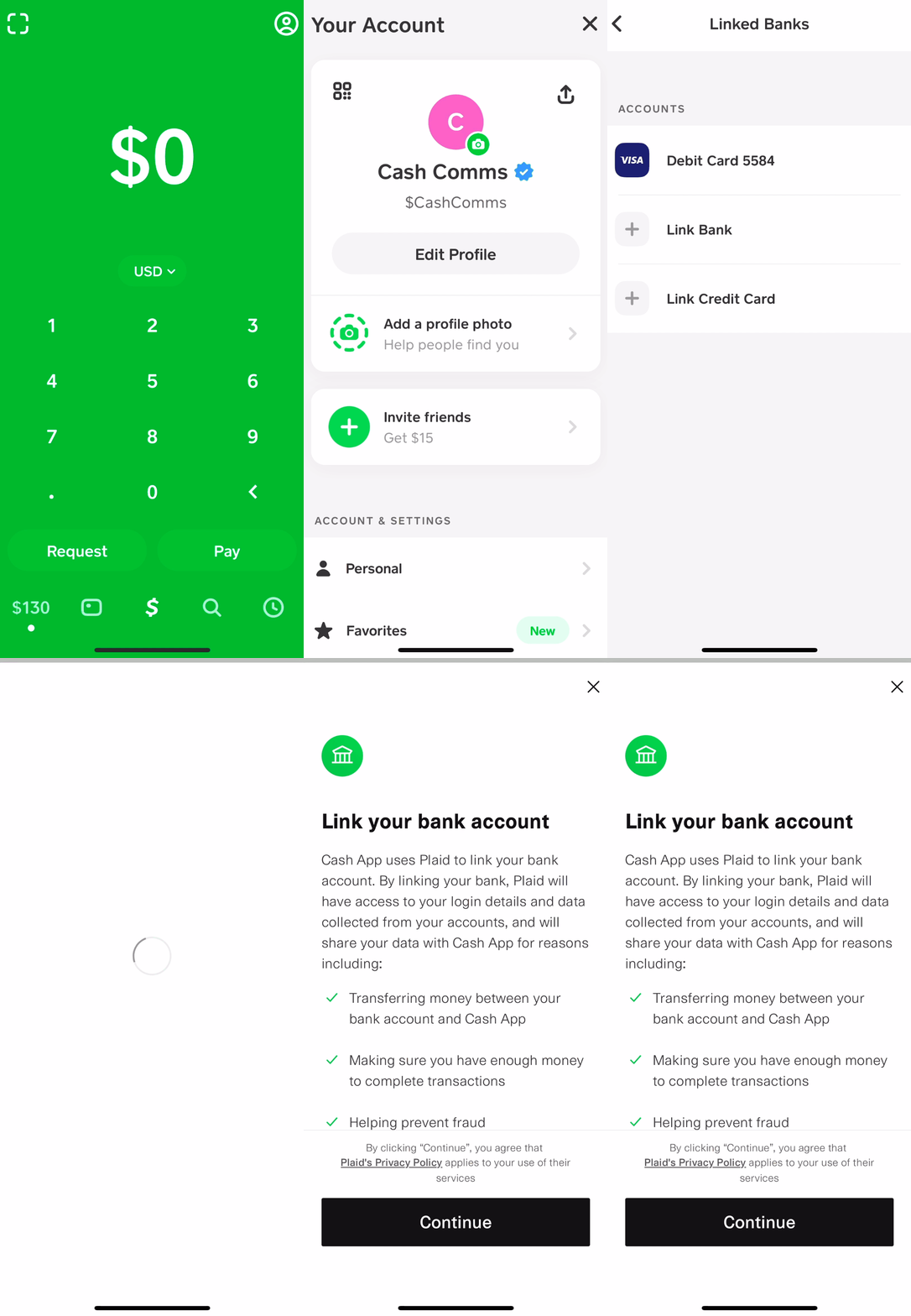
- Open Cash App: Launch the Cash App on your smartphone. You’ll typically land on the home screen, which displays your current balance or a payment interface.
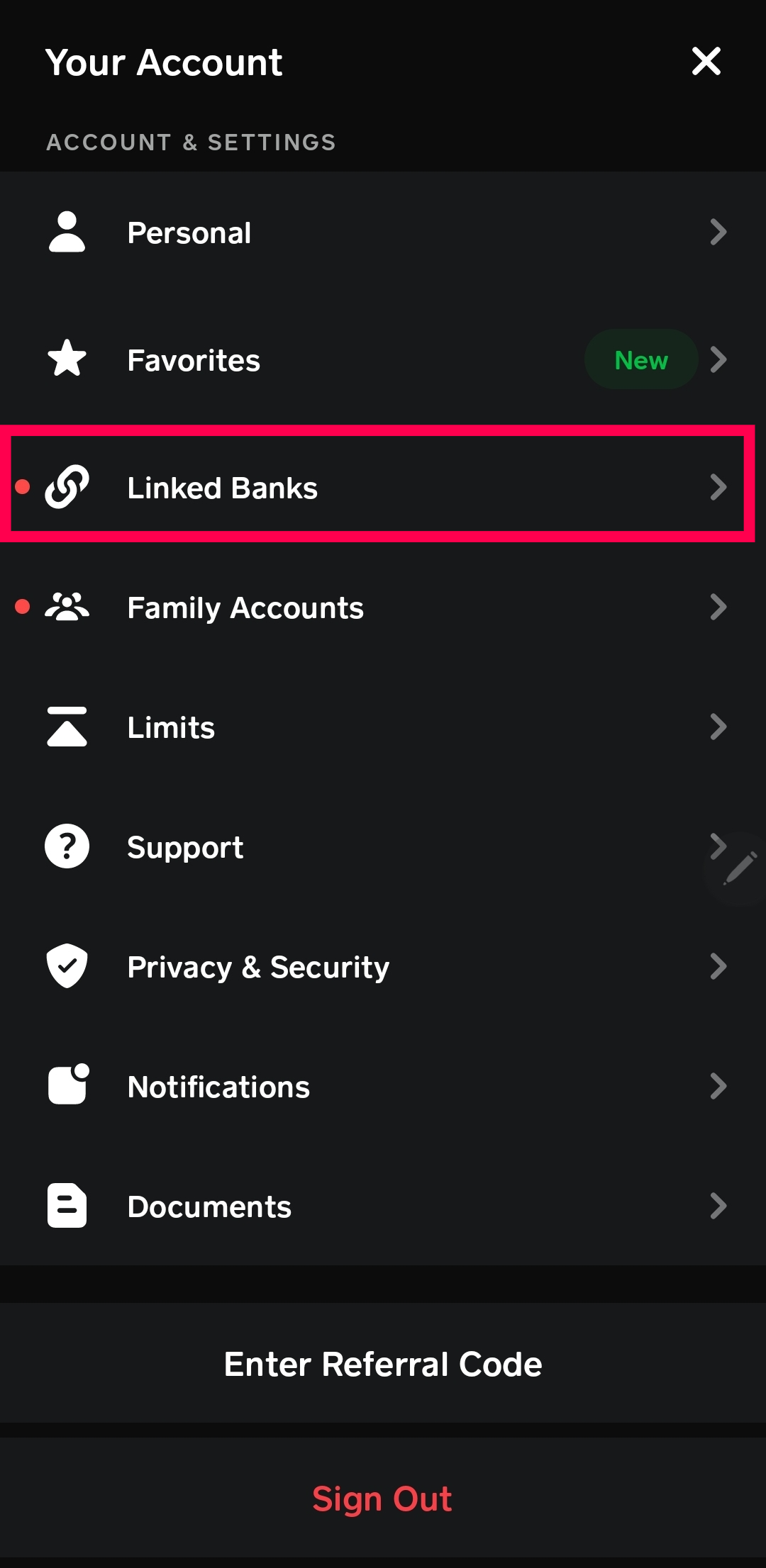
- Navigate to the Profile Icon: Tap on your profile icon, which is usually located in the top-right corner of the screen. This will open your account settings and various options.
- Select “Linked Banks”: Scroll down the profile menu until you find the “Linked Banks” option. Tap on this to view your currently linked financial instruments.
- Tap “Link Bank”: Even though you’re linking a card, Cash App often categorizes card linkage under “Link Bank.” Tap the “Link Bank” button.
- Choose “Link Debit Card”: On the subsequent screen, you’ll be prompted to link either a debit card or a credit card. Select “Link Debit Card” for the most common use case. If you intend to link a credit card, choose that option, but be mindful of the potential fees.
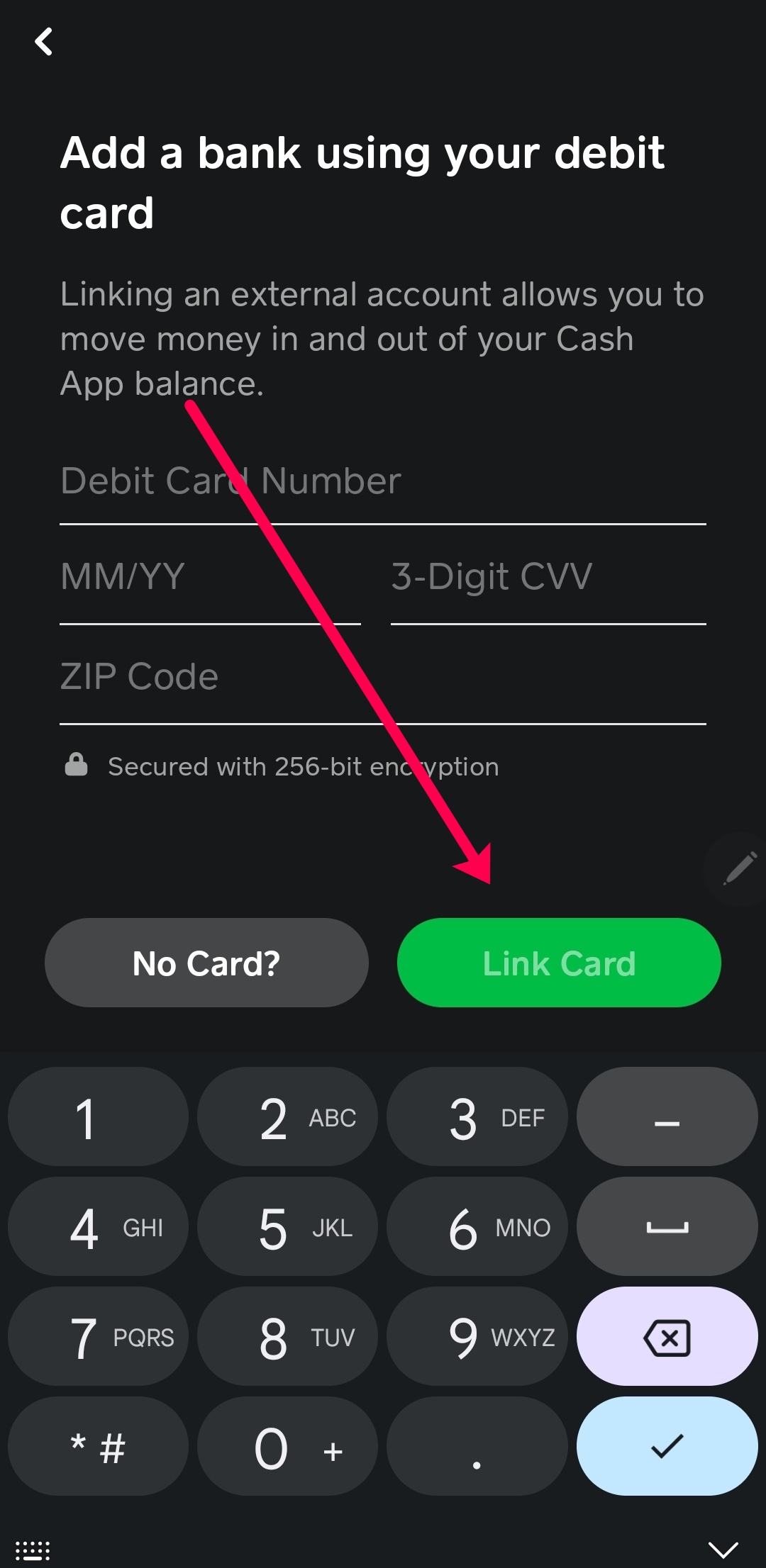
- Enter Card Details: A screen will appear asking for your card’s information. Carefully input the 16-digit card number, the expiration date (MM/YY), and the CVV code.
- Enter Billing ZIP Code: After entering the card details, you’ll be prompted for the billing ZIP code associated with the card. This is a crucial security step to verify that you are the legitimate cardholder.
- Confirm and Link: Double-check all the entered information for accuracy. Once satisfied, tap the “Link Card” or “Add Card” button.
- Verification (if required): In some cases, Cash App or your bank might require an additional verification step. This could involve receiving a text message with a code to your registered phone number, or a small temporary charge to your card which you’ll need to confirm. This is part of Cash App’s digital security framework to prevent unauthorized linking.
- Confirmation: Upon successful linking, you will receive a confirmation message within the app, and your new card will appear under the “Linked Banks” section. You are now ready to use your card with Cash App.
Troubleshooting Common Card Addition Issues
While the card linking process is generally smooth, users occasionally encounter technical hurdles. Understanding the common issues and their resolutions can save time and frustration.
Invalid Card Number or Expiration Date
One of the most frequent errors is incorrect data entry. Ensure you are typing the 16-digit card number precisely, without spaces or hyphens unless the app automatically formats them. The expiration date must match exactly (e.g., 01/25 for January 2025). A simple typo can trigger an “invalid card” error. Always double-check these critical fields before attempting to link. Also, confirm that the card is not expired; Cash App will reject expired cards.
Bank Rejection or Linkage Problems
Sometimes, the issue isn’t with your input but with the communication between Cash App and your bank.
- Card Type Restrictions: Confirm your card is a supported type (Visa, MasterCard, Amex, Discover). Some lesser-known regional banks or specific card products might not be compatible.
- Bank Security Blocks: Your bank might have security measures in place that temporarily block attempts to link to third-party apps, especially if it’s the first time. Contact your bank to inform them you are trying to link your card to Cash App and ask them to approve the transaction or lift any temporary blocks.
- Insufficient Funds (for verification): While rare, some verification processes might attempt a minuscule temporary charge. If your account is completely empty, this might fail.
- Previous Linkage: If the card was previously linked to a different Cash App account or encountered issues, there might be a residual block.
Security Holds and Verification
Cash App employs robust security protocols to protect user accounts. If the system detects unusual activity or deems a linking attempt risky, it might place a temporary hold or require enhanced verification. This could involve:
- Identity Verification: You might be asked to provide further identification, such as a driver’s license photo or social security number (SSN), to verify your identity and the legitimacy of the card.
- Micro-deposits/withdrawals: Cash App might make two small, random transactions (e.g., $0.13 and $0.21) to your bank account via the card. You would then need to confirm these exact amounts in the app to prove ownership. Check your bank statement for these transactions.
- Account Limits: If you’re a new user or attempting to link multiple cards rapidly, you might hit internal security limits designed to prevent fraud. Patience and trying again later, or contacting Cash App support, are recommended.
Managing Your Linked Cards
Once a card is successfully linked, Cash App provides tools to manage its status, ensuring your payment methods remain current and secure. This ongoing management is a key aspect of maintaining a robust and functional digital wallet.
Updating Card Information
Cards expire, and sometimes billing information changes. To update an existing card’s details (e.g., a new expiration date for a renewed card), you typically cannot edit it directly. The most common technical procedure is to remove the old card and then add the new one as if it were a brand new card. This ensures all security protocols are re-verified with the updated information, maintaining the integrity of your linked payment methods within the application’s framework.
Removing a Card
Should you wish to delink a card – perhaps because it’s expired, lost, or you simply no longer use it with Cash App – the process is straightforward:
- Navigate to your profile icon.
- Select “Linked Banks.”
- Tap on the specific card you wish to remove.
- Choose the “Remove Card” option.
This action immediately severs the digital link between the card and your Cash App account, ensuring it can no longer be used for transactions through the app. This is an important security measure if a card is compromised.
Setting a Default Card
For users with multiple cards linked, Cash App allows you to designate a default card. This card will be automatically selected for transactions unless you manually choose another during the payment process. This feature streamlines the user experience, making transactions quicker by minimizing selections. To set a default:
- Go to “Linked Banks” through your profile.
- Select the desired card.
- Look for an option to “Make Default” or “Set as Primary.”
This preference is stored within your app settings and can be changed at any time, providing flexibility in how you manage your funds across different linked accounts.
Enhancing Your Cash App Security
Beyond the technical steps of linking cards, understanding and utilizing Cash App’s security features is paramount. The platform is designed with multiple layers of protection, but user awareness and proactive measures significantly enhance overall digital security.
Protecting Your Account
Cash App provides several built-in security features. Enable a PIN or fingerprint/facial recognition lock for your app. This adds an essential layer of security, ensuring that even if your phone falls into the wrong hands, your Cash App account remains inaccessible. Additionally, regularly review your transaction history for any unauthorized activity. Utilize two-factor authentication (2FA) if offered, as this provides an extra layer of verification during login, typically through a code sent to your registered phone number. These technical safeguards are fundamental to protecting your financial data within the app environment.
Recognizing Scams
While Cash App employs robust digital security, social engineering scams remain a threat. Be vigilant against phishing attempts, fake customer support, or requests for your PIN, passwords, or full card details outside of the official app interface. Cash App representatives will never ask for your login credentials or Social Security Number via unofficial channels. Any communication requesting sensitive information should be treated with extreme caution. Always verify the source and, if in doubt, contact Cash App support directly through the app’s official help section. Understanding these common digital threats is key to maintaining the security of your linked financial instruments and personal data within the Cash App ecosystem.
aViewFromTheCave is a participant in the Amazon Services LLC Associates Program, an affiliate advertising program designed to provide a means for sites to earn advertising fees by advertising and linking to Amazon.com. Amazon, the Amazon logo, AmazonSupply, and the AmazonSupply logo are trademarks of Amazon.com, Inc. or its affiliates. As an Amazon Associate we earn affiliate commissions from qualifying purchases.