
The digital revolution has reshaped nearly every facet of our lives, and few areas have seen as dramatic an transformation as personal finance and payment methods. Gone are the days when a bulky wallet brimming with physical cards was the sole arbiter of transactions. Today, a slim smartphone, armed with sophisticated applications like Google Pay, serves as a powerful, secure, and infinitely more convenient financial instrument. Understanding how to harness these tools is not just about convenience; it’s about embracing the future of secure, efficient commerce. This guide delves into the specifics of adding a card to Google Pay, offering a detailed tutorial alongside broader insights into the technology underpinning this pivotal digital wallet.

The Evolution of Digital Wallets and Google Pay’s Role
The journey from physical cash and plastic cards to entirely digital transactions has been swift and profound. Digital wallets are at the forefront of this transformation, offering a bridge between traditional banking infrastructure and the hyper-connected world of mobile technology. Google Pay stands as a prominent player in this ecosystem, simplifying payments for millions worldwide.
The Shift from Physical to Digital Payments
For centuries, transactions were tethered to tangible mediums – coins, banknotes, and eventually, embossed plastic cards. While revolutionary in their time, these physical forms presented inherent limitations: susceptibility to loss or theft, the need for physical presence, and often, slower processing times. The advent of the internet and mobile technology catalyzed the shift towards digital payments, promising enhanced security, unparalleled convenience, and global accessibility. Digital wallets emerged as the primary vehicle for this transition, allowing users to securely store and utilize their payment credentials digitally.
Google Pay: More Than Just a Payment App
Google Pay, formerly Android Pay and Google Wallet, has evolved far beyond a simple tap-and-pay solution. It’s an integrated financial platform designed to streamline a user’s entire payment experience. Beyond enabling contactless payments at point-of-sale terminals, it facilitates online purchases, in-app transactions, peer-to-peer money transfers, and even stores loyalty cards, boarding passes, and event tickets. Its integration with the broader Google ecosystem, including Gmail, Maps, and Chrome, further enhances its utility, providing contextual payment suggestions and personalized financial insights. This comprehensive approach positions Google Pay not just as a payment app, but as a central hub for digital financial management, underpinned by Google’s robust technological infrastructure.
Security and Convenience: The Dual Promise
The success of any digital payment system hinges on its ability to deliver both convenience and ironclad security. Google Pay excels in both. For convenience, it offers instant, one-tap payments, eliminating the need to fumble for cards or count change. Its intelligent design allows for swift access to frequently used cards and passes. On the security front, Google Pay employs multiple layers of protection. It never shares your actual card number with merchants; instead, it uses an encrypted, virtual account number (token) to represent your card. This tokenization process significantly reduces the risk of fraud. Furthermore, transactions often require device unlock (PIN, fingerprint, or face recognition), adding an extra layer of authentication. This dual promise of effortless transactions backed by enterprise-grade security is fundamental to Google Pay’s appeal and its role in fostering trust in digital commerce.
Preparing Your Device and Payment Information
Before diving into the actual process of adding a card, a few preparatory steps are essential. Ensuring your device is ready and your payment information is at hand will make the process smooth and quick.
Essential Requirements: Device Compatibility and Google Account
To use Google Pay, your smartphone must meet certain technical specifications. Primarily, it needs to be an Android device running Android Lollipop (5.0) or higher, and crucially, it must be equipped with Near Field Communication (NFC) technology for contactless payments. Most modern smartphones fit this bill. Additionally, you’ll need an active Google Account, as Google Pay is deeply integrated with it, leveraging your existing credentials for a seamless setup. For iPhones, Apple Pay is the native solution, although Google Pay can be used on iOS for online and in-app purchases where available. Ensure your device’s operating system is up to date, as newer versions often contain security enhancements and feature improvements that benefit Google Pay.
Gathering Your Card Details: What You’ll Need
When adding a card, Google Pay will require specific information to verify your ownership and link it securely. Have your physical debit or credit card ready. You will typically need:
-
The 16-digit card number printed on the front.
-
The expiration date (month and year).
-
The 3- or 4-digit Card Verification Value (CVV) code, usually found on the back of the card.
-
The billing address associated with the card.
-
Your full name as it appears on the card.
Having these details readily accessible will prevent interruptions during the setup process.
Ensuring Device Security for Digital Payments
The foundation of secure digital payments begins with your device. Before entrusting your financial information to your phone, ensure your device itself is adequately secured. This means setting up a strong screen lock mechanism, such as a PIN, pattern, fingerprint, or face unlock. Google Pay transactions, especially contactless ones, often require your device to be unlocked or even re-authenticated for higher-value purchases, adding a critical layer of security. Keeping your device’s software updated and avoiding rooting or jailbreaking your phone are also vital steps to maintain the integrity of your digital wallet and protect against potential vulnerabilities.
Step-by-Step Guide: Adding a Card to Google Pay
Adding a card to Google Pay is a straightforward process, designed for user-friendliness. Follow these steps for a hassle-free setup.
Launching the Google Pay Application
First, locate and open the Google Pay app on your Android smartphone. If you don’t have it installed, you can download it from the Google Play Store. Upon first launch, you might be prompted to sign in with your Google Account if you haven’t already. The app’s interface is intuitive, usually presenting a clear option to add a payment method or card.
Initiating the Card Addition Process
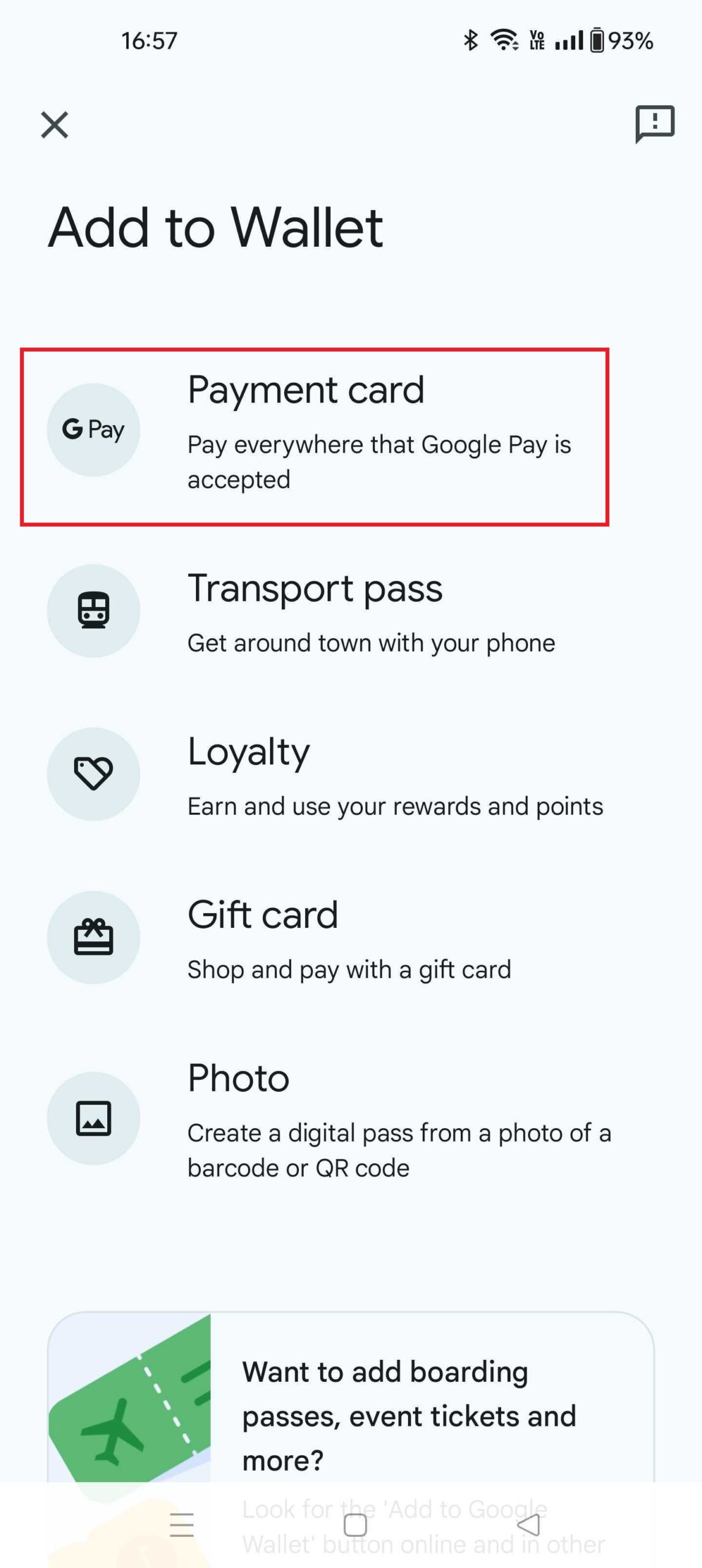
Once in the app, look for an option like “Add a card,” “Payment methods,” or a prominent ‘+’ icon. Tapping this will typically open a menu asking what type of card you wish to add – usually a “Credit or debit card.” Select this option to proceed.
Entering Your Payment Card Details Manually
Google Pay provides two primary methods for inputting your card details. The first is manual entry. After selecting “Credit or debit card,” you’ll be presented with fields to type in your card number, expiration date, and CVV code. Carefully input each detail, ensuring accuracy to avoid verification issues. You’ll also be asked to confirm your billing address and name.
Using Your Device Camera for Quick Entry
For even greater convenience, Google Pay often allows you to scan your card using your phone’s camera. When prompted to add a card, position your physical card within the camera’s frame. The app will automatically detect and populate the card number and expiration date. You will then manually input the CVV code and verify your billing address. This method significantly speeds up the data entry process.
Verification Methods: Securing Your Addition
After entering your card details, Google Pay will contact your bank or card issuer for verification. This is a critical security step to ensure you are the legitimate cardholder. Your bank may present various verification options, such as:
-
SMS Code: A one-time password (OTP) sent to your registered mobile number.
-
Email Code: An OTP sent to your registered email address.
-
Bank App Notification: A push notification to your bank’s mobile app for approval.
-
Phone Call: A call from your bank to confirm the addition.
-
Temporary Small Charge: A tiny, temporary charge on your account, which you then verify the amount of within Google Pay.
Select the method most convenient for you and follow the instructions to complete the verification. Once verified, your card is successfully added to Google Pay.
Setting a Default Card for Expedited Transactions
If you add multiple cards, Google Pay allows you to designate a “default” card. This card will be automatically selected for contactless payments unless you specifically choose another before tapping. To set a default, simply navigate to the “Payment methods” section in the Google Pay app, select the card you wish to be default, and look for an option like “Set as default.” This small customization can further streamline your payment experience.
Beyond Addition: Optimizing Your Google Pay Experience
Adding a card is just the beginning. Google Pay offers a suite of features to enhance your digital financial management.
Managing Multiple Cards and Loyalty Programs
Google Pay can store numerous credit, debit, and even gift cards. You can easily switch between them within the app, choosing which card to use for specific transactions. Beyond payment cards, it’s also an excellent repository for loyalty cards and reward programs. By digitizing these, you reduce wallet clutter and ensure you never miss out on points or discounts. Simply add them in the same way you would a payment card, typically under a “Loyalty” or “Passes” section.
Understanding Transaction History and Notifications
One of the significant advantages of digital wallets is the detailed record-keeping. Google Pay provides a comprehensive transaction history, allowing you to track your spending, identify unfamiliar transactions, and manage your budget more effectively. You can view details like merchant name, date, time, and amount for each payment. Furthermore, Google Pay can send real-time notifications for every transaction, offering immediate feedback and an early warning system against unauthorized use.
Troubleshooting Common Issues When Adding Cards
While the process is generally smooth, you might encounter occasional hiccups.
-
“Card not added” or “Card declined”: Double-check all card details for typos. Ensure your card is not expired or inactive. Contact your bank; some issuers have specific policies regarding digital wallet additions.
-
Verification issues: If you don’t receive an SMS or email code, check your spam folder or ensure your contact information with the bank is up to date. Try an alternative verification method.
-
NFC not working: Ensure NFC is enabled in your phone’s settings and that your phone is unlocked and positioned correctly over the payment terminal.
-
Device not compatible: Verify your phone meets the OS version and NFC requirements.
For persistent problems, Google Pay’s support resources or your bank’s customer service can provide further assistance.
Leveraging Google Pay for Online and In-App Purchases
Google Pay extends its utility beyond physical retail. Many online stores and mobile applications offer Google Pay as a checkout option. When shopping online or within an app, look for the Google Pay button. Selecting it allows you to complete your purchase with a few taps, using your securely stored card details without needing to manually enter them each time. This not only saves time but also adds an extra layer of security, as your actual card number is not transmitted to the merchant.
The Future of Digital Payments and Google Pay’s Horizon
The landscape of digital payments is constantly evolving, driven by technological advancements and shifting consumer expectations. Google Pay, as a major player, is positioned to adapt and innovate within this dynamic environment.
Emerging Technologies in Contactless Payments
Beyond NFC, emerging technologies like biometric authentication (advanced facial recognition, iris scans) are set to further enhance the security and speed of payments. QR code payments are gaining traction in various markets, offering an alternative to NFC. Furthermore, the integration of wearables – smartwatches, rings, and even clothing – with payment capabilities is expanding, making transactions even more ubiquitous and seamless. Google Pay is actively exploring and integrating these advancements to maintain its competitive edge and enhance user experience.
The Interplay of AI and Personal Finance Management
Artificial intelligence (AI) is poised to revolutionize personal finance management. Google Pay, with its access to vast transaction data (anonymized and aggregated for insights), is uniquely positioned to leverage AI for personalized financial advice, automated budgeting, predictive spending analysis, and even fraud detection with unprecedented accuracy. Imagine an AI assistant within Google Pay that not only tracks your spending but also offers tailored recommendations to save money, identifies subscription services you might have forgotten, or alerts you to unusual market trends impacting your investments.
Digital Security in an Evolving Landscape
As digital payments become more sophisticated, so too do the methods of cybercriminals. The future of digital security in payment platforms will focus on even more robust encryption protocols, advanced multi-factor authentication methods (beyond traditional OTPs), and proactive threat intelligence. Behavioral biometrics, which analyze how a user interacts with their device, could add another subtle but powerful layer of security, identifying unusual patterns that might indicate a compromised account. Google Pay’s continued investment in cutting-edge security research and development will be crucial in safeguarding users’ financial information against ever-evolving threats.

Google Pay’s Broader Ecosystem Integration
The strategic direction for Google Pay is likely to involve deeper integration across the entire Google ecosystem and beyond. This could mean more seamless connections with Google Shopping for price comparisons and easy checkout, tighter links with Google Assistant for voice-activated payments and financial queries, and expanded partnerships with banks and financial institutions for integrated banking services within the app. Ultimately, Google Pay aims to be an indispensable tool for managing not just payments, but the broader spectrum of personal financial interactions, making digital money management as intuitive and interconnected as the rest of our digital lives.
Adding a card to Google Pay is a fundamental step into the world of modern digital finance. By understanding the process, leveraging its features, and appreciating the underlying technology, users can unlock a new level of convenience, security, and control over their financial transactions. As technology continues to advance, platforms like Google Pay will undoubtedly continue to evolve, offering even more sophisticated and integrated solutions for the future of money.
aViewFromTheCave is a participant in the Amazon Services LLC Associates Program, an affiliate advertising program designed to provide a means for sites to earn advertising fees by advertising and linking to Amazon.com. Amazon, the Amazon logo, AmazonSupply, and the AmazonSupply logo are trademarks of Amazon.com, Inc. or its affiliates. As an Amazon Associate we earn affiliate commissions from qualifying purchases.