
In the evolving landscape of digital entertainment, streaming services have largely replaced traditional cable, offering unparalleled flexibility and a vast array of content. YouTube TV stands as a prominent contender in this space, delivering a comprehensive live TV experience coupled with an extensive on-demand library. A critical question for many households considering or already subscribed to YouTube TV revolves around its multi-device capabilities: specifically, how many televisions or, more broadly, how many devices can simultaneously access the service? Understanding these technical limitations and features is essential for optimizing your viewing experience and ensuring seamless entertainment across all screens in your home.
Understanding YouTube TV’s Simultaneous Stream Limits
YouTube TV, like most streaming platforms, employs specific rules regarding the number of concurrent streams allowed per account. These rules are designed to balance user convenience with service integrity and prevent unauthorized sharing. For the vast majority of subscribers, grasping these limits is the first step toward maximizing their subscription’s value.
The Standard Stream Allowance
At its core, a standard YouTube TV subscription permits three simultaneous streams. This means that up to three different devices can be actively playing content from your YouTube TV account at the same exact time. This allowance is generally sufficient for many typical households, allowing, for instance, a family member to watch a sports game in the living room, another to catch up on a show in a bedroom, and a third to view news on a tablet in the kitchen.
It’s crucial to understand what constitutes a “stream” in this context. A stream is an active playback session on any compatible device. If a device is merely logged into the YouTube TV app but not actively playing video, it does not count against your simultaneous stream limit. This distinction is vital for troubleshooting and managing your account effectively. The three-stream limit applies irrespective of the content being watched—whether live TV, DVR recordings, or on-demand video.
The primary purpose of this standard limit is to facilitate viewing within a single household. While it offers a degree of flexibility, it also serves as a gatekeeper to prevent widespread account sharing, which could negatively impact the service’s economic model and content licensing agreements. Users should also note that while the three streams can occur on various device types (smart TVs, smartphones, tablets, streaming sticks, computers), the underlying principle remains consistent: only three active playbacks at any given moment.
Expanding Your Viewing Options with the 4K Plus Add-on
For households with higher demand for concurrent viewing or those seeking advanced technical capabilities, YouTube TV offers an optional upgrade known as the 4K Plus add-on. This premium feature significantly enhances the simultaneous streaming capacity, alongside introducing other benefits like 4K resolution content and offline downloads.
With the 4K Plus add-on, the streaming limitations are reconfigured in a unique way:
- Unlimited streams at home: Within your designated “home network,” YouTube TV allows for an unlimited number of concurrent streams. This is a game-changer for large families or multi-resident households, enabling every compatible TV and device connected to the home Wi-Fi network to stream independently without conflict. This feature effectively removes the constraint for internal household use, making it ideal for situations where multiple televisions might be running simultaneously, such as during holiday gatherings or when different family members have distinct viewing preferences.
- Three mobile streams on the go: While the home network enjoys unlimited streams, the standard three-stream limit still applies to devices outside the home network. This means that if you’re traveling, commuting, or at a friend’s house, you can still access YouTube TV on up to three mobile devices concurrently. This distinction is key: the “unlimited” aspect is geographically and network-bound to your primary residence.
The “home network” definition is critical for the 4K Plus add-on. YouTube TV identifies your home network primarily through the IP address of your internet service provider. When you first set up YouTube TV at your primary residence, your IP address is registered as your home location. It’s important to keep this location updated, especially if your internet provider occasionally changes your IP address or if you move. While the system is generally robust, prolonged viewing outside the designated home network can sometimes trigger verification requests or temporarily restrict access until you confirm your home location. This technical mechanism ensures that the “unlimited” benefit is primarily for a single household’s physical location.
The 4K Plus add-on is a strategic offering that caters to a specific segment of users who prioritize simultaneous access across numerous screens and desire higher fidelity content. It transforms YouTube TV from a multi-device solution to a truly multi-room, multi-user powerhouse within the confines of a single domestic environment.
Devices and Locations: Defining a “Stream”
The concept of a “stream” in the context of YouTube TV’s limits is more nuanced than simply having the app open on a device. It involves active content playback and is tied to both device type and geographical location, especially when considering the 4K Plus add-on.
What Counts as a Simultaneous Stream?
As previously mentioned, a simultaneous stream refers to an instance where a compatible device is actively playing video content through the YouTube TV application or website. This includes:
- Live TV: Watching any channel in real-time.
- DVR Recordings (Library): Playing back content saved to your unlimited cloud DVR.
- On-Demand Content: Streaming movies, shows, or events from the on-demand library.
- Fast Forwarding/Rewinding: Even when manipulating playback, if video is actively rendering, it counts.
What does not count as a stream:
- App Open, No Playback: If the YouTube TV app is launched, but no video is playing (e.g., browsing the guide, paused on a menu), it does not consume a stream slot.
- Background Activity: Some smart TV operating systems might keep an app “active” in the background, but this typically doesn’t register as an active stream unless actual video decoding and display are occurring.
- Account Logged In: Simply being logged into your YouTube TV account on multiple devices is not an issue; it’s the active playback that matters.
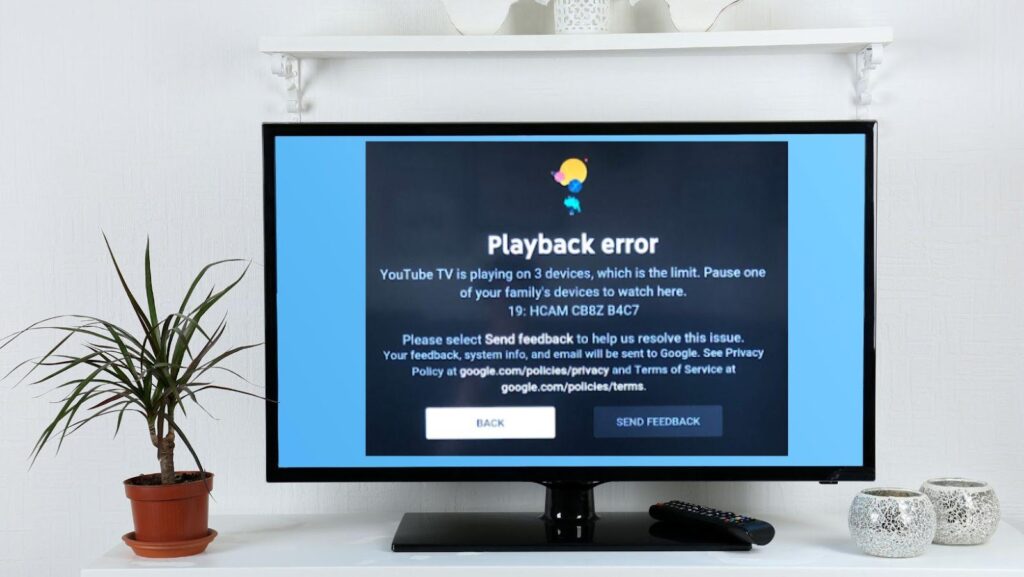
This distinction is important for users managing their stream limits. If you hit the limit, you’ll receive an on-screen notification. To resolve it, you must stop playback on one of the active devices. YouTube TV’s system is designed to provide clear feedback when limits are approached or exceeded, guiding users to manage their active streams.
Home Network Requirements and Location Considerations
The enforcement of YouTube TV’s streaming limits, particularly the “unlimited at home” feature of the 4K Plus add-on, relies heavily on defining your “home network.” This definition is primarily based on your public IP address.
- Public IP Address: Your internet service provider (ISP) assigns a public IP address to your home network. YouTube TV uses this IP address to identify your primary viewing location. When all your devices are connected to the same Wi-Fi network that uses this IP address, they are considered to be “at home.”
- Establishing Home Location: When you first set up YouTube TV on a TV device (like a smart TV app or a streaming stick) at your primary residence, that location is registered as your home. You can update your home location a limited number of times per year. This feature is crucial if you move or if your ISP changes your IP address.
- Geolocation and GPS: For mobile devices outside your home network, YouTube TV might use location services (GPS) to verify your general geographic area, especially to comply with regional content licensing. However, the primary mechanism for determining “home” vs. “away” streams is the IP address.
- VPN Usage: Using a Virtual Private Network (VPN) can obscure your true IP address and make it appear as though you are in a different location. This can interfere with YouTube TV’s ability to correctly identify your home network and enforce licensing agreements. While some users might attempt to bypass regional restrictions with VPNs, this is often against the service’s terms of service and can lead to playback issues or account suspension. For optimal and uninterrupted service, it’s generally recommended to disable VPNs when using YouTube TV from your designated home network.
Understanding these technical underpinnings helps clarify why certain streaming behaviors are permitted or restricted. The system is designed to provide maximum flexibility within the bounds of content agreements and service sustainability, while maintaining a clear distinction between in-home and out-of-home usage.
Optimizing Your YouTube TV Experience Across Multiple Screens
Successfully managing and optimizing YouTube TV across multiple televisions and devices within a household requires a combination of understanding the service’s technical features and ensuring your home network infrastructure is up to the task.
Managing Concurrent Streams for Household Harmony
Even with the standard three-stream limit, or especially when leveraging the unlimited home streams of the 4K Plus add-on, effective management of concurrent streams can prevent issues and enhance user experience.
- Communication is Key: In households with multiple users, a simple conversation can often prevent hitting stream limits. Knowing who is watching what and where can help coordinate viewing habits.
- Identifying Active Streams: While YouTube TV doesn’t offer a direct “manager” interface to see all active streams from a central location, if you hit a limit, the service will prompt you. This notification usually indicates that too many devices are actively playing and suggests stopping one.
- Responsible Device Usage: Encourage family members to exit apps or stop playback when they are finished watching. This frees up a stream for others and is a good practice for general network hygiene.
- User Profiles: While not directly related to stream limits, utilizing user profiles within YouTube TV ensures that each family member has their own personalized recommendations, library, and watch history. This enhances individual experience and can indirectly reduce contention over what to watch, as users can easily pick up where they left off in their own profiles.
- Prioritize Essential Viewing: In scenarios where streams are limited, prioritize critical viewing on primary devices. For instance, if a live sporting event is crucial, ensure it has a dedicated stream.
Effective stream management goes beyond just technical adherence; it involves fostering a collaborative viewing environment within the household, ensuring everyone can enjoy their preferred content without interruption.
Internet Speed and Network Performance Implications
The ability to stream simultaneously on multiple devices, whether three or more, heavily relies on the robustness of your home internet connection and local network infrastructure. Each active stream consumes a portion of your available bandwidth.
- Bandwidth Requirements: YouTube TV typically recommends a minimum of 3 Mbps for standard definition content, 7 Mbps for HD (720p/1080p), and 13 Mbps for 4K streaming per stream. These are minimums; higher speeds provide a more stable experience. If you have three HD streams running concurrently, you’re looking at a need for at least 21 Mbps dedicated to YouTube TV. Add in other internet activities (gaming, video calls, downloads), and your overall household bandwidth requirements can quickly escalate. For unlimited 4K streams with the add-on, a very robust connection (e.g., 100-300+ Mbps) is highly recommended.
- Router and Wi-Fi Performance: Your router is the central hub of your home network. An older or lower-end router might struggle to efficiently manage multiple high-bandwidth streams, leading to buffering, pixelation, or dropped connections.
- Wi-Fi Standards: Upgrade to newer Wi-Fi standards like Wi-Fi 5 (802.11ac) or Wi-Fi 6 (802.11ax) if you frequently stream in multiple rooms. These standards offer higher throughput and better efficiency for multiple devices.
- Dual-Band Routers: Ensure your router supports both 2.4 GHz and 5 GHz bands. The 5 GHz band, while having a shorter range, offers faster speeds and less interference, making it ideal for high-bandwidth streaming devices.
- Mesh Wi-Fi Systems: For larger homes or properties with Wi-Fi dead zones, a mesh Wi-Fi system can significantly improve coverage and performance, ensuring strong signals to all your streaming devices, regardless of their location.
- Wired Connections: Whenever possible, connect primary streaming devices (like smart TVs or dedicated streaming boxes in the living room) directly to your router via an Ethernet cable. A wired connection bypasses Wi-Fi interference and provides the most stable and fastest possible connection.
- Quality of Service (QoS): Some advanced routers offer Quality of Service (QoS) settings, which allow you to prioritize certain types of traffic (like streaming video) over others. Configuring QoS can ensure that your YouTube TV streams receive preferential bandwidth, even when other devices are active on the network.
Investing in a robust internet plan and a capable home network setup is not merely a convenience; it’s a technical prerequisite for a smooth, high-quality, multi-device YouTube TV experience. Without adequate bandwidth and network efficiency, even the most generous stream allowances will be hampered by technical limitations.

Troubleshooting Common Multi-Device Streaming Issues
Despite a solid understanding of stream limits and a capable network, users might occasionally encounter issues when streaming YouTube TV on multiple devices. Proactive troubleshooting can quickly resolve these interruptions.
- “Too Many Streams” Error: This is the most direct indication that you’ve exceeded your limit. The solution is straightforward: identify which devices are actively streaming and stop playback on one or more of them. If you suspect an unauthorized user, change your YouTube TV password immediately.
- Buffering or Low Quality on Multiple Devices: If individual streams are fine but quality degrades when multiple devices are active, it almost invariably points to a bandwidth or home network congestion issue.
- Check Internet Speed: Use an online speed test (e.g., Google’s speed test, Speedtest.net) on multiple devices connected to your Wi-Fi to verify your actual download speeds. Test near your router and in areas where you stream.
- Restart Router and Modem: A simple power cycle of your internet modem and Wi-Fi router can resolve many transient network issues.
- Reduce Wi-Fi Interference: Move your router away from other electronics (cordless phones, microwaves) that might emit electromagnetic interference.
- Update Router Firmware: Ensure your router’s firmware is up to date, as manufacturers often release updates that improve performance and security.
- Adjust Stream Quality: If necessary, manually reduce the streaming quality within the YouTube TV app settings on some devices to lower bandwidth consumption.
- “Home Location” Issues with 4K Plus: If you’re experiencing issues with the “unlimited at home” feature, particularly after a move or an ISP change:
- Update Home Location: Navigate to your YouTube TV settings (via a web browser or a TV-connected device) and ensure your current home location is correctly updated. YouTube TV has specific guidelines on how often this can be done.
- Verify IP Address: Ensure all devices you intend to use for unlimited home streaming are connected to the same Wi-Fi network that corresponds to your registered home IP address.
- Disable VPNs: If you use a VPN, ensure it’s disabled when trying to establish or use your home location for YouTube TV, as VPNs can mask your true IP.
- App-Specific Glitches: Occasionally, an issue might be isolated to a specific device or app installation.
- Clear Cache/Data: On the problematic device, try clearing the YouTube TV app’s cache and data. This can resolve corrupted files or stale settings.
- Reinstall App: If clearing cache doesn’t work, uninstall and then reinstall the YouTube TV app.
- Update Device OS/Firmware: Ensure the operating system of your smart TV or streaming device (e.g., Roku OS, Fire OS) is fully updated.
- Test on Another Device: If one device is having trouble, try streaming on another compatible device to determine if the issue is device-specific or system-wide.
By systematically approaching troubleshooting, most multi-device streaming problems with YouTube TV can be quickly diagnosed and resolved, ensuring continuous and high-quality entertainment for your entire household.
aViewFromTheCave is a participant in the Amazon Services LLC Associates Program, an affiliate advertising program designed to provide a means for sites to earn advertising fees by advertising and linking to Amazon.com. Amazon, the Amazon logo, AmazonSupply, and the AmazonSupply logo are trademarks of Amazon.com, Inc. or its affiliates. As an Amazon Associate we earn affiliate commissions from qualifying purchases.