
The landscape of modern television has undergone a seismic shift, moving away from the rigid infrastructure of coaxial cables and satellite dishes toward the fluid, data-driven world of Over-the-Top (OTT) streaming. Among the leaders of this digital revolution is YouTube TV, Google’s premier live-streamed television service. As households transition into fully “cord-cut” environments, the technical question of “how many devices can watch YouTube TV at once” becomes central to the user experience.
Understanding these limits is not merely about counting screens; it is about understanding the technical architecture of digital rights management (DRM), network bandwidth optimization, and the software ecosystem that Google has built to manage household entertainment. This guide explores the intricacies of YouTube TV’s device limitations, the technological advantages of its premium add-ons, and how to optimize your digital setup for a seamless viewing experience.
Understanding the Standard Device and Stream Limits
At its core, YouTube TV is designed to balance user convenience with the licensing restrictions imposed by content providers. When you subscribe to the base plan, the service provides a specific framework for how many people—and how many devices—can access the stream simultaneously.
The Three-Stream Technical Rule
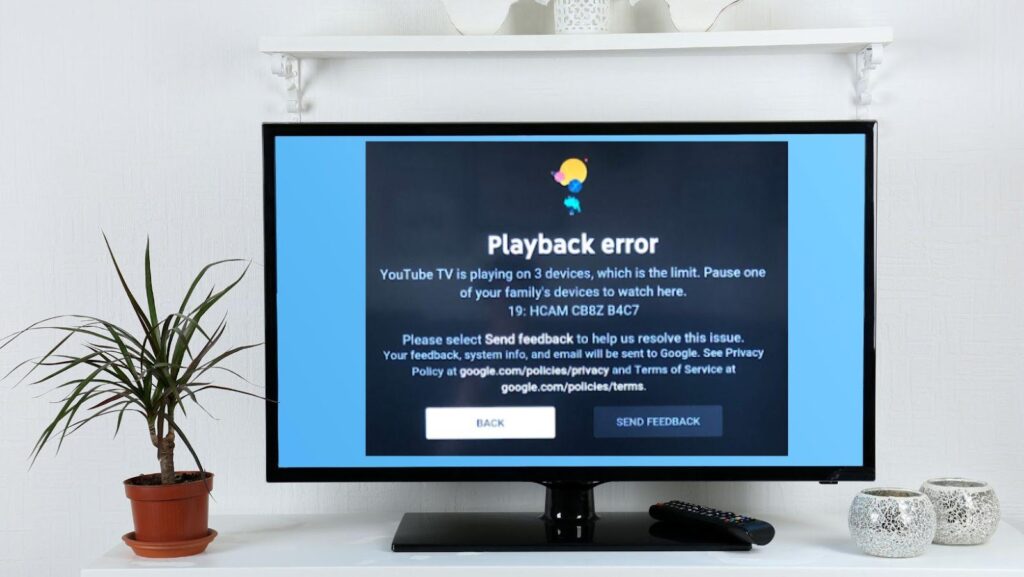
By default, a standard YouTube TV subscription allows for three simultaneous streams. This means that at any given moment, three different devices can be active, playing live sports, local news, or recorded DVR content. It is important to distinguish between “logged-in devices” and “active streams.” You can technically sign into your YouTube TV account on dozens of devices—smartphones, tablets, laptops, and various smart TVs—but the software backend will trigger an error message if a fourth device attempts to initiate a playback session.
This three-stream limit is a industry standard for “vMVPD” (virtual Multichannel Video Programming Distributor) services. From a technical standpoint, this limit helps Google manage server load and ensures that the bitrates delivered to active users remain consistent, preventing the degradation of video quality that can occur during peak usage hours.
Managing Family Groups and Profiles
YouTube TV utilizes the “Google Family Group” infrastructure to manage multi-user access. A single subscription allows the account owner to invite up to five additional family members (for a total of six profiles). Each profile receives its own personalized recommendations and a private “Unlimited DVR” space.
However, a common technical misconception is that each of the six profiles can stream at the same time. This is not the case. Even with six unique profiles, the aggregate limit for the entire “Family Group” remains three simultaneous streams on the base plan. If Profile A is watching on a Roku, Profile B on an iPhone, and Profile C on a tablet, any attempt by Profile D to start a show will result in a “Limit Exceeded” notification.
Device Authorization and Active Session Management
For users who frequently switch between gadgets, managing active sessions is crucial. YouTube TV’s software tracks “heartbeats” from active devices. If a stream is left running on a bedroom TV while you move to the living room, the system may still count that bedroom TV as an active stream for several minutes. To optimize your device limit, it is a best practice to fully exit the app or “stop” the playback rather than simply turning off the television screen, as some smart TVs continue to pull data in the background.
The 4K Plus Add-on: Technical Expansion of Stream Limits
For larger households or power users with high-density hardware setups, the standard three-stream limit often proves insufficient. To address this, Google introduced the “4K Plus” add-on. While the name highlights the jump in resolution, the most significant technical upgrade included in this package is the removal of home-network streaming caps.
Unlimited In-Home Streams Explained
The 4K Plus upgrade transitions your account from a “Three-Stream” model to an “Unlimited In-Home” model. When your devices are connected to your designated “Home Network,” there is no software-enforced limit on how many devices can stream simultaneously. You could theoretically have ten televisions running different channels at once, provided your home internet router and bandwidth can handle the massive data throughput.
Technically, YouTube TV identifies your “Home Network” based on a combination of IP address tracking and Wi-Fi SSID identification. This ensures that the “Unlimited” feature is localized to a single physical residence, preventing users from sharing a single account across different houses.

Mobile and Out-of-Home Limitations
Even with the 4K Plus upgrade, the technical limitations revert to a specific configuration when you are “on the go.” While you enjoy unlimited streams at home, the service typically allows for three concurrent streams outside of your home network. This is a vital technical safeguard for content licensing. For example, if a family is at home using five screens, an individual family member can still use their mobile data or a hotel Wi-Fi to watch a sixth stream without interrupting the household’s experience.
Bandwidth and Hardware Requirements for 4K Plus
Implementing the 4K Plus add-on requires more than just a subscription change; it requires a hardware audit. To actually utilize the 4K streams, users must have a compatible 4K Smart TV or a high-end streaming stick (such as a Chromecast with Google TV 4K, an Apple TV 4K, or a Roku Ultra).
Furthermore, the data demands for 4K streaming are significantly higher. While a standard HD stream requires approximately 5 Mbps, a 4K stream requires a minimum of 25 Mbps of consistent bandwidth. If you intend to utilize the “Unlimited” feature across multiple 4K screens, your home network infrastructure—specifically your router’s ability to handle high-traffic MU-MIMO (Multi-User, Multiple Input, Multiple Output) streams—becomes the primary bottleneck.
Hardware Optimization and Technical Troubleshooting
The performance of YouTube TV across various devices is not uniform. The software experience varies depending on the operating system of the device being used.
Supported Smart TVs and Streaming Ecosystems
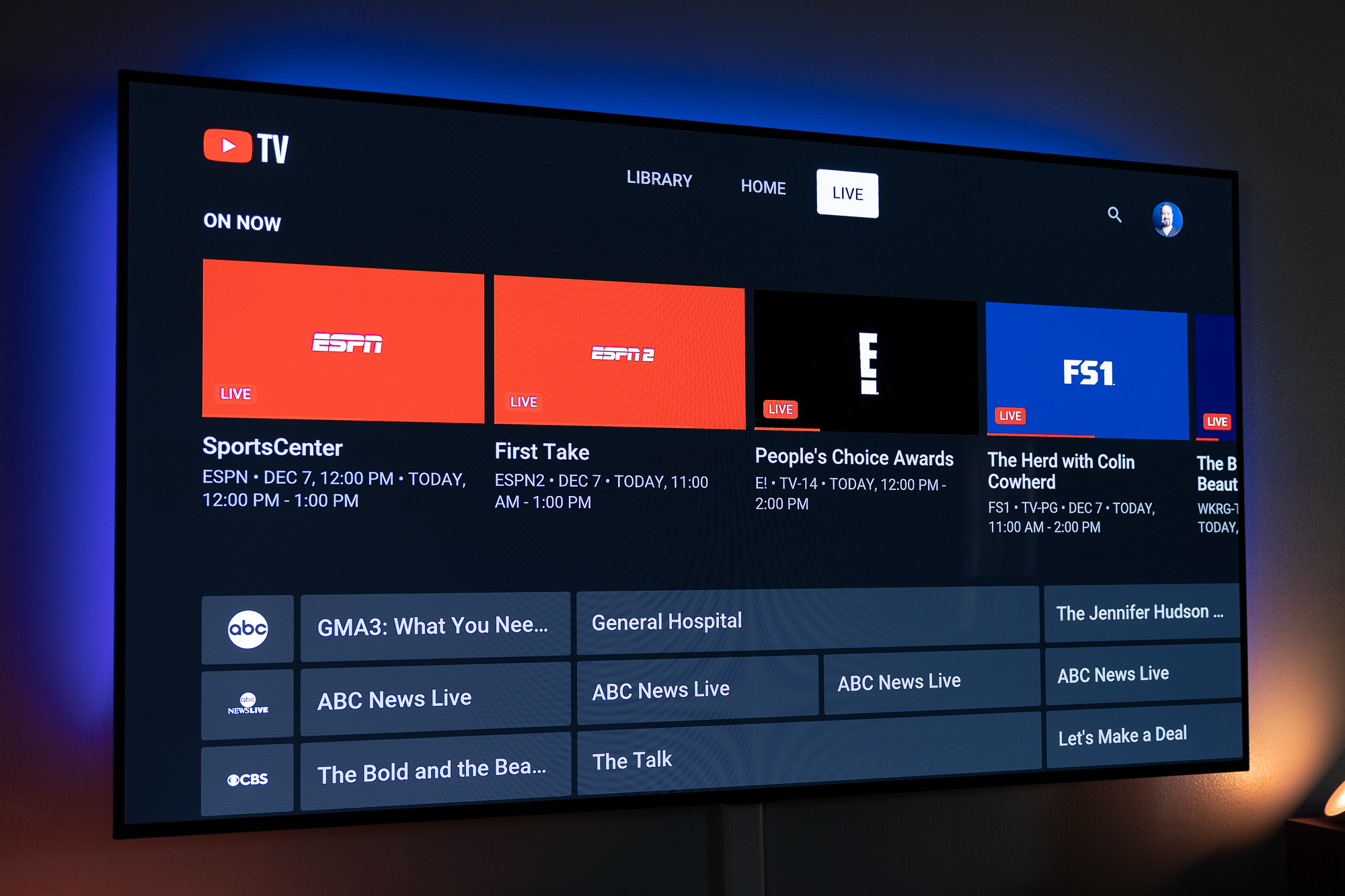
YouTube TV is optimized for a wide array of tech ecosystems. The most seamless integration is found on “Google TV” and “Android TV” platforms, where the app is deeply integrated into the OS’s “Live” tab. However, the app is also highly performant on:
- Proprietary OS: Samsung (Tizen) and LG (webOS) offer robust native apps.
- Gaming Consoles: PlayStation 5 and Xbox Series X/S provide high-speed processing, often resulting in faster channel-switching (zapping) times.
- Streaming Sticks: Devices like the Amazon Fire TV Stick and Roku rely on dedicated hardware decoders to maintain high frame rates (60fps) for live sports.
Troubleshooting “Too Many Streams” Errors
If you encounter a stream limit error despite having available slots, the issue is often technical. This can be caused by:
- Ghost Sessions: A browser tab left open on a computer or a tablet that was tucked away without closing the app.
- Shared Credentials: If a user has shared their Google password with a friend, an unknown device may be consuming a stream slot.
- App Sync Lag: Occasionally, the YouTube TV servers may take a few minutes to register that a stream has ended. Force-closing the app on the device you just finished using can help “ping” the server to release the slot.
Mobile vs. Living Room Experience
The YouTube TV app utilizes different encoding profiles based on the device. On a smartphone, the tech focuses on adaptive bitrate to prevent buffering over cellular networks. On a hardwired Smart TV, the software prioritizes the highest possible bitrate and “Surround Sound 5.1” audio. Understanding these technical nuances allows users to choose the right device for the right content—using mobile for news updates and dedicated home theater hardware for cinematic events or sports.
Security and Digital Integrity for Shared Accounts
Since a YouTube TV account is tethered to a Google Account, security is the most critical technical component of managing your devices. Unlike legacy cable boxes, which are physically tied to a house, a YouTube TV account is a portable digital asset.
Safeguarding Google Account Credentials
Sharing your YouTube TV access means sharing your Google Account. Because this account often contains emails, photos, and personal data, users should never share their primary login credentials. Instead, use the “Family Group” feature to invite others via their own individual Google accounts. This keeps your personal data secure while granting them access to the streaming service.
Monitoring Active Sessions and Security Audits
Google provides a comprehensive “Security” dashboard where users can see every device currently logged into their account. If you notice an unfamiliar device or a location you don’t recognize, you can remotely sign out that device. This is an essential tech skill for anyone managing a multi-device streaming household. Regularly auditing these sessions ensures that your three-stream limit isn’t being “stolen” by an old device you sold or a guest who logged in once and never signed out.
Location Tracking and Home Area Settings
YouTube TV relies on “Home Area” settings to provide local channels. Every few months, the app requires a “check-in” from mobile devices to confirm they are still part of the household. This is a technical geographic restriction (geofencing). If a device stays outside the home area for more than 90 days, its access may be restricted. Managing these location permissions in your device settings is necessary to maintain uninterrupted service across all your mobile hardware.
Conclusion: Balancing Hardware and Software
The question of how many devices YouTube TV supports is answered through a combination of subscription levels and technical management. While the base plan’s three-stream limit serves the average household, the 4K Plus upgrade transforms the service into a high-capacity tech hub for enthusiasts. By understanding the interaction between Google’s cloud infrastructure, your home’s network bandwidth, and the security of your Google Account, you can maximize the utility of your streaming setup. In the digital age, your TV is no longer just a screen; it is a node in a complex, software-driven network that offers unprecedented flexibility—provided you know how to navigate its technical boundaries.
aViewFromTheCave is a participant in the Amazon Services LLC Associates Program, an affiliate advertising program designed to provide a means for sites to earn advertising fees by advertising and linking to Amazon.com. Amazon, the Amazon logo, AmazonSupply, and the AmazonSupply logo are trademarks of Amazon.com, Inc. or its affiliates. As an Amazon Associate we earn affiliate commissions from qualifying purchases.