
The shift from traditional cable infrastructure to Over-The-Top (OTT) streaming has fundamentally changed how we consume media. At the forefront of this digital revolution is YouTube TV, a service that has successfully bridged the gap between linear television and modern streaming convenience. However, as households become increasingly crowded with smart TVs, tablets, smartphones, and gaming consoles, the technical question of “how many devices can use YouTube TV” becomes a critical factor for the modern consumer. Understanding the nuances of concurrent streams, device authentication, and network requirements is essential for optimizing your digital entertainment ecosystem.
Understanding the Standard Device Limits and Concurrent Streams
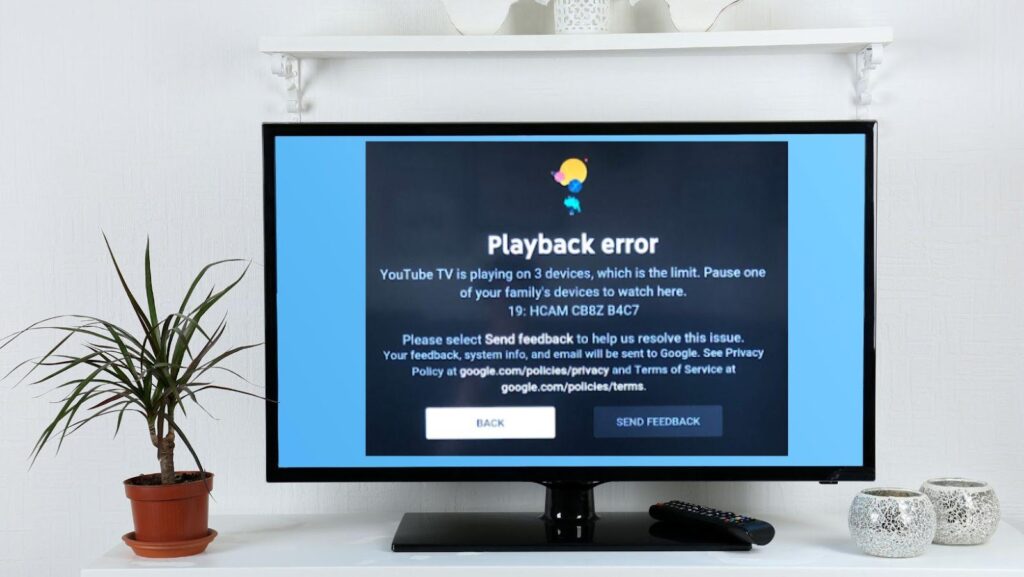
For most users, the primary concern is not how many devices they can own, but how many can stream content simultaneously. YouTube TV offers a generous framework, but it is governed by specific software limitations designed to balance user convenience with licensing agreements.
The Three-Stream Rule
By default, a standard YouTube TV subscription allows for three concurrent streams. This means that at any given moment, three different devices can be watching live TV or recorded DVR content. It is important to distinguish between “logged-in devices” and “active streams.” You can install the YouTube TV app on an unlimited number of devices—from your bedroom Roku to your office laptop—but the system’s backend will trigger a notification or block the fourth attempt if three streams are already active.
This limit is enforced via the cloud. When a user starts a program, the application sends a handshake signal to YouTube’s servers. If the server identifies three active sessions already associated with the account, the new session is denied. For a typical family, this usually suffices, but in the era of multi-screen viewing, this “Tech-limit” is a vital metric to monitor.
Account Sharing and the Family Group Feature
From a technical and administrative standpoint, YouTube TV allows you to share your membership with up to five other people in your household at no extra cost. This creates a “Family Group” totaling six individual accounts. Each member gets their own login, personalized recommendations, and a private infinite DVR.
However, the “Three-Stream Rule” remains a collective limit for the entire group. Even if you have six different family members with their own profiles, only three of them can watch simultaneously on the standard plan. This highlights a sophisticated piece of digital identity management: while the profiles are individual, the bandwidth/stream allocation is pooled at the subscription level.
Maximizing Your Viewing Experience with the 4K Plus Add-on
As 4K resolution becomes the standard for high-end displays, the technical demands on streaming services have intensified. YouTube TV addressed this by introducing the “4K Plus” add-on, which doesn’t just improve visual fidelity but fundamentally alters the device limitation architecture.
Unlocking Unlimited In-Home Streams
The most significant technical upgrade provided by the 4K Plus package is the removal of the three-stream cap for your home Wi-Fi network. When the app detects that your devices are connected to your “Home Area” network (determined by your IP address and location data), you are granted unlimited concurrent streams.
This is a game-changer for large households or “smart homes” where multiple screens might be active in different rooms. From a software engineering perspective, this requires the YouTube TV app to constantly verify the device’s network environment. If you take your mobile device outside the home network, it reverts to the standard stream count, ensuring that the “unlimited” feature isn’t abused for wide-scale account sharing across different geographic locations.
Offline Viewing and Hardware Requirements
Beyond stream counts, the 4K Plus add-on introduces the ability to download recordings from your DVR to your mobile devices for offline viewing. This utilizes the device’s local storage and encrypted file management to allow content consumption without an active data connection.
Furthermore, to actually benefit from the 4K aspect of this add-on, your hardware must support High Efficiency Video Coding (HEVC) and have the necessary DRM (Digital Rights Management) certifications. Users must ensure their Smart TVs or streaming sticks are 4K-compatible and connected to a HDMI 2.0 port that supports HDCP 2.2 to avoid “black screen” errors or downscaling.
Device Compatibility and the App Ecosystem
The versatility of YouTube TV lies in its expansive app ecosystem. The service is designed to be hardware-agnostic, functioning across a wide array of operating systems and hardware configurations.

Smart TVs and Dedicated Streaming Hardware
The most stable experience for YouTube TV is typically found on dedicated streaming devices like the Google Chromecast, Roku, Amazon Fire TV, and Apple TV. These devices are optimized for video decoding and often receive the fastest software updates.
Modern Smart TVs from manufacturers like Samsung, LG, and Vizio also feature native YouTube TV apps. However, tech enthusiasts often note that integrated TV processors can struggle with the “Live Guide” interface over time as the app’s resource requirements grow. For the smoothest multi-device experience, utilizing external hardware with robust RAM and high-speed Wi-Fi chips (Wi-Fi 6 or 6E) is recommended to reduce latency when switching between channels.
Mobile and Web Browsing Experience
On the mobile front, YouTube TV provides a highly responsive interface for both iOS and Android. The mobile app is particularly useful for managing your “Library” and setting up DVR recordings on the go.
For desktop users, the experience is browser-based (tv.youtube.com). While convenient, browser-based streaming is subject to the limitations of the browser’s engine (such as Chrome or Firefox). To ensure high-definition playback across multiple browser tabs, users need a computer with sufficient CPU overhead to handle VP9 or AV1 video decoding, which are the primary codecs used by Google to compress high-quality video.
Troubleshooting Connection and Limit Issues
When managing multiple devices, users frequently encounter technical hurdles. Solving these requires a basic understanding of how the service communicates with your hardware.
Managing Logged-in Devices and Security
If you receive a notification that you have too many streams active, but you believe you are within your limit, it is likely a “ghost session.” This happens when a device is turned off or the app is closed without the stream being properly “signed out” on the server side.
From a digital security perspective, users should periodically check their Google Account’s “Security” tab to see which devices are currently signed in. You have the technical capability to remotely sign out of any device. This is a crucial feature if you have logged into your account at a hotel or a friend’s house and forgot to de-authorize the device, which could be “stealing” one of your three available streams.
Common Error Codes and Connectivity Fixes
Error codes like “Playback Error” or “Area Limit” are common in multi-device setups. YouTube TV relies heavily on location data to provide local affiliate channels. If a device’s Location Services are disabled, or if a VPN is active, the app may fail to authenticate.
Technically, YouTube TV uses a combination of IP Geolocation and GPS (on mobile) to verify your “Home Area.” If you are traveling and using a device in a different city, you will see that city’s local channels, but you must “check in” at your home location at least once every three months (or 30 days for MLB content) to keep the device authorized. This geographic fencing is a complex layer of the software that manages rights and device permissions.
The Future of Cloud-Based Streaming Technology
As we look toward the future, the technical constraints of “how many devices” will likely continue to evolve. The bottleneck is no longer the hardware in our living rooms, but the infrastructure supporting the cloud.
Impact of Bandwidth on Multi-Device Streaming
While YouTube TV allows for multiple streams, your local ISP (Internet Service Provider) is the ultimate gatekeeper. A standard HD stream requires approximately 5-7 Mbps, while a 4K stream requires 25 Mbps or more. In a household running five devices simultaneously, you could easily consume over 100 Mbps of bandwidth just for television.
The tech industry is currently moving toward more efficient compression algorithms (like AV1) which aim to deliver the same visual quality at lower bitrates. This will eventually allow more devices to stream simultaneously without taxing the home network’s “pipes” to the point of failure.
Personalization through AI and Profiles
YouTube TV is increasingly leveraging AI to manage how devices interact with the service. From predicting which show you want to watch next to optimizing stream quality based on your device’s screen size, the backend is becoming more “device-aware.”
In the future, we may see more flexible device limits based on user behavior or tiered subscription models that allow for granular control over stream counts. For now, the combination of the three-stream rule, the six-profile family group, and the 4K Plus “Unlimited” home feature represents the current peak of consumer-facing streaming technology.
By understanding these technical parameters, users can better architect their home entertainment systems, ensuring that every tablet, TV, and smartphone in the house delivers a seamless, high-definition experience. Whether you are a casual viewer or a power user with a dozen screens, knowing the limits of your software is the first step to mastering your digital domain.
aViewFromTheCave is a participant in the Amazon Services LLC Associates Program, an affiliate advertising program designed to provide a means for sites to earn advertising fees by advertising and linking to Amazon.com. Amazon, the Amazon logo, AmazonSupply, and the AmazonSupply logo are trademarks of Amazon.com, Inc. or its affiliates. As an Amazon Associate we earn affiliate commissions from qualifying purchases.