
In the rapidly evolving landscape of digital entertainment, live TV streaming services like YouTube TV have become indispensable for countless households seeking flexible, internet-delivered access to their favorite channels. As consumers increasingly cut the cord from traditional cable, understanding the technical specifications and limitations of these services becomes paramount. One of the most common questions for new and prospective subscribers, especially those with multi-person households or diverse viewing habits, revolves around device compatibility and simultaneous streaming capabilities: “How many devices can you have on YouTube TV?” This article delves deep into YouTube TV’s device policies, explaining its core streaming rules, the nuances of its premium add-ons, and practical strategies to optimize your viewing experience across multiple screens.
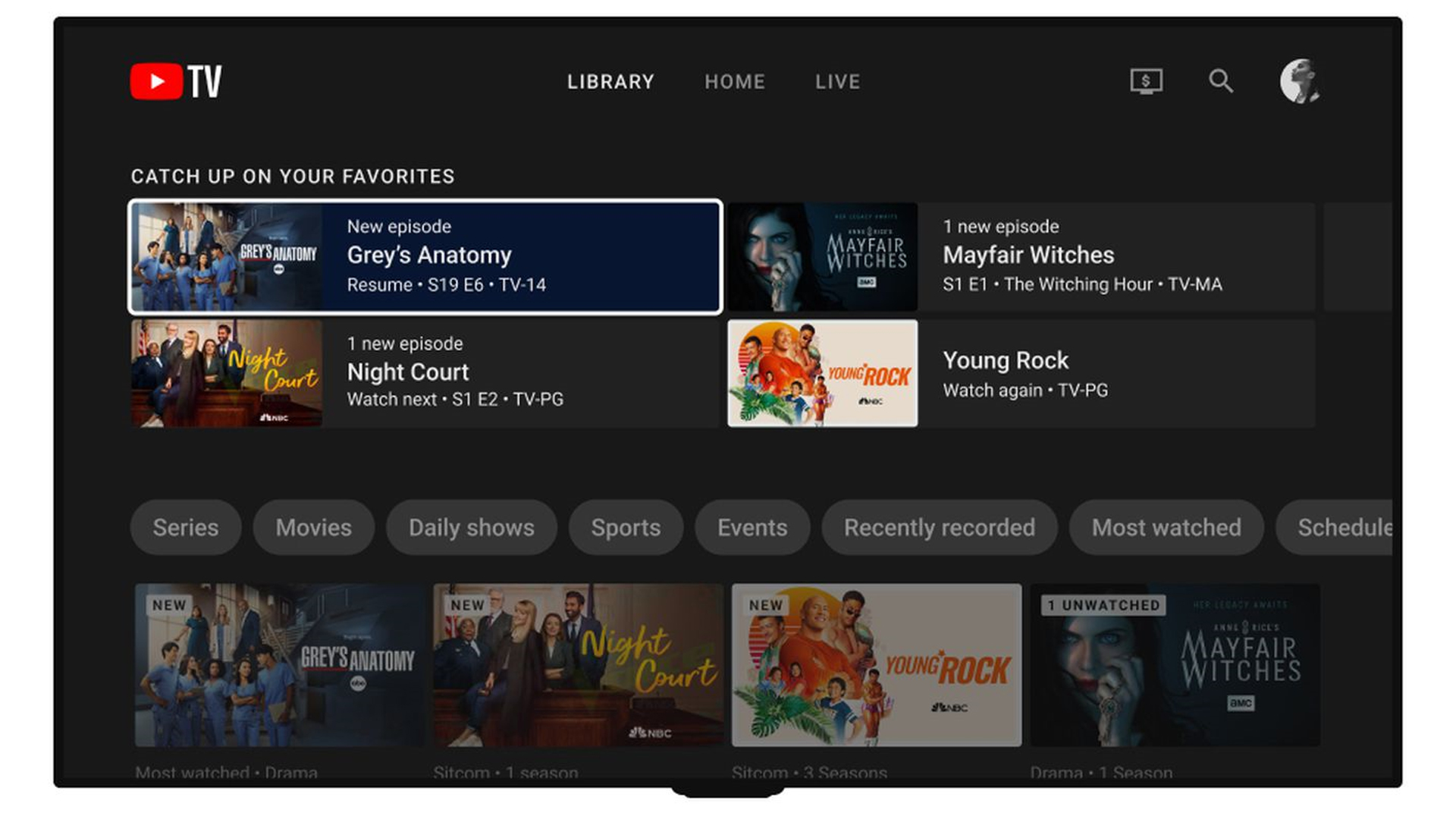
At its core, YouTube TV is designed for a modern, multi-device lifestyle, supporting a wide array of platforms from smart TVs and streaming sticks to mobile phones and web browsers. However, like all streaming services, it implements specific rules to manage bandwidth, prevent unauthorized account sharing, and align with licensing agreements. Navigating these rules effectively can significantly enhance user satisfaction, ensuring uninterrupted access to live sports, breaking news, and on-demand content for everyone in your household. We’ll explore the standard allowances, how to expand them, and best practices for managing your digital entertainment hub.
Understanding YouTube TV’s Core Streaming Policy
The fundamental question of “how many devices” on YouTube TV isn’t just about how many gadgets you can log into the service, but more critically, how many of those devices can actively stream content simultaneously. This distinction is crucial for understanding the service’s operational limits and ensuring a smooth experience for all users under one subscription.
The Simultaneous Stream Standard
YouTube TV’s standard base plan allows for three simultaneous streams. This means that at any given moment, you can have up to three different devices actively playing content from YouTube TV. For many single users or small households, this is often sufficient. For instance, one person could be watching a sports game on the living room smart TV, another could be catching up on a show via a tablet in their bedroom, and a third might be watching news on their laptop. Each of these counts as one stream.
It’s important to note that merely being logged into YouTube TV on a device does not count as a stream. A stream is only counted when video content is actively playing. If a device is logged in but idle, paused, or displaying the menu, it does not consume one of your three simultaneous streams. This standard limit applies universally across all supported devices, from large-screen televisions to the smallest smartphone displays.
Distinguishing In-Home vs. Out-of-Home Streaming
YouTube TV introduces a layer of complexity with its “home” network concept, which primarily affects how streams are counted and where they can originate from. For the three simultaneous streams included in the base plan, YouTube TV generally allows these streams to occur both within your designated “home” network and outside of it. However, the service is designed to be primarily used within a single household.
The “home” network is typically defined by your main internet connection where you most frequently use YouTube TV. While all three streams can technically be used away from home, YouTube TV has mechanisms to detect prolonged out-of-home usage or excessive sharing, which can lead to a prompt to verify your location or even temporary restrictions. The service wants to ensure that a single subscription is primarily serving one household, rather than being broadly shared across multiple distinct locations or households. This geo-fencing approach is a common practice among live TV streaming services to comply with content licensing agreements, which often restrict broadcasting to specific geographic areas.
Device Compatibility: Where Can You Watch?
One of YouTube TV’s strengths lies in its broad device compatibility, ensuring that subscribers can access their content on almost any screen they own. This extensive support is a key technical feature that enhances its appeal. Supported devices include:
- Smart TVs: Most modern smart TVs from brands like Samsung, LG, Sony, Vizio, and Hisense have a native YouTube TV app.
- Streaming Media Players: Popular devices such as Roku streaming sticks and boxes, Apple TV, Amazon Fire TV devices, and Google Chromecast all fully support YouTube TV.
- Gaming Consoles: PlayStation (PS4, PS5) and Xbox (One, Series X/S) consoles offer the YouTube TV app, turning your gaming rig into an entertainment hub.
- Mobile Devices: Android smartphones and tablets, as well as iPhones and iPads, can access YouTube TV via dedicated apps, allowing for on-the-go viewing.
- Web Browsers: You can watch YouTube TV directly through a web browser (Chrome, Firefox, Safari, Edge) on a desktop or laptop computer.
This extensive compatibility ensures that regardless of your preferred viewing method, YouTube TV is likely accessible, contributing to its reputation as a versatile and user-friendly platform.
Elevating Your Viewing with the 4K Plus Add-on
For households requiring more flexibility than the standard three simultaneous streams, YouTube TV offers a premium add-on called “4K Plus.” This optional subscription significantly enhances the viewing experience, particularly for larger families or those with a demand for the highest quality content.
Expanding Your Stream Capacity
The primary allure of the 4K Plus add-on is its substantial increase in streaming capacity. With 4K Plus, you unlock unlimited simultaneous streams within your home network. This is a game-changer for large families or shared living situations, eliminating the frustrating “too many streams” error. Imagine multiple TVs, tablets, and phones all streaming different channels or shows at the same time within the same household, without a hitch. This truly transforms YouTube TV into a comprehensive, multi-user entertainment system.
Beyond unlimited in-home streams, the 4K Plus add-on also boosts your out-of-home streaming allowance. Instead of the standard allowance, you get three additional mobile streams that can be used away from your home network. This means up to three family members can watch YouTube TV on their mobile devices (phones or tablets) from different remote locations simultaneously, in addition to the unlimited in-home streams. This increased flexibility caters to individuals who commute, travel, or simply prefer to watch content outside their primary residence without disrupting the home viewing experience.
Beyond Streams: The Perks of 4K Plus
While expanded stream capacity is a major draw, the 4K Plus add-on offers additional technical enhancements that elevate the overall YouTube TV experience:
- 4K Content: As the name suggests, 4K Plus provides access to content available in stunning 4K Ultra High Definition (UHD) resolution. This includes select live sports, on-demand shows, and events, delivering crisper images and more vibrant colors for compatible TVs and devices. For tech enthusiasts and those with high-end displays, this upgrade can significantly improve visual fidelity.
- Offline Downloads: The add-on also introduces the ability to download recorded content to your mobile devices for offline viewing. This feature is incredibly useful for travelers or commuters who want to watch their favorite shows or sports without an internet connection, effectively turning your phone or tablet into a portable DVR. Content can be downloaded via the YouTube TV app and watched later, even without data or Wi-Fi.
These additional features, combined with the expanded stream limits, position the 4K Plus add-on as a comprehensive upgrade for power users and larger households, making YouTube TV a more robust and flexible streaming solution.
Navigating Device Management and Account Sharing
Effective management of your devices and understanding the nuances of account sharing are essential for a seamless YouTube TV experience. Mismanagement can lead to frustrating interruptions or unexpected restrictions.
Defining Your YouTube TV “Home” Network
YouTube TV defines your “home” network based on the IP address of your primary internet connection where you most frequently use the service. When you initially set up YouTube TV, it typically registers the location where you’re watching. The service periodically checks your IP address to verify your home location.
If you travel frequently, use a VPN, or have an internet service provider that regularly changes your IP address, YouTube TV might prompt you to update your home location. You can usually do this through the YouTube TV settings within the app or on the web. It’s important to update your home location only when you’ve genuinely moved your primary residence, as there are often limits on how frequently you can change it (e.g., once every 90 days). This mechanism is in place to prevent subscribers from sharing their accounts across multiple distinct households.
Monitoring and Managing Active Devices
While YouTube TV doesn’t provide a direct, real-time dashboard showing exactly which specific devices are currently streaming, it does offer tools to manage the devices logged into your account. You can typically see a list of logged-in devices and sign them out remotely from the YouTube TV settings within the app or on the Google account management page. This is useful if you’ve logged in on a public computer, lost a device, or suspect unauthorized access.
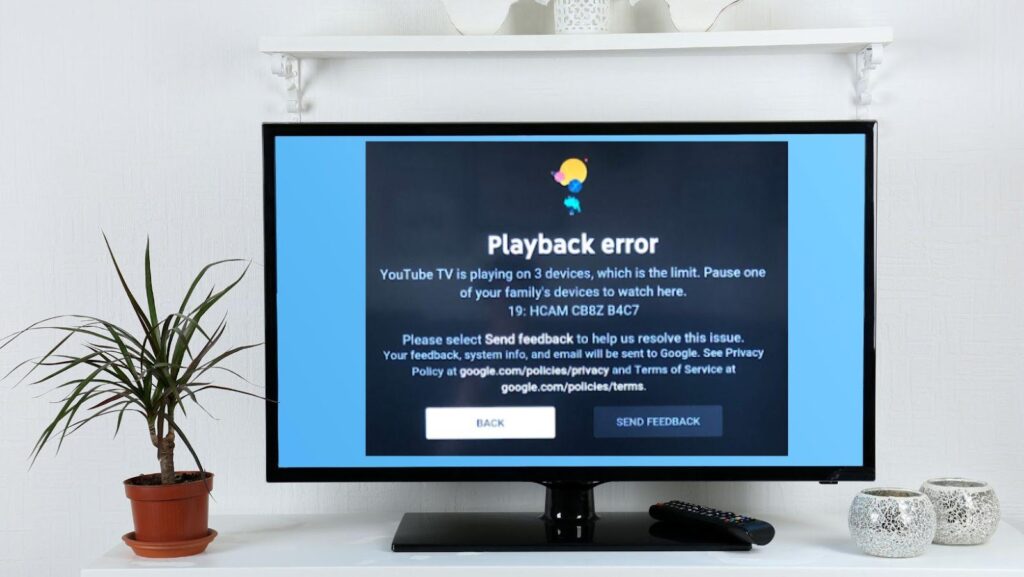
To infer active streams, you’ll generally rely on troubleshooting when you hit your stream limit. The system will notify you if you exceed the simultaneous stream allowance, prompting you to identify and stop a stream on another device.
YouTube TV with Google Family Groups
YouTube TV integrates seamlessly with Google Family Groups, allowing up to six different accounts (the primary subscriber plus five others) to share a single YouTube TV subscription. Each member of the Family Group gets their own personal library, DVR, and recommendations.
However, it’s critical to understand that sharing via a Google Family Group does not increase the number of simultaneous streams. All members of the Family Group still share the same stream limits: three simultaneous streams for the base plan, or unlimited in-home and three mobile streams with the 4K Plus add-on. This means that if you have a family of four, and two adults are watching two different shows, and two children are each watching cartoons on their tablets, you’ve already hit your three-stream limit (if the children are in different rooms or on different networks), or will quickly approach it if you don’t have the 4K Plus add-on.
Troubleshooting “Too Many Streams” Errors
Encountering a “too many streams” error message is a clear indicator that you’ve hit your simultaneous stream limit. This can be frustrating, especially if you’re unsure which device is consuming the extra stream. Here’s how to troubleshoot:
- Identify Active Streams: The simplest solution is often to ask household members to check if they are actively streaming YouTube TV and, if possible, pause or stop their viewing.
- Close Apps: Ensure that YouTube TV apps are fully closed, not just minimized, on all devices not currently in use. Some devices might keep a stream active even if the app is in the background.
- Check Other Accounts: If you share with a Google Family Group, confirm that other members aren’t exceeding the limit, especially if they are watching outside the home network.
- Wait Briefly: Sometimes, it takes a moment for the system to register that a stream has ended. Waiting a minute or two and trying again can resolve the issue.
- Upgrade with 4K Plus: If “too many streams” is a persistent problem in your household, the 4K Plus add-on is the definitive technical solution to dramatically expand your streaming capacity.
YouTube TV’s Device Strategy in the Broader Streaming Landscape
YouTube TV operates within a highly competitive market of live TV streaming services, each with its own technical architecture and approach to device limits. Understanding its strategy in this context reveals why these limitations are in place.
Industry Benchmarks: YouTube TV vs. Competitors
When comparing YouTube TV’s device limits to its competitors, it holds a respectable position, often falling in the middle or even leading in certain aspects, especially with the 4K Plus add-on.
- Hulu + Live TV: Typically offers two simultaneous streams, with an Unlimited Screens add-on for an additional fee, providing unlimited in-home streams and three out-of-home streams.
- Sling TV: Base plans offer one stream (Sling Orange) or three streams (Sling Blue), or four streams if you combine both.
- FuboTV: Usually starts with three simultaneous streams but often includes 10 streams at home and two out-of-home streams with its standard Family Plan.
- DirecTV Stream: Offers 20 streams within the home network and three streams outside the home.
YouTube TV’s standard three streams are competitive for a basic plan, and its 4K Plus add-on with unlimited in-home streams and three additional mobile streams provides one of the most generous offerings for large households among its direct competitors, offering significant technical flexibility.
The Rationale Behind Streaming Restrictions
Streaming limitations, while sometimes inconvenient, are not arbitrary. They serve several critical technical and business purposes:
- Content Licensing Agreements: The most significant driver of stream limits comes from content providers and broadcasters. Their agreements often specify the number of concurrent viewers allowed per subscription to prevent widespread unauthorized sharing, which could erode their traditional revenue streams from cable companies or individual subscriptions.
- Bandwidth Management: Unlimited simultaneous streams could place an enormous strain on a service’s infrastructure, particularly during peak viewing times. By setting limits, providers can better manage their server load and ensure a consistent, high-quality streaming experience for all paying subscribers.
- Preventing Account Sharing: These limits are a primary defense against password sharing beyond a single household. If there were no limits, one subscription could easily be split among dozens of users, undermining the service’s business model.
- Tiered Service Offerings: Stream limits allow services to create tiered pricing structures. Offering a basic package with standard limits and a premium add-on for expanded capabilities (like 4K Plus) provides flexibility to consumers while generating additional revenue for the provider. This is a common strategy in the software and streaming industries to cater to different user needs and willingness to pay.
Maximizing Your YouTube TV Device Experience
With a clear understanding of YouTube TV’s device policies and capabilities, you can implement strategies to maximize its value and ensure a smooth, enjoyable streaming experience for everyone in your household.
Strategic Stream Allocation for Households
For families or shared living spaces, a little planning can go a long way in avoiding stream conflicts:
- Communicate Viewing Plans: Encourage household members to communicate when they plan to watch something, especially during peak hours.
- Utilize the DVR: If multiple people want to watch the same show but at different times, encourage them to record it via the unlimited cloud DVR. This allows for flexible viewing without consuming a live stream, as recorded content can be accessed at any time on any compatible device without counting against the live stream limit.
- Consider the 4K Plus Add-on: If your household frequently hits the three-stream limit and is tired of negotiating who gets to watch what, the 4K Plus add-on is the most effective technical solution to alleviate these issues permanently for in-home viewing.
- Stagger Viewing: If a stream limit is reached, consider staggering viewing times. One person might watch a show, then finish, allowing another to start theirs.
Optimizing Your Home Network for Multiple Streams
Even with sufficient streams, a robust home network is essential for high-quality, uninterrupted viewing:
- High-Speed Internet: Ensure your internet plan offers sufficient bandwidth. For multiple HD or 4K streams, a connection speed of at least 50-100 Mbps (download) is recommended.
- Reliable Wi-Fi Router: Invest in a modern Wi-Fi 6 (802.11ax) router or a mesh Wi-Fi system, especially for larger homes. This provides better coverage, higher speeds, and improved handling of multiple concurrent devices.
- Wired Connections: For devices like smart TVs or streaming boxes in your main viewing areas, using an Ethernet cable instead of Wi-Fi can provide a more stable and faster connection, reducing buffering and improving video quality.
- Minimize Network Congestion: Limit other bandwidth-intensive activities (large downloads, online gaming) when multiple people are streaming YouTube TV.

Choosing the Right Devices for Seamless Viewing
While YouTube TV supports a wide array of devices, some offer a better user experience, particularly for multi-stream households:
- Dedicated Streaming Devices: Roku, Apple TV, Amazon Fire TV, and Google Chromecast devices are optimized for streaming, offering dedicated remotes, intuitive interfaces, and robust performance.
- Smart TVs: Modern smart TVs with native YouTube TV apps provide a convenient, integrated experience, often with excellent picture quality. Ensure your TV’s operating system is regularly updated for optimal performance.
- Gaming Consoles: While versatile, gaming consoles can sometimes be less streamlined for pure media consumption compared to dedicated streaming devices. However, they are a perfectly viable option if already owned.
- Mobile Devices: Great for on-the-go viewing, but for shared experiences or critical viewing, larger screens are generally preferred.
By strategically managing your streams, optimizing your network infrastructure, and selecting appropriate viewing devices, you can fully harness the technical capabilities of YouTube TV, ensuring a rich and uninterrupted entertainment experience for your entire household.
In conclusion, YouTube TV’s streaming limits are a carefully balanced technical and business decision, designed to deliver high-quality content efficiently while adhering to licensing constraints. The standard three simultaneous streams cater to many, but the robust 4K Plus add-on provides a flexible solution for larger, more demanding households. By understanding these technical parameters and employing smart management strategies, subscribers can truly unlock the full potential of their YouTube TV subscription across all their devices.
aViewFromTheCave is a participant in the Amazon Services LLC Associates Program, an affiliate advertising program designed to provide a means for sites to earn advertising fees by advertising and linking to Amazon.com. Amazon, the Amazon logo, AmazonSupply, and the AmazonSupply logo are trademarks of Amazon.com, Inc. or its affiliates. As an Amazon Associate we earn affiliate commissions from qualifying purchases.