
YouTube TV has revolutionized the way many consumers access live television, combining the familiarity of traditional cable with the flexibility and digital advantages of streaming. Offering a robust selection of channels, unlimited cloud DVR, and an intuitive user interface, it’s a compelling alternative for cord-cutters and those seeking a more modern TV experience. However, a common question that arises for both prospective and existing subscribers, especially in multi-person households or those with diverse viewing habits, is: “How many devices can actually use YouTube TV simultaneously?”
Understanding YouTube TV’s device limits isn’t just about a simple number; it’s about grasping the nuances of simultaneous streams, the distinction between devices and streams, and how optional add-ons can significantly alter your viewing capacity. This guide delves into the technical specifics, practical implications, and strategic approaches to maximize your YouTube TV subscription across all your screens, ensuring a seamless and enjoyable entertainment experience for everyone in your household.
Decoding YouTube TV’s Standard Stream Limits
At its core, YouTube TV’s standard subscription is designed to offer flexibility while balancing content licensing agreements and preventing widespread account sharing. This balance dictates the number of simultaneous streams permitted, which is often the source of confusion for new users.
The Core Offering: What’s Included by Default
With a standard YouTube TV subscription, users are generally allowed up to three simultaneous streams. This means that at any given moment, three different devices can be actively playing content from your YouTube TV account. This limit applies regardless of the content being watched – whether it’s live TV, a DVR recording, or on-demand content. It’s a foundational aspect of the service’s architecture, ensuring that the platform can manage its network resources and adhere to its content distribution agreements with broadcasters. For many households, three streams are sufficient, covering scenarios like one person watching on a living room TV, another on a tablet in the kitchen, and a third on a smartphone.
Understanding “Simultaneous Streams” vs. “Devices”
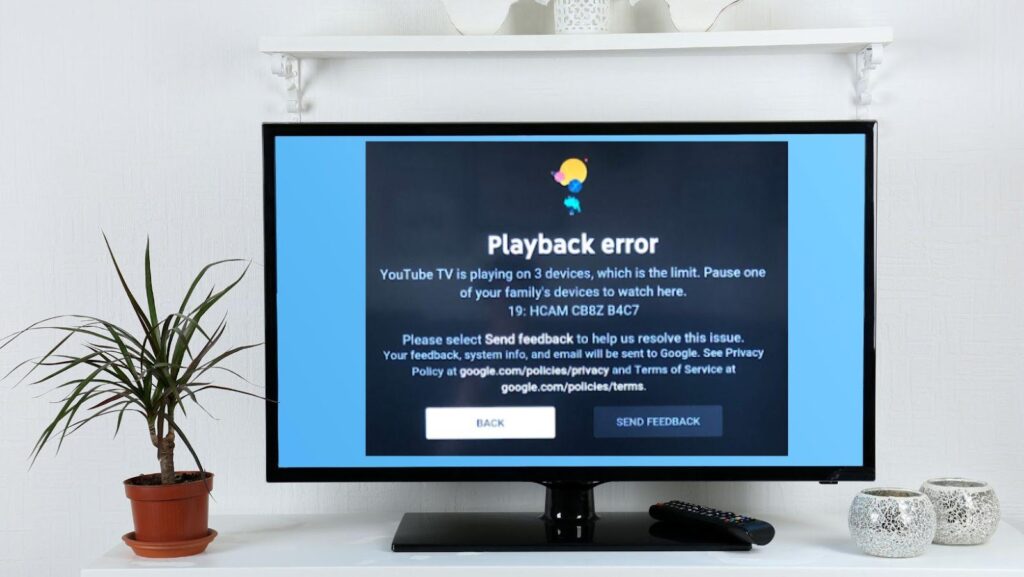
It’s crucial to differentiate between the number of “devices” linked to your account and the number of “simultaneous streams.” Your YouTube TV account can be logged into and accessible on a multitude of devices – smart TVs, streaming sticks (Roku, Fire TV, Apple TV, Chromecast), gaming consoles, smartphones, tablets, and web browsers on computers. There isn’t an explicit hard limit on the number of devices you can log into. However, the restriction lies in how many of these logged-in devices can be actively playing content at the exact same time. If you have ten devices logged in but only three are streaming, you’re within the limit. If a fourth device tries to start a stream, it will typically receive an error message indicating that the maximum number of simultaneous streams has been reached. This distinction is vital for managing expectations and troubleshooting.
The Critical “Home Network” Requirement
A significant technical aspect of YouTube TV’s stream management is the “home network” concept. For the majority of your streams (typically two out of the three standard streams), YouTube TV requires that the devices be connected to the same Wi-Fi network that YouTube TV identifies as your “home location.” This geographical restriction is put in place primarily due to licensing agreements, which often dictate where content can be viewed. YouTube TV uses your IP address to determine your home network.
You are generally allowed one “away-from-home” stream. This means one person can be out of the house (e.g., at work, a coffee shop, or traveling) and stream YouTube TV content on a mobile device or laptop without affecting the two streams running on the home network. If more than one device tries to stream away from the home network, you’ll likely encounter an error. YouTube TV also requires users to “check in” from their home location periodically (typically every 90 days) by accessing the service from their home Wi-Fi network to verify their current location. Failure to do so can result in temporary viewing restrictions.
Identifying Your Devices: What Counts?
Virtually any internet-connected device capable of running the YouTube TV app or accessing its web interface counts as a device for streaming purposes. This includes:
- Smart TVs: Integrated apps on Samsung, LG, Sony, Vizio, etc.
- Streaming Media Players: Roku, Amazon Fire TV, Apple TV, Google Chromecast (including Google TV).
- Gaming Consoles: PlayStation, Xbox.
- Mobile Devices: Android phones and tablets, iPhones, iPads.
- Computers: Desktops and laptops via web browsers (Chrome, Firefox, Edge, Safari).
Each instance of the YouTube TV app playing content on one of these devices will consume one of your available simultaneous streams.
Elevating Your Experience: The 4K Plus Add-on
For households requiring more flexibility and advanced features, YouTube TV offers the “4K Plus” add-on. This premium subscription enhancement directly addresses the limitations of the standard plan, significantly expanding viewing capabilities and introducing additional benefits.
Unlocking Unlimited In-Home Streams
The most compelling feature of the 4K Plus add-on for multi-device households is the provision for unlimited simultaneous streams within your home network. This effectively removes the three-stream barrier when all devices are connected to your designated home Wi-Fi. For large families, roommates, or avid viewers with multiple TVs and personal devices, this feature is a game-changer. Imagine one person watching sports in the living room, another a drama in the bedroom, a third a movie on a tablet in the kitchen, and a fourth a news program on a desktop computer – all simultaneously and without interruption, as long as they are all on the same home network. This eliminates the need to coordinate viewing times or constantly monitor stream usage.
Expanding Away-From-Home Access
While the standard plan allows only one away-from-home stream, the 4K Plus add-on boosts this capacity to three simultaneous streams outside your home network. This is a significant upgrade for families where multiple members frequently travel, commute, or spend time away from home but still wish to access their YouTube TV subscription. A parent might be streaming on a phone during their commute, a college student might be watching on a laptop in their dorm, and another family member could be using a tablet at a friend’s house – all at the same time, away from the main home network. This added flexibility ensures that access to live and recorded content remains robust, regardless of location.
Additional Benefits: Offline Downloads and 4K Content
Beyond stream expansion, the 4K Plus add-on brings other valuable technical enhancements:
- Offline Downloads: For select content, subscribers gain the ability to download shows and movies to mobile devices (phones and tablets) for offline viewing. This is incredibly useful for travel, areas with poor internet connectivity, or simply conserving mobile data. The downloaded content remains available for a limited time, typically up to 30 days, or until playback begins.
- 4K Content: As the name suggests, the add-on provides access to available content in stunning 4K Ultra High Definition (UHD) resolution. While 4K content on live TV is still relatively limited, it’s becoming more prevalent, particularly for major sporting events and certain on-demand programming. Compatible 4K TVs and devices are required to take advantage of this visual upgrade.
These additional features, combined with expanded stream limits, position the 4K Plus add-on as a comprehensive solution for advanced users seeking the ultimate YouTube TV experience.
Strategic Device Management and Optimization
Effectively managing your YouTube TV subscription across multiple devices goes beyond understanding the limits; it involves proactive strategies for monitoring, optimizing, and troubleshooting to ensure a smooth viewing experience.
Monitoring and Managing Active Streams
YouTube TV provides tools within its interface to help you see what devices are currently using your account. While it doesn’t always offer a real-time list of active streams in the most granular detail, you can generally see active playback in your viewing history or through error messages. When an error like “Too many streams” appears, it’s an immediate indicator to check which devices are in use. Communicating with family members about active viewing sessions can also prevent conflicts. If you repeatedly hit limits, it might be time to consider the 4K Plus add-on or adjust viewing habits.
Removing Unused or Unauthorized Devices
Over time, you might log into YouTube TV on many devices, some of which may no longer be in use or might have been accessed by guests. It’s good practice to periodically review and remove unused or unauthorized devices from your Google account (which manages your YouTube TV access). This not only enhances security by preventing unwanted access but can also sometimes help clear up potential confusion within the system, especially if a “phantom stream” is mistakenly counted. You can manage devices by going to your Google Account security settings and reviewing devices that have access. While this doesn’t directly free up a “stream,” it ensures your account is clean and secure.
Leveraging TV Everywhere Apps for More Flexibility
A smart workaround for certain content is to utilize “TV Everywhere” apps. Many networks available on YouTube TV (e.g., ESPN, FXNow, TNT, TBS, DisneyNOW) have their own standalone apps or websites. If you authenticate these apps using your YouTube TV credentials, you can often stream their content directly through these platforms. The crucial advantage here is that streams initiated through these TV Everywhere apps do not count towards your YouTube TV simultaneous stream limit. This effectively gives you an additional avenue for viewing specific content, offloading that stream from your YouTube TV allowance. It’s an excellent strategy for families where different members frequently watch content from specific networks.
Internet Speed and Network Considerations for Multiple Streams
While not strictly a “device limit” in terms of number, your internet connection’s speed and quality are critical factors when streaming to multiple devices. Each simultaneous stream consumes bandwidth. High-definition (HD) streams require significantly more bandwidth than standard-definition (SD), and 4K streams demand even more.
- Recommended Speeds: For reliable HD streaming on multiple devices, a minimum of 25-50 Mbps download speed is generally recommended for households. If you plan to utilize 4K streaming or have many devices connected beyond just YouTube TV (e.g., online gaming, video conferencing), speeds of 100 Mbps or higher become advisable.
- Network Equipment: A robust Wi-Fi router, especially one supporting newer Wi-Fi standards (Wi-Fi 5/802.11ac or Wi-Fi 6/802.11ax), can significantly improve the efficiency of your home network, reducing buffering and ensuring stable connections across multiple devices. Hardwiring devices like smart TVs or gaming consoles with Ethernet cables can also free up Wi-Fi bandwidth for mobile devices.
- Network Congestion: Be mindful of other internet-intensive activities on your network. A household simultaneously streaming YouTube TV on three devices, playing online games, and downloading large files might experience performance issues even with decent internet speeds if the network equipment isn’t optimized.
Troubleshooting Common Device and Stream-Related Issues
Even with careful planning, technical glitches or unexpected errors can occur. Knowing how to diagnose and resolve common YouTube TV device and stream-related issues can save considerable frustration.
Addressing the “Too Many Streams” Error
This is the most direct indicator that you’ve exceeded your simultaneous stream limit.
- Immediate Action: Identify which devices are currently streaming and ask someone to stop viewing or close the app on an unused device.
- Prevention: Discuss viewing habits with household members. If this error is frequent, consider upgrading to the 4K Plus add-on for expanded stream capacity.
- Ghost Streams: Occasionally, a stream might not properly close out, leading to a “ghost stream.” Restarting the YouTube TV app or the device itself can often resolve this. If the issue persists, logging out of YouTube TV on all devices and then logging back in, starting with the primary viewing device, can sometimes reset the session count.
Navigating Geo-Location and Home Network Verification
Errors related to your home network or geo-location can be particularly frustrating.
- Verify Home Location: Ensure you are physically located within your designated home area when verifying your home network. YouTube TV uses your device’s IP address, so using a VPN can interfere with this verification process and should be avoided when setting or verifying your home location.
- Update Home Location: If you’ve moved or if your IP address has changed, you may need to update your home location in the YouTube TV settings. This can typically be done once per year.
- Mobile Hotspots: While useful for away-from-home streaming, using a mobile hotspot as your primary “home network” can lead to verification issues due to dynamic IP addresses. It’s best to use a stable, fixed internet connection for your home network.
Device Compatibility and Software Updates
Outdated software or incompatible devices can also cause streaming problems.
- Check Compatibility: Ensure your device meets YouTube TV’s minimum system requirements. Most modern smart TVs and streaming devices are compatible, but very old models might struggle.
- Update Software: Always keep the YouTube TV app and your device’s operating system (OS) updated to the latest versions. Updates often include bug fixes and performance improvements that can resolve streaming issues.
- Clear Cache/Data: For persistent issues on a specific device, try clearing the cache and data for the YouTube TV app. This can often resolve corrupted data causing playback problems. On streaming devices, uninstalling and reinstalling the app can also be effective.

Best Practices for Smooth Multi-Device Viewing
- Prioritize Bandwidth: If your internet speed is borderline, consider temporarily pausing large downloads or other bandwidth-intensive activities when multiple people are streaming.
- Wired Connections: For devices like smart TVs or gaming consoles that rarely move, a wired Ethernet connection is always more stable and efficient than Wi-Fi.
- Router Placement: Ensure your Wi-Fi router is centrally located and not obstructed, maximizing signal strength to all your streaming devices.
- Communicate: In multi-person households without the 4K Plus add-on, a simple discussion about who is watching what can prevent many “too many streams” errors.
In conclusion, YouTube TV offers a powerful and flexible live TV streaming experience, but understanding its device and stream limitations is key to maximizing its value. Whether you stick with the standard three simultaneous streams or opt for the expanded capabilities of the 4K Plus add-on, strategic management, awareness of technical nuances, and effective troubleshooting will ensure that everyone in your household can enjoy their favorite shows and events without interruption, making YouTube TV a truly versatile entertainment hub.
aViewFromTheCave is a participant in the Amazon Services LLC Associates Program, an affiliate advertising program designed to provide a means for sites to earn advertising fees by advertising and linking to Amazon.com. Amazon, the Amazon logo, AmazonSupply, and the AmazonSupply logo are trademarks of Amazon.com, Inc. or its affiliates. As an Amazon Associate we earn affiliate commissions from qualifying purchases.