
The shift from traditional linear cable to over-the-top (OTT) streaming services has fundamentally changed how we consume media. At the forefront of this revolution is YouTube TV, a service that blends the familiarity of live television with the sophisticated software capabilities of the Google ecosystem. Using YouTube TV effectively requires more than just knowing how to change a channel; it involves mastering a cloud-based interface, optimizing network settings, and leveraging data-driven personalization to curate a premium viewing experience.
Getting Started: The Setup and Interface Architecture
YouTube TV operates as a high-performance web and mobile application designed to bridge the gap between traditional broadcasting and modern digital delivery. Unlike hardware-dependent cable boxes, the service relies on a robust software-as-a-service (SaaS) model, making the initial setup and interface navigation the first steps in mastering the platform.
Device Compatibility and Installation
To begin using YouTube TV, you must first ensure your hardware environment is compatible. The service is designed to run on a wide array of tech stacks, including smart TVs (Android TV, Tizen, webOS), streaming sticks (Chromecast, Roku, Fire TV), gaming consoles, and mobile devices (iOS and Android).
Installation involves downloading the application from the respective app store and authenticating your account through a Google profile. For the best technical performance, users should ensure their streaming hardware is connected via 5GHz Wi-Fi or, ideally, an Ethernet connection. Because YouTube TV streams high-bitrate video, a stable connection with a minimum speed of 25 Mbps is recommended for 4K content, while 13 Mbps suffices for standard high-definition streaming across multiple devices.
Navigating the Three-Pillar Interface
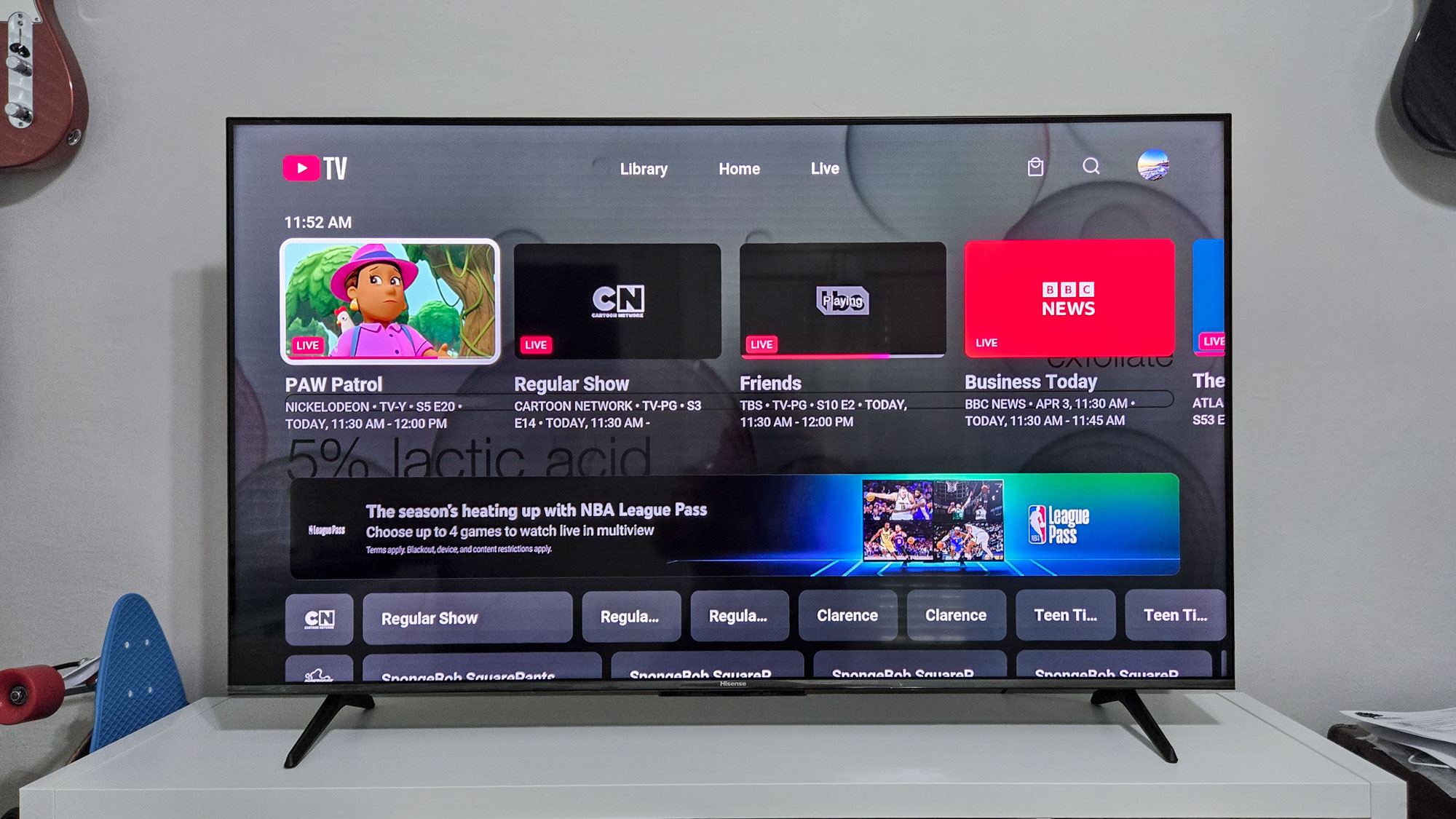
The user interface (UI) of YouTube TV is structured around three primary pillars: Library, Home, and Live. Understanding the logic behind these sections is crucial for efficient navigation.
-
Library: This is the hub for your Cloud DVR. Everything you “add” to your library is stored here. It is organized by “New in your library,” “Most watched,” and alphabetical categories.
-
Home: This section uses machine learning algorithms to suggest content based on your viewing history. It features “Top Picks for You” and highlights live events currently trending in your geographic area.
-
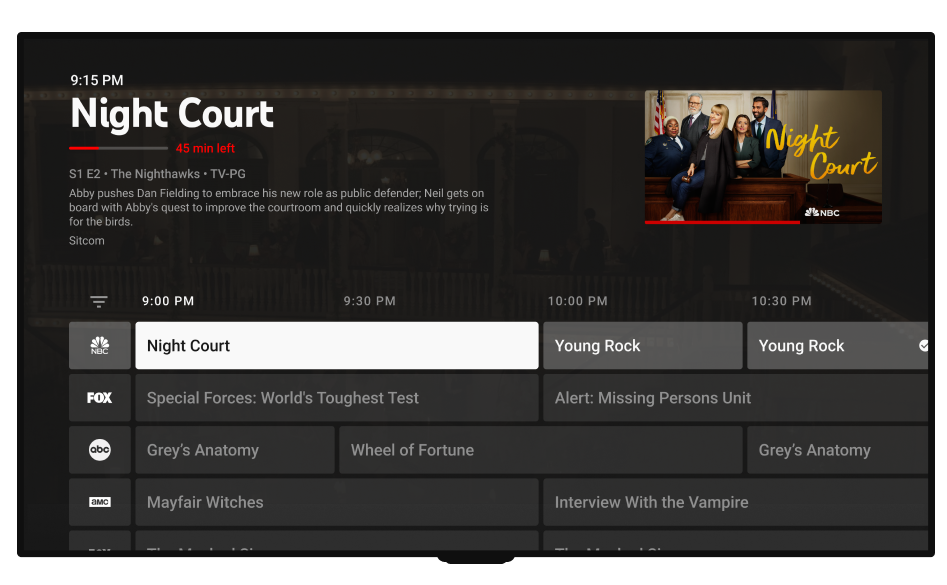
Live: This is a traditional Electronic Program Guide (EPG). It provides a vertical scroll of all available channels, showing what is currently airing and what is scheduled next.
Mastering the Cloud DVR and Personalization
One of the most significant technological advantages of YouTube TV over traditional cable is its cloud-based Digital Video Recorder (DVR). Unlike physical DVRs that are limited by hard drive capacity, YouTube TV offers unlimited storage, a feat made possible by Google’s massive server infrastructure.
Leveraging Unlimited Storage
To “record” a program, you simply navigate to a show, movie, or sports team and select the “+” icon. This adds the program to your library. From a technical perspective, you aren’t actually recording a file to a local drive; instead, you are flagging that content within the cloud. YouTube TV will then save every upcoming airing of that program.
These recordings are kept for nine months. Because there is no storage limit, the best technical strategy is to add any show or team you have a remote interest in. This builds a massive “on-demand” catalog that is personalized to your account. You can skip commercials in these recordings (except for certain VOD versions forced by networks), making it a significant upgrade over live viewing.
Creating Individual Profiles for Tailored Algorithms
YouTube TV allows for up to six individual profiles per household under a single subscription. Each profile is linked to a unique Google account, which is vital for maintaining a clean data set for the recommendation engine.
When you use your own profile, the “Home” tab becomes a reflection of your specific interests. The AI tracks your watch time, the genres you frequent, and the sports teams you follow. If multiple people use the same profile, these data points become blurred, resulting in poor recommendations. Setting up individual profiles ensures that your Library and “Resume Watching” sections remain relevant to your personal habits.
Advanced Features and Optimization
For power users, YouTube TV offers several advanced technical features that enhance the viewing experience, particularly for sports fans and multi-taskers.
Multiview and Picture-in-Picture
A standout feature for the sports-tech enthusiast is “Multiview.” This allows users to watch up to four different live streams simultaneously on a single screen. This is particularly useful during major sporting events like the NFL Sunday Ticket or March Madness.
Unlike older “Picture-in-Picture” (PiP) technologies that required multiple tuners, YouTube TV’s Multiview is processed server-side. This means your streaming device only has to decode one high-resolution stream that contains all four windows, reducing the strain on your local hardware and internet bandwidth. On mobile devices, YouTube TV also supports standard PiP, allowing you to shrink the video player into a small window while you use other apps.
Customizing the Live Guide
The default Live Guide is often cluttered with channels you may never watch. To optimize your workflow, you can customize the guide via the mobile app or web browser. Under the “Live” settings, you can switch to a “Custom” view, which allows you to reorder channels and hide those that are not relevant to you. This customization syncs across all devices, ensuring that your most-watched tech news networks or sports channels are always at the top of the list.
Keyboard Shortcuts and Voice Integration
For those using YouTube TV on a desktop or via a smart home setup, integration is key. On a web browser, several keyboard shortcuts can speed up navigation:
-
Spacebar: Play/Pause.
-
Left/Right Arrows: Seek backward or forward 15 seconds.
-
M: Mute.
-
F: Enter full-screen mode.
Furthermore, integrating YouTube TV with Google Home allows for voice-activated control. You can command a Nest speaker to “Play ESPN on the Living Room TV,” and the software will automatically launch the app and tune to the correct channel via the Chromecast protocol.
Managing Add-ons and Technical Troubleshooting
To truly master YouTube TV, you must understand how to expand its capabilities through software add-ons and how to resolve the technical friction points that occasionally arise in OTT streaming.
Integrating 4K Plus and Sports Packages
While the base YouTube TV package offers a robust selection of channels, the “4K Plus” add-on is a necessary upgrade for users with high-end displays. This add-on provides access to select live content in 4K resolution and allows for unlimited simultaneous streams on your home Wi-Fi network. From a technical standpoint, 4K Plus also enables “Offline Viewing” for mobile devices, allowing you to download recorded content from your Library to your device’s local storage—a feature usually reserved for traditional VOD services like Netflix.
Solving Connectivity and Buffering Issues
Even with the best software, network congestion can occur. If you experience buffering, the first step is to check the “Stats for Nerds” feature. Found in the video player settings, this overlay provides real-time data on connection speed, buffer health, and frame drops.
If the “Connection Speed” is significantly lower than your ISP’s promised rate, the issue may be local interference or an outdated router. Clearing the app cache or power-cycling your streaming device can also resolve memory leak issues that might cause the UI to lag. Additionally, ensuring that your device’s firmware is up to date is essential for maintaining compatibility with YouTube TV’s latest codec updates, such as AV1 or VP9.
Security and Privacy in the YouTube TV Ecosystem
As with any service tied to a Google account, security is a paramount concern. Using YouTube TV means your viewing habits are integrated into your broader digital footprint.
Managing Family Sharing Permissions
YouTube TV’s family sharing is managed through the Google Family Group. While this allows for shared billing, it maintains strict privacy between profiles. One family member cannot see another’s DVR library or viewing history. To keep your account secure, it is recommended to enable Two-Factor Authentication (2FA) on the primary Google account associated with the subscription. This prevents unauthorized access to your billing information and prevents strangers from hijacking your streams.

Protecting Your Viewing Data
Users who are conscious of their digital privacy can manage how YouTube TV tracks their data. Within the Google Account settings, you can pause or delete your “YouTube Watch History.” While this will make the “Home” tab recommendations less accurate, it prevents the service from storing a permanent record of every program you view. Furthermore, you can control ad personalization, ensuring that the commercials shown during “Live” broadcasts are not based on your private search data across other Google services.
By understanding these technical layers—from the infrastructure of the Cloud DVR to the nuances of server-side Multiview—you can transform YouTube TV from a simple cable replacement into a powerful, personalized media command center. Mastering the platform is about leveraging its software strengths to fit your digital lifestyle, ensuring that high-quality content is always accessible, organized, and optimized for your specific tech environment.
aViewFromTheCave is a participant in the Amazon Services LLC Associates Program, an affiliate advertising program designed to provide a means for sites to earn advertising fees by advertising and linking to Amazon.com. Amazon, the Amazon logo, AmazonSupply, and the AmazonSupply logo are trademarks of Amazon.com, Inc. or its affiliates. As an Amazon Associate we earn affiliate commissions from qualifying purchases.