
In the modern computing landscape, the Graphics Processing Unit (GPU) has evolved from a simple component designed to render pixels into a sophisticated powerhouse that drives everything from high-fidelity gaming and 3D rendering to artificial intelligence and complex scientific simulations. For users equipped with NVIDIA hardware, the driver acts as the essential bridge between the operating system and the physical silicon. Without the correct, up-to-date driver, even the most powerful RTX 40-series card is little more than an expensive paperweight.
Keeping your NVIDIA drivers updated is one of the most critical maintenance tasks for any PC user. These updates do more than just enable the latest games; they provide essential security patches, optimize system stability, and unlock new features that can significantly improve your workflow or entertainment experience. This guide explores the various methods of updating NVIDIA drivers, the technical nuances between driver types, and troubleshooting steps to ensure your system remains at peak performance.
Why Keeping Your NVIDIA Drivers Updated Matters
Before diving into the “how,” it is vital to understand the “why.” Many users take a “if it isn’t broken, don’t fix it” approach to software updates, but in the realm of GPU firmware and drivers, this can lead to missed performance opportunities and potential security risks.
Performance Gains and Stability
NVIDIA works closely with software developers—particularly game studios—to release “Game Ready Drivers” that coincide with major title launches. These drivers contain specific optimizations and profiles designed to ensure that a game runs as efficiently as possible on various architectures. Without these updates, users often experience lower frame rates, graphical artifacts, or frequent crashes. Beyond gaming, driver updates often include refinements for the Windows Desktop Window Manager (DWM) and various web browsers, leading to a smoother overall desktop experience.
Security Vulnerabilities and Patches
Like any complex software, graphics drivers can have vulnerabilities that malicious actors might exploit to gain unauthorized access to a system or cause a denial of service. NVIDIA regularly releases security bulletins and incorporates patches into their driver updates. Neglecting these updates leaves a significant portion of your system’s kernel-level software exposed to potential threats.
New Feature Support
NVIDIA is known for its rapid innovation in features like Deep Learning Super Sampling (DLSS), NVIDIA Reflex, and Ray Tracing. These technologies are frequently updated through driver software. For example, the transition from DLSS 2 to DLSS 3.5 (Ray Reconstruction) required specific driver-level support to function. Furthermore, for professionals, updates to the NVIDIA Studio Drivers provide improved compatibility and performance for creative suites like Adobe Creative Cloud, Blender, and DaVinci Resolve.
Method 1: Using NVIDIA GeForce Experience
For the vast majority of users, NVIDIA GeForce Experience (GFE) is the most convenient tool for managing driver updates. It is a companion application that automates the process and provides additional features like gameplay recording and optimal game settings.
Installation and Setup
If you do not already have GeForce Experience installed, it can be downloaded directly from the official NVIDIA website. Once installed, you will need to create or log into an NVIDIA account. While some users find the login requirement cumbersome, it allows the software to sync your settings and provide personalized optimization profiles for your hardware configuration.
Automated vs. Manual Checks
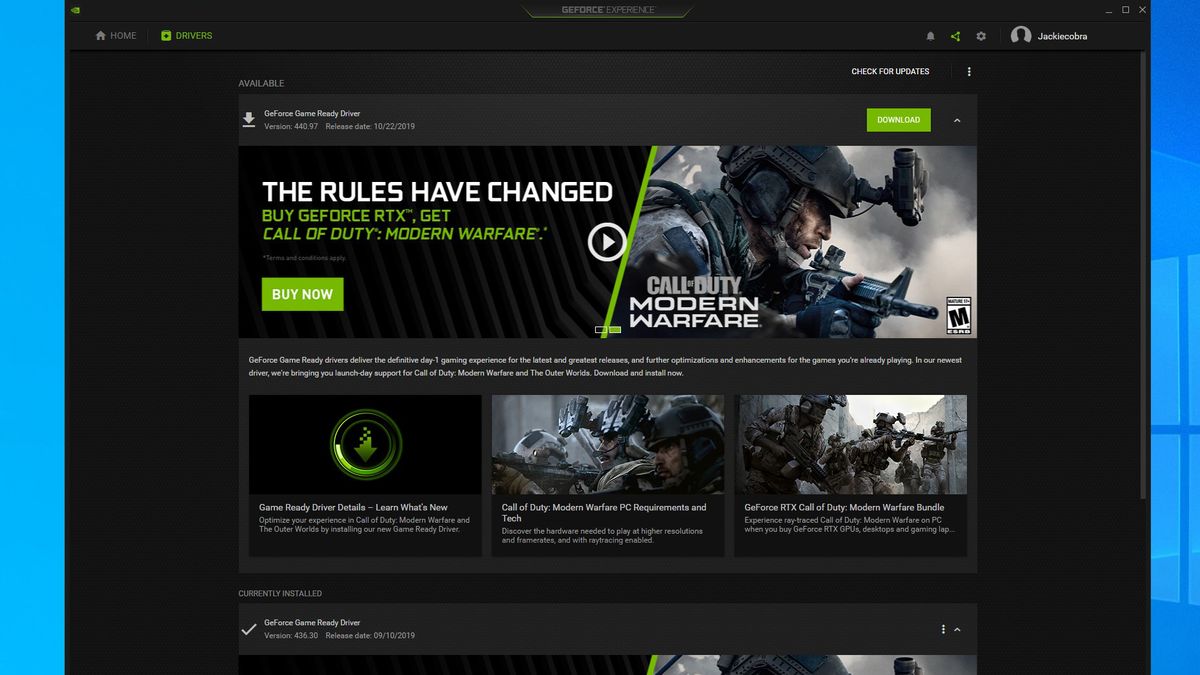
Within the GeForce Experience interface, navigating to the “Drivers” tab will present you with the current version of your installed driver and any available updates. By clicking “Check for Updates,” the software queries NVIDIA’s servers. If a new version is found, a “Download” button will appear.
One of the greatest advantages of GFE is the ability to enable automatic downloads. Under the settings menu (the gear icon), users can toggle a setting that allows the software to download new drivers in the background. Note that it will not install them automatically; it will simply notify you when the package is ready to be applied, ensuring you aren’t interrupted in the middle of a task.
The Benefit of Game Ready Drivers
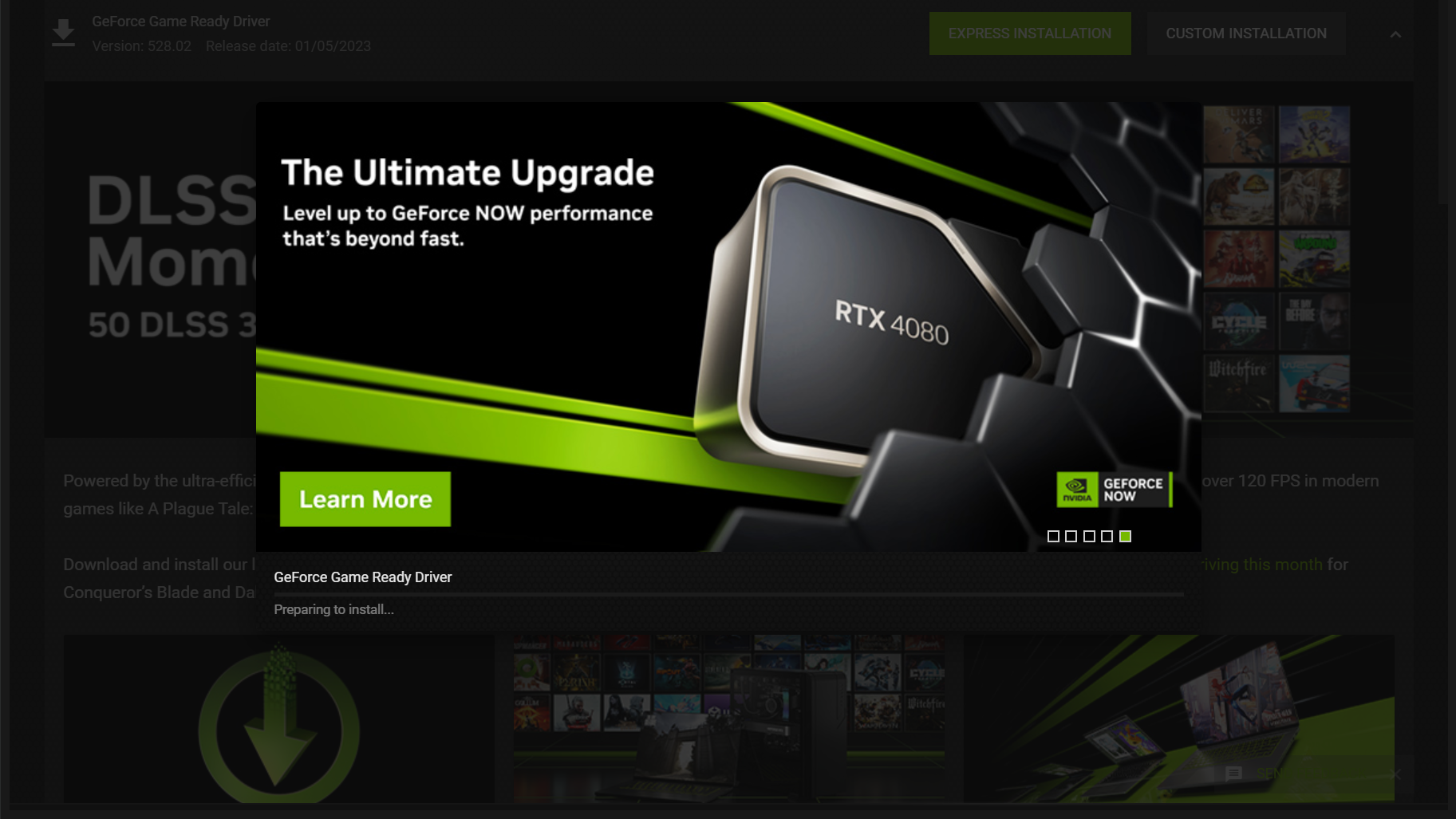
GeForce Experience defaults to providing “Game Ready Drivers.” These are WHQL-certified (Windows Hardware Quality Labs) and are tested across a vast array of hardware configurations to ensure maximum compatibility. When the download finishes, GFE offers two installation paths: “Express Installation” and “Custom Installation.” Express is generally recommended for most users, as it carries over all previous settings while updating the core driver components.
Method 2: Manual Installation via the NVIDIA Website
Advanced users, or those who prefer to keep their systems “lean” by avoiding background applications like GeForce Experience, often opt for manual driver installation. This method provides the most control over what is being installed on the machine.
Identifying Your Hardware
To download the correct driver manually, you must know your exact GPU model and operating system version. If you are unsure of your specs, you can right-click the Start button, select “Device Manager,” and expand the “Display adapters” section. Alternatively, typing dxdiag into the Windows search bar will open the DirectX Diagnostic Tool, which lists detailed hardware information.
Choosing the Right Driver Type: Game Ready vs. Studio
When visiting the NVIDIA Driver Downloads page, you will be presented with several dropdown menus. After selecting your Product Type (e.g., GeForce), Product Series (e.g., GeForce RTX 40 Series), and Operating System, you must choose a “Download Type.”
-
Game Ready Drivers (GRD): Best for gamers who want the best possible support for the latest games, patches, and DLCs.
-
NVIDIA Studio Drivers (SD): Best for content creators who prioritize stability and performance in creative applications. These drivers undergo extensive testing against multi-app creator workflows, making them ideal for video editors, animators, and photographers.
The Clean Installation Procedure
During a manual installation, the installer will ask if you want to install NVIDIA GeForce Experience alongside the driver. If you prefer the manual route, you can deselect this option. A critical feature in the manual installer is the “Perform a clean installation” checkbox found under the “Custom (Advanced)” installation path. Checking this box will delete all previous driver settings and profiles, which is highly effective if you are moving from an older card to a newer one or if you are experiencing persistent software glitches.
Troubleshooting Common Driver Update Issues
Even with sophisticated installers, things can occasionally go wrong. Whether it’s a failed installation, a “blue screen of death” (BSOD), or flickering displays, knowing how to troubleshoot is essential for any tech-savvy individual.
Display Driver Uninstaller (DDU) for a Fresh Start
If you encounter a situation where a driver refuses to install or is causing system instability, the “Nuclear Option” is Display Driver Uninstaller (DDU). DDU is a third-party utility highly regarded in the tech community for its ability to completely wipe every trace of an NVIDIA, AMD, or Intel driver from the Windows Registry and file system.
To use DDU effectively, it is recommended to run the tool in Windows Safe Mode. Once the cleanup is complete, the tool will restart your computer, leaving it with the basic Microsoft Basic Display Adapter driver. At this point, you can attempt a fresh, manual installation of the latest NVIDIA driver.
Rolling Back Drivers
Sometimes, a new driver may introduce a bug that affects a specific piece of software you use. If this occurs, you can “roll back” to the previous version. This can be done through the Windows Device Manager by right-clicking your GPU, selecting “Properties,” navigating to the “Driver” tab, and clicking “Roll Back Driver.” If that option is greyed out, you will need to manually download an older version from NVIDIA’s “Advanced Driver Search” page.
Windows Update Conflicts
A common issue occurs when Windows Update attempts to install an older, generic version of a driver while you are in the middle of installing a newer one from NVIDIA. This can lead to corrupted installations. To prevent this, some users choose to temporarily disconnect from the internet while performing a driver update, ensuring that the NVIDIA installer has exclusive access to the system’s display components.
Advanced Optimization Post-Update
Once the driver is successfully updated, the job isn’t entirely finished. To truly get the most out of your NVIDIA hardware, you should briefly visit the NVIDIA Control Panel to ensure your settings are optimized for your specific monitor and use case.
Configuring the NVIDIA Control Panel
Right-clicking on your desktop and selecting “NVIDIA Control Panel” opens a deep well of technical settings. Under “Manage 3D Settings,” you can find options like “Power management mode.” Setting this to “Prefer maximum performance” can prevent the GPU from down-clocking during critical moments in high-demand applications.
Additionally, ensuring that your “Monitor Technology” is set to G-SYNC (if your monitor supports it) and that your “Refresh Rate” is set to the highest possible value is a vital post-update check. Frequently, driver updates might reset the system to a default 60Hz refresh rate, even on 144Hz or 240Hz panels.

Leveraging the NVIDIA App (Beta)
It is worth noting that NVIDIA is currently transitioning toward a unified “NVIDIA App,” which aims to combine the features of the Control Panel and GeForce Experience into a single, modern interface. This app offers a more streamlined update process and integrated performance monitoring tools. Staying aware of these software shifts is part of staying current in the tech ecosystem.
By following these procedures—whether through the automated convenience of GeForce Experience or the precision of manual installation—you ensure that your PC remains secure, stable, and ready to handle the most demanding digital tasks. Updating your NVIDIA drivers is not just a chore; it is a fundamental practice for anyone looking to maximize their return on investment in high-end computer hardware.
aViewFromTheCave is a participant in the Amazon Services LLC Associates Program, an affiliate advertising program designed to provide a means for sites to earn advertising fees by advertising and linking to Amazon.com. Amazon, the Amazon logo, AmazonSupply, and the AmazonSupply logo are trademarks of Amazon.com, Inc. or its affiliates. As an Amazon Associate we earn affiliate commissions from qualifying purchases.