
In the modern computing landscape, the Graphics Processing Unit (GPU) has evolved from a niche component for gamers into a versatile powerhouse that drives everything from artificial intelligence and video editing to high-end architectural rendering. However, the hardware is only as capable as the software that instructs it. This software—the graphics driver—acts as the vital translator between your operating system, your applications, and the silicon sitting on your motherboard or graphics card.
Keeping these drivers updated is one of the most effective ways to ensure system stability, unlock new features, and maximize frame rates in demanding applications. Whether you are troubleshooting a flickering screen or preparing your rig for the latest AAA game release, understanding the nuances of how to update graphics drivers is an essential skill for any technology user.

Identifying Your Hardware and Current Driver Status
Before you can initiate an update, you must identify exactly which hardware is powering your visuals. Modern computers typically utilize one of two configurations: integrated graphics (built directly into the CPU, common in thin laptops) or discrete graphics (a dedicated card from NVIDIA or AMD, common in gaming rigs and workstations).
Using Windows Device Manager
The quickest way to identify your GPU without opening your computer case is through the Windows Device Manager. By right-clicking the Start button and selecting “Device Manager,” you can navigate to the “Display adapters” section. Expanding this node will reveal the name of your graphics hardware—for instance, “NVIDIA GeForce RTX 4070” or “Intel Iris Xe Graphics.”
By right-clicking your device and selecting “Properties,” then navigating to the “Driver” tab, you can see your current driver version and the date it was released. This information is crucial for determining if you are running outdated software. If your driver date is more than a few months old, a significant performance boost or a critical security patch is likely waiting for you.
Third-Party Diagnostic Tools
For power users who require deeper insights, tools like GPU-Z provide a granular look at your hardware. These utilities offer real-time data on clock speeds, memory types, and BIOS versions. While not strictly necessary for a standard update, these tools are invaluable if you are troubleshooting compatibility issues or verifying that a driver update has correctly enabled specific features like Resizable BAR or hardware-accelerated GPU scheduling.
The Three Primary Methods of Updating Drivers
There is no single “correct” way to update drivers, but there are definitely “better” ways depending on your technical comfort level and your specific needs. Generally, these methods range from fully automated to manual precision.
Method 1: Windows Update (The “Set It and Forget It” Approach)
Windows Update is the most convenient method for the average user. Microsoft works with hardware manufacturers to certify drivers through the Windows Hardware Quality Labs (WHQL). When you check for updates in your System Settings, Windows will often automatically download and install these certified drivers.
However, there is a catch. Drivers delivered via Windows Update are frequently several months behind the latest releases from the manufacturers. While they are highly stable, they rarely include the “Game Ready” optimizations or the specific bug fixes for newly released software. If you are a professional creator or a gamer, relying solely on Windows Update is generally discouraged.
Method 2: Manufacturer Management Software
The most popular method today involves using the proprietary software provided by the GPU manufacturer.
-
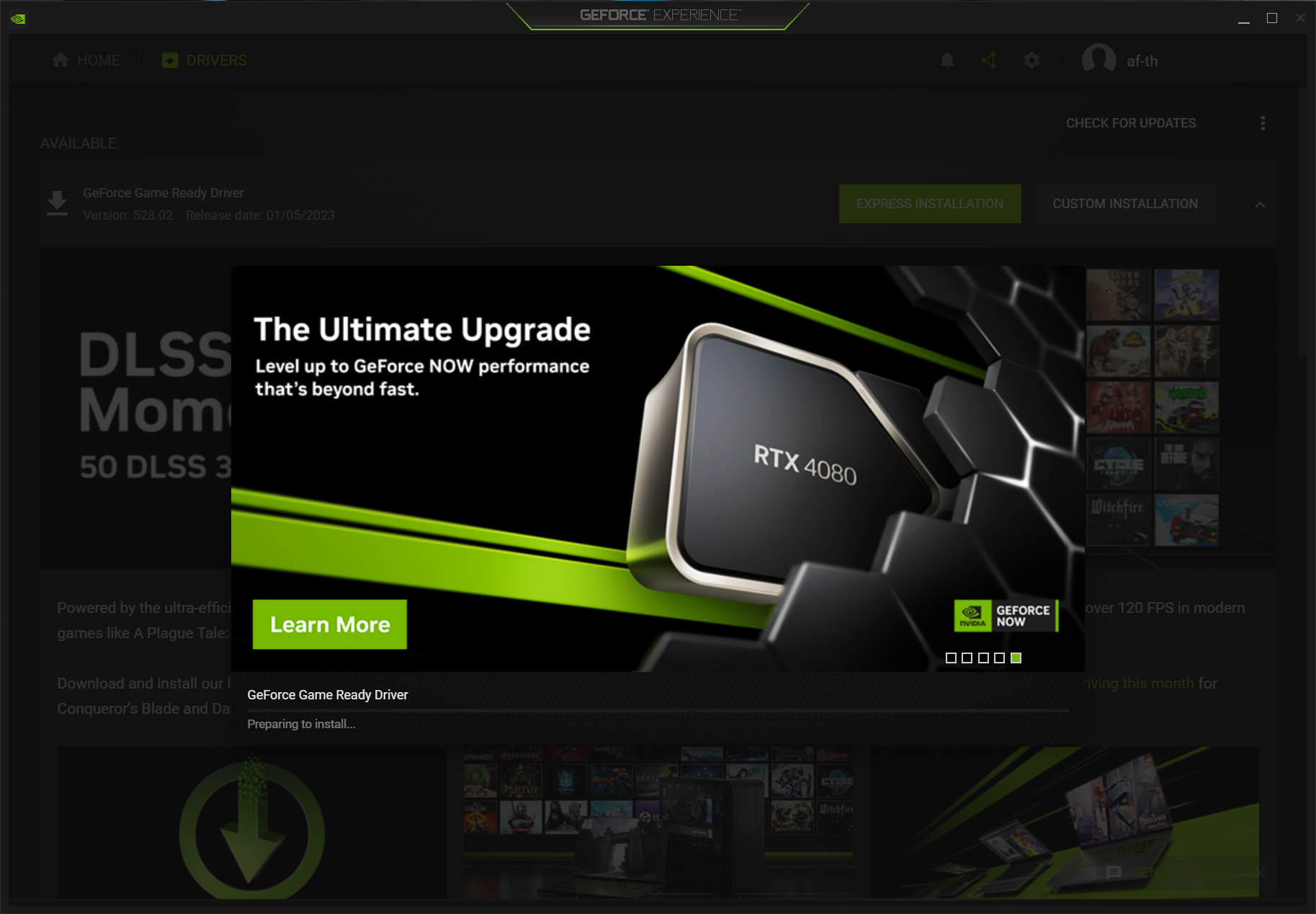
NVIDIA GeForce Experience / NVIDIA App: This utility notifies you the moment a new driver is available. It allows for “Express Installation” and provides the option to optimize game settings based on your hardware.
-
AMD Software: Adrenalin Edition: AMD’s suite is highly regarded for its robust interface. It allows users to update drivers, overclock their hardware, and monitor system performance from a single dashboard.
-
Intel Driver & Support Assistant (DSA): For those using Intel Core processors with integrated graphics or Intel Arc discrete cards, the DSA is a web-based tool that scans your system and provides a direct download link for the latest drivers.
Method 3: Manual Installation (The Gold Standard)
For the highest level of control, manual installation is the preferred route. This involves visiting the manufacturer’s official download page, selecting your specific hardware model and operating system, and downloading the standalone installer.
Manual installation is particularly useful if you need to “Roll Back” to a specific older version of a driver because a new update introduced a bug. It also allows you to perform a “Clean Install,” which wipes previous driver configurations to prevent software conflicts—a common cause of the dreaded Blue Screen of Death (BSOD).
Step-By-Step Guide for Major Manufacturers
The process varies slightly depending on whether you are in the NVIDIA, AMD, or Intel ecosystem. Below is the refined workflow for each.
Updating NVIDIA Drivers
-
Visit the NVIDIA Driver Downloads page.
-
Select your Product Type: (e.g., GeForce for gaming, RTX/Quadro for professional workstations).
-
Choose the “Download Type”: NVIDIA offers “Game Ready Drivers” (optimized for the latest games) and “Studio Drivers” (optimized for stability in creative apps like Premiere Pro or Blender). Choose the one that fits your primary use case.
-
Run the Installer: Once downloaded, open the .exe file.
-
Custom Installation: During the setup, choose “Custom (Advanced)” and check the box that says “Perform a clean installation.” This ensures a fresh start by removing old profiles that might be corrupted.
Updating AMD Drivers
-
Navigate to the AMD Support and Drivers page.
-
Search or Select: Use the list to find your Radeon series or use the “Auto-Detect and Install” tool if you are unsure.
-
Download Adrenalin Edition: Click the download button for the latest recommended (WHQL) or optional (Beta) driver.
-
Factory Reset Option: During the installation process, AMD offers a “Factory Reset” option. This is highly recommended if you are moving from an older architecture to a newer one or if you have experienced system crashes.
Updating Intel Drivers
-
Open the Intel Download Center.
-
Use the Support Assistant: This is usually the most efficient path for Intel users. It runs a small background service that detects your CPU and GPU generation.
-
Download and Restart: Intel drivers often require a full system restart to finalize the integration with the Windows kernel.
Advanced Techniques: Dealing with Persistent Issues
Sometimes, a standard update isn’t enough. If your system is plagued by stuttering, graphical artifacts, or crashes, you may need to employ more advanced tactics.
Display Driver Uninstaller (DDU)
DDU is a specialized third-party utility used by tech enthusiasts to completely purge every trace of a graphics driver from the Windows Registry and System32 folders. To use it properly:
-
Download the latest driver for your GPU but do not install it yet.
-
Disconnect your internet (to prevent Windows from automatically installing a basic driver).
-
Boot your computer into Safe Mode.
-
Run DDU and select “Clean and restart.”
-
Once back in normal Windows, run the installer you downloaded in step one.
This “scorched earth” approach solves approximately 90% of software-related GPU issues by ensuring that no legacy files are interfering with the new installation.
Rolling Back a Driver
If you find that your performance has actually decreased after an update, Windows provides a safety net. In the Device Manager, under the Driver tab of your GPU’s properties, you will find the “Roll Back Driver” button. This restores the previous version of the driver and its settings. This is a vital troubleshooting step if a manufacturer releases a “hotfix” driver that happens to be unstable on your specific hardware configuration.
Why Driver Updates Matter: The Tech Behind the Scenes
Updating your graphics drivers is not just about maintenance; it is about performance evolution. Manufacturers are constantly finding ways to optimize how the GPU handles specific instructions.
Performance and Optimization
In the gaming world, “Game Ready” drivers are released alongside major titles. These drivers contain specific optimizations for the game’s engine, often resulting in double-digit percentage increases in frame rates. Furthermore, technologies like NVIDIA DLSS (Deep Learning Super Sampling) and AMD FSR (FidelityFX Super Resolution) are frequently updated via drivers to improve image quality and upscaling efficiency.
Stability and Security
Modern drivers also address security vulnerabilities. Because the graphics driver operates at a very low level of the operating system (the kernel), a vulnerability could allow malicious software to gain deep access to your system. Regular updates patch these holes. Additionally, updates fix “memory leaks” where a driver fails to release system RAM, eventually causing the computer to slow down to a crawl.
New Features
Occasionally, a driver update will unlock entirely new capabilities for old hardware. We have seen instances where driver updates enabled Ray Tracing support on older cards or added support for new video codecs like AV1. By keeping your software current, you essentially receive a free hardware upgrade in terms of functionality.
In conclusion, knowing how to update graphics drivers is a fundamental pillar of digital literacy in the modern era. By identifying your hardware, choosing the right update method, and knowing how to perform a clean installation when necessary, you ensure that your system remains fast, secure, and capable of handling the most demanding visual tasks of today and tomorrow.
aViewFromTheCave is a participant in the Amazon Services LLC Associates Program, an affiliate advertising program designed to provide a means for sites to earn advertising fees by advertising and linking to Amazon.com. Amazon, the Amazon logo, AmazonSupply, and the AmazonSupply logo are trademarks of Amazon.com, Inc. or its affiliates. As an Amazon Associate we earn affiliate commissions from qualifying purchases.