
The landscape of home entertainment has undergone a seismic shift over the last decade, transitioning from physical medium and linear cable broadcasts to sophisticated Over-the-Top (OTT) streaming services. Among the leaders of this digital revolution is YouTube TV, Google’s premium live television service. Unlike the standard YouTube platform, which focuses on user-generated content, YouTube TV is a complex software-as-a-service (SaaS) model designed to replace traditional cable through cloud-based infrastructure. To stream YouTube TV effectively, one must understand the intersection of hardware compatibility, network optimization, and software configuration.
Understanding the Ecosystem: Hardware and Device Compatibility
The first step in streaming YouTube TV is identifying the correct hardware interface. Because YouTube TV operates as a high-bandwidth application, the choice of device significantly impacts latency, UI responsiveness, and visual fidelity.
Smart TVs and Integrated Operating Systems
Most modern Smart TVs manufactured after 2016 come equipped with native support for YouTube TV. This includes sets running Android TV, Google TV, Samsung’s Tizen OS, and LG’s webOS. The primary technical advantage of using a native app on a Smart TV is the reduction of HDMI handshake issues and the ability to control the experience with a single remote. However, the internal processors of lower-end Smart TVs can sometimes struggle with the resource-heavy “Live” guide, leading to menu lag.
Streaming Sticks and Set-Top Boxes
For users with older televisions or those seeking a more robust performance, dedicated streaming peripherals are the gold standard. Devices such as the Roku Ultra, Amazon Fire TV Stick 4K, Apple TV 4K, and Chromecast with Google TV provide superior processing power. These devices are optimized for video decoding and often feature better Wi-Fi antennas than built-in TV modules. The Apple TV 4K, in particular, is noted for its high-performance A-series chips, which make navigating the YouTube TV interface fluid and instantaneous.
Mobile Devices and Gaming Consoles
YouTube TV is also available on iOS and Android mobile platforms, as well as PlayStation (PS4/PS5) and Xbox (One/Series X/S) consoles. On mobile, the app utilizes adaptive bitrate streaming to ensure the broadcast remains stable even as the user moves between Wi-Fi and cellular data. For gaming consoles, the application leverages the console’s powerful GPU to render the high-definition stream, making it a viable option for users who want an all-in-one entertainment hub.
Optimizing Your Infrastructure: Connectivity and Bandwidth
To stream live television without buffering, the underlying network infrastructure must be capable of handling consistent data throughput. YouTube TV recommends a minimum of 3 Mbps for standard definition, 7 Mbps for a single HD stream, and 25 Mbps or higher for 4K content or environments with multiple simultaneous users.
The Role of Latency and Throughput
While “speed” is the metric most consumers focus on, latency (or ping) is equally important for live television. High latency can result in a significant delay between the live event and the broadcast on your screen—a phenomenon often noticed during live sports. To minimize this, users should ideally utilize a 5GHz Wi-Fi band or, even better, a hardwired Ethernet connection. Ethernet bypasses the potential for radio frequency interference from household appliances, providing a “fat pipe” for the data to travel.
Network Configuration: Quality of Service (QoS)
Advanced users can optimize their routers by enabling Quality of Service (QoS) settings. By prioritizing the MAC addresses of streaming devices or the specific traffic ports used by YouTube TV, the router ensures that a background file download on a computer doesn’t throttle the bandwidth required for the TV stream. This is particularly crucial in smart homes where dozens of IoT devices compete for bandwidth.
Mesh Networking for Large Footprints
In larger homes, a single router often fails to provide the consistent signal strength required for 4K streaming in peripheral rooms. Implementing a mesh Wi-Fi system (such as Google Nest Wifi or Eero) creates a seamless “web” of connectivity. This ensures that the streaming device maintains a high-speed handshake with the nearest node, preventing the resolution drops associated with weak signals.
The Software Layer: Installation and Account Management
Once the hardware and network are established, the software configuration begins. YouTube TV is tied to the Google ecosystem, requiring a Google Account for authentication and billing.
Initial Setup and Authentication
The setup process typically involves downloading the app from the respective device’s store and following a “cross-device authentication” protocol. Users are usually presented with an alphanumeric code on the TV screen, which must be entered into a web browser on a smartphone or computer logged into the target Google account. This method is more secure and user-friendly than typing complex passwords via a TV remote.
Multi-User Profiles and Personalization
One of the distinct technological advantages of YouTube TV over traditional cable is its support for up to six individual profiles per household. Each profile functions as a unique instance of the app, with its own personalized recommendations, viewing history, and “Library” (Cloud DVR). This is managed through Google’s “Family Group” architecture, allowing users to share the subscription cost while maintaining individual digital privacy and customized UI layouts.
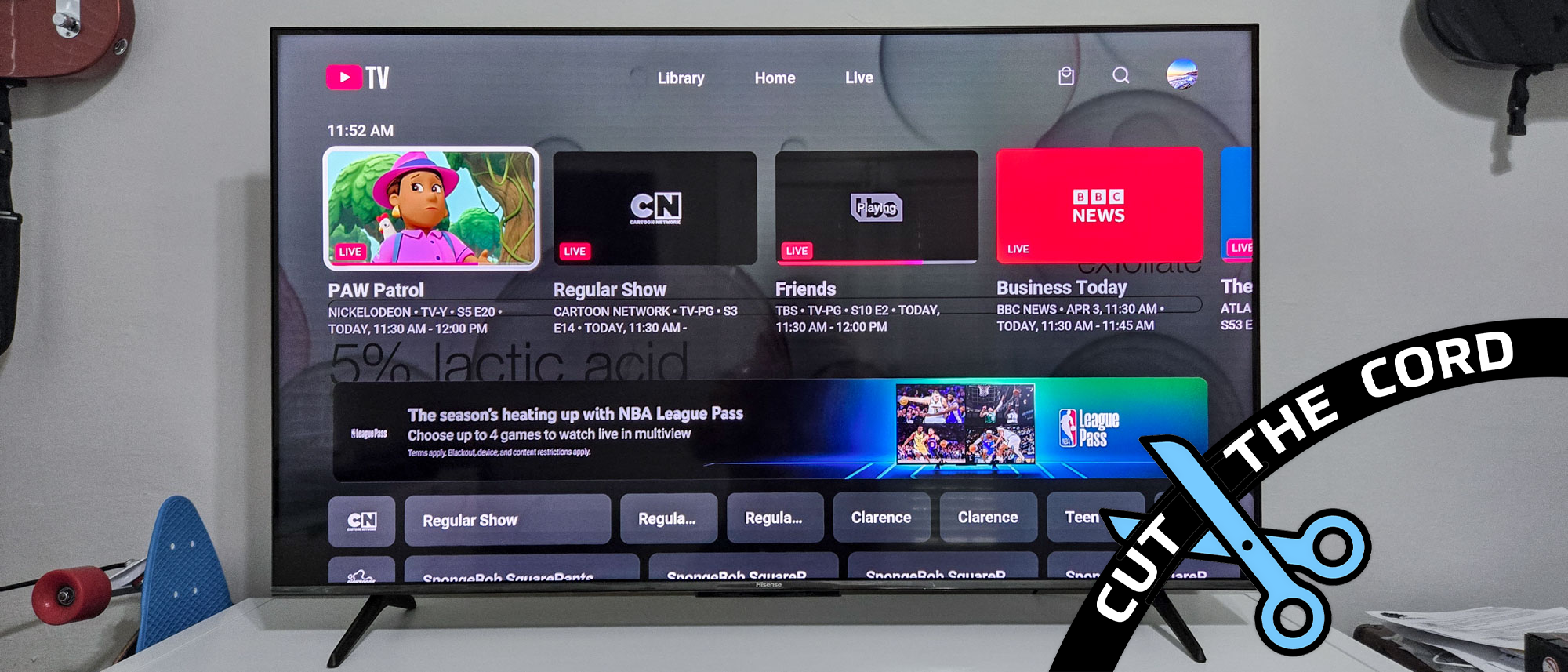
Interface Navigation: Home, Live, and Library
The UI is divided into three primary segments:
-
Home: Driven by machine learning algorithms, this tab suggests content based on previous viewing habits and trending live events.
-
Live: A traditional electronic programming guide (EPG) that shows what is currently airing. Users can customize the order of channels here to prioritize their most-watched networks.
-
Library: This is the interface for the Cloud DVR. Unlike physical DVRs of the past, there are no storage limits. The content is stored on Google’s servers, not the user’s device, allowing for “anywhere” access to recorded shows.
Maximizing the User Experience: Advanced Features and Integrations
Beyond simple playback, YouTube TV offers several advanced technical features that differentiate it from competitors like Hulu + Live TV or Fubo.
Cloud DVR and Buffer Management
The Cloud DVR is perhaps the most technically impressive aspect of the service. Because the recording happens server-side, a user’s local internet connection does not need to be active for a show to be “recorded.” Furthermore, the service utilizes “Look Back” technology, allowing users to start a live program from the beginning even if they tuned in late, provided the channel supports that metadata.
4K Plus and Technical Add-ons
For enthusiasts, the 4K Plus add-on unlocks higher bitrate streams for select content (mostly sports and nature documentaries). This add-on also enables “Offline Viewing” for recorded content on mobile devices—a feature where the app downloads the video file to the device’s local storage (eMMC or NVMe) for playback without an internet connection.
Smart Home Integration
YouTube TV integrates deeply with Google Assistant. Users can initiate streams via voice commands (e.g., “Hey Google, play ESPN on the Living Room TV”). This involves a handshake between the Google Home ecosystem and the Cast protocol, where the command is processed in the cloud and a “push” notification is sent to the streaming device to launch the specific video stream URL.
Future-Proofing and Security: Privacy in a Connected World
As with any internet-connected service, streaming YouTube TV requires an awareness of digital security and data privacy.
Geofencing and Location Permissions
YouTube TV uses geofencing to enforce regional broadcasting rights. The service requires access to the device’s GPS or IP-based location data to determine which local affiliates (ABC, NBC, CBS, etc.) to serve. Users must occasionally check in from their “Home Area” on a mobile device to verify their location, a technical requirement to prevent unauthorized account sharing across different geographical regions.
Securing the Stream
To protect the account, users should enable Two-Factor Authentication (2FA) on their Google Account. This prevents unauthorized access to the billing information and viewing history. Additionally, because the service tracks viewing habits to improve its recommendation engine, users should periodically review their “Privacy” settings within the Google account dashboard to manage how much data is retained for ad personalization.
Software Updates and Codecs
Google frequently updates the YouTube TV app to implement more efficient video codecs, such as AV1 or VP9. These codecs allow for higher-quality video at lower bitrates. Ensuring that your streaming hardware is capable of hardware-accelerating these codecs is the best way to future-proof your setup. As 8K broadcasting looms on the horizon, the software-first nature of YouTube TV ensures that the platform will evolve through server-side updates and app patches without requiring the user to replace their entire infrastructure.
aViewFromTheCave is a participant in the Amazon Services LLC Associates Program, an affiliate advertising program designed to provide a means for sites to earn advertising fees by advertising and linking to Amazon.com. Amazon, the Amazon logo, AmazonSupply, and the AmazonSupply logo are trademarks of Amazon.com, Inc. or its affiliates. As an Amazon Associate we earn affiliate commissions from qualifying purchases.