
Tesla vehicles have redefined the automotive experience, not least in the fundamental act of “starting” the car. Unlike traditional internal combustion engine (ICE) vehicles that require a key turn or a specific button press to ignite an engine, a Tesla’s operational readiness is a seamless, largely automated process deeply integrated with advanced technology. For a Tesla, “starting” isn’t about firing an engine; it’s about authenticating the driver and preparing the sophisticated onboard systems for immediate motion. This tutorial delves into the technical methods and underlying principles that enable this futuristic experience.
The Seamless Entry: Key Fob, Phone Key, and Key Card
The concept of a traditional car key is largely antiquated in the Tesla ecosystem. Instead, drivers interact with their vehicle through a choice of technologically advanced authentication methods, each designed for convenience and security.
Phone Key: The Modern Default
For many Tesla owners, their smartphone serves as the primary key. This feature leverages Bluetooth Low Energy (BLE) technology, a standard wireless communication protocol optimized for low power consumption, to establish a secure link between the phone and the vehicle.
- Initial Setup and Pairing: The first step involves downloading the official Tesla mobile app and pairing it with the vehicle. This typically requires a one-time authentication process within the car while both the phone and a valid key card are present. Once paired, the app registers the phone as a recognized key.
- Automatic Unlock and Readiness: With the phone key activated and Bluetooth enabled on your device, the Tesla’s sensors detect your phone’s proximity as you approach. The doors will automatically unlock, the exterior lights may illuminate, and the vehicle’s internal systems will begin to awaken. This readiness is a testament to the car’s always-on, low-power standby state, designed for instant activation.
- Driving Activation: To initiate driving, simply enter the car with your phone, place your foot firmly on the brake pedal, and then select your desired gear (Drive or Reverse) using the stalk on the right side of the steering column. No further actions are required from the phone; it merely needs to be present inside the cabin. The car’s onboard computer continuously verifies the phone’s presence, ensuring that it remains authenticated throughout the drive.
Key Fob: Familiarity with a Tech Twist
For drivers who prefer a physical key, Tesla offers a distinctively designed key fob that often mirrors the vehicle’s aesthetic. These fobs utilize radio-frequency (RF) technology for communication with the car.
- Functionality and Operation: Similar to the phone key, approaching the Tesla with an authenticated key fob will automatically unlock the doors and prepare the vehicle. The fob typically includes buttons for locking/unlocking doors, opening the front trunk (frunk), and the rear trunk. Some advanced models and software versions even support remote summoning capabilities.
- Driving Activation: The process for driving off is identical to the phone key method: enter, press the brake, and shift into gear. The key fob can be placed anywhere inside the cabin, as its RF signal is sufficient for continuous authentication. The fob’s internal technology often incorporates encrypted rolling codes to enhance security and prevent cloning.
Key Card: The Reliable Backup
Every Tesla comes with a credit card-sized key card, which serves as an essential backup and utilizes Near Field Communication (NFC) technology. NFC requires extremely close proximity (typically a few centimeters) for communication.
- Unlocking the Vehicle: To unlock the car using the key card, you must physically tap the card against the NFC reader located on the B-pillar (the pillar between the front and rear doors) on the driver’s side. This direct contact establishes the secure connection.
- Driving Activation with Key Card: Unlike the phone key or key fob, which only need to be inside the vehicle, the key card must be placed on a specific NFC reader spot on the center console (often behind the cup holders or near the wireless charging pad, depending on the model) to enable driving. Once placed, you proceed with the brake-and-shift sequence. This design ensures that the card is intentionally used for activation, making it a secure choice for valet services or when other key methods are unavailable.
Understanding the Tesla Interface: Interior Controls and Software
The “starting” process in a Tesla is fundamentally intertwined with its minimalist, digital-first interior. The vehicle’s readiness is reflected not in the roar of an engine but in the immediate response of its high-resolution touchscreen and the intuitive nature of its controls.
The Central Touchscreen: Command Center
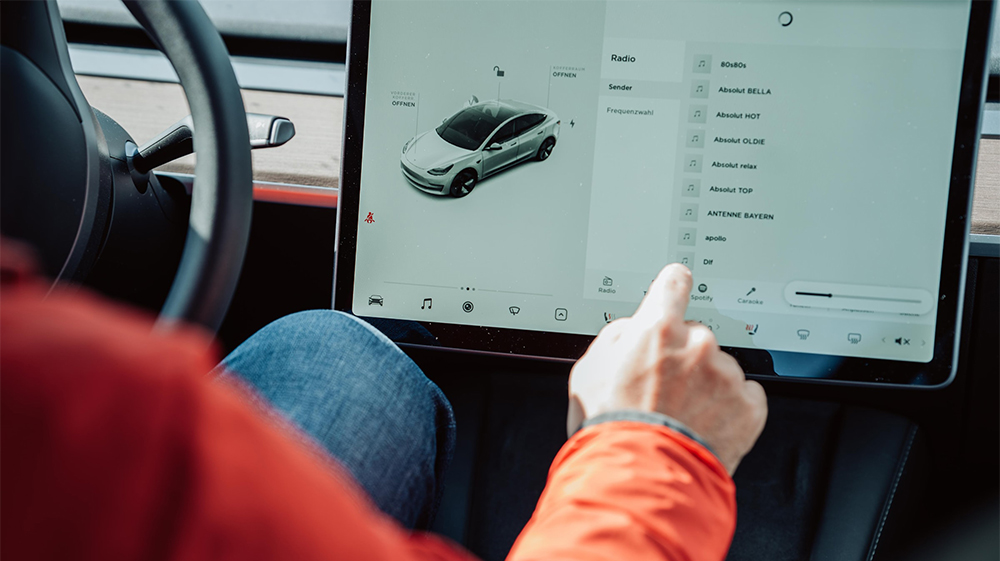
The large, typically 15-inch or 17-inch, central touchscreen is the nerve center of a Tesla. It consolidates almost all vehicle functions, from navigation and entertainment to climate control and vehicle settings.
- Instantaneous Display: Upon driver authentication and entry, the touchscreen illuminates instantly, displaying critical driving information such as speed, navigation maps, battery state of charge, and real-time visualizations of surrounding traffic. This immediate presentation signifies that the vehicle’s complex computing systems are fully active and ready for driver input. There’s no boot-up delay, a significant departure from many infotainment systems that require a lengthy start-up sequence.
- Software-Defined Experience: Tesla’s commitment to over-the-air (OTA) software updates means the user interface, functionality, and even the “start” experience can evolve. These updates frequently introduce new features, refine existing controls, and enhance the overall user experience, all managed through the central screen. The software dictates much of how the car behaves from the moment you sit down.
Steering Wheel and Stalks: Essential Physical Controls
While the touchscreen governs most functionalities, critical driving controls remain physical, providing tactile feedback essential for safe operation.
- Right Stalk: The Gear Selector: This stalk, positioned to the right of the steering wheel, serves as the primary gear selector. Pushing it down once engages Drive (D), pushing it up once engages Reverse (R), and pressing the button on the end activates Park (P). This replaces a traditional gear lever or dial, streamlining the console.
- Steering Wheel Scroll Wheels: The two scroll wheels on the steering wheel are highly versatile and customizable. They can control functions such as media volume, cruise control speed, windshield wiper intensity, and even rearview mirror adjustments. Their programmable nature, configured via the touchscreen, allows drivers to personalize their interaction with the vehicle.
The “Always On” Philosophy
A crucial distinction for Tesla is its “always on” state. Unlike ICE cars that truly “turn off,” a Tesla is always in a low-power standby mode, constantly monitoring for key signals and performing background tasks like preconditioning or software updates. The “start” sequence, therefore, isn’t about powering up from zero, but rather transitioning from this standby state to a fully active, ready-to-drive mode, confirming driver intent and authorization. This intelligent power management is key to its instant readiness and contributes to overall energy efficiency.
Driving Off: The First Steps
Once you’ve authenticated and settled into the cabin, the final sequence to begin driving is remarkably simple and intuitive, designed to minimize steps and maximize efficiency.
Press the Brake Pedal
This is the universal signal to the Tesla that you intend to drive. Placing your foot firmly on the brake pedal activates the vehicle’s ready-to-drive systems and is a fundamental safety measure, preventing accidental shifts into gear without driver awareness. The car’s internal sensors confirm your presence and the intent to operate.
Shift into Drive (D) or Reverse (R)
Using the right stalk on the steering column:
- For Drive: Gently push the stalk down once.
- For Reverse: Gently push the stalk up once.
You’ll feel a subtle tactile click, and the selected gear will be prominently displayed on the central touchscreen, often accompanied by a visual representation of the vehicle and its surroundings.

Engage the Accelerator Pedal
With the vehicle in gear, gently press the accelerator pedal. The electric motors provide instant torque, resulting in smooth, silent acceleration. The absence of an engine means there’s no vibration or lag, just immediate, linear power delivery.
Understanding Regenerative Braking
A unique aspect of driving a Tesla, and most EVs, is regenerative braking. When you lift your foot off the accelerator pedal, the electric motors reverse their function, acting as generators to slow the vehicle down and send energy back to the battery. This allows for “one-pedal driving” in many scenarios, meaning you’ll use the physical brake pedal less frequently. Adapting to regenerative braking is key to smooth and efficient driving and significantly influences the feel of your journey from the moment you “start.”
Advanced Features and Customization
Beyond the fundamental “start” sequence, Tesla’s technological prowess extends to a suite of advanced features and customization options that enhance the pre-drive and overall ownership experience. These aren’t direct starting mechanisms but are integral to the intelligent preparation of the vehicle.
Driver Profiles for Personalized Readiness
Tesla allows for the creation of multiple driver profiles, each capable of storing a comprehensive set of personalized preferences. These include:
- Seating and Steering Wheel Positions: Automatically adjust to your saved ergonomics.
- Mirror Settings: Side mirrors and potentially the steering column position adjust.
- Climate Control Preferences: Your preferred temperature and fan settings are recalled.
- Media and Navigation Settings: Favorite radio stations or map display preferences are loaded.
- Autopilot and Driving Assist Configurations: Personalized settings for driving assistance features.
When an authenticated key (phone, fob, or card) is detected, the Tesla can automatically load the associated driver profile, ensuring the cabin is perfectly configured for you before you even press the brake pedal. This seamless personalization contributes significantly to the feeling of the vehicle being ready and waiting.
Preconditioning and Remote Functions via the Tesla App
The Tesla mobile app provides extensive remote control capabilities, allowing you to prepare your vehicle well before physically entering it.
- Climate Preconditioning: You can remotely activate the climate control system to heat or cool the cabin to your desired temperature. This is invaluable in extreme weather conditions, ensuring comfort from the moment you open the door. The app can also manage seat heaters and steering wheel heaters.
- Defrosting and De-icing: In colder climates, the app can activate defrost functions for windows, mirrors, and even the charging port, melting ice and snow before you arrive.
- Charging Management: Monitor charging status, initiate or stop charging, and schedule charging sessions directly from your phone.
- Remote Unlock/Lock: Remotely lock or unlock the vehicle, and even open the frunk or rear trunk.
These remote functions exemplify the deep integration of software with hardware, allowing the “start” of your journey to begin proactively, enhancing convenience and efficiency.
Walk-Away Door Lock and Passive Entry
Equipped with your phone key or key fob, the Tesla offers passive entry and walk-away door lock features.
- Passive Entry: As you approach the vehicle, it recognizes your authenticated key and automatically unlocks the doors, often unfolding the side mirrors and illuminating the handles.
- Walk-Away Lock: When you exit the vehicle and walk away with your key, the car automatically locks itself after a few seconds, typically accompanied by an audible chime and the folding of the side mirrors. This automation simplifies the end-of-drive routine, providing peace of mind regarding vehicle security.
Troubleshooting Common Starting Issues
While Tesla’s technology is designed for reliability and seamless operation, occasional user-related or minor system glitches can occur. Understanding how to troubleshoot common “starting” issues ensures a smooth ownership experience.
“Key Not Detected” Error
This is one of the most common alerts and indicates that the vehicle cannot establish a reliable connection with your authentication method.
- Phone Key Solutions:
- Ensure Bluetooth is actively enabled on your smartphone and that the Tesla app is running in the background.
- Restart the Tesla app or, if necessary, your phone.
- Move your phone to a different pocket or closer to the center console’s key card reader area, as signal interference can sometimes occur.
- Verify that the app has all necessary permissions (e.g., location, Bluetooth access) enabled in your phone’s settings.
- Key Fob Solutions:
- Check the key fob’s battery; a weak battery can impair signal strength. Replacing the CR2032 coin cell battery often resolves this.
- Try placing the key fob directly on the center console’s key card reader spot, as many fobs contain an NFC chip for a backup direct connection.
- Key Card Solutions:
- Ensure you are tapping the card precisely on the B-pillar sensor for entry and placing it correctly on the center console reader to drive. Avoid bending or damaging the card, as it can affect its NFC antenna.
Vehicle Not Shifting into Drive/Reverse
If the car acknowledges your presence but won’t allow you to select a gear.
- Firm Brake Pedal: Reconfirm that your foot is pressing the brake pedal firmly and consistently. This is a primary interlock for safety.
- Key Authentication: Ensure that a valid key (phone, fob, or card) is present and continuously detected within the cabin. If using a key card, verify it remains on its designated console spot.
- Screen Reboot: In rare instances, a minor software glitch can prevent gear engagement. A soft reboot of the main touchscreen (holding both steering wheel scroll wheels until the screen goes black) can often resolve this.
Unresponsive Touchscreen
If the central display freezes or becomes unresponsive, hindering access to controls or driver information.
- Perform a Soft Reboot: Hold down both scroll wheels on the steering wheel simultaneously for approximately 10-15 seconds until the screen goes black. Release them, and the screen will restart. This process typically resolves most software hiccups without affecting core driving functions if the car is already in motion.

Low 12V Battery Warning
While Teslas are electric, they still contain a conventional 12V battery that powers critical auxiliary systems like the main computer, lights, and door locks. A depleted 12V battery can prevent the car from “waking up” or authenticating keys.
- Immediate Action: If you receive a “12V battery requires service” or similar warning, contact Tesla service promptly. Unlike the high-voltage battery, a depleted 12V battery can render the car inoperable, preventing it from starting or even unlocking. This is a critical component for the initial boot-up sequence of the vehicle’s electronics.
Understanding these troubleshooting steps empowers Tesla owners to quickly diagnose and resolve minor issues, maintaining the seamless and technologically advanced experience that defines starting and driving a Tesla.
aViewFromTheCave is a participant in the Amazon Services LLC Associates Program, an affiliate advertising program designed to provide a means for sites to earn advertising fees by advertising and linking to Amazon.com. Amazon, the Amazon logo, AmazonSupply, and the AmazonSupply logo are trademarks of Amazon.com, Inc. or its affiliates. As an Amazon Associate we earn affiliate commissions from qualifying purchases.