
The transition from traditional cable television to streaming services has fundamentally altered how we consume media. One of the most significant shifts in this evolution is the move from physical Digital Video Recorders (DVRs) to Cloud DVR technology. YouTube TV, Google’s premier live TV streaming service, stands at the forefront of this revolution. Unlike the clunky set-top boxes of the past that were limited by hard drive capacity and physical location, YouTube TV offers a sophisticated, server-side recording system that redefines the concept of “unlimited.” Understanding how to record shows on YouTube TV is not just about pressing a button; it is about mastering a digital ecosystem designed for flexibility, scalability, and cross-device accessibility.
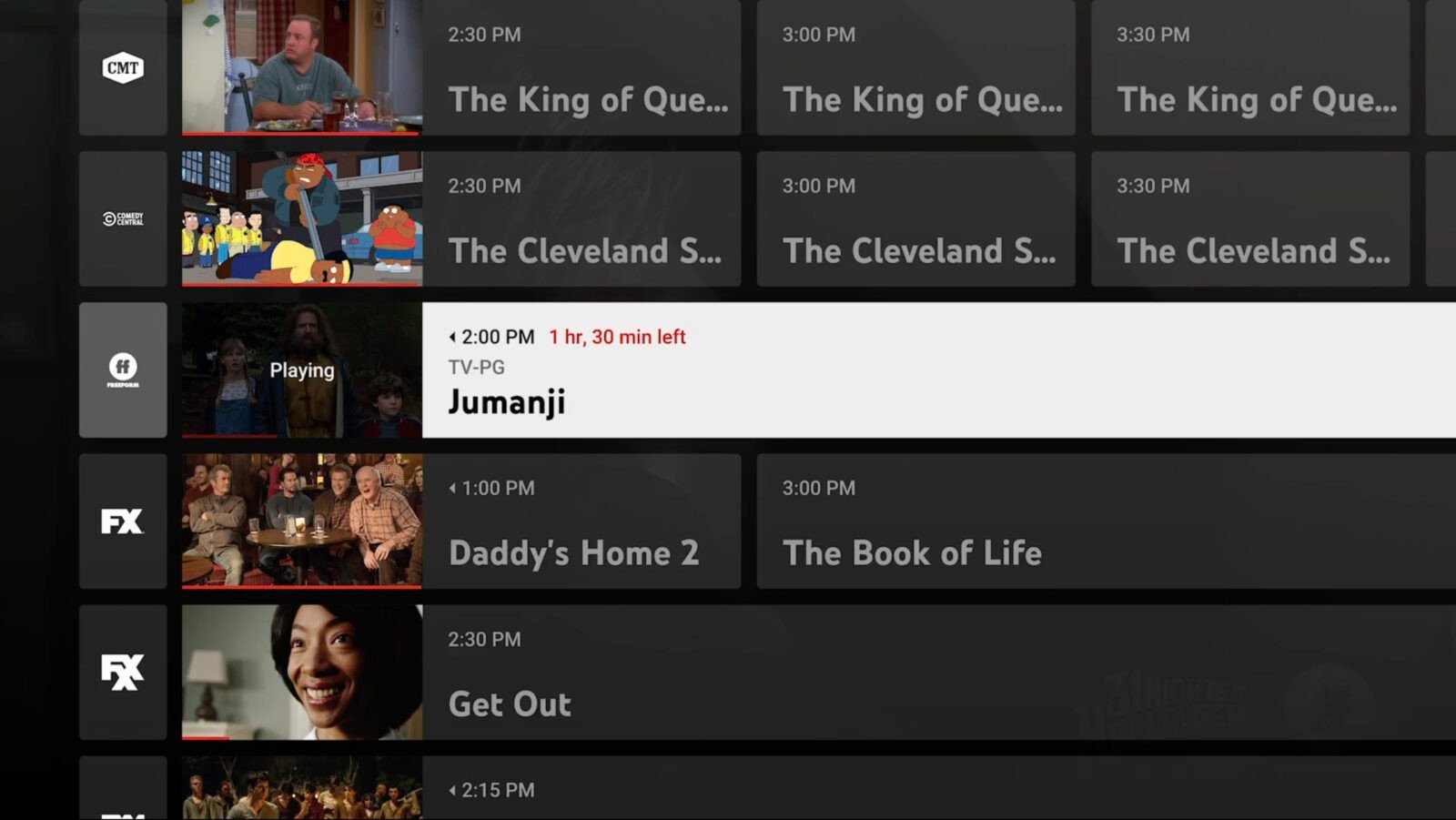
Understanding the Cloud DVR Model: Unlimited Storage Reimagined
To understand how to record on YouTube TV, one must first understand the architecture of Cloud DVR. Traditional DVRs, popularized by companies like TiVo and various cable providers, relied on internal hard drives. When the drive was full, users had to delete old recordings to make room for new ones. YouTube TV eliminates this friction entirely by providing unlimited cloud storage to every subscriber.
The Shift from Local to Server-Side Storage
In the YouTube TV ecosystem, when you “record” a show, you aren’t actually saving data to your smart TV or streaming stick. Instead, you are instructing Google’s servers to flag a specific broadcast and associate it with your account. This server-side approach means you can record an infinite number of shows simultaneously. There are no conflicts between recording a football game, a nightly news broadcast, and a primetime drama all airing at 8:00 PM.
The Nine-Month Retention Rule
While the storage is unlimited in terms of volume, it is limited in terms of duration. YouTube TV currently retains recordings for nine months. After this period, the recording is automatically removed unless the show airs again, at which point the system refreshes the recording with the most recent broadcast. This system ensures that your library remains populated with the most current versions of your favorite content without requiring manual maintenance.
Step-by-Step Guide to Recording Content
Recording on YouTube TV is categorized under the “Library” function. The terminology shifts from “recording” to “adding to library,” which more accurately reflects the service’s organizational structure.
Adding Shows and Movies to Your Library
The primary method for recording is the “plus” (+) icon. Whether you are browsing the live guide, searching for a specific title, or looking at recommended content, clicking the plus icon adds that title to your library.
-
Search and Record: Use the magnifying glass icon to type in the name of a show, movie, or sports team. When the results appear, click on the thumbnail. Select the plus icon (“Add to Library”).
-
Live Guide Recording: If you are watching a show currently in progress, press the down button on your remote (or tap the screen on mobile) to bring up the player controls. Navigate to the “plus” sign to start recording the remainder of the broadcast and all future airings.
-
Future Airings: You can browse the Live Guide up to several days in advance. If you see a program scheduled for the weekend, you can select it and add it to your library immediately, ensuring you don’t miss the broadcast.
Managing Series and Individual Episodes
YouTube TV takes an “all-in” approach to series. When you add a TV show to your library, the service automatically records every upcoming episode of that show across all supported networks. There is no need to set a “series link” or specify “new episodes only.” The system intelligently catalogs every airing, categorizing them by season and episode number. This is particularly useful for syndication; if you add a show like The Office to your library, YouTube TV will grab every episode that airs across various networks, eventually building a complete box set in your cloud storage.
Recording Live Sports and Events
For sports enthusiasts, the recording functionality is even more granular. Users can record:
-
Specific Teams: You can search for the “Golden State Warriors” or “Dallas Cowboys” and add the entire team to your library. This ensures every televised game involving that team is recorded.
-
Entire Leagues: You can choose to record all NFL games or all NBA games, though this will quickly fill your library with hundreds of hours of content.
-
Individual Sporting Events: If you only care about the Super Bowl or a specific UFC fight, you can add just that singular event.
Optimizing the YouTube TV Library Experience
Once you have added content, navigating the “Library” tab becomes essential. This is the central hub for all your saved media, and understanding its layout is key to a seamless viewing experience.
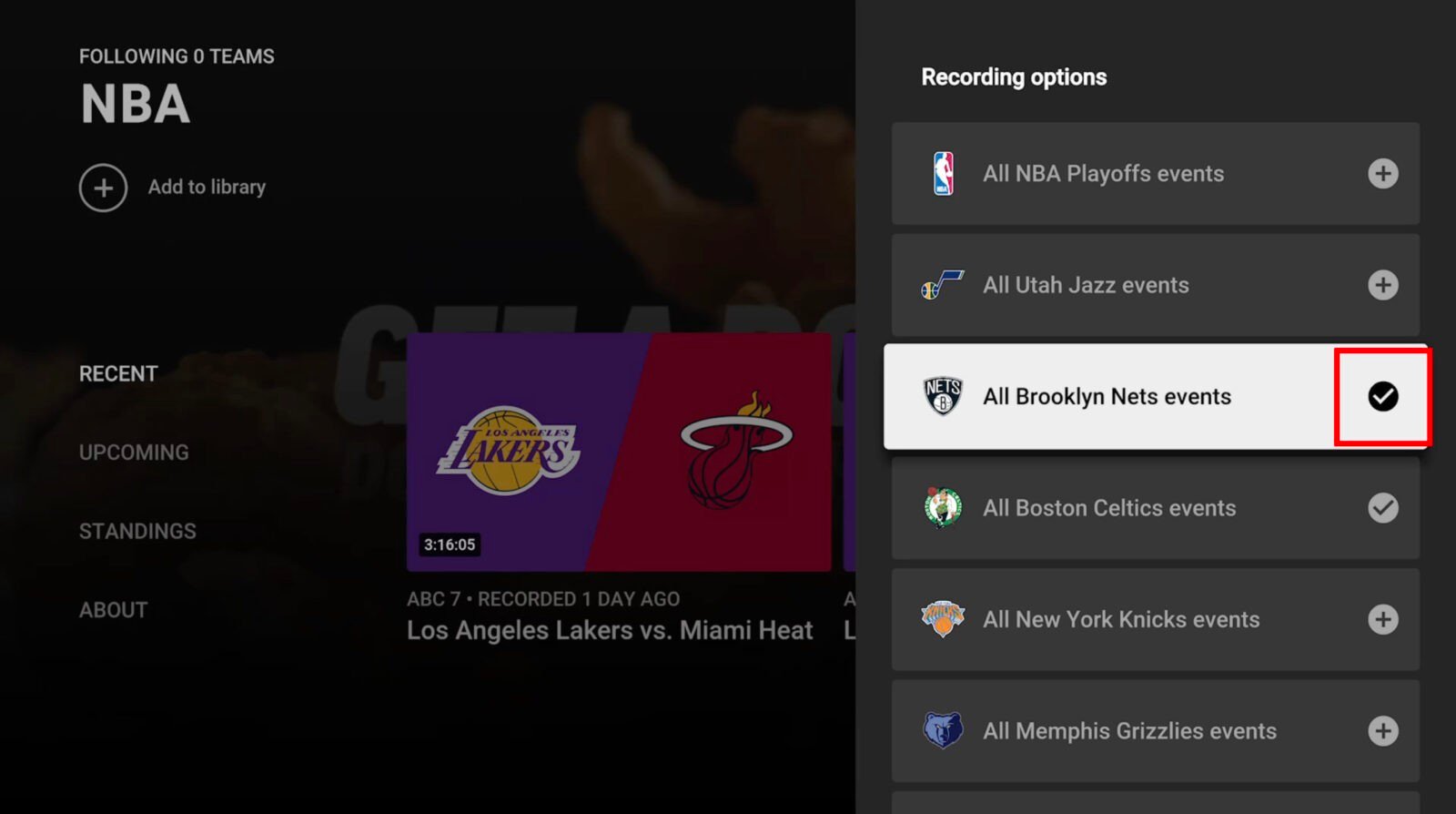
Navigating the Library Interface
The Library is divided into several logical sections to help you find content quickly:
-
New in Your Library: This displays recently recorded episodes or movies that you haven’t watched yet. It functions as a “To-Do” list for your entertainment.
-
Scheduled: This section shows you what is slated to be recorded in the coming days. It is a great place to verify that your upcoming favorites are correctly flagged.
-
Shows, Movies, and Sports: These categorical filters allow you to drill down into specific types of content, making it easier to manage large collections.
Understanding the Difference Between DVR and VOD
One technical nuance that often confuses new users is the distinction between a DVR recording and Video On Demand (VOD).
-
DVR Recordings: These are actual broadcasts captured by the cloud server. They allow you to fast-forward through commercials, providing the traditional “recorded” experience.
-
VOD Content: Sometimes, a network will provide a version of a show directly to YouTube TV. These often appear shortly after an episode airs. VOD versions usually have “forced” advertisements that cannot be skipped.
YouTube TV’s interface often lets you choose which version to watch. If you see a “Choose a Version” button, always opt for the “DVR” version if you wish to skip commercials.
Advanced Features and Technical Nuances
The power of YouTube TV’s recording system lies in its integration with Google’s broader technological infrastructure, including AI and data processing.
AI-Enhanced Sports Recording
One of the most impressive technical features is the “Key Plays” view. For many recorded sporting events, YouTube TV uses machine learning to identify significant moments (home runs, touchdowns, goals). When you start watching a recorded game late, you can choose to “Catch up with Key Plays,” which shows you a curated highlight reel before dropping you into the live action. Furthermore, YouTube TV often detects if a game is running over its allotted time and will automatically extend the recording, a feature that was notoriously unreliable on legacy hardware.
Family Sharing and Privacy
YouTube TV allows for up to six individual accounts per household. Crucially, each account gets its own independent library and unlimited DVR space. If one family member records The Bachelor and another records Formula 1, their libraries remain separate. This prevents the “clutter” that used to occur on shared family DVRs and ensures that “watched” statuses are tracked individually.
Multi-Device Synchronization
Because the recordings live in the cloud, the synchronization is instantaneous across all gadgets. You can start watching a recorded show on your living room Apple TV, pause it, and resume at the exact same second on your Android smartphone during your commute. The “Resume Watching” shelf on the home screen tracks these timestamps with high precision.
Troubleshooting and Performance Optimization
While the Cloud DVR is robust, users may occasionally encounter issues related to internet connectivity or metadata errors.
Handling Playback Issues
Since you are streaming your recordings, the quality of your playback is dependent on your internet bandwidth. If a recording looks blurry, it is likely due to a temporary dip in connection speed. YouTube TV uses adaptive bitrate streaming, which prioritizes continuous playback over resolution. For the best experience, a stable connection of at least 25 Mbps is recommended for 4K content, while 7 Mbps is sufficient for HD.
Metadata and Tiling Errors
Occasionally, a network may mislabel a broadcast. If a local news program runs long and cuts into the beginning of a recorded show, the Cloud DVR might miss the first few minutes. While YouTube TV’s algorithms are generally excellent at correcting for these shifts, they are not perfect. In such cases, checking the “VOD” version of the episode is often a viable workaround, as those files are provided by the networks without the broadcast timing errors.

The Future of Digital Recording
The trajectory of YouTube TV suggests a future where the distinction between “live” and “recorded” continues to blur. With the introduction of the “4K Plus” add-on, users can now record and playback select content in Ultra High Definition, and even download those recordings to mobile devices for offline viewing—a feature that bridges the gap between cloud storage and local accessibility.
As AI continues to evolve, we can expect even more proactive recording features, such as “Smart Downloads” or “Recommended Recordings” based on deep learning of user preferences. For now, the YouTube TV DVR remains the gold standard in the industry, offering a frictionless, high-capacity, and highly intelligent way to ensure that you never miss the content that matters to you. By mastering the “Add to Library” function and understanding the nuances of Cloud DVR, users can transform their viewing habits from a passive experience into a personalized, on-demand media powerhouse.
aViewFromTheCave is a participant in the Amazon Services LLC Associates Program, an affiliate advertising program designed to provide a means for sites to earn advertising fees by advertising and linking to Amazon.com. Amazon, the Amazon logo, AmazonSupply, and the AmazonSupply logo are trademarks of Amazon.com, Inc. or its affiliates. As an Amazon Associate we earn affiliate commissions from qualifying purchases.