
In the world of mathematics, fractions represent parts of a whole and are fundamental to understanding quantities, ratios, and proportions. While decimals offer an alternative representation, fractions provide exact values, which is crucial in many scientific, engineering, and financial contexts. Modern calculators, from basic scientific models to advanced graphing calculators, are equipped with sophisticated functions to handle fractions efficiently. This guide will demystify the process, helping you master fraction input, manipulation, and conversion on your calculator, ensuring precision in your calculations.
Understanding Your Calculator’s Capabilities
Before diving into the specifics of fraction input, it’s essential to understand the type of calculator you’re using and its inherent capabilities regarding fraction handling. Not all calculators are created equal, and their interfaces for fractions can vary significantly.
Basic Scientific vs. Graphing Calculators
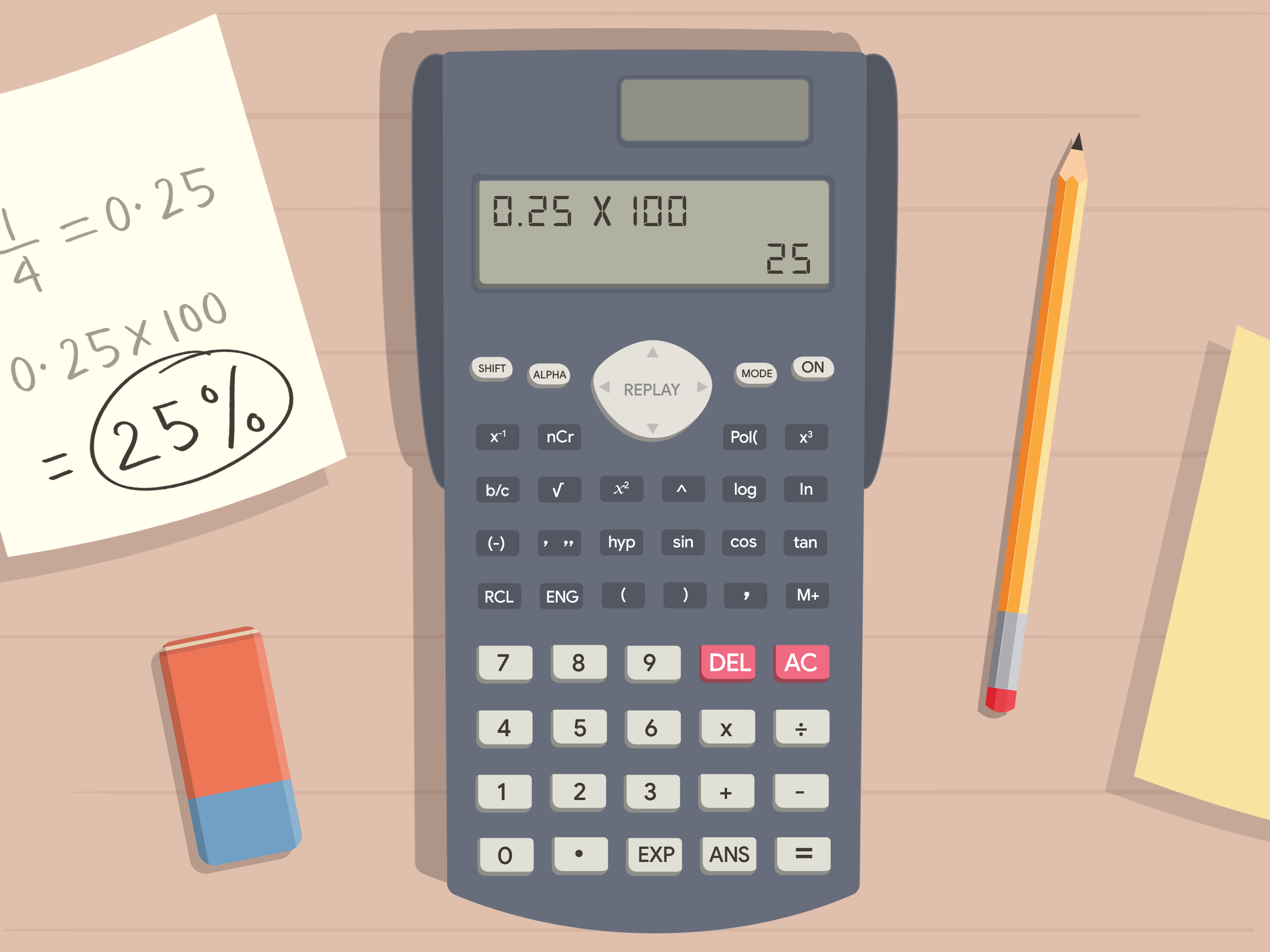
Basic Scientific Calculators: These are typically less expensive and are designed for a wide range of mathematical, scientific, and statistical functions. Most modern scientific calculators (e.g., Casio fx-991EX, Texas Instruments TI-30XS Multiview) include dedicated fraction buttons. They can display fractions, convert between improper and mixed numbers, and switch between fraction and decimal forms. Their display might be a simple two-line LCD or a “natural display” that shows fractions as they would appear in a textbook.
Graphing Calculators: These advanced calculators (e.g., TI-84 Plus, Casio fx-CG50) offer all the features of scientific calculators plus the ability to graph functions, perform matrix operations, and run programs. Their fraction capabilities are often more robust, allowing for more complex expressions and sometimes even symbolic manipulation of fractions. Their larger, often color, screens provide a more intuitive display of fractions and operations.
The core functionality for fractions, however, remains largely consistent across both types: an intuitive way to input the numerator and denominator, and a method to convert or simplify results.
Identifying the Fraction Button (or Function)
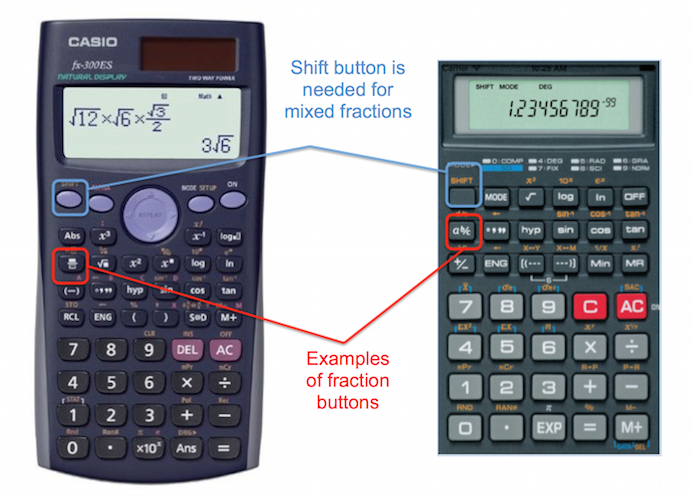
The most critical step is locating the fraction input key. While its exact label might differ, it commonly appears as one of the following:
a b/cora b/candd/c: This is a very common notation, especially on Casio calculators. Thea b/cpart is for entering mixed numbers (where ‘a’ is the whole number, and ‘b/c’ is the fraction), whiled/coften serves to toggle between improper and mixed fractions, or simply to denote an improper fraction._/_orx/y: Often displayed as an empty box over another empty box, or an ‘x’ over a ‘y’. This visual representation is straightforward: you input the numerator, press the button, then input the denominator. Texas Instruments scientific calculators (like the TI-30XS Multiview) use this intuitive display.F<>DorS<=>D: These buttons are typically for converting between fraction and decimal forms (Ffor Fraction,Dfor Decimal,Sfor Standard,Dfor Decimal).SHIFTor2ndfunctions: On some calculators, the primary fraction button might also have a secondary function accessed by pressingSHIFTor2ndfirst. This secondary function might be for improper/mixed fraction conversion or vice versa.
Take a moment to consult your calculator’s manual if you’re unsure. Familiarizing yourself with these keys will significantly speed up your calculations.
Modes and Settings for Fraction Display
Some calculators allow you to set a default display mode for results. You might have options like:
- Auto: The calculator decides the best display (often fraction if exact, decimal if not).
- Fraction: Always tries to display results as a fraction.
- Decimal: Always displays results as a decimal.
Accessing these settings usually involves the MODE or SETUP button. Ensuring your calculator is in the desired mode for fraction output can prevent unnecessary conversion steps later. For instance, if you want all answers in fraction form, setting the mode accordingly will save you from manually converting every decimal answer.
Inputting Simple and Mixed Fractions
Once you’ve located the fraction button, inputting fractions becomes intuitive. The process usually mimics how you would write a fraction on paper.
Entering Proper and Improper Fractions
A proper fraction has a numerator smaller than its denominator (e.g., 1/2). An improper fraction has a numerator larger than or equal to its denominator (e.g., 3/2).
Using the x/y or Box-Over-Box Button (e.g., TI-30XS Multiview):
- Enter the numerator (e.g.,
1). - Press the fraction button (the one that looks like
_/_). - Enter the denominator (e.g.,
2). - Press
ENTERor=.
To enter3/2:3_/_2ENTER.
Using the a b/c Button (e.g., Casio fx-991EX):
- Enter the numerator (e.g.,
1). - Press the
a b/cbutton. - Enter the denominator (e.g.,
2). - Press
ENTERor=.
To enter3/2:3a b/c2ENTER. On some Casio models, this will automatically display it as a mixed number if possible (1 and 1/2), but you can usually toggle it back to improper.
Inputting Mixed Numbers
A mixed number combines a whole number and a proper fraction (e.g., 1 ½).
Using the a b/c Button: This button is explicitly designed for mixed numbers.
- Enter the whole number (e.g.,
1). - Press the
a b/cbutton. - Enter the numerator of the fraction part (e.g.,
1). - Press the
a b/cbutton again. - Enter the denominator of the fraction part (e.g.,
2). - Press
ENTERor=.
*Example:1a b/c1a b/c2ENTERfor 1 ½.
Using the x/y or Box-Over-Box Button: This type of calculator typically requires you to input mixed numbers as improper fractions.
- To enter 1 ½, you would first convert it mentally to
3/2and then input it as an improper fraction:3_/_2ENTER. - Some advanced models might have a dedicated mixed number template within their fraction menu, but it’s less common for the primary fraction input.
Handling Negative Fractions
Negative fractions can be input in a few ways:
- Before the fraction: Enter the negative sign (
-or(−)) first, then the fraction.- Example:
(−)1_/_2ENTERfor -1/2.
- Example:
- With the numerator: Input the negative sign with the numerator.
- Example:
(−)1_/_2ENTERfor -1/2.
- Example:
It’s generally recommended to apply the negative sign to the entire fraction for clarity, especially when performing complex operations.
Performing Operations with Fractions
Once you’re comfortable with inputting fractions, you can perform all standard arithmetic operations. The calculator handles the common denominators and simplification automatically.
Addition and Subtraction
Simply input your first fraction, then the operation sign (+ or -), followed by the second fraction.
- Example:
1_/_2+1_/_4ENTER- The result will be
3/4.
- The result will be
- Example:
3a b/c2-1a b/c2ENTER- The result will be
1.
- The result will be
Multiplication and Division
Similar to addition and subtraction, input your fractions and the appropriate operation sign (x or ÷).
- Example:
2_/_3×1_/_2ENTER- The result will be
1/3.
- The result will be
- Example:
5a b/c6÷1a b/c3ENTER- The result will be
5/2(or21a b/c2if displayed as a mixed number).
- The result will be
Working with Parentheses and Order of Operations
Just as with whole numbers and decimals, parentheses are crucial for defining the order of operations (PEMDAS/BODMAS). When an operation involves multiple fractions or mixed operations, use parentheses to ensure the calculator evaluates expressions correctly.
- Example: To calculate
(1/2 + 1/3) * 2/5:- Open parenthesis
(. - Input
1_/_2. - Press
+. - Input
1_/_3. - Close parenthesis
). - Press
×. - Input
2_/_5. - Press
ENTER.- The result will be
1/3.
- The result will be
- Open parenthesis
Converting Between Fractions, Decimals, and Mixed Numbers
Calculators excel at converting between different numerical forms, making it easy to see the same value in various representations.
Fraction to Decimal Conversion
Most calculators have a dedicated button to toggle between fraction and decimal displays. This is often labeled F<>D (Fraction to Decimal) or S<=>D (Standard to Decimal).
- After a calculation results in a fraction, or after inputting a fraction, press this button.
- The display will change from the fractional form to its decimal equivalent. Pressing it again will usually toggle back to the fraction.
- Example: If the result is
3/4, pressingF<>Dwill display0.75.
Decimal to Fraction Conversion
Converting a decimal to a fraction is also possible, though it has limitations. The calculator can only convert terminating decimals or repeating decimals that it can accurately represent within its memory limits. It cannot convert irrational numbers (like pi or the square root of 2) into exact fractions.
- Input the decimal number (e.g.,
0.25). - Press the
F<>DorS<=>Dbutton (sometimes this requires aSHIFTor2ndkey press first). - The calculator will attempt to convert it to a fraction (e.g.,
1/4).- Example:
0.125SHIFTF<>DENTERwill display1/8. - Example:
0.333333333SHIFTF<>DENTERmight display1/3(depending on the calculator’s precision and logic for repeating decimals).
- Example:
Improper Fraction to Mixed Number and Vice Versa
Many scientific calculators offer a specific function for converting between improper fractions and mixed numbers. This is often found as a SHIFT or 2nd function above the a b/c or fraction button.
- Improper to Mixed: If your calculator displays
5/2, pressingSHIFTa b/c(or the specific conversion button) might convert it to21a b/c2(meaning 2 ½). - Mixed to Improper: If you have
21a b/c2on the screen, pressing the sameSHIFTa b/cbutton might convert it back to5/2.
This feature is particularly useful for presenting answers in the most appropriate format for different problem types.
Troubleshooting and Best Practices
Even with dedicated fraction functions, users can encounter issues. Understanding common pitfalls and adopting best practices will ensure accuracy and efficiency.
Common Input Errors
- Incorrect Button Sequence: Accidentally pressing
+instead of the fraction divider, or missing aSHIFT/2ndkey for a secondary function. Always double-check your input on the display. - Forgetting Parentheses: This is a major source of errors in any complex calculation. Forgetting parentheses can lead to incorrect order of operations, especially in expressions involving mixed operations with fractions.
- Misinterpreting Mixed Number Input: If your calculator uses
a b/cfor mixed numbers, entering1a b/c1a b/c2is for 1 ½. Entering1a b/c1/2(using a separate division key) might be interpreted as1 + (1/2)which is mathematically the same but demonstrates a different input method. Be consistent with your calculator’s specific syntax. - Decimal Precision Issues: While converting decimals to fractions, remember that not all decimals can be perfectly represented as fractions by the calculator, especially if they are very long or irrational.
When to Use Fractions vs. Decimals
The choice between fractions and decimals often depends on the context:
- Fractions for Exactness: Use fractions when absolute precision is required, for example, in engineering, architecture, or when dealing with financial figures that must be exact. Fractions maintain mathematical purity by not introducing rounding errors.
- Decimals for Approximation/Ease of Comparison: Decimals are often easier to compare and understand in real-world measurements or when an approximation is sufficient. For instance,
0.33is easier to grasp than1/3when visualizing a length. - Scientific Notation: For very large or very small numbers, scientific notation (a form of decimal representation) is often preferred.
Many problems require fractional answers, so knowing how to work directly with them on your calculator is indispensable.

Understanding Calculator Limitations
Even the most advanced calculators have limitations:
- Display Size: Smaller displays might struggle to show complex fractions or a long chain of operations clearly. Graphing calculators with larger screens usually mitigate this.
- Memory and Processing Power: While rare for typical fraction calculations, extremely complex expressions or those involving very large prime numbers in denominators might push the calculator’s limits, potentially resulting in errors or inability to simplify.
- Symbolic vs. Numeric: Most scientific and graphing calculators are primarily numeric, meaning they work with numbers rather than symbols. They will simplify
(1/2) + (1/2)to1, but won’t simplify(x/2) + (x/2)tox(though some advanced CAS calculators can).
Mastering fraction usage on your calculator enhances your mathematical capabilities, allowing for greater precision and efficiency in a wide range of academic and professional tasks. By understanding your calculator’s specific interface, practicing input techniques, and recognizing its limitations, you can confidently tackle any problem involving fractions.
aViewFromTheCave is a participant in the Amazon Services LLC Associates Program, an affiliate advertising program designed to provide a means for sites to earn advertising fees by advertising and linking to Amazon.com. Amazon, the Amazon logo, AmazonSupply, and the AmazonSupply logo are trademarks of Amazon.com, Inc. or its affiliates. As an Amazon Associate we earn affiliate commissions from qualifying purchases.