
In an increasingly digital world, calculators remain indispensable tools, from the simplest arithmetic to complex scientific computations. Among their many functions, handling fractions can often pose a unique challenge, especially for those unfamiliar with the specific functionalities of different models. While some calculators boast dedicated fraction keys and intuitive displays, others require a more nuanced understanding of their input logic. This guide delves into the technological nuances of rendering, calculating, and manipulating fractions across various calculator types, transforming a seemingly intricate task into a straightforward process for students, professionals, and enthusiasts alike. We’re not just performing calculations; we’re leveraging a piece of technology to understand and interact with numbers in a fundamental way.
Understanding Fraction Input Across Calculator Types
The method for inputting fractions into a calculator varies significantly depending on the device’s sophistication and design. From basic handheld models to advanced graphing calculators and ubiquitous software applications, each offers a distinct approach to representing these fundamental numerical components. Mastering these input methods is the first step towards unlocking the full potential of your calculator for fractional arithmetic.
Scientific Calculators: The Dedicated Fraction Key
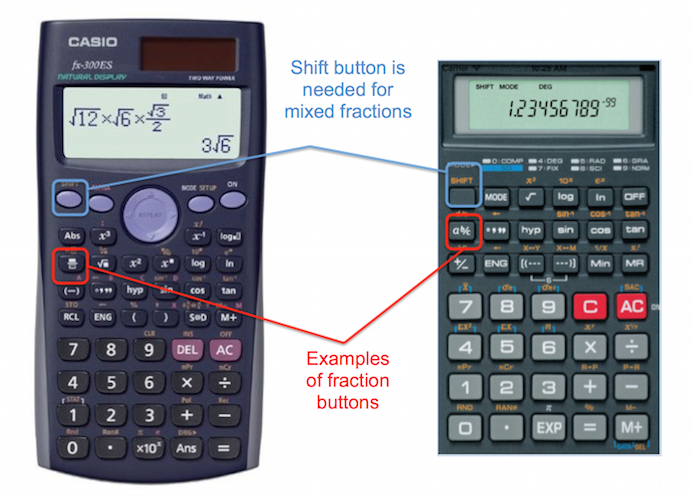
Scientific calculators are arguably the most common tools for dealing with fractions, primarily due to their dedicated “fraction key,” often labeled as a b/c, x/y, or a similar symbol. This key is designed to simplify the input of both proper and improper fractions, as well as mixed numbers.
To input a proper or improper fraction (e.g., 3/4 or 7/5), you typically type the numerator, press the fraction key, then type the denominator. For instance, to enter 3/4, you would press 3 [a b/c] 4. The calculator’s display might show this as 3┘4 or 3/4, visually indicating it as a single fractional entity.
For mixed numbers (e.g., 2 ½), the process involves an additional step. You first enter the whole number, then the fraction key, then the numerator, then the fraction key again, and finally the denominator. So, to enter 2 ½, you would press 2 [a b/c] 1 [a b/c] 2. The display might show 2┘1┘2, representing the mixed number clearly. This intuitive design streamlines complex fractional entries, reducing potential errors and speeding up calculations. Manufacturers like Casio, Texas Instruments (TI), and HP all incorporate variations of this dedicated key, making scientific calculators a go-to for many mathematical tasks involving fractions.
Basic and Standard Calculators: Leveraging Division
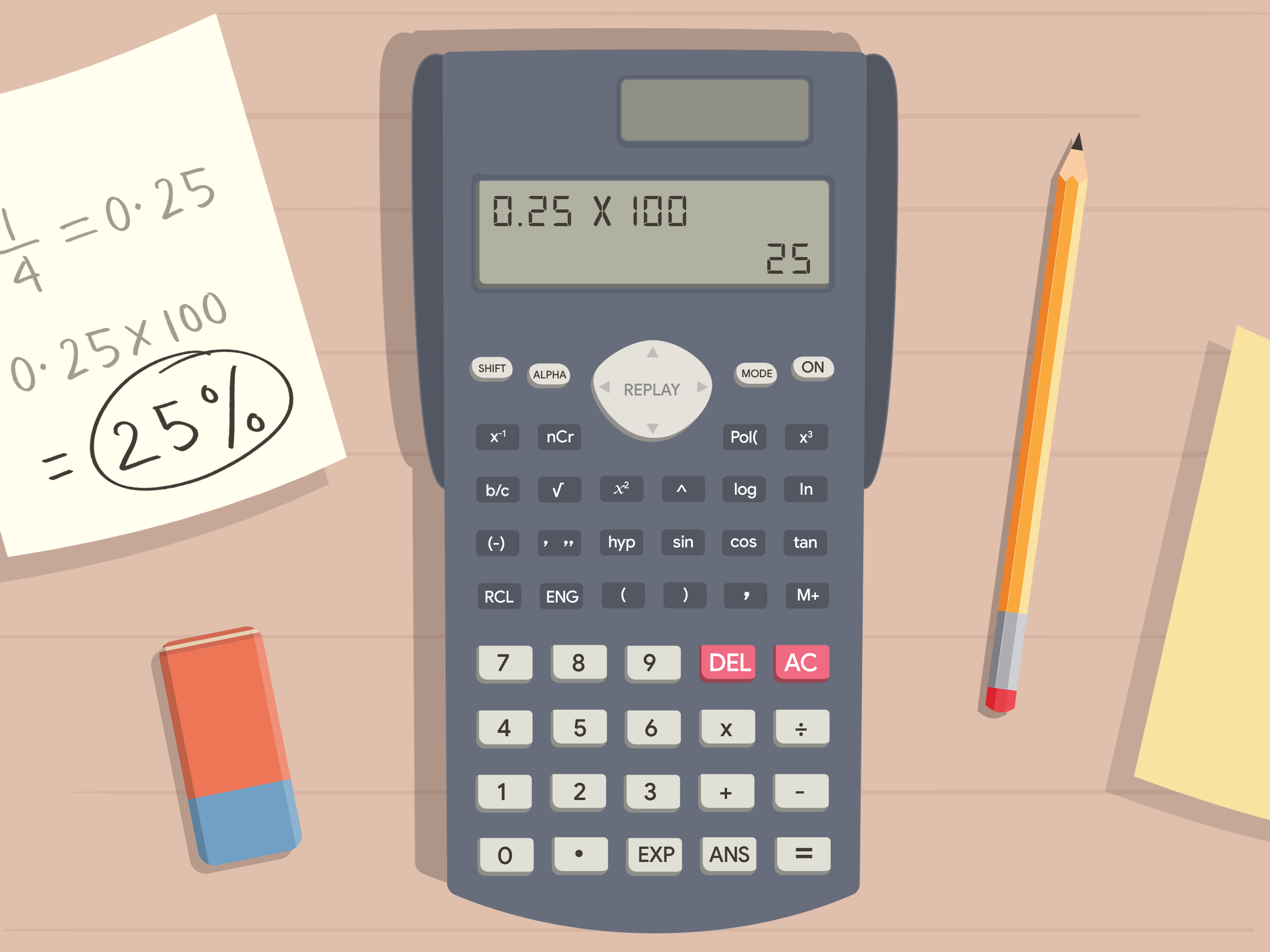
Basic and standard four-function calculators typically lack a dedicated fraction key. In this scenario, fractions are entered and processed as division problems. For instance, to calculate 3/4, you would simply input 3 ÷ 4 =. The result would be displayed as a decimal (0.75 in this case). While this method is straightforward for evaluating the decimal equivalent of a fraction, it doesn’t allow the calculator to store or display the number in fractional form.
This limitation means that performing operations directly with fractions (e.g., adding 1/2 + 1/3) requires converting each fraction to its decimal equivalent first, or manually finding a common denominator outside the calculator. For educational purposes or situations requiring exact fractional answers, this approach is insufficient. However, for quick conversions or when only the decimal value is needed, the division key serves its purpose efficiently. Understanding this distinction is crucial for choosing the right calculator for the task at hand.
Graphing Calculators: Advanced Fraction Operations and Display
Graphing calculators, such as those from Texas Instruments (e.g., TI-83, TI-84, TI-Nspire) and Casio (e.g., fx-CG50), offer the most advanced and flexible methods for handling fractions. Beyond dedicated keys, they often feature a “fraction template” or “math print” display mode.
In this mode, when you select the fraction option (often found under a “MATH” or “FRAC” menu, or directly accessible via a shortcut key like ALPHA F1 on TI-84 Plus CE), the calculator presents a visual template on the screen: a numerator box above a denominator box, separated by a horizontal line. You can then navigate between these boxes using arrow keys to input your numbers, mimicking how fractions are written on paper. For example, selecting the template and then entering 3 [down arrow] 4 would display a perfectly formatted 3/4.
These calculators also excel at performing operations with fractions, simplifying results automatically, converting between mixed and improper forms, and changing fractions to decimals and vice versa, often with a dedicated “F<>D” key or menu option. Their robust computational engines allow for fractions to be integrated seamlessly into complex equations, matrices, and even graphing functions, providing an unparalleled user experience for higher-level mathematics.
Online and Software Calculators: User Interface Variations
The digital realm offers a vast array of online and software calculators, each with its unique interface for fraction input. Many web-based calculators and apps for smartphones or computers emulate the functionality of scientific or graphing calculators, providing visual fraction templates or dedicated keys.
For example, Google’s built-in calculator function, when accessed via a browser search, allows for simple division, but dedicated fraction calculators found online often provide a more robust experience. Software like Microsoft Math Solver or Wolfram Alpha allows for natural language input (e.g., “3/4 + 1/2”) or interactive fraction entry interfaces that closely mirror graphing calculator templates. Specific apps designed for mathematics may feature touch-friendly interfaces where you can draw or tap to create fraction structures. The key here is exploring the specific UI of the chosen software, as each platform strives for an intuitive, albeit varied, approach to fraction handling.
Displaying and Interpreting Fractions
Once a fraction is entered and potentially subjected to operations, understanding how your calculator displays the result is crucial. Calculators use various conventions and offer different modes for presenting fractions, from simplified forms to decimal equivalents. Interpreting these displays correctly is key to leveraging the device’s full mathematical power.
Mixed Numbers vs. Improper Fractions
Calculators often have settings that dictate whether results are displayed as mixed numbers (e.g., 1 ½) or improper fractions (e.g., 3/2). Scientific and graphing calculators usually default to one form but provide an option to convert between them. This conversion is typically done through a dedicated function (e.g., SHIFT [a b/c] on Casio models, or a menu option on TI calculators like MATH > Frac > d/c <> U/c).
Understanding which display mode is active is important. For instance, if you calculate 1/2 + 2/3, a calculator might display 7/6 (improper fraction) or 1 1/6 (mixed number). Both are mathematically correct, but one might be preferred depending on the context of the problem. Being able to toggle between these displays offers flexibility and ensures that the result is presented in the most appropriate format for a given task. This technological feature allows users to tailor the output to their specific needs, whether it’s for elementary school assignments requiring mixed numbers or advanced algebra where improper fractions are often more convenient.
Decimal to Fraction Conversion
A common and highly useful feature in scientific and graphing calculators is the ability to convert a decimal number into its fractional equivalent, and vice versa. This function is typically found under a F<>D (Fraction to Decimal) key, a PRB (Probability) menu, or a MATH menu option.
If you have a decimal like 0.75 and you want to know its fractional form, you would enter 0.75 and then activate the F<>D function. The calculator would then display 3/4. This conversion is incredibly valuable for tasks where precision is paramount, as decimals often involve rounding, while fractions represent exact values. Conversely, converting a fraction to a decimal is as simple as performing the implied division or using the F<>D key on an existing fraction. This bidirectional conversion capability underscores the calculator’s role as a versatile tool for number representation.
Simplifying Fractions and Least Common Denominators
Advanced calculators are designed to simplify fractions automatically, presenting results in their lowest possible terms. When you perform an operation like 1/4 + 1/4, the calculator doesn’t just give you 2/4; it immediately simplifies it to 1/2. This automatic simplification is a significant time-saver and reduces the potential for errors that could arise from manual reduction.
While calculators don’t explicitly “find” the least common denominator (LCD) for you in the traditional sense, their ability to perform operations and simplify the resulting fraction effectively handles the LCD implicitly. When adding 1/3 + 1/2, the calculator’s internal algorithms find the common denominator, perform the addition, and then simplify the sum (displaying 5/6). Some graphing calculators even offer dedicated functions within their math menus to find the greatest common divisor (GCD) or least common multiple (LCM), which are foundational to manual fraction simplification and finding LCDs, further empowering users to understand the underlying arithmetic.
Performing Operations with Fractions
Beyond mere input and display, the true utility of a calculator for fractions lies in its ability to perform various mathematical operations. Scientific and graphing calculators streamline addition, subtraction, multiplication, and division of fractions, even integrating them into more complex expressions.
Addition and Subtraction of Fractions
Adding and subtracting fractions on a calculator with a dedicated fraction key or template is remarkably straightforward. You input the first fraction, press the + or - operator, then input the second fraction, and finally press =.
For example, to calculate 1/2 + 1/3:
- Enter
1 [a b/c] 2(or use the fraction template to input1/2). - Press
+. - Enter
1 [a b/c] 3(or use the fraction template to input1/3). - Press
=.
The calculator will display the simplified result,5/6.
The technology handles the common denominator, the addition/subtraction of numerators, and the final simplification, all in one seamless process. This significantly reduces the cognitive load and potential for errors compared to manual calculation, making it an invaluable feature for students tackling fraction arithmetic.
Multiplication and Division of Fractions
Multiplication and division of fractions follow a similar intuitive process on scientific and graphing calculators. The key is to input the fractions correctly using the designated method, then apply the multiplication (x or *) or division (÷ or /) operator.
To multiply 2/3 by 3/4:
- Enter
2 [a b/c] 3(or input2/3via template). - Press
x(or*). - Enter
3 [a b/c] 4(or input3/4via template). - Press
=.
The calculator will yield1/2(after automatically simplifying6/12).
For division, say 1/2 divided by 1/4:
- Enter
1 [a b/c] 2. - Press
÷(or/). - Enter
1 [a b/c] 4. - Press
=.
The result will be2.
These operations leverage the calculator’s internal processing power to handle the inversion for division and subsequent multiplication and simplification, making complex fraction problems accessible with minimal manual intervention.
Fractions in Complex Equations
Modern scientific and graphing calculators are fully capable of incorporating fractions into much larger and more complex equations, respecting the order of operations (PEMDAS/BODMAS). This means you can mix fractions with whole numbers, decimals, exponents, roots, and functions like trigonometry or logarithms.
For instance, calculating (1/2 + 2/3) * (5/6 - 1/4) is a routine task. You would input the expression directly, often using parentheses to ensure correct grouping:
( 1 [a b/c] 2 + 2 [a b/c] 3 ) * ( 5 [a b/c] 6 - 1 [a b/c] 4 ) =.
The calculator’s internal algorithms parse the entire expression, correctly evaluate the operations within parentheses first, then perform the multiplication, and finally present the simplified fractional result (e.g., 7/8). This capability is a cornerstone of their utility in higher-level mathematics and scientific applications, enabling users to focus on problem-solving rather than tedious arithmetic.
Troubleshooting Common Fraction Calculator Issues
Despite their advanced capabilities, users occasionally encounter issues when working with fractions on calculators. Understanding common pitfalls and how to address them can save time and prevent frustration, ensuring accurate and desired results.
Input Errors and Syntax
One of the most frequent problems stems from incorrect input syntax. Forgetting parentheses when dealing with complex numerators or denominators, or misusing the fraction key, can lead to incorrect calculations. For example, 1/2+3 might be interpreted as (1/2)+3 by a basic calculator, but on a scientific one, if you input 1 [a b/c] 2 + 3, it typically interprets this as 1/2 + 3, which is correct. However, if you intended 1/(2+3), you must use parentheses: 1 [a b/c] (2+3).
Another common error is entering mixed numbers incorrectly. If your calculator requires 2 [a b/c] 1 [a b/c] 2 for 2 ½, entering 2 [a b/c] 1 / 2 might be interpreted as 2 + 1/2 or even 2 * (1/2) depending on the model and mode. Always consult your calculator’s manual for precise input methods, especially for mixed numbers, and practice basic entries to build familiarity.
Display Limitations and Rounding
Basic calculators, by their nature, can only display fractions as decimals. This isn’t an error, but a limitation that can lead to perceived inaccuracies due to rounding. For instance, 1/3 displayed as 0.33333333 on a basic calculator loses its exactness. When using this rounded decimal in subsequent calculations, small errors can accumulate.
Even scientific and graphing calculators have display limitations. While they can show exact fractions, the number of digits they can handle for very large numerators or denominators is finite. If a resulting fraction has an extremely large number of digits, some calculators might automatically convert it to scientific notation or a decimal approximation to fit the screen. Users must be aware of these instances and consider whether the exact fractional representation is truly necessary or if a high-precision decimal is acceptable. Understanding these display behaviors is crucial for interpreting results accurately.
Mode Settings and Their Impact
Many advanced calculators have different “modes” that significantly affect how fractions are processed and displayed. Common modes include:
- Math Print/Natural Display Mode: This mode displays fractions, roots, and other mathematical expressions as they appear in textbooks (e.g.,
3/4with a horizontal line). This is generally preferred for clarity. - Linear/Line Mode: Displays fractions on a single line using a slash (e.g.,
3/4). This is the default on older models or simpler scientific calculators. - Exact vs. Approximate Mode: This is critical for fractions. In “Exact” mode (often default on graphing calculators),
√2remains√2and1/3remains1/3. In “Approximate” or “Float” mode,√2becomes1.414...and1/3becomes0.333.... If you’re expecting fractional answers but are getting decimals, checking if the calculator is in an approximate mode is often the solution. There’s typically a dedicated key ([F-D]or similar) or a menu option (MODEorSETTINGS) to switch between these.
Incorrect mode settings are a frequent cause of unexpected fraction results. Always verify your calculator’s current mode, especially when switching between different types of mathematical problems, to ensure it aligns with your desired output format.
Beyond Basic Fractions: Advanced Calculator Features
Modern calculators, particularly graphing models, extend their fraction capabilities far beyond simple arithmetic. They integrate fractions into advanced mathematical concepts, leveraging their computational power for complex problem-solving and programming.
Using Fractions in Algebra and Calculus
Graphing calculators are indispensable tools for higher mathematics, seamlessly handling fractions within algebraic expressions, equations, and calculus. When solving equations, fractions can be entered directly as coefficients or constants. For instance, solving for x in an equation like (1/2)x + 3/4 = 5/8 becomes straightforward. Many calculators can symbolically solve such equations, providing fractional answers without requiring manual manipulation.
In calculus, fractions often appear in derivatives, integrals, and limits. Graphing calculators can perform symbolic differentiation and integration, often presenting results in fractional form if applicable. For example, finding the derivative of f(x) = (1/3)x^3 will directly yield x^2, and integrating (1/2)x will give (1/4)x^2. This ability to maintain fractional precision throughout complex computations is a significant advantage, particularly in fields where exact answers are paramount.
Storing and Recalling Fraction Values
Advanced calculators allow users to store fractional values in memory variables, which can then be recalled and used in subsequent calculations. This feature is incredibly useful when dealing with intermediate fractional results in multi-step problems or when needing to reuse a specific fractional constant.
For example, you could calculate 1/3 + 1/4, get 7/12, and then store this result in a variable like A (e.g., ANS -> A). Later, you could perform an operation like A * (2/5). This capability streamlines complex workflows, reduces re-entry errors, and helps organize calculations, making the process more efficient and less prone to mistakes. The calculator acts as a temporary memory bank for exact fractional values, enhancing its utility as a computational partner.

Programmable Fraction Functions
The most sophisticated graphing calculators are programmable, allowing users to write custom scripts or functions to automate complex fractional tasks. While most standard fraction operations are built-in, a user could, for example, program a function to:
- Decompose a fraction into its unit fraction components.
- Generate a list of equivalent fractions.
- Perform specific fractional approximations based on custom algorithms.
- Automate the process of converting complex mixed numbers into a specific improper fraction format that might not be standard.
This level of programmability transforms the calculator from a mere computational device into a customizable mathematical engine. It empowers users, particularly in engineering, computer science, and advanced mathematics, to extend the calculator’s native fraction capabilities to meet highly specialized analytical or educational needs. It exemplifies the peak of technological integration for handling numerical representations.
In conclusion, understanding how to make and manipulate fractions on a calculator is a fundamental skill that varies significantly across different device types. From the simple division method on basic calculators to the dedicated keys, visual templates, and advanced symbolic capabilities of scientific and graphing models, each offers a unique approach. By familiarizing ourselves with these technological nuances, we can harness the full power of our calculators, ensuring accuracy, efficiency, and a deeper understanding of fractional mathematics in all its forms.
aViewFromTheCave is a participant in the Amazon Services LLC Associates Program, an affiliate advertising program designed to provide a means for sites to earn advertising fees by advertising and linking to Amazon.com. Amazon, the Amazon logo, AmazonSupply, and the AmazonSupply logo are trademarks of Amazon.com, Inc. or its affiliates. As an Amazon Associate we earn affiliate commissions from qualifying purchases.