
The Apple Macintosh, renowned for its intuitive interface and robust performance, offers a seamless user experience that extends to its software installation process. Unlike other operating systems where installing applications can sometimes feel like navigating a maze, macOS provides several straightforward and secure methods. Understanding these methods is crucial for any Mac user, from beginners looking to expand their productivity suite to seasoned professionals seeking specialized tools. This comprehensive guide will walk you through every common method of installing software on your Mac, ensuring you can confidently and securely equip your device with the applications you need.
Installing software isn’t just about getting a program onto your machine; it’s about optimizing your workflow, enhancing creativity, and maintaining the digital security of your device. Whether you’re downloading a critical productivity app, a cutting-edge AI tool, or a simple utility, knowing the right approach ensures a smooth experience and protects your system from potential vulnerabilities. We’ll delve into the App Store, various web-based installation methods, and crucial best practices for managing your software lifecycle, including updates and uninstallation.
The Apple App Store: Simplicity, Security, and Seamless Integration
The most recommended and often the simplest way to install software on your Mac is through the Apple App Store. Introduced in macOS Snow Leopard, the App Store acts as a centralized, curated marketplace for applications, mirroring the experience users have come to love on their iPhones and iPads.
Advantages of the App Store
The App Store isn’t just convenient; it’s a cornerstone of Apple’s approach to digital security and user experience.
- Ease of Use: The process is incredibly straightforward. Search, click, install – that’s often all it takes. This simplicity reduces the learning curve for new Mac users and saves time for everyone.
- Automatic Updates: Apps downloaded from the App Store are automatically managed by macOS. When a developer releases an update, your system can download and install it in the background, ensuring you always have the latest features and, more importantly, the latest security patches. This proactive approach to updates is vital for digital security, protecting against newly discovered vulnerabilities.
- Security Vetting: Every application submitted to the App Store undergoes a rigorous review process by Apple. This vetting ensures that apps meet Apple’s guidelines for functionality, performance, and, crucially, security and privacy. Malicious software or apps with questionable data collection practices are typically blocked, offering a layer of protection that is difficult to achieve with web downloads.
- Sandboxing: App Store applications are often “sandboxed,” meaning they are restricted in what system resources they can access. This containment limits the potential damage an app could cause, even if it were compromised, enhancing overall system security.
- Family Sharing: Many paid App Store applications support Family Sharing, allowing up to six family members to use a purchased app without buying it multiple times, offering significant cost savings for families.
How to Install Software from the App Store
Installing an application from the App Store is a quick and intuitive process:
- Open the App Store: You can find the App Store icon in your Dock, in the Applications folder, or by searching for “App Store” using Spotlight (Cmd + Space).
- Browse or Search: Once open, you can browse featured apps, explore categories (like Productivity, Games, Utilities, Developer Tools), or use the search bar in the top-left corner to find a specific application.
- Select an App: Click on an app to view its product page, which includes screenshots, a description, reviews, and system requirements. This is a good opportunity to evaluate if the app meets your needs and to read user feedback.
- Download and Install:
- For free apps, click the “Get” button, which will then change to “Install.”
- For paid apps, click the price button (e.g., “$4.99”), which will also change to “Install.”
- Authenticate: You’ll be prompted to authenticate your purchase or download using your Apple ID password, Touch ID, or Face ID (if your Mac supports it). This step verifies your identity and helps prevent unauthorized installations.
- Wait for Installation: The app will download and install automatically. A progress circle will appear on the app’s icon in your Applications folder or Launchpad.
- Launch the App: Once installed, the button in the App Store will change to “Open.” You can also launch the app from your Applications folder, Launchpad, or by searching with Spotlight.
Installing Software from the Web: .DMG, .PKG, and Beyond
While the App Store offers unparalleled convenience and security, many powerful and popular applications are distributed directly by developers via their websites. These applications often come in various formats, with .DMG (Disk Image) and .PKG (Installer Package) being the most common. Installing software from the web requires a bit more user interaction and a keen eye for security best practices.
Understanding .DMG Files (Disk Images)
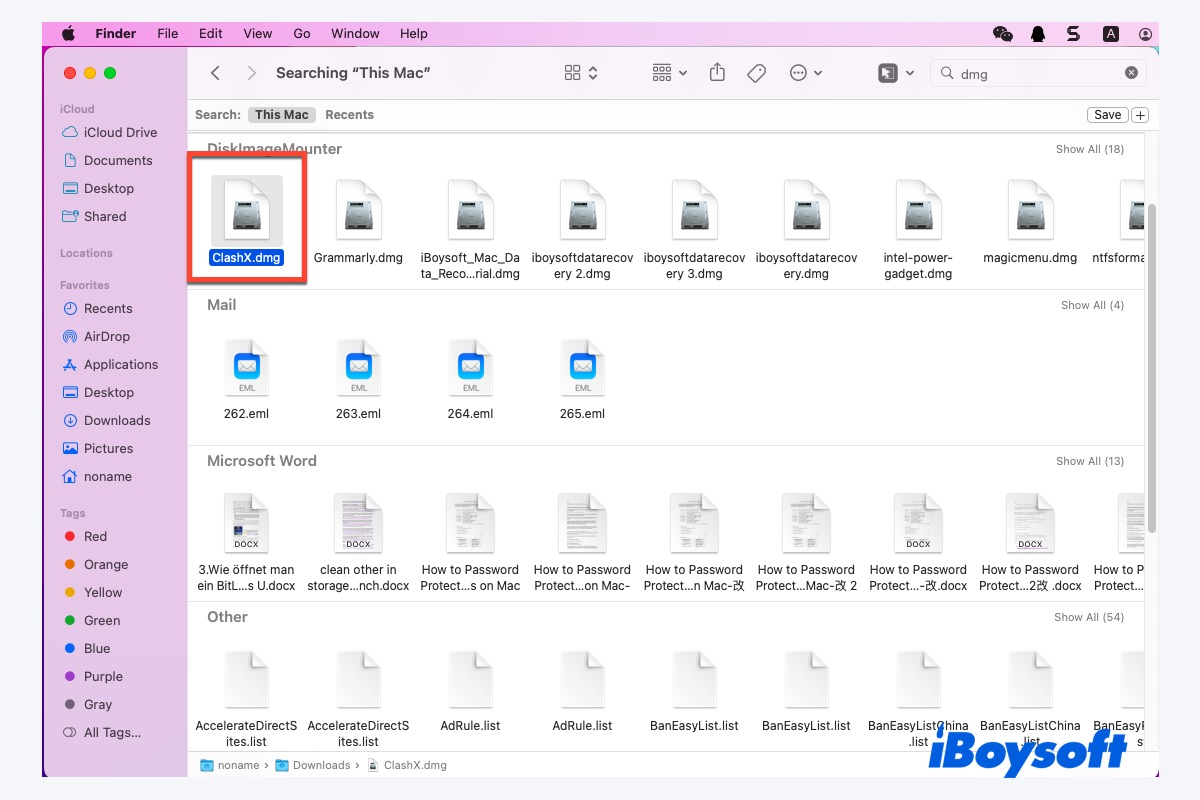
A .DMG file is essentially a virtual disk. When you open it, your Mac treats it like a physical drive that has been mounted. This is the most common way developers distribute Mac applications outside the App Store.
How to Install from a .DMG File:
- Download the .DMG File: Visit the developer’s official website and download the application’s
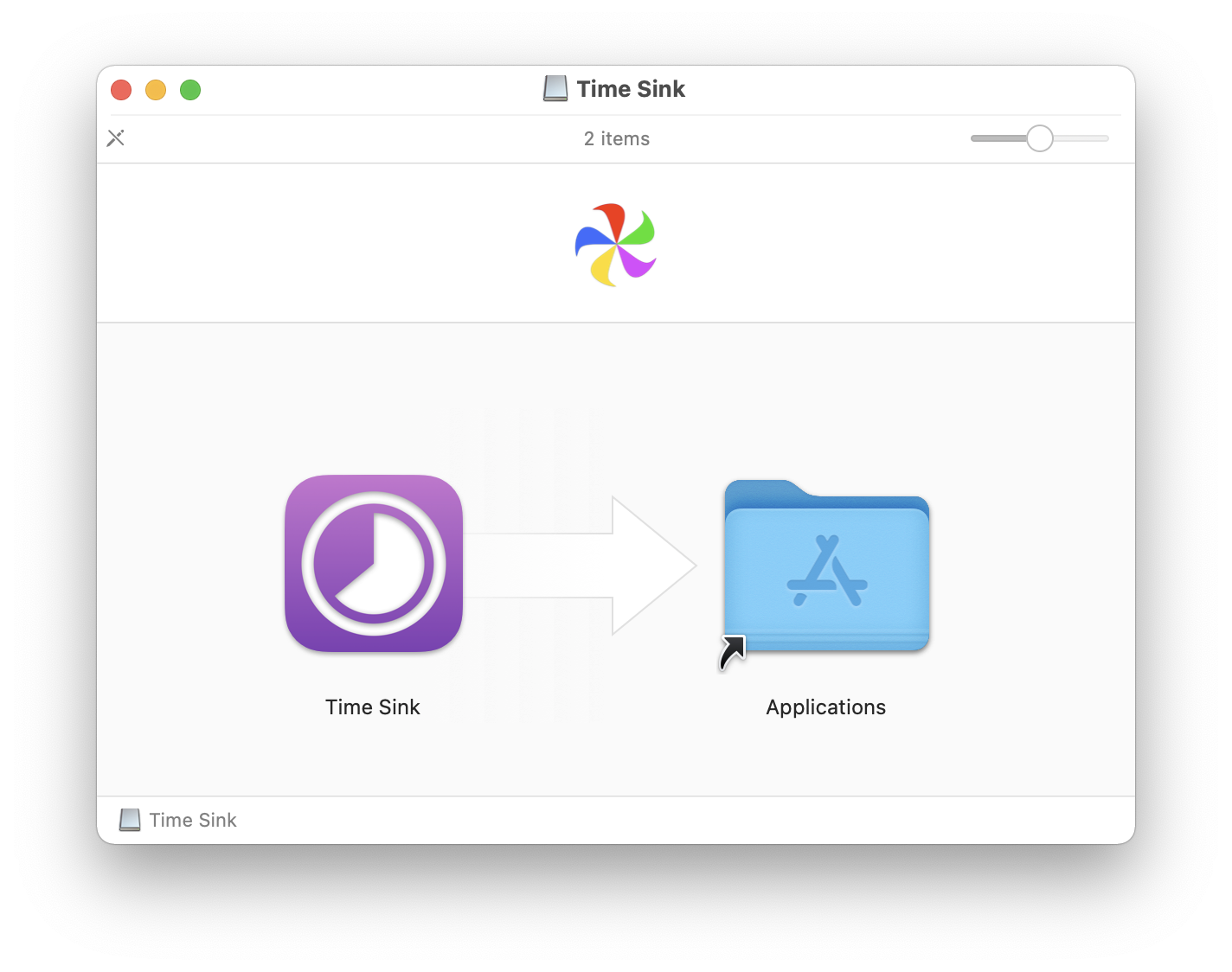
.DMGfile. Always ensure you are downloading from a reputable source to protect your digital security. - Open the .DMG File: Locate the downloaded file (usually in your Downloads folder) and double-click it. Your Mac will verify the disk image, and then a new window will appear, resembling a Finder window for a mounted drive.
- Drag to Applications Folder: Inside the
.DMGwindow, you’ll typically see the application’s icon and a shortcut to your “Applications” folder. Drag the application icon directly into the “Applications” folder shortcut. This copies the application file to its proper place on your hard drive. - Eject the Disk Image: Once the copying is complete, drag the mounted disk image icon (which appears on your Desktop and in the Finder sidebar) to the Trash, or right-click on it and select “Eject [Disk Image Name].” This unmounts the virtual disk.
- Move the .DMG to Trash: The original
.DMGfile in your Downloads folder is no longer needed. You can drag it to the Trash to free up disk space. - Launch the App: Open your Applications folder and double-click the newly installed app. The first time you open a non-App Store app, macOS Gatekeeper might present a warning. We’ll discuss this in the security section.
Tips for .DMG Installations:
- Verify Sources: Always download
.DMGfiles from the official developer’s website. Avoid third-party download sites, which may bundle legitimate software with adware or malware. - Check Integrity: Some browsers or security tools can check the integrity of downloaded files, adding an extra layer of protection.
Working with .PKG Files (Installer Packages)
.PKG files are more akin to traditional software installers found on other operating systems. They contain scripts and files that guide you through a step-by-step installation process, often involving agreeing to terms and conditions, selecting installation locations, and authenticating with your administrator password.
How to Install from a .PKG File:
- Download the .PKG File: As with
.DMGfiles, download the.PKGinstaller from the official developer’s website. - Open the .PKG File: Double-click the downloaded
.PKGfile. This will launch the macOS Installer application. - Follow On-Screen Prompts: The installer will guide you through several steps:
- Introduction: Provides an overview of the software.
- License Agreement: You’ll need to read and agree to the software’s End User License Agreement (EULA).
- Destination Select: Choose where you want to install the software. Typically, the default option (your main hard drive) is sufficient.
- Installation Type: Sometimes you might be able to customize components, but usually, a standard installation is recommended.
- Installation: Click “Install.”
- Authenticate: You will likely be prompted to enter your administrator username and password. This is necessary because
.PKGinstallers often need to modify system files or install components in protected locations. - Complete Installation: Once the installation is finished, the installer will inform you. You can then close the installer, and often it will offer to move the
.PKGfile to the Trash. - Launch the App: The application will now be in your Applications folder and can be launched normally.
Cautions with .PKG Files:
- Administrator Privileges: Since
.PKGfiles require administrator authentication, they have greater access to your system. This makes it even more critical to download them only from trusted sources. - Potential for Bundled Software: While less common on Mac than on Windows, some
.PKGinstallers might try to bundle additional, unwanted software. Always read through each step of the installation process carefully and deselect any optional installations you don’t need.
Other Web-Based Installations
While .DMG and .PKG are dominant, you might encounter other less common methods:
- Self-Contained Apps: Occasionally, you’ll download a
.ZIPor.TAR.GZfile that, when uncompressed, reveals the.appfile directly. In these cases, simply drag the.appfile into your Applications folder. - Command-Line Tools (Homebrew): For developers and power users, package managers like Homebrew (“the missing package manager for macOS”) are incredibly popular. Homebrew allows you to install thousands of open-source tools and utilities with simple command-line commands. This method significantly boosts productivity for technical users but requires comfort with the Terminal.
- To install Homebrew, you’d paste a command from its official website into Terminal.
- To install software, you’d then use commands like
brew install [app_name].
Managing Your Installed Software: Updates, Uninstallation, and Security
Installing software is just the beginning. Effective software management is key to maintaining a fast, secure, and organized Mac. This involves regular updates, proper uninstallation, and adherence to security best practices.
Keeping Your Software Updated
Software updates are not merely about new features; they are critical for digital security and overall system stability. Developers constantly release patches to fix bugs, improve performance, and close security vulnerabilities that could otherwise be exploited.
- App Store Updates: For applications installed via the App Store, updates are handled automatically in the background by default. You can also manually check for and initiate updates by opening the App Store, clicking “Updates” in the sidebar, and then clicking “Update All” or individual “Update” buttons.
- In-App Update Mechanisms: Many non-App Store applications include their own built-in update checkers. You might find an “Check for Updates” option in the application’s menu bar (e.g., App Name > Check for Updates) or within its preferences. It’s good practice to enable automatic updates within these apps if available.
- System Updates (macOS): Don’t forget to keep your macOS itself updated. Go to System Settings > General > Software Update. macOS updates often include security patches and performance enhancements that benefit all installed software. Regularly installing these updates is a foundational element of maintaining strong digital security.
How to Uninstall Software on a Mac
Removing unwanted software is just as important as installing it. Proper uninstallation prevents orphaned files from cluttering your system and potentially impacting performance.
- App Store Apps:
- Open Launchpad (via its Dock icon or F4 key).
- Click and hold the app icon you wish to uninstall until all icons jiggle.
- Click the “X” button that appears on the app icon.
- Confirm the uninstallation. This method effectively removes the app and its associated files.
- Non-App Store Apps (Drag to Trash Method): This is the most common method for apps installed via
.DMGfiles.- Open your “Applications” folder in Finder.
- Locate the app you want to uninstall.
- Drag the app icon directly to the Trash in your Dock.
- Right-click on the Trash icon and select “Empty Trash.”
- Important Note: While this method removes the main application file, some associated files (like preferences, caches, and application support files) might remain in your Library folders. For most users, this isn’t a significant issue.
- Using Third-Party Uninstallers: For a more thorough cleanup, especially for complex applications or
.PKGinstallations that scatter files across your system, you might consider using a dedicated uninstaller tool (e.g., CleanMyMac X, AppCleaner). These tools can identify and remove all associated files, ensuring a complete removal and freeing up more disk space. This contributes to better system performance and productivity. - .PKG Installed Apps: Some
.PKGinstallers might include an uninstaller utility in the application folder or on the original.DMGif applicable. Always check for this first. Otherwise, the “Drag to Trash” method applies, potentially leaving behind more remnants.
Security Best Practices When Installing Software
Digital security is paramount. When installing software, especially from the web, follow these guidelines to protect your Mac:
- Gatekeeper: macOS includes a security feature called Gatekeeper. By default, it’s set to allow apps downloaded from the App Store and “identified developers.” An identified developer is one who has registered with Apple and digitally signed their applications, indicating they are a known entity.
- If you try to open an app from an unidentified developer, macOS will warn you. While you can override this by going to System Settings > Privacy & Security > Security and clicking “Open Anyway,” proceed with extreme caution and only if you absolutely trust the source.
- Download from Official Sources: Always download software directly from the developer’s official website. Avoid third-party download sites or torrents, which are common vectors for distributing malware, adware, and pirated software. Using pirated software not only puts your security at risk but also supports illegal activities.
- Read Reviews and Research: Before installing a new application, especially one from a less-known developer, quickly search for reviews or information about it. Check if other users have reported issues or security concerns.
- Be Wary of Permissions: During installation (especially with
.PKGfiles), pay attention to any requests for unusual permissions. If an app seems to be asking for access it doesn’t logically need (e.g., a simple calculator app asking for full disk access), be suspicious. - Keep macOS and Antivirus Software Up-to-Date: Ensure your macOS is always on the latest version. While Macs are generally secure, an antivirus or anti-malware solution can provide an extra layer of protection, particularly if you frequently download software from diverse sources. These tools are part of a comprehensive digital security strategy.
- Backup Your Data: Before installing major software or system updates, always back up your Mac using Time Machine or another backup solution. This ensures that if anything goes wrong, you can restore your system to a previous working state, protecting your valuable data.
Troubleshooting Common Installation Issues
Even with the streamlined Mac experience, you might occasionally encounter an installation hiccup. Here are solutions to some common problems:
“App cannot be opened because it is from an unidentified developer”
This is Gatekeeper doing its job.
- Solution: If you trust the app and its developer, go to System Settings > Privacy & Security > Security. In the “Security” section, you should see a message about the blocked app with an “Open Anyway” button next to it. Click this button to launch the app. Remember, this action is an override, so only do it for apps you have verified as safe.
Installation Failed or Insufficient Disk Space
- Solution:
- Check Disk Space: Go to Apple Menu > System Settings > General > Storage. If your disk is nearly full, delete unnecessary files, empty the Trash, or uninstall old applications to free up space.
- Restart Your Mac: A simple restart can often resolve temporary system glitches that prevent installation.
- Re-download the Installer: The download file might be corrupted. Try downloading the
.DMGor.PKGfile again.
Software Not Launching or Crashing Immediately
- Solution:
- Check Compatibility: Ensure the software is compatible with your current macOS version and your Mac’s hardware (e.g., Intel vs. Apple Silicon). Check the developer’s website for system requirements.
- Restart the App/Mac: Force quit the app (Cmd + Option + Esc) and try launching it again. If that doesn’t work, restart your entire Mac.
- Re-install the Software: Sometimes, an installation can be incomplete or corrupted. Try uninstalling the software completely (including preference files, if comfortable) and then re-installing it.
- Check for Updates: An outdated version of the app might have bugs. Check for and install any available updates for the application and for macOS.
Conclusion
Installing software on a Mac is generally a user-friendly and secure experience, thanks to Apple’s thoughtful design and robust security features like the App Store and Gatekeeper. By understanding the different installation methods – from the simplicity of the App Store to the web-based .DMG and .PKG files – you gain the flexibility to equip your Mac with any tool you need.
Remember that a proactive approach to software management is crucial. Regularly updating your applications and macOS, knowing how to properly uninstall software, and adhering to strict security best practices when downloading from the web will ensure your Mac remains a fast, secure, and highly productive machine. Embrace these practices, and you’ll navigate the world of Mac software with confidence and ease, empowering you to make the most of your technology.
aViewFromTheCave is a participant in the Amazon Services LLC Associates Program, an affiliate advertising program designed to provide a means for sites to earn advertising fees by advertising and linking to Amazon.com. Amazon, the Amazon logo, AmazonSupply, and the AmazonSupply logo are trademarks of Amazon.com, Inc. or its affiliates. As an Amazon Associate we earn affiliate commissions from qualifying purchases.