
In today’s digital landscape, the ability to efficiently manage documents, presentations, and spreadsheets is paramount. Microsoft Office, a suite of productivity applications, stands as a cornerstone for individuals and businesses alike. Whether you’re a student crafting an essay, a professional developing a business plan, or a freelancer managing client projects, the seamless installation of Microsoft Office is your gateway to unlocking a world of productivity tools. This guide will walk you through the intricacies of installing Microsoft Office, addressing various scenarios and providing clear, actionable steps.
Understanding Your Microsoft Office Options
Before embarking on the installation journey, it’s crucial to understand the different versions of Microsoft Office available and how they align with your needs and budget. Microsoft offers several licensing models, each with its own set of advantages.

Microsoft 365: The Subscription-Based Powerhouse
Microsoft 365 represents the modern approach to Office, delivered as a subscription service. This means you pay a recurring fee (monthly or annually) to access the latest versions of Office applications, along with a host of other benefits.
Key Features of Microsoft 365:
- Always Up-to-Date Applications: With Microsoft 365, you’re always using the most recent versions of Word, Excel, PowerPoint, Outlook, OneNote, and Publisher (PC only). New features and security updates are rolled out regularly.
- Cloud Integration: Seamless integration with OneDrive cloud storage is a major advantage. You get a generous amount of OneDrive storage (typically 1TB per user), allowing you to access your files from any device, anywhere, and collaborate with others in real-time.
- Cross-Platform Compatibility: Microsoft 365 subscriptions often include access to Office apps on multiple devices, including PCs, Macs, tablets, and smartphones.
- Additional Services: Depending on your subscription tier, you might also gain access to services like Microsoft Teams for collaboration, advanced security features, and premium templates.
Popular Microsoft 365 Plans:
- Microsoft 365 Personal: Designed for individuals, offering premium Office apps on one PC or Mac, one tablet, and one phone, plus 1TB of OneDrive cloud storage.
- Microsoft 365 Family: Allows you to share your subscription with up to five other people in your household, with each person receiving their own 1TB of OneDrive storage and their own Office apps.
- Microsoft 365 Business: A range of plans tailored for organizations of all sizes, offering robust features for collaboration, communication, and security.
Office Home & Business / Office Professional: The One-Time Purchase
For those who prefer a perpetual license and don’t require the continuous updates and cloud services of Microsoft 365, perpetual versions of Office are available. These are typically purchased once and owned outright.
Key Characteristics of Perpetual Licenses:
- One-Time Purchase: You buy the software once and own it forever. There are no recurring subscription fees.
- Specific Application Set: You get a fixed set of applications with your purchase. For example, Office Home & Business typically includes Word, Excel, PowerPoint, and Outlook, while Office Professional might add additional applications like Access and Publisher.
- No Automatic Updates: Perpetual versions do not receive feature updates. You’ll receive security updates, but you won’t get the latest innovations unless you purchase a new version when it’s released.
- Limited Cloud Integration: While you can still use OneDrive with perpetual licenses, the deep integration and bundled storage are generally not included.
Common Perpetual License Bundles:
- Office Home & Student: Usually includes Word, Excel, and PowerPoint – ideal for students and home users.
- Office Home & Business: Adds Outlook to the Home & Student bundle, suitable for small businesses and individuals who need email functionality.
- Office Professional: The most comprehensive perpetual suite, often including all the applications found in Home & Business, plus Access and Publisher.
Installing Microsoft Office: Step-by-Step Installation Processes
The installation process for Microsoft Office can vary slightly depending on the version you’ve purchased and your operating system. We’ll cover the most common scenarios for both Microsoft 365 and perpetual licenses.
Installing Microsoft 365 (Subscription)
Installing Microsoft 365 is typically a straightforward process, often initiated from your Microsoft account.
Step 1: Purchase and Sign In to Your Microsoft Account
- If you haven’t already, purchase a Microsoft 365 subscription from the official Microsoft website or a trusted retailer.
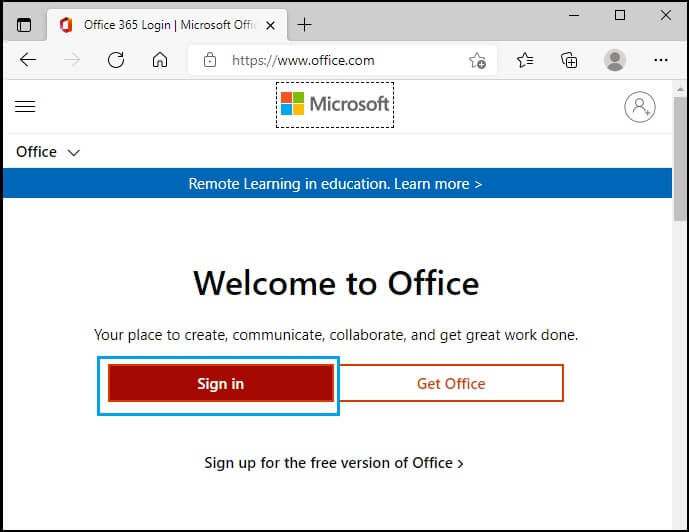
- Once purchased, you’ll need to sign in to your Microsoft account associated with the subscription. This is usually done via
account.microsoft.comor by navigating to the Microsoft 365 portal. - If you’re setting up a new Microsoft account, you’ll be guided through that process.
Step 2: Access the Installation Page
- After signing in, you should see an overview of your subscription. Look for an option like “Install Office,” “Install apps,” or a similar button.
- Clicking this button will usually take you to a page where you can download the installer.
Step 3: Download and Run the Installer
- On the installation page, you’ll likely see options to choose the language and version (32-bit or 64-bit). For most modern computers, the 64-bit version is recommended.
- Click the “Install” or “Download” button. This will download a small setup file to your computer.
- Once the download is complete, locate the downloaded file (usually in your Downloads folder) and double-click it to run the installer.
Step 4: Follow On-Screen Instructions
- The Microsoft Office installer will launch. You may see a progress bar indicating that Office is being installed.
- Do not close the installer while it’s running. It might seem like nothing is happening for a few moments, but it’s preparing the necessary files.
- Once the installation is complete, you’ll typically see a message indicating that Office is ready to use. Click “Close” or “OK.”
Step 5: Activate Office
- The first time you open an Office application (like Word or Excel), you’ll likely be prompted to sign in with your Microsoft account again to activate your subscription.
- Enter the email address and password associated with your Microsoft 365 subscription.
- Follow any further on-screen prompts. Once activated, your Office applications will be fully functional.

Installing Perpetual Versions of Office (One-Time Purchase)
The installation process for perpetual versions is similar to Microsoft 365, but instead of managing a subscription, you’ll be dealing with a product key.
Step 1: Obtain Your Product Key
- If you purchased a physical copy of Office, the product key is usually found on a card inside the box.
- If you purchased a digital download from Microsoft or a retailer, you should have received the product key via email or in your account order history.
Step 2: Redeem Your Product Key and Download
- Navigate to
setup.office.comin your web browser. - Sign in to your Microsoft account (or create one if you don’t have one).
- You will be prompted to enter your 25-character product key. Carefully type it in.
- After entering the key, you’ll be directed to a page where you can download the Office installer for your purchased version. Select your language and bit version (32-bit or 64-bit).
Step 3: Run the Installer
- Once the download is complete, locate the setup file and double-click it to start the installation.
- The installer will begin copying files to your computer. This process might take some time.
Step 4: Activate Office
- After the installation finishes, open any Office application (e.g., Word).
- You will likely be prompted to activate Office.
- If you were already signed in with your Microsoft account during the product key redemption, Office might activate automatically.
- If prompted, you may need to sign in with the Microsoft account you used to redeem the product key.
- In some cases, you might be asked to enter the product key again.
Troubleshooting Common Installation Issues
While the installation process is generally smooth, you might encounter a few hiccups. Here are some common issues and their solutions:
1. Installation Fails or Stops Midway
- Check Your Internet Connection: A stable internet connection is vital for downloading and installing Office. Ensure your Wi-Fi is strong or try a wired connection if possible.
- Free Up Disk Space: Microsoft Office requires a significant amount of storage space. Make sure your hard drive has enough free space.
- Disable Antivirus Temporarily: Sometimes, antivirus software can interfere with the installation process. Try temporarily disabling your antivirus and then re-enabling it after the installation is complete.
- Use the Microsoft Support and Recovery Assistant (SaRA): Microsoft provides a troubleshooter tool that can automatically diagnose and fix many Office installation problems. Search for “Microsoft Support and Recovery Assistant” to download and run it.
- Repair or Uninstall Existing Office Installations: If you have an older version of Office or a corrupted installation, it can prevent new installations. Use the “Apps & features” (Windows) or “Applications” (Mac) settings to repair or uninstall existing Office programs before attempting a new installation.
2. Activation Errors
- Verify Your Microsoft Account: Ensure you are signing in with the correct Microsoft account that is linked to your Office purchase or subscription.
- Check Your Product Key: If you’re using a perpetual license, double-check that you’ve entered the product key correctly at
setup.office.com. - Restart Your Computer: Sometimes, a simple restart can resolve activation glitches.
- Contact Microsoft Support: If you continue to experience activation issues, reach out to Microsoft’s customer support for further assistance. They can verify your license and help resolve the problem.
3. Office Apps Not Opening After Installation
- Restart Your Computer: This is often the simplest fix for applications that fail to launch.
- Repair Office: Go to “Apps & features” in Windows Settings, find your Microsoft Office installation, click on it, and select “Modify.” Choose the “Quick Repair” option first, and if that doesn’t work, try the “Online Repair.”
- Check for Windows/macOS Updates: Ensure your operating system is up-to-date. Sometimes, compatibility issues can arise from outdated OS versions.
Maximizing Your Microsoft Office Investment
Once you have Microsoft Office successfully installed, you’ve unlocked a powerful suite of tools. Here’s how to make the most of it:
Leverage Cloud Storage for Collaboration and Backup
With Microsoft 365, OneDrive is your central hub. Regularly save your work to OneDrive to:
- Access Files Anywhere: Open and edit your documents from any device with an internet connection.
- Collaborate Seamlessly: Share documents with colleagues or friends and work on them simultaneously.
- Version History: OneDrive keeps track of previous versions of your files, allowing you to revert to an earlier save if needed.
- Automatic Backup: Your files are automatically backed up in the cloud, protecting you against data loss from hardware failures or accidental deletions.
Explore Advanced Features and Templates
Don’t stick to the basics. Each Office application has a wealth of features designed to enhance your workflow and output:
- Word: Explore features like mail merge for personalized letters, advanced formatting options, and collaboration tools for shared document editing.
- Excel: Dive into powerful functions, pivot tables for data analysis, and charting tools to visualize your data effectively.
- PowerPoint: Utilize presenter view, animation effects, and design ideas to create dynamic and engaging presentations.
- Outlook: Master email management with rules, categories, and calendar sharing to stay organized.
Take advantage of the vast library of templates available within each application or on the Microsoft Office website. Templates can provide a professional starting point for resumes, reports, budgets, newsletters, and much more, saving you time and effort.
Stay Updated and Secure
For Microsoft 365 users, staying updated is automatic. For perpetual license users, it’s important to:
- Enable Automatic Updates: If your perpetual license version supports it, ensure automatic updates are enabled to receive crucial security patches.
- Practice Digital Security: Always be mindful of phishing attempts, especially those related to software activation or account security. Only download Office from official Microsoft sources.
By following these steps, you can ensure a smooth installation of Microsoft Office and begin leveraging its full potential for your personal and professional endeavors. Whether you choose the flexibility of Microsoft 365 or the one-time ownership of a perpetual license, a properly installed Office suite is an invaluable asset in today’s digital world.
aViewFromTheCave is a participant in the Amazon Services LLC Associates Program, an affiliate advertising program designed to provide a means for sites to earn advertising fees by advertising and linking to Amazon.com. Amazon, the Amazon logo, AmazonSupply, and the AmazonSupply logo are trademarks of Amazon.com, Inc. or its affiliates. As an Amazon Associate we earn affiliate commissions from qualifying purchases.