
In our increasingly visual world, the words we use are only half the story; how they appear dictates the other. Typography, the art and technique of arranging type, plays a pivotal role in shaping perceptions, conveying emotions, and establishing brand identity. From a budding entrepreneur crafting their first logo to a seasoned marketer designing a campaign, or a tech professional building an intuitive user interface, the fonts at our disposal are powerful tools. Yet, many professionals overlook the simple, foundational step of expanding their typographic toolkit: installing new fonts.
This guide delves into the crucial aspects of font management, offering a comprehensive walkthrough of how to install new fonts, where to find them, and why thoughtful font selection is paramount to your digital success. Whether you’re aiming to refine your personal brand, enhance a corporate identity, or simply boost your productivity with clearer communication, mastering font installation is a foundational skill that bridges the gap between basic functionality and advanced digital craftsmanship.
Understanding Fonts: More Than Just Letters
Before we dive into the “how-to,” it’s essential to grasp what fonts are and why their deliberate selection is so critical in today’s digital landscape. Fonts are not merely stylistic choices; they are integral components of communication, influencing readability, conveying tone, and establishing visual hierarchies. For anyone operating in the realms of technology, branding, or finance, understanding the nuances of typography can provide a distinct competitive edge.
The Anatomy of a Font File: Decoding TTF, OTF, and Web Fonts
When you download a font, you’ll typically encounter a few common file types, each with its own characteristics and ideal use cases. Understanding these distinctions is a fundamental aspect of tech literacy for digital professionals.
- TrueType Font (TTF): Developed by Apple and Microsoft in the late 1980s, TTF files are among the most common font formats. They are widely compatible across operating systems (Windows, macOS) and applications, making them a reliable choice for general desktop publishing and graphic design. TTF fonts contain both the screen and print font data in a single file, ensuring consistency from screen to paper. Their widespread support and ease of use contribute to their enduring popularity.
- OpenType Font (OTF): An evolution of TrueType, OpenType was developed by Adobe and Microsoft. OTF fonts offer enhanced typographic features, including advanced ligatures, alternate characters, small caps, old-style figures, and more extensive character sets. This richness makes them a preferred choice for professional designers who require sophisticated typographic control. While TTF is excellent for basic use, OTF provides a deeper well of design possibilities, allowing for more nuanced and brand-aligned text presentation. OTF files are also cross-platform compatible.
- Web Open Font Format (WOFF/WOFF2): As the internet became a primary medium for communication and branding, the need for efficient web-specific font formats emerged. WOFF (and its successor, WOFF2) is a compressed, web-optimized format that allows fonts to load quickly on websites, enhancing user experience and site performance. Unlike TTF and OTF, which are primarily for desktop applications, WOFF files are designed to be embedded in web pages, ensuring that visitors see text rendered in the intended typeface regardless of whether the font is installed on their local machine. For businesses and personal brands, utilizing web fonts correctly is crucial for maintaining a consistent online identity and improving search engine optimization (SEO) through faster load times.
- Embedded OpenType (EOT) & Scalable Vector Graphics (SVG): While less common today, EOT was an early proprietary web font format developed by Microsoft, primarily for Internet Explorer. SVG fonts, on the other hand, utilize XML to define vector shapes for each character. While SVG offers excellent scalability, its file size and rendering complexities have led to WOFF/WOFF2 becoming the dominant web font formats.
For most desktop users, TTF and OTF will be the primary formats they interact with when installing new fonts. Web designers and developers will frequently encounter WOFF/WOFF2.
Why Font Choices Matter for Your Brand and Productivity
The fonts you choose are silent ambassadors for your brand and crucial components of your operational efficiency. In the technology sphere, clear and legible fonts are vital for user interface (UI) design, ensuring that software and app users can easily navigate and understand information, thereby enhancing user experience (UX) and overall productivity. A well-chosen font can reduce cognitive load, making tasks quicker and less frustrating.
From a branding perspective, typography is one of the most powerful elements of visual identity. A consistent and thoughtfully selected font palette can:
- Establish Brand Personality: Fonts evoke specific emotions and personalities. A strong, bold sans-serif might convey modernity and confidence, while an elegant serif could suggest tradition and sophistication.
- Enhance Memorability: Distinctive typography makes your brand stand out and easier to remember. Think of iconic brands recognizable solely by their logotype.
- Build Trust and Credibility: Professional, legible fonts signal attention to detail and credibility. Poor font choices, conversely, can undermine trust and appear amateurish.
- Improve Communication: Beyond aesthetics, the readability of your chosen font directly impacts how effectively your messages are received, whether in marketing materials, internal documents, or investor reports. This directly impacts money-related communications.
In the realm of money, the financial services industry, for example, often leans on conservative, highly legible serif fonts to convey stability, trust, and professionalism. Startups in the fintech space, however, might opt for sleek, modern sans-serifs to project innovation and accessibility. The choice isn’t arbitrary; it’s a strategic decision that aligns with market positioning and target audience perception.
Navigating the Font Landscape: Where to Find and What to Consider
With millions of fonts available, finding the right ones for your projects can feel overwhelming. This section guides you through reputable sources and crucial considerations, particularly regarding licensing and commercial use – aspects that directly impact your brand’s legal standing and financial well-being.
Curated Collections: Free vs. Premium Font Resources
The digital world offers a plethora of font resources, catering to every budget and aesthetic.
Free Font Resources:
- Google Fonts: An indispensable resource for web designers and a fantastic starting point for desktop users. Google Fonts offers hundreds of high-quality, open-source fonts, all licensed for both personal and commercial use. This makes it a fantastic, risk-free option for many projects. Its ease of integration with web projects and clear licensing information make it a favorite among tech professionals and brand builders on a budget.
- DaFont & Font Squirrel: These popular repositories host a vast collection of fonts, many submitted by independent designers. While they offer incredible variety, it’s crucial to pay close attention to the licensing information for each font. Many free fonts on these sites are “free for personal use only,” meaning commercial use requires purchasing a separate license or contacting the designer. Font Squirrel is particularly useful as it often curates 100% free-for-commercial-use fonts and also offers a “Font Identifier” tool.
- Open Font Library: A community-driven project dedicated to archiving and distributing open-source fonts, often under licenses that permit broad usage.
Premium Font Resources:
- Adobe Fonts (formerly Typekit): Included with Adobe Creative Cloud subscriptions, Adobe Fonts provides access to thousands of high-quality fonts for both desktop and web use. The integration with Adobe applications is seamless, making it a highly convenient option for designers using Photoshop, Illustrator, InDesign, etc. The licensing is generally clear and covers commercial use within the scope of your Creative Cloud subscription. This is an excellent value proposition for professionals already invested in the Adobe ecosystem, saving money on individual font purchases.
- MyFonts, Fontspring, Fonts.com: These are major commercial marketplaces where you can purchase individual font licenses or entire font families directly from foundries. While the initial investment is higher, these platforms offer professional-grade fonts, extensive character sets, and clear, robust licensing agreements. Investing in premium fonts can be a sound financial decision for established brands looking for unique, distinctive typography and comprehensive support.
- Independent Type Foundries: Many talented type designers operate their own foundries (e.g., Grilli Type, Klim Type Foundry, Production Type). Purchasing directly often supports the creators more directly and provides access to cutting-edge designs.
Licensing, Usage Rights, and Commercial Implications
This is arguably the most critical aspect of acquiring new fonts, particularly for businesses and individuals engaged in commercial activities. Ignoring font licensing can lead to severe legal and financial repercussions, undermining your brand’s reputation and emptying your pockets.
- Personal Use vs. Commercial Use: Most free fonts are offered “free for personal use,” meaning you can use them for hobbies, school projects, or non-profit endeavors. However, using such a font for anything that generates revenue – a company logo, marketing materials, website, product packaging, advertising – constitutes commercial use and typically requires a paid license.
- Desktop vs. Web Licenses: A desktop license allows you to install a font on your computer and use it in design software (like Word, Photoshop, Figma). A web license (often priced based on website traffic or page views) is required to embed the font on a website using CSS @font-face rules. Some foundries offer app licenses for mobile applications or e-book licenses.
- Number of Users: Commercial licenses are often priced per user or per computer within an organization. Ensure your license covers all individuals who will be using the font.
- Embedding and Distribution: Pay attention to whether the license permits embedding the font within PDFs, software, or mobile apps for distribution to clients or end-users.
- Financial & Legal Risks: Using a font without the proper license is copyright infringement. This can result in cease-and-desist letters, significant fines, and expensive legal battles. For a brand, such incidents can severely damage reputation and trust. Always read the End User License Agreement (EULA) carefully. If in doubt, contact the font designer or foundry directly. When considering the “money” aspect, paying for a proper license is an investment in legal compliance and brand security, far cheaper than litigation.
Step-by-Step Installation Guides: Empowering Your Workflow
Once you’ve secured your chosen font files and verified their licenses, the installation process is straightforward on most modern operating systems. Mastering these steps ensures that your new typographic assets are ready to enhance your design, marketing, and productivity applications.
Installing Fonts on Windows
Windows makes font installation relatively easy, integrating it directly into the operating system’s settings.

- Download and Extract: Most fonts come in a compressed
.zipfile. Right-click the.zipfile and select “Extract All…” to uncompress the font files. You’ll usually find.ttfor.otffiles inside. - Method 1: Direct Installation (Simplest):
- Navigate to the folder containing your extracted font files.
- Right-click on the
.ttfor.otffont file you wish to install. - Select “Install” from the context menu. Windows will automatically install the font. If you have multiple fonts, you can select them all (Ctrl+A or Shift+Click) and then right-click any selected font to install them simultaneously.
- Method 2: Using the Fonts Settings (Windows 10/11):
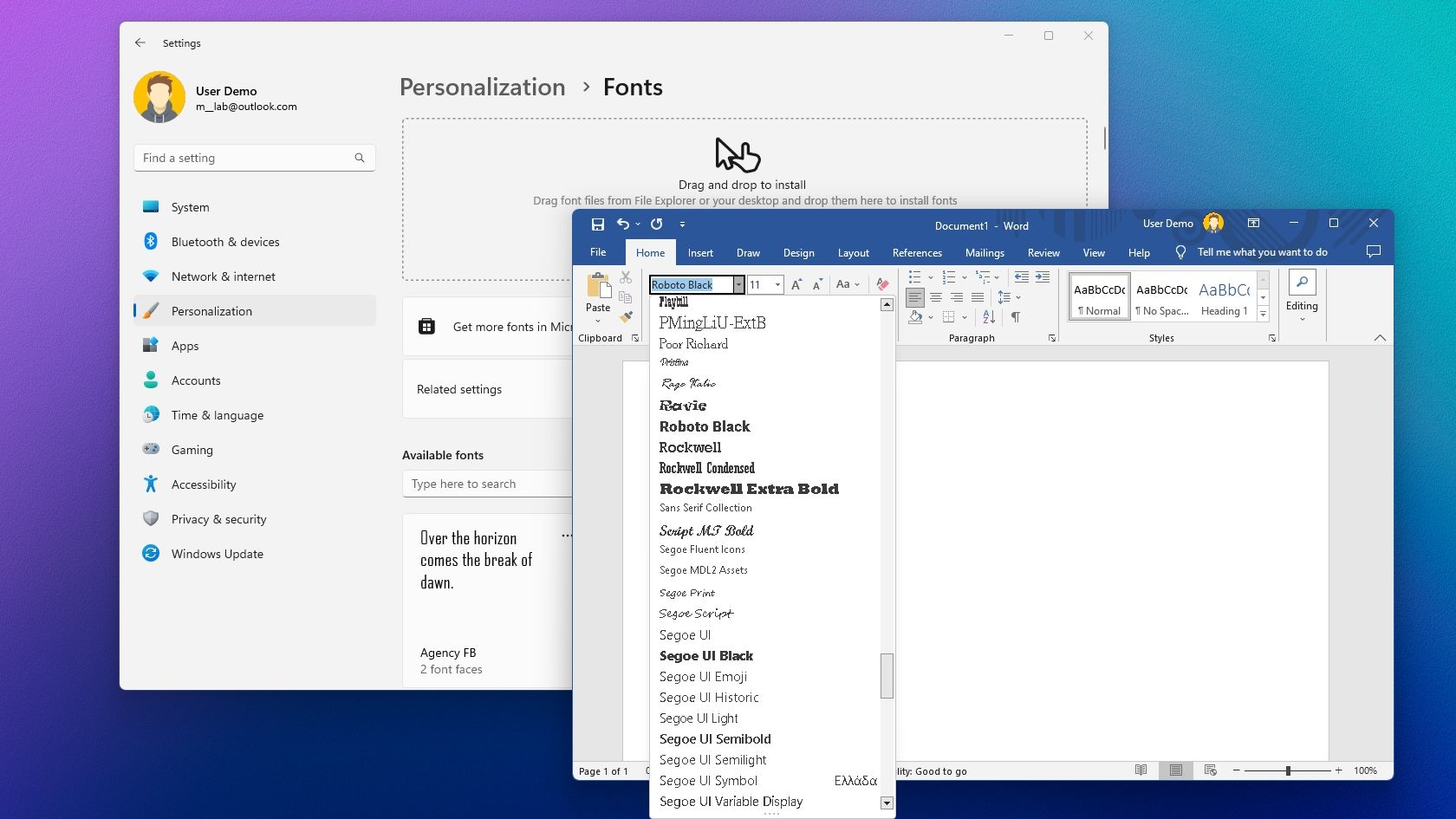
- Go to Start Menu > Settings > Personalization > Fonts.
- You’ll see a drag-and-drop area labeled “Drag and drop to install fonts.” Simply drag your
.ttfor.otffiles from their folder directly into this area. - Alternatively, click “Add fonts” and browse to the location of your font files.
- Method 3: Using Control Panel (Older Windows or advanced users):
- Open the Control Panel (search for “Control Panel” in the Start Menu).
- Select “Appearance and Personalization” > “Fonts.”
- In the Fonts window, go to File > Install New Font… (if using an older Windows version) or simply drag the font files into this folder.
- This method provides a centralized view of all installed fonts, useful for management.
After installation, the font will be available in most applications (e.g., Microsoft Word, Adobe Photoshop, Figma, GIMP). You may need to restart any open applications for the new font to appear in their font lists.
Installing Fonts on macOS
macOS offers an equally intuitive process for adding new fonts, primarily through its built-in Font Book application.
- Download and Extract: Similar to Windows, download the font package, and if it’s a
.zipfile, double-click it to extract the.ttfor.otffont files. - Method 1: Direct Installation (Simplest):
- Locate the
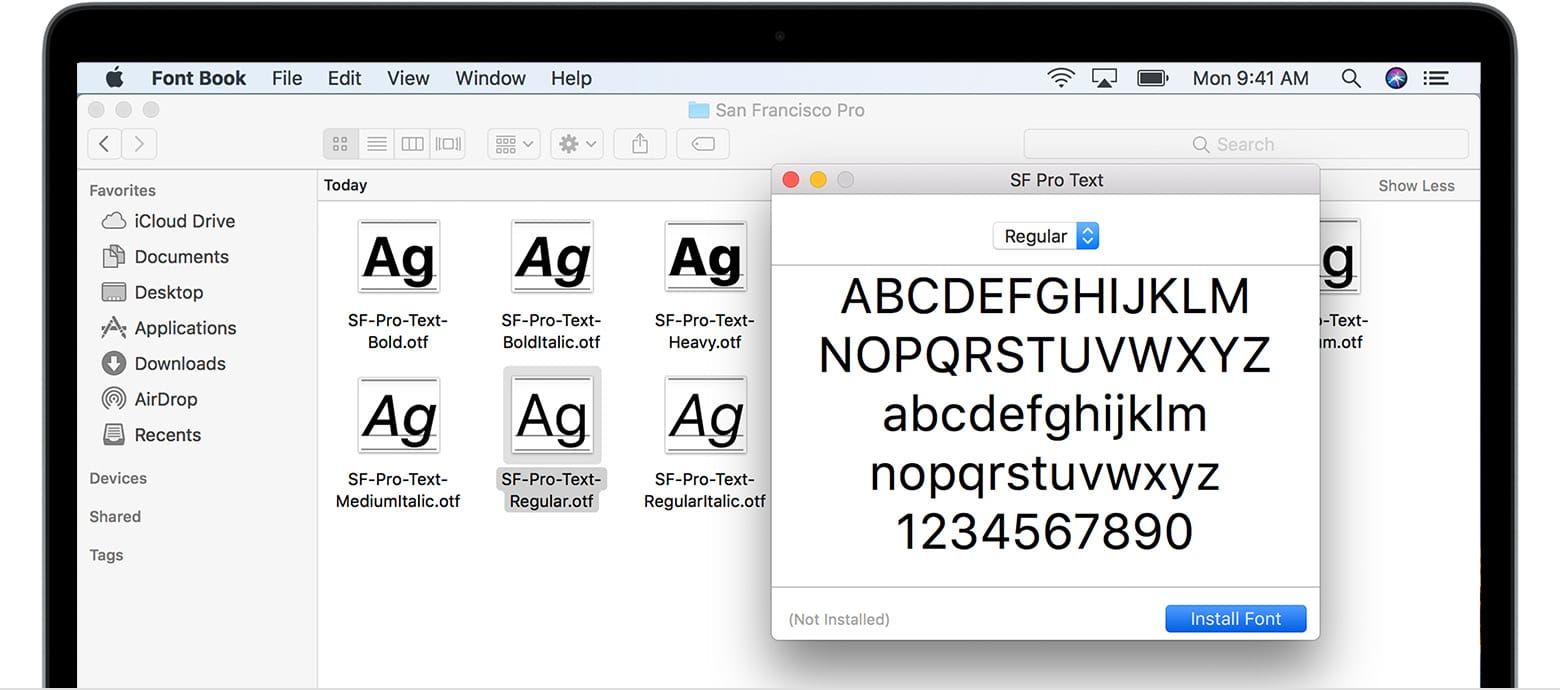
.ttfor.otffont file in your Finder. - Double-click the font file. This will open the Font Book application and display a preview of the font.
- Click the “Install Font” button at the bottom of the preview window. Font Book will validate and install the font.
- Locate the
- Method 2: Using Font Book Application:
- Open Font Book (Applications > Font Book, or search with Spotlight).
- Click the “Add” button (a plus sign icon) in the toolbar, or go to File > Add Fonts….
- Navigate to the folder containing your font files, select them, and click “Open.”
- Alternatively, you can drag and drop font files directly into the Font Book window.
- Font Book will automatically install and manage the new fonts. It also performs a basic validation to check for corrupt or duplicate fonts.
Once installed, your new font will be available in macOS applications like Pages, Keynote, Safari, Adobe Creative Suite, and other software that utilizes system fonts. Again, restarting applications might be necessary for the new font to appear.
Utilizing Fonts Across Your Applications
Installing a font on your operating system makes it available system-wide. This means your new typeface can be accessed in a vast array of software, from productivity suites to professional design tools.
- Productivity Suites (Microsoft Office, Google Workspace, Apple iWork): Use your newly installed fonts in documents, presentations, and spreadsheets to create professional and branded materials. For example, a custom font can make a PowerPoint presentation stand out, aligning with your corporate identity.
- Graphic Design Software (Adobe Photoshop, Illustrator, InDesign, Figma, Affinity Designer): These are where your fonts truly shine. Designers can now incorporate the new fonts into logos, branding guides, marketing collateral, web designs, and more, unleashing creative possibilities that directly impact brand appeal and market presence.
- Video Editing Software (Adobe Premiere Pro, Final Cut Pro, DaVinci Resolve): Custom fonts enhance titles, lower thirds, and on-screen graphics, ensuring visual consistency with your brand’s video content.
- Web Development (for local testing): While web fonts (WOFF/WOFF2) are used for live websites, having desktop versions of those fonts installed locally allows web developers to design and prototype web pages with the intended typography directly in their design tools.
The key to successful font utilization is consistent application across all your digital assets. This reinforces your brand identity and ensures a cohesive user experience, whether someone is interacting with your website, reading your whitepaper, or viewing your social media graphics.
Beyond Installation: Optimizing Your Font Management and Usage
Installing fonts is merely the first step. For professionals managing numerous projects, a robust strategy for font organization, activation, and troubleshooting is essential. This not only streamlines your workflow but also mitigates potential technical and legal issues, connecting directly to productivity, digital security, and long-term financial efficiency.
Font Management Tools and Best Practices
As your font library grows, navigating hundreds or thousands of typefaces can become cumbersome. Dedicated font management tools transform chaos into order.
- Dedicated Font Managers: Applications like Fontbase, Suitcase Fusion (Extensis Connect Fonts), RightFont, and NexusFont (for Windows) offer advanced features beyond basic OS installation. They allow you to:
- Activate/Deactivate Fonts: Instead of installing every font directly to your system, which can slow performance, these tools let you activate fonts only when needed for a specific project. This reduces system clutter and improves application responsiveness.
- Organize into Collections: Group fonts by project, client, style, or license type. This is invaluable for branding agencies or design departments managing multiple client identities.
- Resolve Conflicts: Identify duplicate fonts or corrupted files that might cause rendering issues.
- Preview and Compare: Easily browse and compare different fonts side-by-side to make informed design decisions.
- Cloud Sync: Some tools offer cloud synchronization, ensuring your font library is consistent across multiple workstations.
- Adobe Fonts Integration: For Creative Cloud users, Adobe Fonts acts as a powerful cloud-based font manager, automatically syncing and activating fonts within Adobe applications. This seamless integration boosts productivity for designers.
- Best Practices for Font Hygiene:
- Keep a Master Library: Store all your purchased and downloaded font files in an organized, backed-up location (e.g., a cloud drive or external HDD) separate from your system’s font folder.
- Document Licenses: Create a simple spreadsheet or document noting where each font came from, its license type (personal, commercial, web), and any usage restrictions. This is a crucial step for legal compliance and brand protection.
- Archive Project Fonts: When a project is complete, consider archiving copies of the specific fonts used alongside the project files. This ensures you can always reopen and edit the project with the correct typography, even years later.
Effective font management directly translates to increased productivity by reducing time spent searching for or troubleshooting fonts. For businesses, it protects against costly legal issues related to improper licensing and maintains brand consistency across all touchpoints.
Troubleshooting Common Font Issues
Even with careful management, you might occasionally encounter problems. Being able to diagnose and fix these issues quickly is a valuable tech skill.
- Font Not Appearing in Application:
- Restart the Application: This is the most common fix. Applications often load their font lists only at startup.
- Check Font Folder/Manager: Verify the font is indeed installed and active on your system or within your font manager.
- Clear Font Caches: Sometimes the operating system’s font cache gets corrupted. On Windows, you can find guides to delete the font cache files. On macOS, Font Book has an option to validate and resolve duplicates, and you can use Terminal commands to clear caches if needed.
- Corrupted Fonts: A font file might be damaged during download or transfer, leading to incomplete characters, crashes, or refusal to install.
- Re-download: Try downloading the font file again from its original source.
- Validate (macOS): Font Book has a built-in validation feature.
- Use Font Management Tool: Many font managers can identify and quarantine corrupted fonts.
- Performance Issues (Slowdown): Installing too many fonts directly to your system, especially if they are poorly optimized, can sometimes impact system performance.
- Use a Font Manager: Activate fonts only as needed to minimize the system’s active font load.
- Remove Unused Fonts: Periodically review and uninstall fonts you no longer use.
- Check for Conflicts: Duplicate fonts can sometimes cause issues. Font managers help identify and resolve these.
- Licensing Issues: The most serious, covered earlier. Always double-check your EULA before commercial use.
Proactive troubleshooting and good digital hygiene prevent minor annoyances from escalating into major workflow disruptions, saving valuable time and potentially money.
The Future of Typography: Web Fonts and Dynamic Design
The world of typography is constantly evolving, driven by technological advancements. For those interested in tech trends, keeping an eye on these developments is key.
- Variable Fonts: This innovative OpenType technology allows a single font file to contain an infinite range of variations (weight, width, slant, etc.) along defined axes. Instead of installing separate files for “bold,” “light,” or “condensed,” a variable font allows designers precise control and dynamic adjustments, leading to smaller file sizes and greater creative flexibility, especially for web design.
- AI in Typography: Artificial intelligence is beginning to influence font design, generation, and even pairing. AI tools can help designers generate initial font concepts, refine letterforms, or suggest optimal font combinations based on project requirements.
- Accessibility: As digital experiences become more inclusive, the focus on accessible typography (high contrast, adjustable sizes, clear readability for diverse audiences) will continue to grow, guided by Web Content Accessibility Guidelines (WCAG).
- Augmented and Virtual Reality: New interfaces in AR/VR will demand innovative approaches to typography, requiring fonts that are legible and comfortable to read in 3D spaces and dynamic environments.
These future trends underscore that typography is not static but a dynamic field at the intersection of art and technology, continually offering new ways to enhance communication and brand expression.
Crafting Your Visual Identity with Confidence
Installing new fonts is far more than a technicality; it’s an act of empowerment. It unlocks a world of creative possibilities, allowing you to fine-tune your brand’s voice, elevate your marketing materials, and enhance the user experience across all your digital touchpoints. For tech professionals, it means more robust UI designs and clearer documentation. For brand strategists, it provides critical tools for consistent identity. And for anyone mindful of their money, understanding font licensing protects against costly legal missteps while ensuring a worthwhile investment in premium assets.
By taking the time to understand font types, source them responsibly, install them correctly, and manage them effectively, you transform typography from a mere afterthought into a strategic asset. Embrace the power of thoughtful font choice, and confidently craft a visual identity that resonates, communicates, and succeeds in the competitive digital arena.
aViewFromTheCave is a participant in the Amazon Services LLC Associates Program, an affiliate advertising program designed to provide a means for sites to earn advertising fees by advertising and linking to Amazon.com. Amazon, the Amazon logo, AmazonSupply, and the AmazonSupply logo are trademarks of Amazon.com, Inc. or its affiliates. As an Amazon Associate we earn affiliate commissions from qualifying purchases.