
In an age dominated by digital content, YouTube stands as an undisputed titan, offering everything from educational documentaries and breaking news to viral entertainment and niche tutorials. While smartphone and tablet screens offer convenience on the go, the immersive experience of watching YouTube on a large TV screen remains unparalleled. Whether you’re looking to share a family video, enjoy a concert, or follow a cooking tutorial, bringing YouTube to your television transforms the viewing experience. This guide will delve into the myriad ways to achieve this, exploring modern technological solutions that cater to every type of setup, from cutting-edge smart TVs to older models requiring a little extra ingenuity.

The Era of Smart TVs: Built-In Convenience at Your Fingertips
The most straightforward and increasingly common method to enjoy YouTube on your television is through a Smart TV. Modern smart televisions are essentially computers with built-in internet connectivity and operating systems, allowing them to run apps directly, much like a smartphone. This integration simplifies the viewing process significantly, often requiring little more than a few clicks of your remote.
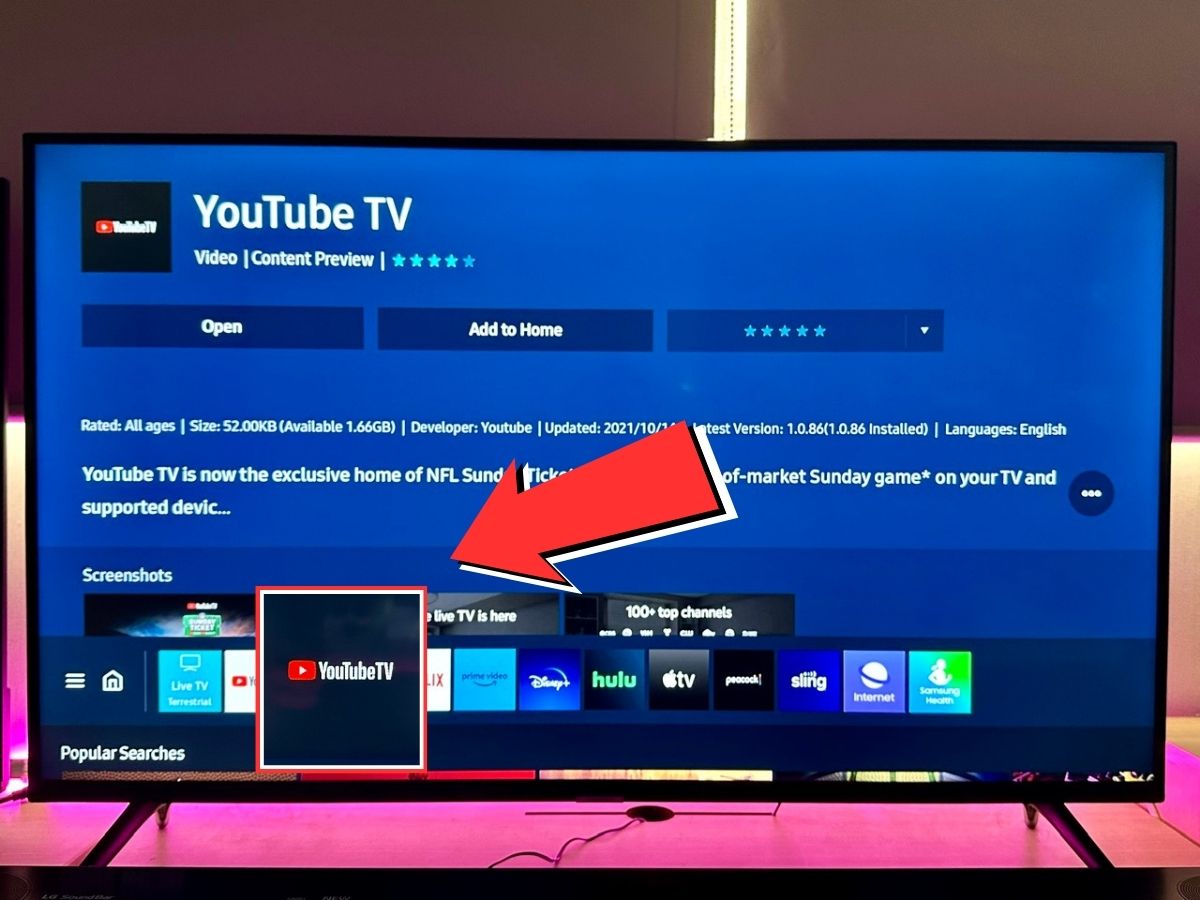
Accessing the YouTube App on Smart TVs
Most major smart TV brands, including Samsung, LG, Sony, Vizio, TCL, and Hisense, come with the YouTube app pre-installed or readily available in their respective app stores. The process typically involves:
- Navigating to the Smart Hub or App Store: Use your TV remote to find the “Smart Hub,” “Home,” “Apps,” or “Launcher” button. This will open your TV’s main interface where applications are listed.
- Locating the YouTube App: Look for the YouTube icon. If it’s not immediately visible, search for it within the app store.
- Downloading and Installing (if necessary): If YouTube isn’t pre-installed, select it from the app store and choose “Download” or “Install.” This usually takes only a few moments, depending on your internet speed.
- Launching the App: Once installed, open the YouTube app.
- Signing In: For a personalized experience, including access to your subscriptions, watch history, and playlists, you’ll want to sign in. YouTube usually offers a few methods:
- On-Screen Code: The TV will display a code. Go to
youtube.com/activateon a computer or smartphone browser, enter the code, and sign in with your Google account. - Direct Sign-In: Some apps allow you to directly enter your Google account email and password using the on-screen keyboard.
- Using the YouTube App on Your Phone: Many modern YouTube TV apps can be linked directly from the YouTube app on your mobile device, often by selecting the “Cast” icon and choosing “Link with TV code.”
- On-Screen Code: The TV will display a code. Go to
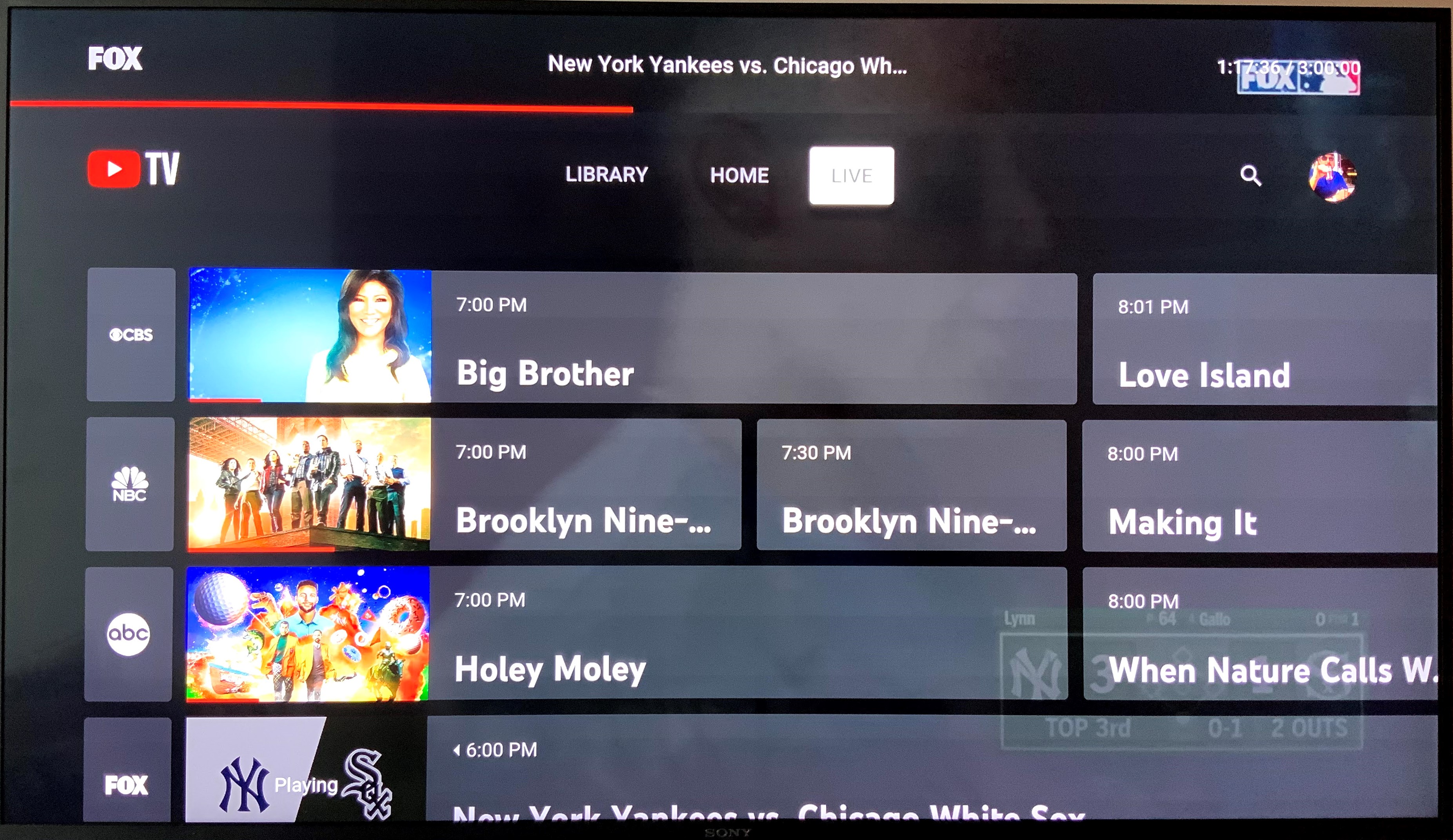
Once signed in, your YouTube TV experience will mirror much of what you’re used to on other devices, optimized for the big screen. You can browse trending videos, access your subscriptions, search for specific content, and manage your playlists directly from your TV remote.
Optimizing Your Smart TV YouTube Experience
To ensure the best possible viewing experience on your smart TV, consider these tips:
- Keep Your TV’s Software Updated: Manufacturers regularly release software updates that can improve app performance, introduce new features, and patch security vulnerabilities. Check your TV’s settings for system updates.
- Ensure a Stable Internet Connection: High-definition video streaming requires a robust internet connection. If possible, connect your smart TV to your router via an Ethernet cable for the most stable and fastest connection. If Wi-Fi is your only option, ensure your TV is within good range of your router.
- Clear App Cache (Troubleshooting): If the YouTube app starts behaving erratically, freezing, or showing errors, try clearing its cache. The method varies by TV brand, but it’s usually found within the TV’s app settings or general settings under “Applications.”
Streaming Devices: Your Gateway to Endless Content
For televisions that aren’t “smart” or for users seeking a more unified and feature-rich streaming experience than their TV’s native apps might offer, dedicated streaming devices are an excellent solution. These compact gadgets plug into your TV’s HDMI port and provide access to a vast ecosystem of apps, including YouTube, often with more powerful processors and user-friendly interfaces than many built-in smart TV platforms.
Popular Streaming Sticks and Boxes
The market for streaming devices is diverse, each offering a slightly different blend of features, ecosystems, and price points. The most prominent players include:
- Roku Devices (Roku Stick, Roku Express, Roku Ultra): Roku offers a wide range of devices known for their simple, intuitive interface and extensive channel store. All Roku devices provide access to the YouTube app.
- Setup: Plug the Roku device into an HDMI port, connect it to power, follow the on-screen prompts to connect to Wi-Fi, and then search for and install the YouTube channel from the Roku Channel Store.
- Amazon Fire TV Devices (Fire TV Stick, Fire TV Cube): Powered by Amazon’s Fire OS, these devices integrate heavily with Amazon services and feature Alexa voice control. They provide seamless access to the YouTube app.
- Setup: Similar to Roku, plug it in, connect to Wi-Fi, and then navigate to the Apps section or use the search function to find and download the YouTube app.
- Apple TV (Apple TV HD, Apple TV 4K): Apple’s premium streaming box, known for its sleek interface, integration with the Apple ecosystem (Apple Arcade, Apple Music, AirPlay), and high performance. The YouTube app is a staple.
- Setup: Connect to power and TV via HDMI. Follow the on-screen setup, including Wi-Fi connection and Apple ID sign-in. Access the App Store to download YouTube.
- Chromecast with Google TV: This device combines the casting capabilities of traditional Chromecast with a full Android TV interface, offering a remote control and direct app access, including YouTube.
- Setup: Plug it into an HDMI port, connect to power, complete the Google TV setup (Google account, Wi-Fi), and find YouTube on the home screen or through the Apps section.
Enhanced Features of Streaming Devices
Many modern streaming devices offer features that significantly enhance the YouTube viewing experience:
- Voice Control: Most devices now come with remotes that feature built-in microphones, allowing you to search for videos, control playback, and even navigate menus using voice commands (e.g., “Hey Alexa, open YouTube and play the latest tech review”).
- Customizable Interfaces: You can often rearrange apps, create watchlists, and personalize your home screen to quickly access your favorite YouTube channels and other streaming services.
- Superior Performance: Dedicated streaming devices often boast more powerful processors than those found in budget smart TVs, resulting in smoother navigation, faster app loading times, and higher-quality streaming.
Casting and Mirroring: Bridging Your Devices
Sometimes, you might want to share a specific video you found on your phone or computer, or simply prefer to control your YouTube experience from a mobile device. This is where casting and screen mirroring come into play, offering flexible ways to send content from your small screen to your big TV.
Google Chromecast: The Ultimate Casting Tool
Google Chromecast is a small dongle that plugs into your TV’s HDMI port, transforming any TV into a smart display capable of receiving content streamed from a multitude of apps on your smartphone, tablet, or computer. YouTube, being a Google product, integrates perfectly with Chromecast.
- How it Works: Once your Chromecast is set up on your Wi-Fi network, open the YouTube app on your mobile device or navigate to YouTube in a Chrome browser on your computer.
- The Cast Icon: Look for the “Cast” icon (a rectangle with a Wi-Fi signal in the bottom left corner) in the top right of the YouTube app or video player.
- Select Your TV: Tap the icon and select your Chromecast device from the list. The YouTube video will instantly begin playing on your TV, while your phone or computer acts as the remote control, allowing you to queue videos, adjust volume, and browse other content without interrupting playback.
AirPlay for Apple Devices
Apple’s AirPlay technology allows users to wirelessly stream content from their iPhone, iPad, or Mac to an Apple TV or any AirPlay 2-compatible smart TV.
- How it Works: Ensure your Apple device and your TV/Apple TV are connected to the same Wi-Fi network.
- Within YouTube: Open the YouTube app on your iPhone or iPad, start playing a video, and tap the “Cast” icon (it might appear as a rectangle with an upward arrow or similar, depending on the iOS version).
- Select AirPlay: Choose “AirPlay & Bluetooth Devices,” then select your Apple TV or AirPlay 2-compatible smart TV from the list.
- Screen Mirroring (Alternative): You can also mirror your entire device screen to your TV using AirPlay. Swipe down from the top-right corner (or up from the bottom for older iPhones) to open Control Center, tap “Screen Mirroring,” and select your TV. This will display everything on your phone’s screen, including the YouTube app, on your TV.
Screen Mirroring from Android and Windows
Many Android devices offer built-in screen mirroring capabilities (often called “Smart View,” “Screen Cast,” “Wireless Display,” or “Miracast”). Similarly, Windows 10/11 computers can cast to compatible devices using Miracast.
- Android: Swipe down from the top of your screen to access Quick Settings, look for “Smart View,” “Cast,” or a similar icon. Select your compatible smart TV or Miracast receiver. Once connected, anything displayed on your phone’s screen, including the YouTube app, will be mirrored to your TV.
- Windows: Press
Windows key + Pand select “Connect to a wireless display.” Your PC will search for Miracast-compatible displays. This method is generally suitable for mirroring presentations or entire desktops rather than just YouTube videos for optimal quality.
While convenient, it’s worth noting that casting generally offers a more optimized experience for video streaming than full screen mirroring, as it allows your phone to be used for other tasks without interrupting the TV playback.
Gaming Consoles: More Than Just Playtime
Modern gaming consoles have evolved beyond their primary function, transforming into comprehensive entertainment hubs. PlayStation, Xbox, and even Nintendo Switch offer robust app stores that include the YouTube application, making them a viable option for big-screen viewing, especially if you already own one.
YouTube on PlayStation (PS4, PS5)
Both the PlayStation 4 and PlayStation 5 feature a dedicated media section where streaming apps reside.
- Accessing YouTube: On the PS4, navigate to the “TV & Video” section. On the PS5, go to the “Media” tab from the home screen.
- Finding the App: The YouTube app is usually prominently displayed. If not, go to the PlayStation Store (or Media Gallery on PS5) and search for “YouTube.”
- Installation and Sign-in: Download and install the app. Once launched, you’ll be prompted to sign in with your Google account, often using the
youtube.com/activatemethod mentioned earlier. - Controller as Remote: Use your PlayStation controller to navigate the app, search for videos, and control playback.
YouTube on Xbox (Xbox One, Series X/S)
Similar to PlayStation, Xbox consoles are powerful media centers with access to a wide array of apps.
- Accessing YouTube: From the Xbox Home screen, navigate to “My Games & Apps,” then select “Apps.”
- Finding the App: The YouTube app should be available for download. If not, go to the Microsoft Store and search for “YouTube.”
- Installation and Sign-in: Download and install the app. Launch it and sign in with your Google account using the on-screen code method.
- Controller or Remote: Your Xbox controller serves as the primary navigation tool. Alternatively, if you have an Xbox Media Remote, it offers a more traditional TV control experience.
YouTube on Nintendo Switch
While primarily a portable gaming device, the Nintendo Switch does offer a YouTube app, allowing you to watch videos directly from the console, whether in handheld mode or docked to your TV.
- Accessing YouTube: From the Nintendo Switch Home Menu, select “Nintendo eShop.”
- Finding the App: In the eShop, search for “YouTube” and download the free application.
- Viewing Options: Once installed, launch the YouTube app. If your Switch is docked, the video will display on your TV. In handheld mode, it will play on the console’s screen.
- Navigation: Use the Joy-Cons or a Pro Controller to navigate the YouTube interface.
Gaming consoles offer a robust and often high-performance way to access YouTube, leveraging their powerful hardware for smooth playback, especially for high-resolution content.
Older TVs and Alternative Connections
What if you have an older television that lacks smart features, HDMI ports, or isn’t compatible with modern streaming devices? While the options become more limited and less convenient for optimal YouTube viewing, there are still ways to bring the content to your screen.
HDMI Cables for Laptops/PCs
The simplest and most direct method for an older TV with an HDMI port, or even a newer TV without smart features, is to connect a laptop or desktop computer directly.
- What You Need: An HDMI cable. Ensure your laptop/PC has an HDMI output port and your TV has an HDMI input port.
- Connection: Plug one end of the HDMI cable into your computer’s HDMI output and the other end into an available HDMI input on your TV.
- Switching Input: Use your TV remote to select the correct HDMI input (e.g., HDMI 1, HDMI 2).
- Computer Display Settings: Your computer should automatically detect the TV. If not, go to your display settings (e.g., right-click on your desktop in Windows, or go to System Settings > Displays on macOS) and choose to “Duplicate” or “Extend” your display to the TV.
- Viewing YouTube: Open your web browser on your computer, navigate to YouTube, and play your desired video. The audio will also be transmitted through the HDMI cable to your TV’s speakers. This method provides full control and access to all of YouTube’s features through a familiar browser interface.
Adapters and Converters (for Very Old TVs)
For televisions without HDMI ports (e.g., those with only VGA, DVI, or even composite/component inputs), the situation becomes more complex. You would need a series of adapters and converters, often involving separate audio cables, to connect a modern device.
- HDMI to VGA/DVI Converters: These are common for connecting laptops to older monitors or projectors. However, they often require a separate audio cable since VGA/DVI are video-only.
- HDMI to Composite/Component Converters: These are generally discouraged for YouTube viewing as they convert a high-definition digital signal to an analog standard-definition signal, resulting in significantly degraded picture quality that won’t do justice to modern YouTube content.
- Recommendation: While these options exist, they are generally not recommended for a satisfactory YouTube viewing experience due to signal degradation, complexity, and the cost of adapters. In most cases, investing in an inexpensive streaming stick (like a basic Roku Express or Amazon Fire TV Stick) and connecting it to a TV with an HDMI port is a far superior solution, even if it means upgrading an older, non-HDMI TV.
Conclusion: Tailoring Your YouTube Experience
The accessibility of YouTube on television has never been greater, offering a spectrum of solutions to fit virtually every setup and preference. From the integrated convenience of smart TVs and the robust ecosystems of dedicated streaming devices like Roku and Fire TV, to the versatility of casting tools like Chromecast and AirPlay, and even the power of modern gaming consoles, viewers have abundant choices. For those with older equipment, a direct HDMI connection from a laptop remains a reliable fallback.
Ultimately, the best method for you depends on your existing technology, budget, and desired level of convenience. Whether you prefer the simplicity of a built-in app, the unified experience of a streaming stick, or the flexibility of casting from your phone, getting YouTube on your TV is an effortless step towards transforming your living room into a personalized entertainment hub, bringing your favorite creators and content to the big screen with professional clarity and engaging ease.
aViewFromTheCave is a participant in the Amazon Services LLC Associates Program, an affiliate advertising program designed to provide a means for sites to earn advertising fees by advertising and linking to Amazon.com. Amazon, the Amazon logo, AmazonSupply, and the AmazonSupply logo are trademarks of Amazon.com, Inc. or its affiliates. As an Amazon Associate we earn affiliate commissions from qualifying purchases.