
In an increasingly connected world, the ability to disconnect without losing access to your entertainment library is a prized convenience. Amazon Prime Video, a titan in the streaming service arena, understands this necessity, offering subscribers the robust capability to download films and TV shows for offline viewing. This feature transforms idle moments—long commutes, flights, or even areas with patchy internet—into opportunities for uninterrupted entertainment. Far beyond a mere perk, offline viewing is a fundamental technical utility that enhances the user experience and broadens the accessibility of content.
This comprehensive guide delves into the specifics of downloading content from Amazon Prime Video, providing step-by-step instructions across various devices, insights into managing your downloaded library, and troubleshooting tips to ensure a seamless offline viewing experience. We’ll explore the technical underpinnings that make this feature work, ensuring you can leverage it to its fullest potential, all while remaining strictly within the realm of technology and user-centric application functionality.
Understanding Amazon Prime’s Offline Viewing Capability
The decision by streaming platforms to offer offline viewing is a strategic technological advancement that directly addresses common user frustrations. For Amazon Prime Video, it’s about extending the reach of its vast content library beyond the confines of a stable internet connection.
The Convenience of Downloads
The primary allure of downloading films and shows is the unparalleled convenience it offers. Imagine boarding a flight, knowing you have a curated selection of movies and series ready to play, without worrying about in-flight Wi-Fi costs or reliability. Or perhaps you commute daily through areas with limited cellular data coverage; downloaded content means your journey remains entertaining and productive. This capability significantly enhances portability, allowing content to follow the user rather than being tethered to a network. From a technical perspective, this represents a sophisticated caching mechanism, where digital media files are securely stored on a local device for later access, effectively decoupling the playback experience from real-time streaming demands. It’s a testament to modern application design prioritizing user freedom and accessibility.
Eligibility and Content Rights
Not all content on Amazon Prime Video is available for download, a critical technical and legal distinction often dictated by licensing agreements and content distribution rights. While most Amazon Originals and a significant portion of the included Prime Video library are downloadable, certain titles, especially those available for rent or purchase, or those licensed from third-party studios, might have restrictions. These restrictions are embedded within the digital rights management (DRM) systems that protect copyrighted material. The Prime Video application uses these DRM protocols to determine if a title can be downloaded, how long it can be stored, and on how many devices. Users will typically see a “Download” button or icon for eligible content; its absence signifies unavailability. Understanding these rights is crucial for managing expectations and leveraging the feature effectively, as it’s a direct consequence of the complex digital content ecosystem.
What You Can and Cannot Download
Generally, content included with your Amazon Prime subscription (Prime Video) is often downloadable. This encompasses a broad spectrum of movies and TV series. However, titles you’ve rented or purchased might also be available for download, though their availability and duration can vary. For rented content, the download usually expires once your rental period ends, or after a specific period post-download, similar to streaming expiration. Purchased content typically offers more permanent download options, but it might still be subject to device limits. Free-to-watch content (with ads, if applicable) and some live events are typically not downloadable. These limitations are technical implementations of business rules and licensing agreements, designed to manage intellectual property and subscription value.
Step-by-Step Guide to Downloading Content
The process of downloading content from Amazon Prime Video is intuitive, designed to be user-friendly across various platforms. While the core functionality remains consistent, there are slight variations depending on your device.
On Mobile Devices (Smartphones & Tablets)
Downloading on iOS and Android devices is perhaps the most common use case.
- Open the Prime Video App: Ensure you have the latest version installed from your device’s app store.
- Browse or Search: Navigate to the film or TV show you wish to download.
- Initiate Download:
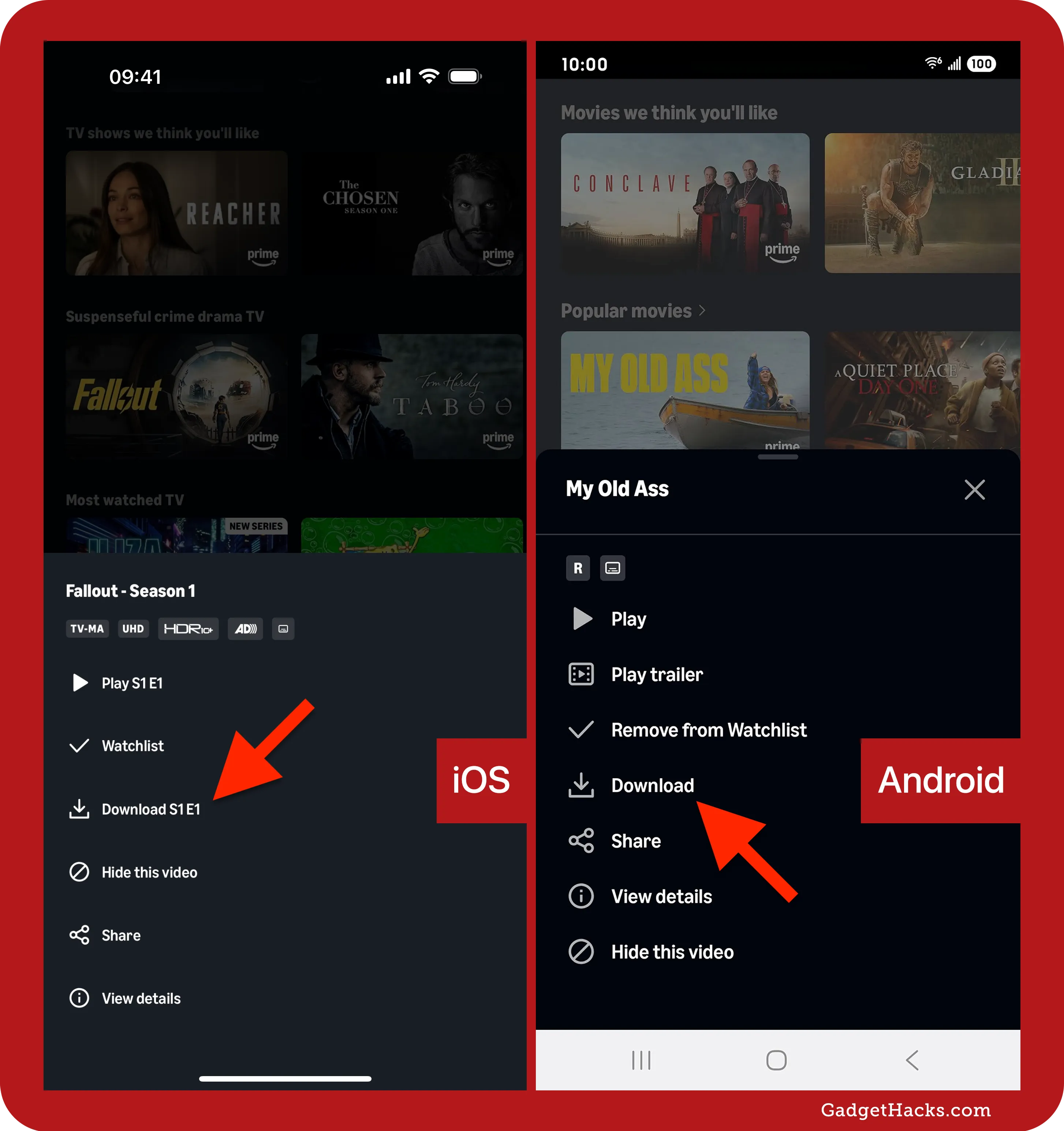
- For movies, you’ll see a “Download” button or icon (a downward arrow). Tap it.
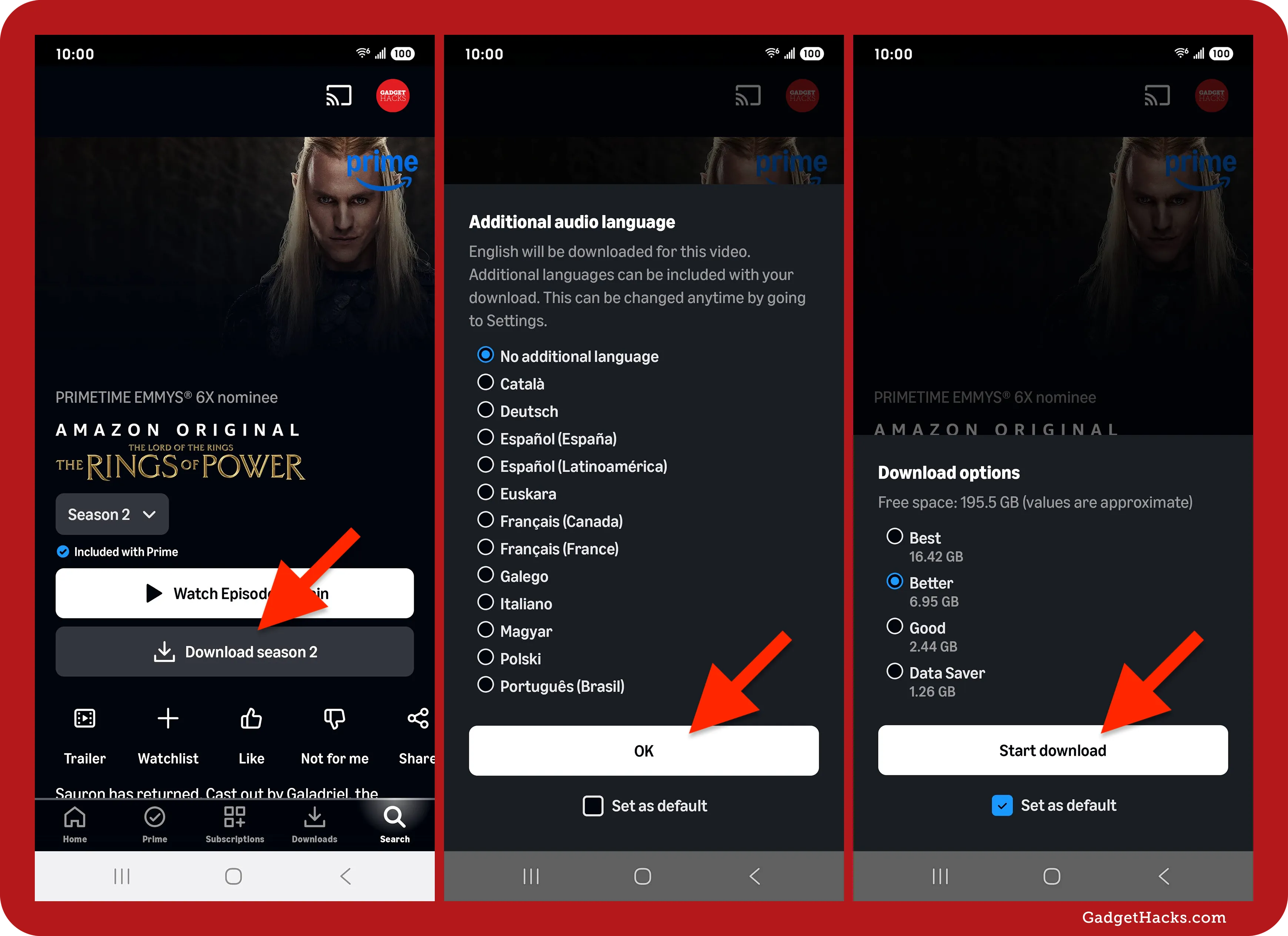
- For TV series, you’ll typically see a “Download Season” option or individual download icons next to each episode.
- Select Quality (Optional): The app might prompt you to choose a download quality (e.g., Good, Better, Best). Higher quality consumes more storage space and bandwidth during download.
- Monitor Progress: The download will begin, and you can monitor its progress in the “Downloads” section of the app.
- Access Offline: Once complete, the content will be available in the “Downloads” section for offline viewing.
On Fire Tablets
Amazon’s Fire Tablets offer an integrated Prime Video experience, making downloads seamless.
- Open Prime Video: The app is usually pre-installed and prominently featured.
- Find Content: Browse or search for your desired title.
- Tap Download: Similar to other mobile devices, locate the download button/icon.
- Manage Storage: Fire Tablets often come with expandable storage (microSD), which can be designated as the default download location for Prime Video content, a valuable feature for users with large media libraries. You can configure this in the device settings.
On Windows and macOS Devices (Prime Video App)
Amazon also offers dedicated Prime Video applications for Windows 10/11 and macOS, bringing desktop download capabilities.
- Install the Prime Video App: Download the app from the Microsoft Store (Windows) or Mac App Store (macOS).
- Log In: Sign in with your Amazon account.
- Navigate and Select: Browse for content as you would on other platforms.
- Click Download: Click the download icon (downward arrow) usually located next to the play button or episode list.
- Choose Quality: Select your preferred download quality.
- Find Downloads: Access your downloaded content via the “Downloads” tab within the app.
Important Considerations Before Downloading
Before embarking on a downloading spree, consider these technical and practical aspects:
- Storage Space: Downloads consume local storage. Ensure your device has sufficient free space.
- Wi-Fi Connection: For faster downloads and to avoid cellular data overages, always connect to a stable Wi-Fi network.
- Device Limits: Amazon Prime Video typically imposes limits on the number of devices you can have active downloads on simultaneously (e.g., 2-4 devices at a time).
- Expiration: Downloaded content often has an expiration period, after which it will need to be re-downloaded or will become unavailable if your subscription lapses or content rights change.
Managing Your Downloads for Optimal Experience
Efficient management of your downloaded content is key to a smooth and uninterrupted offline viewing experience. This involves understanding where your content resides, how to free up space, and the nuances of content availability.
Locating and Playing Downloaded Content
Once a download is complete, finding your content is straightforward. On most devices, the Prime Video app features a dedicated “Downloads” or “My Downloads” section, usually accessible from the main navigation menu. Tapping on a title here will initiate playback without requiring an internet connection. This local playback mechanism is optimized for your device’s hardware, ensuring smooth performance even for high-quality video files. From a technical perspective, the app bypasses the streaming pipeline, directly accessing the encrypted media file stored on your device.

Deleting Downloads to Free Up Space
Downloaded films and TV shows can quickly consume significant storage space, especially high-definition content. To manage your device’s storage:
- Navigate to Downloads: Go to the “Downloads” section within the Prime Video app.
- Select Edit/Manage: Look for an “Edit” option, a three-dot menu, or a “Manage Downloads” setting.
- Delete: Select the titles you wish to remove and confirm deletion. This action securely erases the local copy of the video file, immediately freeing up space. Regular management of downloads is a good digital hygiene practice, particularly on devices with limited storage.
Understanding Download Limits and Expiration
Amazon Prime Video employs several technical safeguards and policy rules regarding downloads:
- Viewing Period: Once you start watching a downloaded title, you typically have a limited time (e.g., 48 hours) to finish it before it expires and needs to be re-downloaded. This countdown begins upon first play.
- Total Download Period: Even if not watched, downloaded titles often have a maximum retention period (e.g., 30 days) from the download date. After this, they expire.
- Device Count: There are limits on how many unique titles you can download across all your registered devices, and limits on the total number of downloads at any given time. These limitations are part of the DRM and licensing agreements to prevent widespread unauthorized distribution.
Understanding these parameters is crucial for planning your offline viewing strategy and avoiding frustration when a title suddenly becomes unavailable.
Adjusting Download Quality Settings
The Prime Video app allows users to select their preferred download quality, a critical feature for managing storage and data consumption.
- Access Settings: Go to the “Settings” menu within the Prime Video app.
- Find Download Quality: Look for “Stream & Download” or “Download Quality” options.
- Choose Quality: Options typically include “Good,” “Better,” and “Best” (or similar terms corresponding to SD, HD, and potentially UHD resolutions). The app usually indicates the approximate file size per hour of content for each quality setting. Opting for “Good” quality can significantly reduce file size, making it ideal for devices with limited storage or when downloading over slower internet connections, while “Best” provides a cinematic experience, albeit at the cost of substantial storage.
Troubleshooting Common Download Issues
Even with a robust system, users may occasionally encounter technical glitches when downloading content. Addressing these issues often involves understanding the underlying cause and applying simple troubleshooting steps.
Insufficient Storage Space
This is one of the most frequent reasons for failed downloads.
- Symptom: Downloads fail to start or stop mid-way with an “insufficient storage” error.
- Solution: Check your device’s available storage in its system settings. Delete unnecessary files, apps, or existing Prime Video downloads to free up space. If using a Fire Tablet, consider moving downloads to an SD card if available.
Network Connectivity Problems
A stable internet connection is vital for initiating and completing downloads.
- Symptom: Downloads fail to start, pause indefinitely, or report network errors.
- Solution: Ensure you’re connected to a strong Wi-Fi network. Try restarting your router or switching to a different Wi-Fi network if available. If using cellular data (though not recommended for large downloads), check your signal strength and data plan limits. Temporarily disabling VPNs can sometimes resolve connectivity issues as they can interfere with content delivery networks.
Content Availability Errors
Sometimes, a title might appear downloadable but then fails during the process.
- Symptom: “This content is unavailable for download” or similar messages appear.
- Solution: This usually means the content’s licensing has changed, or there’s a temporary DRM issue. Try downloading another title to see if the issue is widespread. If it’s specific to one title, it might genuinely be unavailable for download. Check the title’s details page for any specific restrictions.
App-Specific Glitches
Like any complex software, the Prime Video app can sometimes experience minor bugs.
- Symptom: The app crashes, freezes, or download progress gets stuck without a clear error.
- Solution:
- Restart the App: Force-close the Prime Video app and reopen it.
- Clear Cache/Data: In your device’s app settings, try clearing the Prime Video app’s cache (Android) or reinstalling the app (iOS/Windows/macOS) as a last resort. Note that reinstalling will remove all existing downloads.
- Update App: Ensure the app is updated to the latest version, as updates often include bug fixes and performance improvements.
Maximizing Your Amazon Prime Video Experience
Beyond the mechanics of downloading, understanding how to strategically use this feature—and other Prime Video functionalities—can significantly elevate your overall entertainment experience, aligning with a tech-savvy approach to media consumption.
Leveraging Offline Viewing for Travel and Commutes
The true power of offline viewing lies in its practical application. For frequent travelers, preparing a playlist of downloaded content before a journey is a game-changer. It eliminates reliance on unreliable airplane Wi-Fi, ensures entertainment during layovers, and makes long car rides more enjoyable for passengers. Similarly, commuters can utilize their travel time efficiently, catching up on shows or movies without draining mobile data or battling inconsistent cellular signals. This proactive approach to media consumption is a prime example of leveraging technology to adapt to real-world constraints.
Parental Controls for Downloaded Content
Amazon Prime Video includes robust parental control features, which extend to downloaded content. Parents can set viewing restrictions based on ratings and apply a PIN to prevent unauthorized purchases or access to mature content. This is particularly important for downloaded content on shared devices, as the content is locally stored and accessible offline. Configuring these controls in the Prime Video app settings ensures that children only access age-appropriate material, even when an internet connection isn’t present to verify profiles or enforce live streaming restrictions. It’s a critical security and content management feature for families.
Exploring Other Prime Video Features
While downloading is a key feature, Amazon Prime Video offers a suite of other functionalities that complement the user experience:
- User Profiles: Create distinct profiles for different family members, allowing personalized recommendations, watch histories, and separate download libraries. This segmentation enhances individual user experiences within a shared subscription.
- Watch Party: A social viewing feature that allows friends and family to watch content together in real-time, even when physically apart, fostering a communal viewing experience.
- X-Ray: Powered by IMDb, X-Ray provides instant access to actor information, soundtrack details, trivia, and more while you’re watching a title. This adds an interactive, data-rich layer to passive viewing.
- Channel Subscriptions: Extend your Prime Video library by subscribing to additional channels like HBO, Showtime, or Starz directly within the Prime Video app, consolidating your streaming subscriptions.
By mastering the art of downloading films and TV shows on Amazon Prime Video, you unlock a world of seamless, reliable entertainment, regardless of your internet connectivity. This technological capability empowers users with choice and flexibility, making your Prime subscription an even more indispensable component of your digital lifestyle. Embrace these features, manage your content wisely, and transform every moment into an opportunity for immersive storytelling.
aViewFromTheCave is a participant in the Amazon Services LLC Associates Program, an affiliate advertising program designed to provide a means for sites to earn advertising fees by advertising and linking to Amazon.com. Amazon, the Amazon logo, AmazonSupply, and the AmazonSupply logo are trademarks of Amazon.com, Inc. or its affiliates. As an Amazon Associate we earn affiliate commissions from qualifying purchases.