
In the rapidly evolving landscape of digital entertainment, streaming services have fundamentally reshaped how we consume media. Among the myriad options, YouTube TV stands out as a formidable player, offering a comprehensive suite of live television channels, on-demand content, and unlimited cloud DVR storage, all accessible across a diverse array of devices. The allure of its robust offering is often presented through a compelling free trial, designed to give prospective subscribers a taste of its capabilities before committing to a paid subscription. While these trials are invaluable for evaluating a service’s fit for your digital lifestyle, understanding the mechanics of their cancellation is paramount. Many users, after exploring the platform, may decide it’s not the right fit, or perhaps they’re simply exploring alternatives. Whatever the reason, knowing how to gracefully exit a free trial without incurring unexpected charges is a crucial piece of digital literacy for any tech-savvy consumer. This guide will walk you through the precise steps to cancel your YouTube TV free trial, ensuring a smooth and charge-free experience, deeply rooted in effective digital account management.

Navigating the YouTube TV Free Trial Landscape
The digital media consumption paradigm has shifted dramatically, with live TV streaming services like YouTube TV becoming central to many households’ entertainment ecosystems. Understanding the underlying technology and user experience is key, especially when dealing with subscription models.
The Allure of Live TV Streaming
YouTube TV operates on a sophisticated cloud-based infrastructure, delivering real-time broadcasts and extensive on-demand libraries directly to your devices via internet protocol. This technological backbone allows for features such as unlimited cloud DVR, multi-device concurrent streaming, and personalized content recommendations powered by advanced algorithms. The convenience of accessing traditional linear television programming without the historical constraints of cable boxes or satellite dishes is a significant draw. For tech enthusiasts and casual users alike, the ability to integrate live sports, news, and entertainment into a cohesive digital platform, often with superior user interfaces and search functionalities, represents a substantial upgrade from legacy systems. The free trial acts as an indispensable diagnostic period, allowing users to test network latency, assess content compatibility with their viewing habits, and evaluate the overall UI/UX before a financial commitment is made.
Understanding the Free Trial Mechanism
A free trial for a service like YouTube TV is not merely a grace period; it’s a strategically designed onboarding process. During this period, users are granted full access to the premium features of the service. Crucially, however, a payment method (credit card, PayPal, etc.) is typically required upon signup. This isn’t for immediate billing but rather to facilitate a seamless transition to a paid subscription should the user choose not to cancel. The system is engineered to automatically convert your trial into a full subscription and begin billing once the trial period expires. From a technical standpoint, this auto-enrollment feature is a default setting within the subscription management system. To prevent charges, users must actively log into their account and initiate the cancellation process before the trial’s expiration date. Failing to do so signals to the platform’s billing system that the user intends to continue, triggering the first payment cycle.
Why Timely Cancellation is Crucial for Tech Users
For individuals who meticulously manage their digital subscriptions and expenditures, timely cancellation is more than just about saving money; it’s about maintaining control over their digital footprint and financial commitments. In the realm of subscription services, a forgotten free trial can lead to recurring charges that might go unnoticed amidst other automated payments. This can complicate personal budgeting and necessitate potentially time-consuming dispute resolution processes with customer support. From a broader tech perspective, proactive management of subscriptions, including free trials, reflects a conscientious approach to digital hygiene. It prevents unnecessary data retention by services you no longer use and reinforces good financial practices in the age of ubiquitous micro-transactions and auto-renewals.
Step-by-Step Guide to Cancelling on Web Browsers
The most reliable and often recommended method for managing YouTube TV subscriptions, including cancellations, is through a web browser on a desktop or laptop computer. This interface generally provides the most comprehensive view of account settings and clearer navigation paths.
Accessing Your YouTube TV Account
To begin, open your preferred web browser (Chrome, Firefox, Edge, Safari, etc.) and navigate directly to the YouTube TV website: tv.youtube.com. It’s crucial to ensure you are signed in with the Google account associated with your YouTube TV free trial. If you are not automatically signed in, you will be prompted to enter your Google email address and password. Double-check that the correct account is active, especially if you manage multiple Google profiles, as confusing accounts is a common technical pitfall that can lead to frustration when trying to locate subscription details. Once logged in, the YouTube TV interface will load, presenting your personalized channel lineup and content recommendations.
Locating the Membership Settings
With your account successfully accessed, look for your profile icon in the upper right-hand corner of the screen. This is a standard UI element across most Google services and acts as the gateway to account-specific configurations. Click on this icon to reveal a drop-down menu. From this menu, select “Settings.” Within the Settings panel, you will find various configuration options for your YouTube TV experience. Look for a section or tab typically labeled “Membership” or “Billing.” This is where all your subscription-related information is housed, including your current plan, billing date, and cancellation options. The design language is usually intuitive, aiming for minimal clicks to reach critical account management functions.
Confirming Your Cancellation Request
Under the “Membership” or “Billing” section, you should see details about your current free trial or subscription. There will be an option clearly labeled “Cancel Membership,” “Cancel Trial,” or a similar phrasing. Click on this button. The system will typically prompt you with a series of confirmation screens. These steps are designed to understand your reason for leaving (often for internal analytics) and sometimes offer incentives to stay, such as pausing your membership instead of outright cancelling. Carefully read through these prompts. Select your reason for cancellation if requested, and then proceed through the subsequent screens until you reach a definitive confirmation that your YouTube TV free trial has been cancelled. It’s imperative to ensure you receive a final confirmation message, usually indicating the date until which you will retain access and confirming no further charges will be applied.
Cancelling on Mobile Devices: A Touchscreen Tutorial
While a web browser offers the most comprehensive control, many users prefer the convenience of managing their digital subscriptions directly from their smartphones or tablets. YouTube TV provides dedicated mobile applications for both iOS and Android platforms, offering a streamlined cancellation process.
Via the YouTube TV iOS App
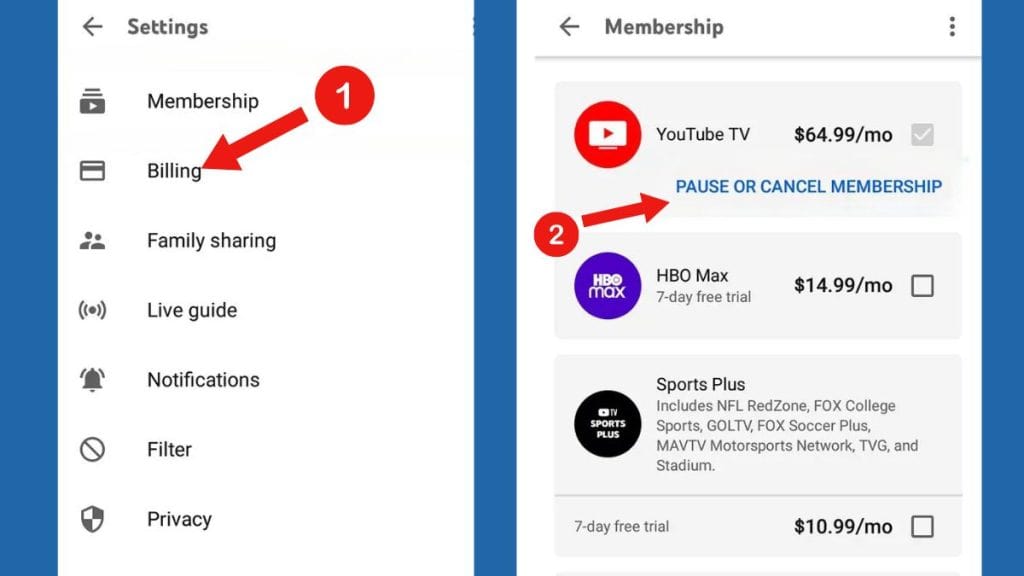
For users on Apple devices (iPhone, iPad), the process begins within the YouTube TV app itself. Open the app and ensure you are logged into the correct Google account that initiated the free trial. Tap on your profile icon, usually located in the top-right corner of the screen. This action will open a menu. From this menu, navigate to “Settings.” Within the Settings interface, you’ll find an option for “Membership.” Tapping on “Membership” will display your current subscription status. Look for the “Manage” or “Cancel Membership” option. The app might then redirect you to your device’s subscription management settings within the Apple App Store, as Apple often centrally manages third-party subscriptions. Follow the on-screen prompts there to finalize the cancellation. This cross-platform interaction is a key aspect of mobile app ecosystems, where billing is often intermediated by the device’s operating system provider.
Through the YouTube TV Android App
Android users will follow a similar, yet slightly distinct, path. Launch the YouTube TV app on your Android smartphone or tablet. Verify that you’re logged in with the appropriate Google account. Tap your profile icon, typically situated in the upper-right corner. In the ensuing menu, select “Settings.” Within Settings, locate the “Membership” section. Here, you should see options related to your subscription. Tap on “Manage” or “Cancel Membership.” Similar to the iOS experience, the Android app might direct you to the Google Play Store’s subscription management interface, as Google Play often handles billing for in-app subscriptions. Complete the remaining steps within the Google Play subscription center to confirm your cancellation. The integration with Google Play ensures a consistent billing and subscription management experience for Android users.
Ensuring Cross-Platform Synchronization
A critical technical consideration when managing subscriptions across different devices and platforms is data synchronization. Regardless of whether you initiate the cancellation through a web browser, the iOS app, or the Android app, the change should immediately reflect across all instances where your Google account is logged in. The underlying subscription status is tied to your Google account, not to the specific device or platform used for the cancellation. Therefore, once you receive confirmation of cancellation on one device, you can be confident that the free trial is indeed terminated for that specific Google account across all supported devices. It’s always a good practice, however, to log back into the web interface or another device to verify the subscription status for complete peace of mind.
What Happens After You Cancel: Tech-Savvy Post-Cancellation Management
Cancelling a free trial isn’t just about clicking a button; it involves understanding the subsequent system behaviors and managing expectations.
Understanding Continued Access and Billing Cycles
A common misconception is that cancelling a free trial immediately revokes access to the service. In most cases, including YouTube TV, this is not true. When you cancel your free trial, you typically retain full access to YouTube TV’s content and features until the original trial period was scheduled to end. For example, if your trial began on the 1st and was set to expire on the 15th, cancelling on the 10th means you will still have access until the 15th. The cancellation simply prevents the automatic conversion to a paid subscription and stops any future billing. From a backend perspective, the system marks your account for non-renewal at the end of the current cycle rather than an immediate deactivation. This user-friendly approach allows you to maximize the value of the free trial period without worrying about being cut off prematurely.
Verifying Your Cancellation Status
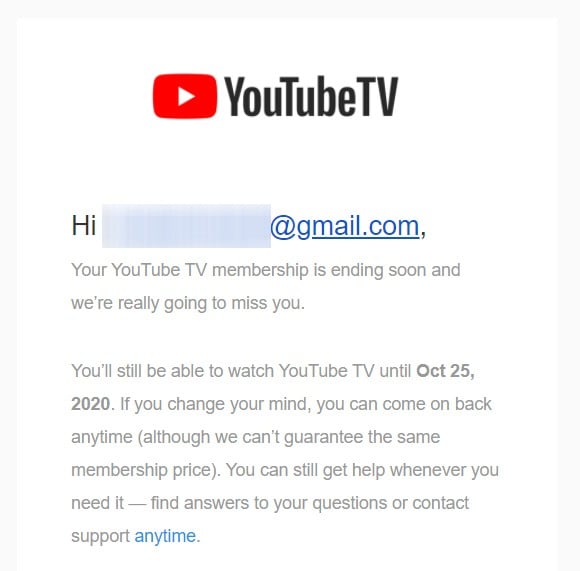
After completing the cancellation process, it is paramount to verify that the action was successfully registered by the system. The most straightforward method is to revisit your YouTube TV account settings, either through the website (tv.youtube.com) or the mobile app. Navigate back to the “Membership” or “Billing” section. A correctly cancelled trial should clearly indicate that your subscription is “Cancelled” or “Pending Cancellation” with a specific end date, and crucially, that no further charges will be applied. You should also typically receive an email confirmation from YouTube TV to the email address associated with your Google account. It’s advisable to keep this email as a record, especially if any discrepancies arise later. This step closes the loop on the cancellation process, providing definitive proof of your action.
Rejoining YouTube TV: A Seamless Process
Should you decide in the future that YouTube TV aligns better with your streaming needs, rejoining the service is typically a straightforward process, thanks to modern account management systems. You can simply log back into your Google account on the YouTube TV website or app and navigate to the “Membership” section. There, you’ll usually find an option to “Restart Membership” or “Resubscribe.” Your previous preferences and viewing history might even be retained, offering a seamless recommencement of service. This flexibility is a hallmark of well-designed digital subscription platforms, minimizing friction for users who might fluctuate in their service needs or explore various options over time. The system is designed to remember your account, making subsequent interactions efficient.
Troubleshooting Common Cancellation Hurdles
Even with clear instructions, technical issues can occasionally arise during the cancellation process. Knowing how to troubleshoot these common hurdles can save time and frustration.
Addressing Account Access Issues
One of the most frequent problems users encounter is difficulty accessing the correct Google account. This is particularly common for individuals who manage multiple Google profiles (e.g., personal, work, family). If you cannot find your YouTube TV membership details, ensure you are logged into the exact Google account used to initiate the free trial. Try logging out of all Google accounts in your browser and then logging back in specifically with the YouTube TV-associated account. If you’ve forgotten your password, use Google’s standard account recovery tools to regain access. Persistent login issues might indicate a broader problem with your Google account security, which would require direct intervention via Google’s account support channels.
When the “Cancel” Button Isn’t Visible
Occasionally, users report difficulty locating the “Cancel” button or find that it’s greyed out. Several technical reasons could explain this. First, double-check that you are in the correct “Membership” or “Billing” section; sometimes settings can be nested deep within menus. Second, ensure that your free trial is still active. If your trial has already expired and converted to a paid subscription, the option might change to “Pause Membership” or a different cancellation flow for active subscribers. In rare cases, a browser extension or ad-blocker might interfere with the page’s scripting, preventing the button from rendering or functioning correctly. Try disabling extensions or attempting the cancellation in an incognito/private browser window to rule out client-side interference. If the problem persists, a server-side issue or a unique account status might be at play.
Contacting YouTube TV Support for Technical Assistance
If you’ve exhausted all self-service troubleshooting steps and are still unable to cancel your YouTube TV free trial, it’s time to reach out to YouTube TV’s customer support. They possess the tools and access to your account details that can resolve specific technical impediments. YouTube TV typically offers support through chat, email, or phone. Navigate to the “Help” or “Contact Us” section, usually found at the bottom of the YouTube TV website. When contacting support, be prepared to provide your Google account information and clearly describe the issue you’re facing, including any error messages you’ve encountered or steps you’ve already attempted. Tech support specialists are trained to diagnose and resolve a wide array of account-specific issues, ensuring that your cancellation request is processed correctly and in a timely manner.
In conclusion, managing your YouTube TV free trial is a straightforward process when you understand the platform’s technological framework and follow the prescribed steps. By taking a proactive approach to account management, leveraging either web browsers or mobile applications, and knowing how to troubleshoot common issues, you can ensure a seamless experience, preventing unwanted charges and maintaining control over your digital subscriptions. This adherence to digital hygiene is increasingly important in an ecosystem defined by convenience and interconnected services.
aViewFromTheCave is a participant in the Amazon Services LLC Associates Program, an affiliate advertising program designed to provide a means for sites to earn advertising fees by advertising and linking to Amazon.com. Amazon, the Amazon logo, AmazonSupply, and the AmazonSupply logo are trademarks of Amazon.com, Inc. or its affiliates. As an Amazon Associate we earn affiliate commissions from qualifying purchases.