
In the current era of digital consumption, the “streaming wars” have led to a fragmented landscape where content is spread across dozens of proprietary platforms. Paramount Plus has established itself as a significant player in this ecosystem, leveraging a deep library from CBS, Paramount Pictures, and various ViacomCBS brands. However, as software ecosystems evolve and user preferences shift toward “subscription cycling”—the practice of rotating services based on current content offerings—knowing how to efficiently navigate the technical hurdles of canceling a service is a vital skill for the modern digital consumer.
Managing a Paramount Plus subscription is not always a linear process. Because the service integrates with various third-party billing systems, mobile OS app stores, and streaming hardware, the “Cancel” button isn’t always in the same place. This technical deep dive provides a comprehensive roadmap for offboarding from the service, ensuring you maintain control over your digital footprint and software permissions.
Navigating the Paramount Plus Ecosystem: Understanding Billing Architecture
Before attempting to terminate a subscription, it is essential to understand the underlying billing architecture. In the world of SaaS (Software as a Service), “Direct Billing” and “Third-Party Integration” are two distinct paths. If you signed up directly through the Paramount Plus website, your data and billing are managed via their proprietary servers. However, if you signed up via an app store, your subscription exists as a digital entitlement managed by a middleman.
Identifying Your Billing Source
The first technical step in the cancellation process is identifying where your financial handshake occurs. Access your account settings within the Paramount Plus app or website. If the “Billing” section directs you to a different platform (such as “Managed via Apple” or “Managed via Amazon”), you cannot cancel through the Paramount Plus website directly. This is a common point of friction for users; the software UI is designed to point you toward the authoritative billing source.
The Role of API Handshakes in Subscriptions
When you subscribe via a mobile device, the Paramount Plus app uses an API (Application Programming Interface) to communicate with the App Store or Google Play Store. This creates a “subscription token.” To cancel, you must revoke this token at the source. Understanding this technical hierarchy saves time, as it prevents users from searching for a cancellation toggle that simply doesn’t exist on the service provider’s side due to these third-party contractual and technical constraints.
Step-by-Step Technical Walkthrough: Canceling via Primary Digital Interfaces
The method of cancellation varies significantly depending on the operating system and the hardware interface you are utilizing. Below are the technical protocols for the most common digital environments.
Direct Web Browser Cancellation
For users billed directly by Paramount, the web interface is the authoritative control center.
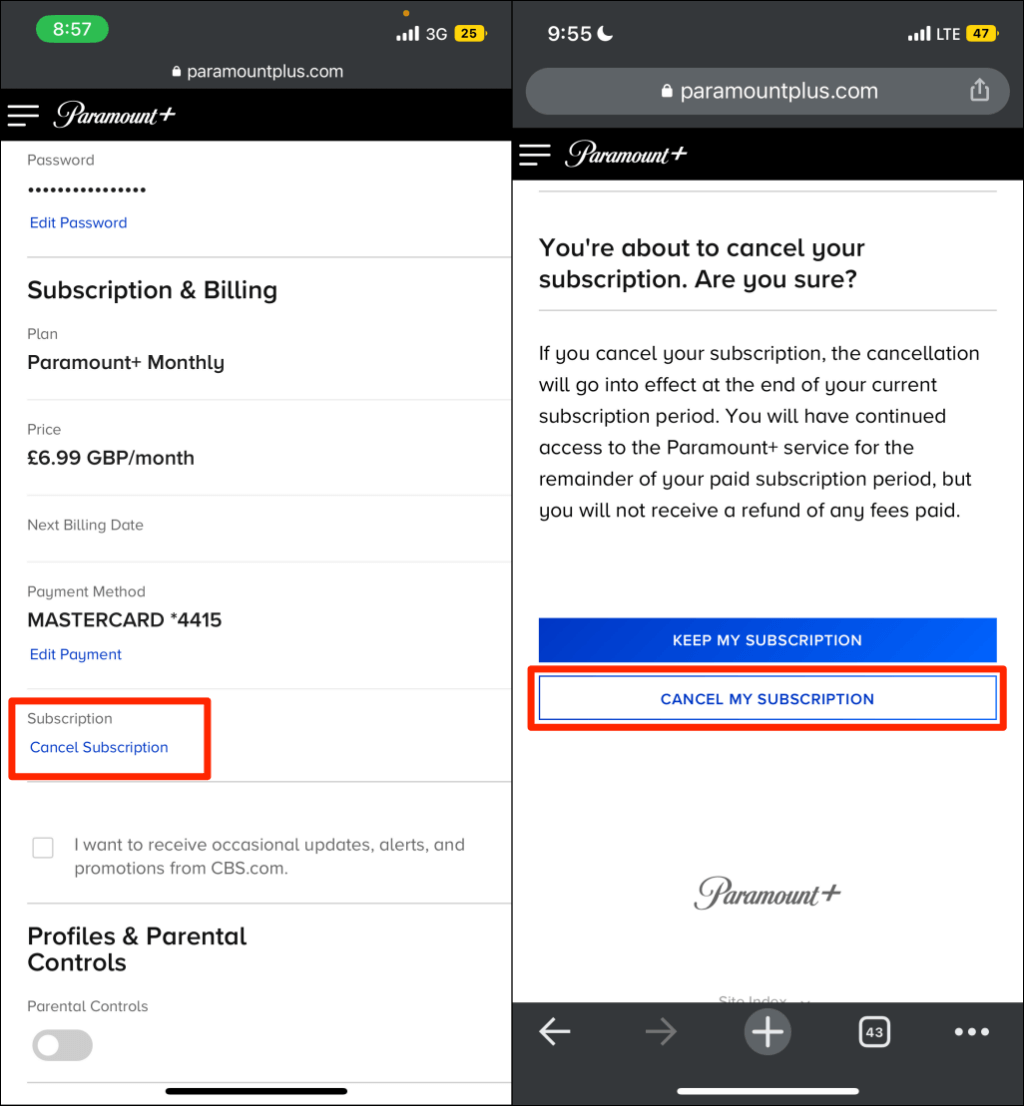
- Authentication: Navigate to the Paramount Plus official website and log in. This establishes a secure session.
- Account Navigation: Click on your profile icon in the top right corner and select “Account.”
- Subscription Management: Under the “Subscription & Billing” tab, you will find the “Cancel Subscription” hyperlink.
- The Retention Loop: Software designers often implement a “retention loop”—a series of prompts asking for feedback or offering discounts. To complete the technical cancellation, you must navigate through these prompts until you receive a “Cancellation Confirmed” screen.
Managing via iOS and Apple ID Settings
On Apple devices, your subscription is tied to your Apple ID and managed by the App Store’s billing system.
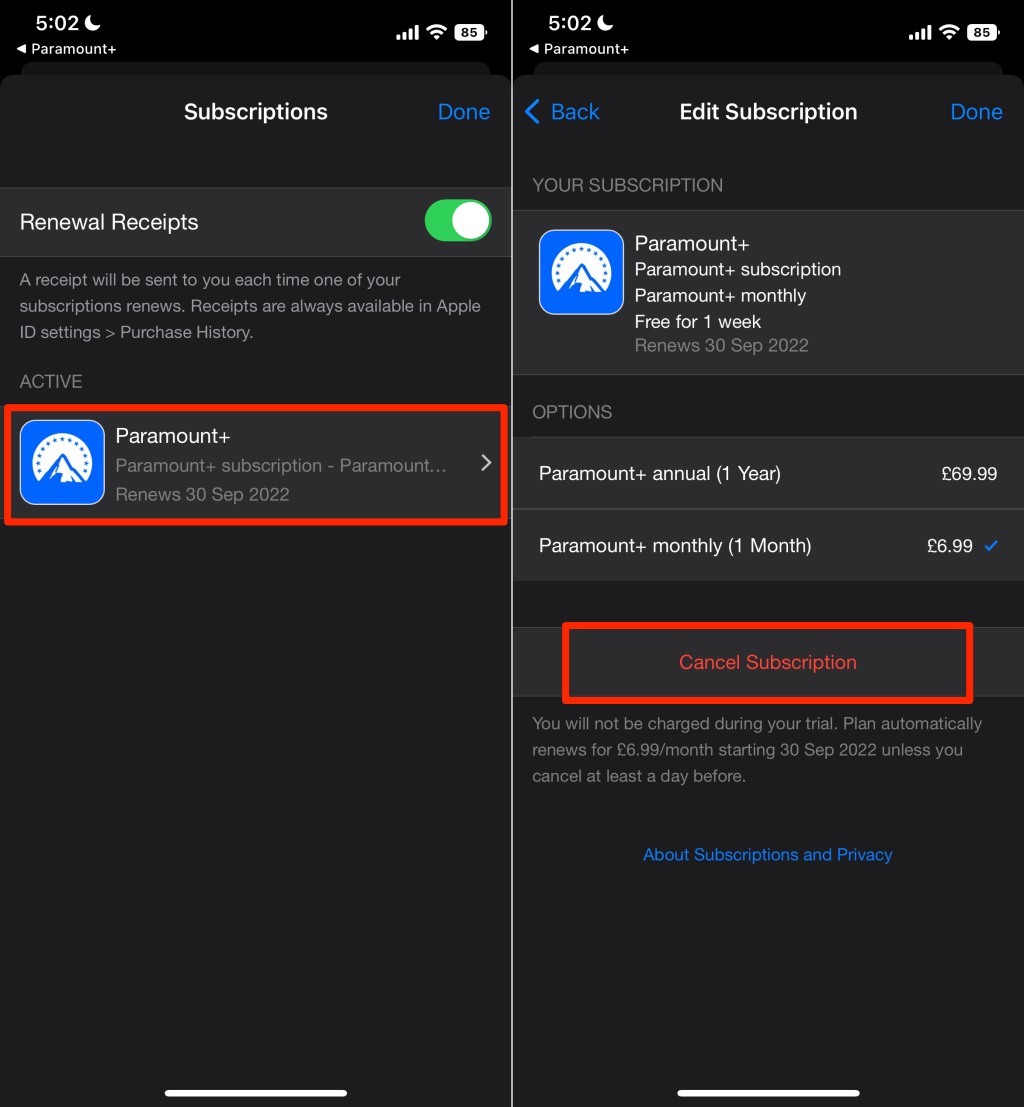
- System Settings: Open the “Settings” app on your iPhone or iPad.
- Apple ID Directory: Tap your name at the top of the menu to access your Apple ID settings.
- Subscriptions Menu: Select “Subscriptions.” This menu queries Apple’s servers to list all active digital entitlements.
- Termination: Locate Paramount Plus and select “Cancel Subscription.” This sends a request to Apple’s billing API to stop recurring charges at the end of the current billing cycle.
Terminating Access through the Google Play Store
For Android users, the process is handled through the Google Play Store’s software ecosystem.
- Play Store Interface: Open the Google Play Store app.
- Profile Menu: Tap the profile icon at the top right.
- Payments & Subscriptions: Navigate to “Payments & subscriptions” and then “Subscriptions.”
- Execution: Select Paramount Plus and tap “Cancel subscription.” You may be asked to provide a reason for the cancellation; this data is used for developer analytics.
De-linking Third-Party Integrations: Amazon, Roku, and Apple TV Channels
A significant portion of Paramount Plus users do not use the standalone app but instead access the service as an “Add-on Channel” through a secondary streaming aggregator. This adds a layer of complexity to the technical offboarding process.
The Complexity of “Add-on” Channels
When you subscribe through a platform like Amazon Prime Video Channels or Roku Channels, Paramount Plus acts as a data feed within a host application. In this scenario, the host application (Amazon or Roku) manages the user authentication and the billing cycle. You will not find cancellation options on the Paramount Plus website because, from a data perspective, you are a customer of the host platform, not the content provider.
Technical Steps for Amazon Prime Users
If your subscription is an Amazon Channel, the cancellation must be performed within the Amazon digital environment:
- Account Settings: Log in to Amazon and navigate to “Account & Lists.”
- Memberships & Subscriptions: Select “Other Subscriptions” or “Prime Video Channels.”
- Channel Management: Find Paramount Plus under “Your Channels” and select “Cancel Channel.”
Navigating the Roku OS
For those using Roku hardware, the subscription is often managed via the Roku Pay system.
- On-Device: Highlight the Paramount Plus channel on your Roku home screen.
- Options Menu: Press the Star (*) button on your remote.
- Management: Select “Manage Subscription” and then “Cancel Subscription.” This updates your Roku account’s billing status in real-time.
Troubleshooting and Post-Cancellation Technicalities
Canceling a subscription is the first step, but ensuring the digital “clean-up” is successful requires an understanding of how these platforms handle data and access post-termination.
Confirming Termination and Data Retention Policies
Once a cancellation is initiated, the software status should change from “Active” to “Expires on [Date].” Most streaming services operate on a “pre-paid” model, meaning your digital access persists until the end of the current 30-day billing window. It is highly recommended to take a screenshot of the cancellation confirmation. Digital glitches can occasionally result in “zombie subscriptions”—accounts that continue to bill despite a cancellation request—and having a documented record is essential for technical support disputes.
Dealing with Common Technical Glitches during Cancellation
Sometimes, the “Account” page may fail to load, or the “Cancel” button may appear greyed out. This is often due to browser cache conflicts or script-blocking extensions (like AdBlockers). If you encounter UI errors:
- Clear Browser Cache: This ensures you are loading the most recent version of the account management script.
- Disable Extensions: Some security scripts may interfere with the “Retention Loop” prompts, preventing the final cancellation signal from being sent.
- Incognito Mode: Using a private/incognito window is a quick way to bypass local software conflicts and establish a clean session with the server.
The Distinction Between Canceling and Deleting
It is important to note the technical distinction between canceling a subscription and deleting an account. Canceling stops the billing cycle but leaves your profile data, watch history, and login credentials on the server. This allows for an easy “re-onboarding” in the future. Deleting an account is a more permanent action, often requiring a manual request under privacy laws like GDPR or CCPA, which wipes your data entirely from the provider’s database.
Digital Hygiene in the Subscription Era
As we continue to integrate more software-as-a-service (SaaS) products into our daily lives, maintaining “digital hygiene” becomes paramount. This involves regular audits of active subscriptions and an understanding of the cross-platform dependencies that govern our digital spending.
Effectively canceling Paramount Plus is more than just stopping a payment; it is about navigating a complex web of app store APIs, third-party aggregators, and retention software. By identifying the authoritative billing source and following the platform-specific technical protocols, users can regain control over their digital environment. Whether you are streamlining your software stack or simply taking a break from a specific content library, mastering these technical offboarding procedures ensures that your digital transitions are seamless, secure, and deliberate.
aViewFromTheCave is a participant in the Amazon Services LLC Associates Program, an affiliate advertising program designed to provide a means for sites to earn advertising fees by advertising and linking to Amazon.com. Amazon, the Amazon logo, AmazonSupply, and the AmazonSupply logo are trademarks of Amazon.com, Inc. or its affiliates. As an Amazon Associate we earn affiliate commissions from qualifying purchases.