
In an era saturated with digital content, YouTube stands as an undisputed titan, serving billions of hours of video every day across an astonishing array of topics. From educational tutorials and breaking news to music videos, vlogs, and independent films, its library is virtually limitless. For many, YouTube is an essential part of daily life, a go-to source for information, entertainment, and connection. Yet, for newcomers or those exploring new devices, the seemingly simple question of “how do I watch YouTube?” can open up a surprising number of avenues and possibilities.
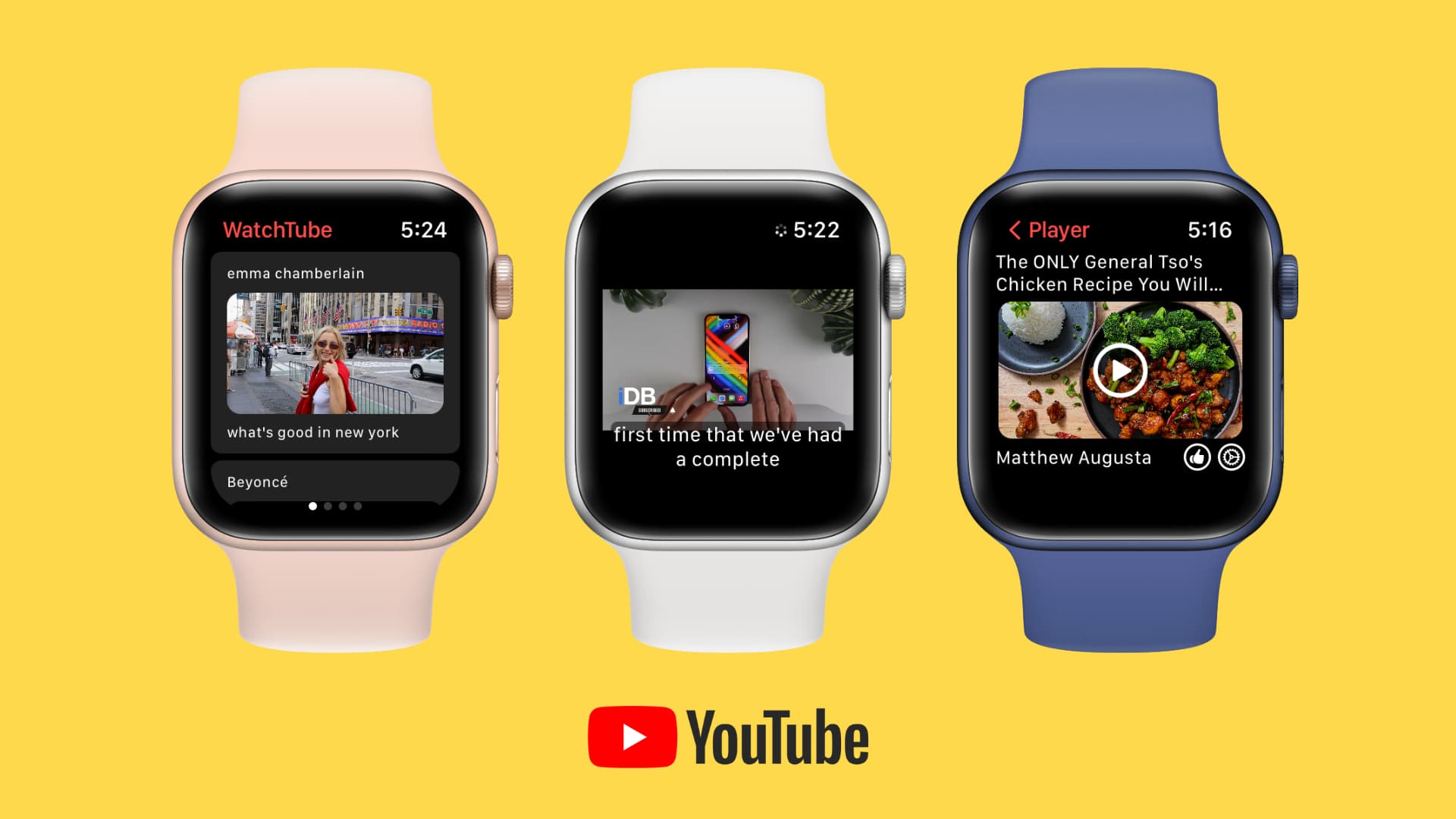
This guide will demystify the various methods of accessing YouTube, diving deep into the technology and interfaces that facilitate its consumption. Whether you’re at your desk, on the go, or lounging in your living room, understanding the optimal ways to tune in will enhance your viewing experience, making it more convenient, personalized, and enjoyable. We’ll explore the foundational steps for beginners, delve into advanced features for seasoned users, and even touch upon troubleshooting common issues, all within the realm of digital technology and application usage.
The Foundation: Watching YouTube on Desktops and Laptops
For many, the desktop or laptop computer remains the primary gateway to YouTube. This method offers a large screen, precise control with a mouse and keyboard, and the flexibility of a full-fledged web browser, making it ideal for longer viewing sessions, multitasking, and content creation.
Via Web Browser: Your Primary Portal
Accessing YouTube through a web browser is perhaps the most common and straightforward method. Simply open your preferred browser—Google Chrome, Mozilla Firefox, Microsoft Edge, Safari, or Brave—and navigate to www.youtube.com.
- User Interface: The web interface is robust and feature-rich. Upon arrival, you’ll typically see a personalized homepage populated with recommended videos based on your watch history and subscriptions. A search bar at the top allows you to find specific content, while a sidebar (often collapsible) provides quick access to subscriptions, trending videos, your watch history, and various categories.
- Account Integration: While you can watch most videos without logging in, signing in with a Google account unlocks the full YouTube experience. This includes subscribing to channels, liking/disliking videos, commenting, creating playlists, and receiving personalized recommendations. Your viewing history is synced across devices, ensuring a seamless experience.
- Accessibility Features: The web player is equipped with vital accessibility options. Closed captions (CC) are available for many videos, often with automatic translation capabilities. Playback speed can be adjusted (from 0.25x to 2x) for faster consumption or detailed analysis. Picture-in-Picture (PiP) mode, available in some browsers, allows the video to float above other applications, enabling multitasking.
Essential Browser Features for YouTube Optimization
Beyond the basic playback, several browser-level features can significantly enhance your YouTube experience:
- Video Quality Settings: Located in the gear icon within the player, this allows you to manually adjust resolution (from 144p to 4K, depending on the upload and your internet speed). Choosing a higher resolution provides a crisper image, while a lower one conserves data and reduces buffering on slower connections.
- Fullscreen Mode: The ultimate immersion, fullscreen mode eliminates browser distractions, letting the video dominate your display. Toggle it using the fullscreen icon or the ‘F’ key.
- Theatre Mode: A middle-ground between standard and fullscreen, theatre mode expands the video player within the browser window, minimizing surrounding elements while keeping chat or comments visible.
- Browser Extensions: A plethora of browser extensions are available to customize YouTube. These can include ad blockers (though YouTube Premium offers an official ad-free experience), extensions for dark mode, video downloaders (use with caution regarding copyright), and tools for manipulating playback.
Keyboard Shortcuts for Enhanced Viewing
Mastering YouTube’s keyboard shortcuts can drastically improve efficiency and control:
- Spacebar / K: Play/Pause
- Left/Right Arrow Keys: Seek Backward/Forward 5 seconds
- J/L: Seek Backward/Forward 10 seconds
- Home/End: Go to the beginning/end of the video
- M: Mute/Unmute
- F: Toggle Fullscreen
- T: Toggle Theatre Mode
- C: Toggle Captions
- Shift + . / Shift + ,: Increase/Decrease playback speed
- 0-9 (Number Keys): Jump to 0-90% of the video duration
Mobile Marvels: YouTube on Smartphones and Tablets
The ubiquity of mobile devices has transformed YouTube into an on-the-go companion, perfect for commutes, quick breaks, or casual viewing. The dedicated YouTube app for iOS and Android is optimized for touch interaction and offers unique features tailored for mobile use.
The Official YouTube App: Intuitive and Feature-Rich
Downloading the official YouTube app from the Apple App Store or Google Play Store is the quintessential mobile experience.
- Interface and Navigation: The app boasts a clean, intuitive interface designed for finger gestures. The bottom navigation bar typically features Home, Shorts, Subscriptions, and Library tabs. Swiping horizontally or vertically often navigates between videos or sections.
- Key Mobile Features:
- Portrait/Landscape Viewing: Videos automatically adapt to your device’s orientation.
- Double-Tap to Seek: Tapping the left or right side of the video player twice seeks backward or forward by 10 seconds, a highly convenient feature for quick navigation.
- Miniplayer: As you browse the app, a video you’re watching can shrink into a miniplayer at the bottom of the screen, allowing you to continue watching while exploring other content.
- Offline Downloads (with Premium): YouTube Premium subscribers can download videos to watch later without an internet connection, a lifesaver for travel or areas with poor reception.
- Background Playback (with Premium): Another Premium perk, this allows videos to continue playing audio even when the app is minimized or the screen is off, turning YouTube into a powerful music or podcast player.
Specialized YouTube Apps for Diverse Needs
YouTube also offers specialized mobile applications catering to specific user groups or viewing preferences:
- YouTube Kids: Designed for younger audiences, this app features a curated selection of family-friendly content, parental controls, and a simplified interface. It filters out inappropriate content and offers features like timed viewing sessions.
- YouTube Music: A dedicated music streaming service, YouTube Music offers access to a vast library of official songs, albums, live performances, and remixes. It integrates with your YouTube account, allowing you to access music videos and audio-only versions.
- YouTube Go (now deprecated in most regions): Previously designed for users in emerging markets with limited data or slower internet, YouTube Go allowed users to preview videos, choose quality, and download them efficiently. While largely replaced by main app features, it highlighted YouTube’s commitment to global accessibility.
Optimizing Mobile Viewing: Data Usage and Battery Life
Mobile viewing demands consideration for data consumption and battery life:
- Data Saver Mode: Within the YouTube app settings, you can enable a “Data saver” mode, which automatically reduces video quality to conserve mobile data.
- Wi-Fi Only Downloads: For YouTube Premium users, ensure downloads are set to occur only on Wi-Fi to avoid unexpected data charges.
- Background App Refresh: Disable background app refresh for YouTube if you’re not a Premium subscriber using background playback, as it can consume data and battery unnecessarily.
The Big Screen Experience: Watching YouTube on Smart TVs and Streaming Devices
Bringing YouTube to your living room’s biggest screen transforms it into a communal or highly immersive experience. Smart TVs and dedicated streaming devices offer seamless integration and a controller-friendly interface.
Smart TV Integration: Built-in Apps and Casting
Most modern Smart TVs (from brands like Samsung, LG, Sony, Vizio, etc.) come with the YouTube app pre-installed or readily available in their app stores.
- Smart TV App Interface: These apps are optimized for large screens and remote control navigation. Content categories are usually more visually prominent, and search often involves on-screen keyboards or voice commands through the remote.
- Casting (Chromecast Built-in, AirPlay 2): Even without a dedicated app, you can “cast” YouTube content from your smartphone, tablet, or Chrome browser directly to your Smart TV.
- Chromecast Built-in: Many Smart TVs feature Google Chromecast technology, allowing you to tap the Cast icon in the YouTube app (or Chrome browser) and select your TV. The video then plays directly on the TV, and your mobile device acts as a remote.
- AirPlay 2: Apple users with compatible iPhones, iPads, Macs, or Apple TVs can use AirPlay 2 to stream YouTube content wirelessly to their TV.
Streaming Sticks and Boxes: Dedicated YouTube Hardware
For non-Smart TVs or those seeking a more robust streaming experience, devices like Roku, Amazon Fire TV, Apple TV, and Google Chromecast are excellent options.
- Roku, Fire TV, Apple TV: These devices plug into your TV’s HDMI port and provide access to a wide array of streaming apps, including a polished YouTube interface. They come with their own remote controls, often featuring voice search capabilities. The YouTube app on these platforms typically mirrors the Smart TV experience, optimized for discovery and lean-back viewing.
- Google Chromecast (Dongle): Unlike traditional streaming boxes, the Chromecast dongle primarily acts as a receiver. You “cast” content from your phone or computer to the Chromecast, which then displays it on your TV. The newer Chromecast with Google TV combines this casting functionality with a full-fledged app interface and remote control.
Game Consoles: YouTube for Gamers and Entertainers
Modern game consoles like PlayStation (PS4, PS5) and Xbox (One, Series X/S) are powerful entertainment hubs that also host the YouTube app.
- Console App Interface: The YouTube app on consoles is designed to integrate with the console’s existing user interface and controller. Navigation is done via the gamepad, and content is tailored for large-screen viewing, making it a convenient way for gamers to switch from gaming to video consumption without changing inputs.
Enhancing Your YouTube Experience: Tips and Tricks
Beyond the basic mechanics of watching, YouTube offers a wealth of features that allow for a highly personalized and efficient viewing journey.
Customizing Playback Settings and Interactions
Fine-tuning your preferences can significantly improve your daily YouTube usage:
- Autoplay Toggle: Found next to the player controls, the autoplay toggle dictates whether the next recommended video starts automatically. Turn it off for deliberate viewing, or keep it on for continuous entertainment.
- Captions/Subtitles: The ‘C’ icon in the player enables or disables captions. You can further customize their appearance (font, color, size) in the player settings. YouTube’s automatic captions are improving but human-generated captions are always more accurate.
- Annotations/Info Cards: Historically, creators could add interactive annotations to videos. While largely replaced by more subtle “info cards” and “end screens,” these can still pop up with links to other videos or channels. You can disable them in your account settings if you find them distracting.
Subscribing, Managing Your Feed, and Playlists
Building your personal YouTube ecosystem is key to getting the most out of the platform:
- Subscribing to Channels: When you find a creator you like, click the “Subscribe” button below their video. This adds their new uploads to your “Subscriptions” feed, making it easy to keep up with your favorite content.
- Notifications: After subscribing, you can click the bell icon next to the subscribe button to customize notifications for that channel, from all new videos to none.
- Managing Your Home Feed: YouTube’s algorithm is designed to recommend content. To improve it, actively like/dislike videos, mark videos as “Not interested,” and occasionally clear your watch history if you’ve gone on a tangent.
- Creating Playlists: Organize your favorite videos by topic, mood, or purpose. Playlists are excellent for saving tutorials, music, or compilations for later viewing or sharing. You can make them public, unlisted, or private.
- “Watch Later” List: A quick way to save videos you don’t have time for immediately. It’s a single, automatically generated playlist.
Exploring YouTube Premium: An Ad-Free, Enhanced Experience
YouTube Premium is a subscription service that dramatically upgrades the user experience by addressing some common pain points.
- Ad-Free Viewing: The most significant draw is the complete removal of ads across all YouTube content and devices.
- Background Playback: On mobile, videos continue playing even when you switch apps or turn off your screen, turning YouTube into a powerful audio player.
- Offline Downloads: Save videos and playlists to your mobile device for offline viewing, perfect for commutes or areas without internet access.
- YouTube Music Premium: Includes ad-free access to the YouTube Music app, with features like offline downloads and background play for music.
- Originals Access: Premium subscribers often get exclusive access to YouTube Originals series and movies.
Troubleshooting Common Viewing Issues
Even with YouTube’s robust infrastructure, occasional technical glitches can occur. Being able to identify and address common problems will save you time and frustration.
Buffering and Playback Problems
Few things are more annoying than a video that constantly buffers or stops playing.
- Internet Connection: The most frequent culprit. Check your Wi-Fi signal strength, restart your router/modem, or try a wired connection if possible. Run a speed test to ensure you have adequate bandwidth (YouTube recommends at least 5 Mbps for HD, 20 Mbps for 4K).
- Video Quality: Reduce the video quality setting in the player (e.g., from 1080p to 720p or 480p) if your internet connection is struggling.
- Browser/App Cache: Clear your browser’s cache and cookies or the YouTube app’s cache. Accumulated data can sometimes interfere with playback.
- Browser Updates: Ensure your web browser is up to date. Outdated browsers may have compatibility issues with YouTube’s latest player technologies.
- System Resources: Close other demanding applications or browser tabs that might be consuming excessive CPU or RAM, freeing up resources for YouTube.
Audio/Video Sync Issues
When the audio doesn’t match the video, it can be incredibly distracting.
- Refresh/Restart: Refresh the browser tab or restart the YouTube app.
- Check Peripherals: If using external speakers or headphones, ensure they are properly connected and drivers are up to date. Try playing audio through your device’s built-in speakers to isolate the issue.
- Browser/App Updates: Ensure all software is current.
Account Login and Access Problems
Issues accessing your YouTube account are usually tied to your Google account.
- Password Reset: If you can’t log in, try resetting your Google account password.
- Two-Factor Authentication: If enabled, ensure you have access to your second verification method (phone, authenticator app).
- Account Suspension: In rare cases, accounts can be suspended for violating YouTube’s community guidelines. If you suspect this, you’ll usually receive an email notification with instructions on how to appeal.
- Internet Filters/VPNs: Some corporate or school networks might block YouTube. VPNs can sometimes interfere with logging in or geographical content restrictions; try disabling them temporarily if you’re having trouble.

Conclusion
YouTube’s enduring popularity is a testament to its vast content library and its remarkable adaptability across virtually every digital device imaginable. From the precision and multitasking capabilities of a desktop browser to the convenient portability of a smartphone app, and the immersive shared experience of a Smart TV, there’s a viewing method perfectly suited for every context and preference.
Understanding the nuances of each platform, leveraging specialized features, and knowing how to troubleshoot common issues empowers you to fully harness the power of this ubiquitous video platform. Whether you’re seeking to learn a new skill, stay informed, connect with communities, or simply unwind with entertaining content, YouTube offers an unparalleled gateway to the digital world. By exploring the various technological avenues available, you can curate a truly personal and optimal YouTube journey, ensuring that your answer to “how do I watch YouTube?” is always “however I want, whenever I want.”
aViewFromTheCave is a participant in the Amazon Services LLC Associates Program, an affiliate advertising program designed to provide a means for sites to earn advertising fees by advertising and linking to Amazon.com. Amazon, the Amazon logo, AmazonSupply, and the AmazonSupply logo are trademarks of Amazon.com, Inc. or its affiliates. As an Amazon Associate we earn affiliate commissions from qualifying purchases.