
In an era defined by digital convenience and on-demand entertainment, streaming services have become indispensable fixtures in countless households. Among the titans of this industry, Prime Video stands out as a multifaceted platform offering a vast library of movies, TV shows, and exclusive originals. For many, accessing this trove of content is intuitive, but for others, the initial setup and understanding of its technological nuances can present a minor hurdle. This article serves as your definitive guide, delving deep into the “how-to” of watching Prime Video, meticulously breaking down the tech aspects from device compatibility to advanced features and troubleshooting, all strictly within the domain of technology.
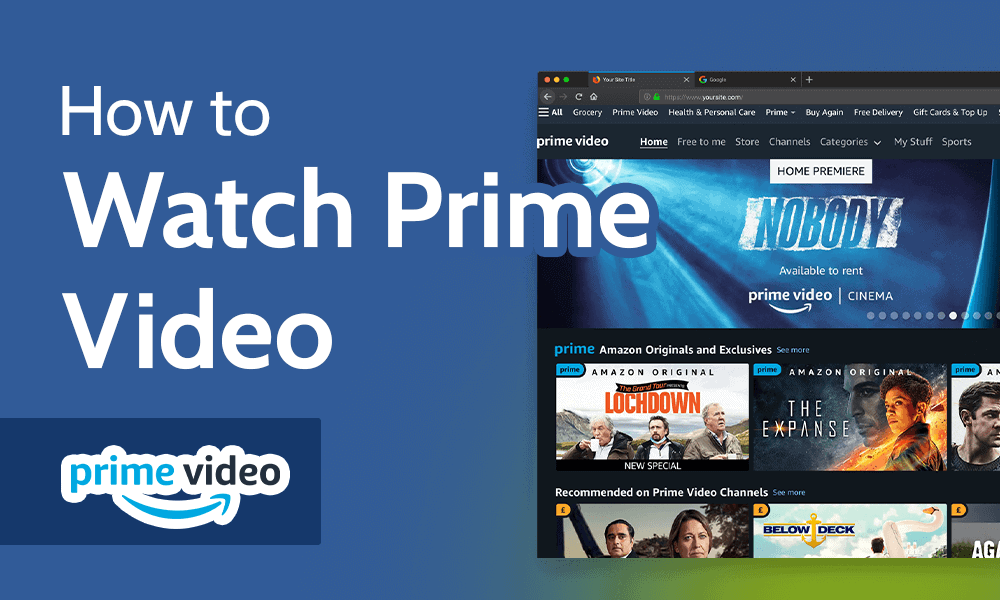
Prime Video is more than just a content library; it’s a sophisticated application and service leveraging a broad spectrum of digital technologies to deliver a seamless viewing experience. Whether you’re a seasoned tech enthusiast or a casual user navigating the digital landscape, understanding the underlying technological framework and practical steps to engage with Prime Video will unlock its full potential, transforming your entertainment consumption.
Getting Started: The Essentials of Accessing Prime Video
Embarking on your Prime Video journey begins with a few fundamental technological prerequisites and setup procedures. These initial steps are crucial for establishing a stable and enjoyable streaming environment across your chosen devices.
What You Need: Prime Membership and Compatible Devices
The cornerstone of accessing Prime Video content is an Amazon Prime membership. This comprehensive subscription not only grants you access to Prime Video but also includes a host of other Amazon benefits, such as expedited shipping, Prime Music, and Prime Reading. Alternatively, in some regions, Amazon offers a standalone Prime Video subscription, providing direct access to the video service without the full suite of Prime benefits. This financial gateway is the first step, unlocking the digital library.
Once your subscription is active, the next critical component is a compatible device. Prime Video is designed with broad interoperability in mind, making it accessible across an impressive array of internet-connected gadgets. This includes:
-
Smart TVs: Most modern smart televisions from brands like Samsung, LG, Sony, and Vizio come with the Prime Video app pre-installed or available for download from their respective app stores.
-
Streaming Devices: Dedicated streaming hardware like Amazon Fire TV Stick, Roku devices, Apple TV, Google Chromecast, and Nvidia Shield are purpose-built for streaming and offer robust Prime Video integration.
-
Mobile Devices: Smartphones and tablets running iOS (Apple iPhones, iPads) and Android operating systems can download the Prime Video app directly from their app stores.
-
Web Browsers: Any standard web browser (Chrome, Firefox, Safari, Edge) on a desktop or laptop computer can access Prime Video via primevideo.com.
-
Gaming Consoles: PlayStation (PS4, PS5) and Xbox (One, Series X/S) consoles also feature the Prime Video app, transforming your gaming rig into a comprehensive entertainment hub.
Understanding your device’s capabilities and ensuring it meets the basic system requirements (e.g., sufficient processing power, up-to-date operating system) is essential for optimal performance.
Downloading the Prime Video App
With a Prime membership secured and a compatible device identified, the next step is to acquire the Prime Video application. The download process varies slightly depending on your platform:
-
Smart TVs & Streaming Devices: Navigate to your device’s app store (e.g., LG Content Store, Samsung Smart Hub, Roku Channel Store, Apple App Store for Apple TV, Google Play Store for Android TV/Chromecast with Google TV). Search for “Prime Video” and select “Install” or “Get.”
-
Mobile Devices (iOS/Android): Open the Apple App Store on iOS or the Google Play Store on Android. Search for “Amazon Prime Video” and tap “Install” or “Get.”
-
Gaming Consoles: Access the digital storefront on your console (PlayStation Store or Xbox Store). Search for the Prime Video app and initiate the download.
-
Desktop/Laptop: For web-based viewing, no download is required; simply open your preferred browser and go to primevideo.com. Some operating systems, like Windows 10/11, might offer a dedicated Prime Video app through their respective app stores (Microsoft Store), which can provide a more integrated experience.
Always ensure you’re downloading the official application from trusted sources to avoid security risks.
Signing In: Your Amazon Account Gateway
Once the app is installed, the final step in the setup process is logging in. This links your device to your Amazon Prime account, granting you access to your subscription’s benefits and personalized content.
-
Standard Login: Most devices will present you with an option to sign in using your existing Amazon account credentials (email or phone number and password).
-
Activation Code Method: Many smart TVs and streaming devices utilize an activation code method. Upon launching the app, you’ll see a code displayed on your screen. You’ll then need to visit a specific URL (usually amazon.com/mytv or primevideo.com/ontv) on a separate device (like a smartphone or computer), log into your Amazon account there, and enter the displayed code. This securely links your device without needing to type lengthy credentials on a TV remote.
Ensure that the Amazon account you use for login is the one associated with your active Prime or Prime Video subscription. Successful login will immediately populate your screen with the vast library of Prime Video content, ready for viewing.
Diverse Viewing Platforms: Tailoring Your Prime Video Experience
Prime Video’s strength lies in its ubiquitous availability across a multitude of devices, each offering a slightly different user experience optimized for its form factor. Understanding these platform-specific nuances helps you tailor your viewing to your lifestyle.
Watching on Smart TVs and Streaming Devices
The living room television, often the central entertainment hub, is a primary destination for Prime Video. Smart TVs, Roku, Fire TV, Apple TV, and Chromecast devices provide a cinematic viewing experience. The Prime Video interface on these platforms is typically designed for ease of navigation with a remote control, featuring large thumbnails, clear categories, and intuitive menu systems.
-
Navigation: Use your remote’s directional pad to browse content, select titles, and access settings.
-
Search Functionality: Most devices offer an on-screen keyboard for searching, or voice search integration (especially with Amazon Fire TV and Roku remotes) for quick content discovery.
-
Settings: Access video quality settings, audio options, and subtitle preferences directly within the app’s settings menu on your TV.
-
Device Integration: Amazon Fire TV devices, being proprietary Amazon hardware, offer the most seamless integration with Prime Video, often featuring a dedicated button on the remote and deep content recommendations.
Mobile Freedom: Tablets and Smartphones
The Prime Video mobile app transforms your smartphone or tablet into a portable entertainment device. This platform prioritizes convenience, allowing you to watch on the go, whether commuting, traveling, or simply moving between rooms.
-
Touch Interface: The mobile app leverages touch gestures for navigation, playback controls, and content selection.
-
Offline Downloads: A standout feature on mobile is the ability to download selected titles for offline viewing. This is invaluable for saving data or watching in areas without internet access. Be mindful of your device’s storage capacity when downloading.
-
Data Usage Control: The app often includes settings to manage streaming quality over mobile data versus Wi-Fi, helping users conserve their data plan.
-
Picture-in-Picture (PiP): On compatible devices and operating systems, PiP allows you to watch content in a small, resizable window while using other apps.
Desktop Dominance: Web Browsers and PC Apps
For those who prefer a larger screen without dedicating a TV, watching Prime Video on a desktop or laptop through a web browser (primevideo.com) or a dedicated PC app offers a versatile solution.
-
Browser Compatibility: Ensure your browser is up-to-date for optimal performance and DRM (Digital Rights Management) compatibility, which is essential for secure content playback.
-
Keyboard & Mouse Navigation: The web interface is designed for mouse clicks and keyboard shortcuts, providing precise control.
-
Screen Casting/Mirroring: While not directly within the Prime Video app, browsers and PC operating systems often support casting to compatible smart TVs or streaming devices, extending the viewing experience to a larger display.
-
Dedicated PC App (Windows): The Prime Video app available through the Microsoft Store for Windows 10/11 often provides a smoother experience than a browser, with potentially better performance and features like offline downloads.
Gaming Consoles: Beyond Entertainment
Modern gaming consoles have evolved into comprehensive media centers. The Prime Video app on PlayStation and Xbox consoles provides a high-quality streaming experience, often leveraging the console’s powerful hardware for crisp video and audio.
-
Controller Navigation: The app is optimized for gamepad controls, using joysticks and buttons for browsing and playback.
-
Performance: Console hardware can often handle higher resolutions (like 4K HDR) and advanced audio formats with ease, making them excellent choices for premium viewing.
-
Integration: The app integrates into the console’s dashboard, making it easy to switch between gaming and streaming.
Enhancing Your Viewing: Tech Features and Tips
Beyond basic playback, Prime Video incorporates several sophisticated technological features designed to enrich your viewing experience and provide greater control. Mastering these will elevate your interaction with the platform.
Understanding User Profiles and Parental Controls
Prime Video allows for the creation of multiple user profiles within a single account. This is a crucial feature for households with diverse viewing preferences or children. Each profile maintains its own watch history, recommendations, and watch lists.
-
Profile Creation: You can typically manage profiles through the app’s settings or directly from the profile selection screen upon launch.
-
Kids Profiles: A dedicated “Kids Profile” restricts content to family-friendly titles, automatically filtering out mature programming. This is a vital digital safety feature.
-
Parental PIN: For an additional layer of security, you can set a parental control PIN that is required for purchases or to bypass age restrictions on certain content. This technology prevents unauthorized viewing of mature content by younger users, even on adult profiles.
The Power of X-Ray: IMDb Integration
One of Prime Video’s most innovative tech features is “X-Ray,” powered by IMDb (Internet Movie Database), an Amazon subsidiary. While watching a title, X-Ray provides instant, context-sensitive information overlaid on the screen.
-
On-Screen Info: Tap (on mobile) or press up/select (on TV/streaming devices) during playback to see which actors are on screen, the song currently playing, relevant trivia, and even jump directly to specific scenes featuring certain actors.
-
Behind-the-Scenes: X-Ray offers a deeper dive into the production, cast, and crew, transforming passive viewing into an interactive educational experience. This real-time data integration is a prime example of leveraging linked data technologies to enhance user engagement.
Offline Viewing: Downloads for On-the-Go Entertainment
As mentioned for mobile, the ability to download content for offline viewing is a significant technological advantage, particularly for users with limited or inconsistent internet access.
-
Download Process: Look for the “Download” icon (often an arrow pointing downwards) next to eligible titles on the mobile app or some PC apps.
-
Storage Management: Downloads consume significant device storage. The app often allows you to choose download quality (e.g., Good, Better, Best) to balance file size with video fidelity. Regularly clear downloaded content to free up space.
-
Expiry: Downloaded content typically has an expiry period (e.g., 30 days once downloaded, or 48 hours once you start watching), dictated by licensing agreements. The app will usually indicate these terms.
Streaming Quality and Data Usage Management
Prime Video supports a range of streaming qualities, from Standard Definition (SD) to High Definition (HD), and even Ultra High Definition (UHD or 4K) with High Dynamic Range (HDR) for compatible content and devices.
-
Internet Speed: Higher quality streaming demands greater internet bandwidth. 4K streaming, for instance, typically requires a consistent internet connection of 15-25 Mbps. Ensure your home network and ISP can support your desired quality.
-
Adaptive Bitrate Streaming: Prime Video employs adaptive bitrate streaming technology, which dynamically adjusts the video quality based on your internet connection’s real-time performance to minimize buffering.
-
Manual Quality Settings: On some platforms, you can manually set the default streaming quality within the app’s settings to manage data consumption, especially useful if you have a capped internet plan or are using mobile data.
Troubleshooting Common Tech Hiccups
Even with the most robust technology, occasional issues can arise. Knowing how to diagnose and resolve common Prime Video technical problems can quickly get you back to your entertainment.
Connectivity Issues and Buffering
The most frequent culprit behind a poor streaming experience is an unstable or slow internet connection, leading to buffering, low-quality video, or an inability to load content.
-
Check Your Internet: First, verify your internet connection by testing other apps or websites. If other services are also slow, the issue lies with your network.
-
Router Restart: A simple yet often effective fix is to restart your Wi-Fi router and modem. Unplug them, wait 30 seconds, then plug them back in.
-
Ethernet Connection: For streaming devices and smart TVs, use a wired Ethernet connection instead of Wi-Fi if possible. Ethernet provides a more stable and faster connection.
-
Reduce Network Congestion: If multiple devices are using your Wi-Fi, temporarily disconnect non-essential devices to free up bandwidth for streaming.
-
Check Prime Video Server Status: Occasionally, the issue might be on Amazon’s side. Check reputable tech news sites or social media for reports of Prime Video service outages.
App Freezes and Login Troubles
Sometimes the app itself might become unresponsive, or you might encounter difficulties logging in.
-
Force Close and Restart App: For app freezes, force close the Prime Video app (e.g., swipe up on mobile, go to settings on TV) and then restart it.
-
Clear App Cache/Data: Over time, app cache can become corrupted. Go to your device’s application settings, find Prime Video, and select “Clear Cache” or “Clear Data.” Be aware that “Clear Data” will usually sign you out and remove any downloaded content.
-
Reinstall App: If clearing the cache doesn’t work, uninstalling and then reinstalling the Prime Video app can resolve deeper software glitches.
-
Reset Password: If you’re certain your Amazon credentials are correct but still can’t log in, try resetting your Amazon password through amazon.com. Ensure you’re using the correct account associated with your Prime membership.
Device Compatibility and Updates
Outdated software or incompatible hardware can also lead to playback problems.
-
Update App: Always ensure your Prime Video app is running the latest version. Apps receive regular updates that fix bugs, improve performance, and add new features. Check your device’s app store for pending updates.
-
Update Device Firmware/OS: Similarly, ensure your smart TV, streaming device, or mobile phone’s operating system (firmware) is up to date. Manufacturers release updates that enhance performance, security, and app compatibility.
-
Minimum Requirements: Double-check that your device still meets the minimum system requirements for Prime Video, especially if it’s an older model. As technology evolves, some older devices may lose support for newer app versions or content formats.

Conclusion: Your Gateway to a World of Digital Entertainment
Prime Video stands as a testament to the power of digital technology in transforming how we consume entertainment. From the initial step of securing a Prime membership to navigating its vast library across an impressive array of devices, every aspect of watching Prime Video is underpinned by sophisticated software and hardware integration. Whether you’re leveraging the portability of a smartphone, the immersive experience of a smart TV, or the interactive features like X-Ray, understanding the technological facets of this service empowers you to make the most of your subscription.
By following this comprehensive guide, you are now equipped with the knowledge to seamlessly access, personalize, and troubleshoot your Prime Video experience. It’s more than just watching; it’s engaging with a technologically advanced platform designed to bring a world of diverse stories directly to your preferred screen, ensuring that high-quality digital entertainment is always within your reach. Dive in, explore, and let Prime Video redefine your leisure time.
aViewFromTheCave is a participant in the Amazon Services LLC Associates Program, an affiliate advertising program designed to provide a means for sites to earn advertising fees by advertising and linking to Amazon.com. Amazon, the Amazon logo, AmazonSupply, and the AmazonSupply logo are trademarks of Amazon.com, Inc. or its affiliates. As an Amazon Associate we earn affiliate commissions from qualifying purchases.