
In the vast landscape of digital entertainment, Amazon Prime Video stands as a colossal contender, offering an expansive library of movies, TV shows, and original content accessible through a Prime membership. For many, the question isn’t if they want to watch something, but how to navigate this powerful platform to truly unlock its potential. This guide will demystify the process, transforming potential confusion into a smooth, enjoyable viewing experience, leveraging the technological facets of Amazon’s streaming service.
Understanding Amazon Prime Video: Your Gateway to Entertainment
Before diving into the mechanics, it’s essential to grasp what Amazon Prime Video entails and how it integrates into the broader Amazon ecosystem. As a core component of the Amazon Prime subscription, it offers more than just movies and TV shows; it’s a feature-rich streaming service designed for convenience and a personalized viewing journey.
What is Amazon Prime Video?
At its heart, Amazon Prime Video is an on-demand streaming service that provides subscribers with access to thousands of titles, ranging from blockbuster films and popular TV series to critically acclaimed Amazon Originals like “The Lord of the Rings: The Rings of Power,” “The Boys,” and “Fleabag.” Unlike some standalone streaming services, Prime Video is intrinsically linked to an Amazon Prime membership, which also grants benefits like faster shipping, Prime Music, Prime Reading, and more. This integrated approach means that if you’re already an Amazon Prime member, you likely have access to Prime Video without any additional subscriptions. The service is constantly updated with new content, ensuring a fresh selection for viewers across various genres and interests.
Eligibility and Access Requirements
Accessing Prime Video is straightforward but requires a few fundamental elements. The primary requirement is an active Amazon Prime membership. This can be a monthly or annual subscription, or even a trial membership. If you’re not a Prime member, you can typically sign up for a free trial to explore the benefits, including Prime Video, before committing to a paid plan.
Beyond the membership, a stable internet connection is paramount. Streaming high-definition or 4K content demands a robust bandwidth to prevent buffering and ensure a smooth playback experience. While specific speeds can vary, generally, at least 5 Mbps is recommended for HD streaming, and 25 Mbps or higher for 4K Ultra HD. Finally, a compatible device is essential. Fortunately, Prime Video is designed to be highly accessible across a multitude of platforms, which we will explore in detail.
Navigating the Prime Video Interface: Website vs. App
The user interface for Prime Video is designed for intuitive navigation, whether you’re using a web browser on a computer or a dedicated app on a mobile device or smart TV.
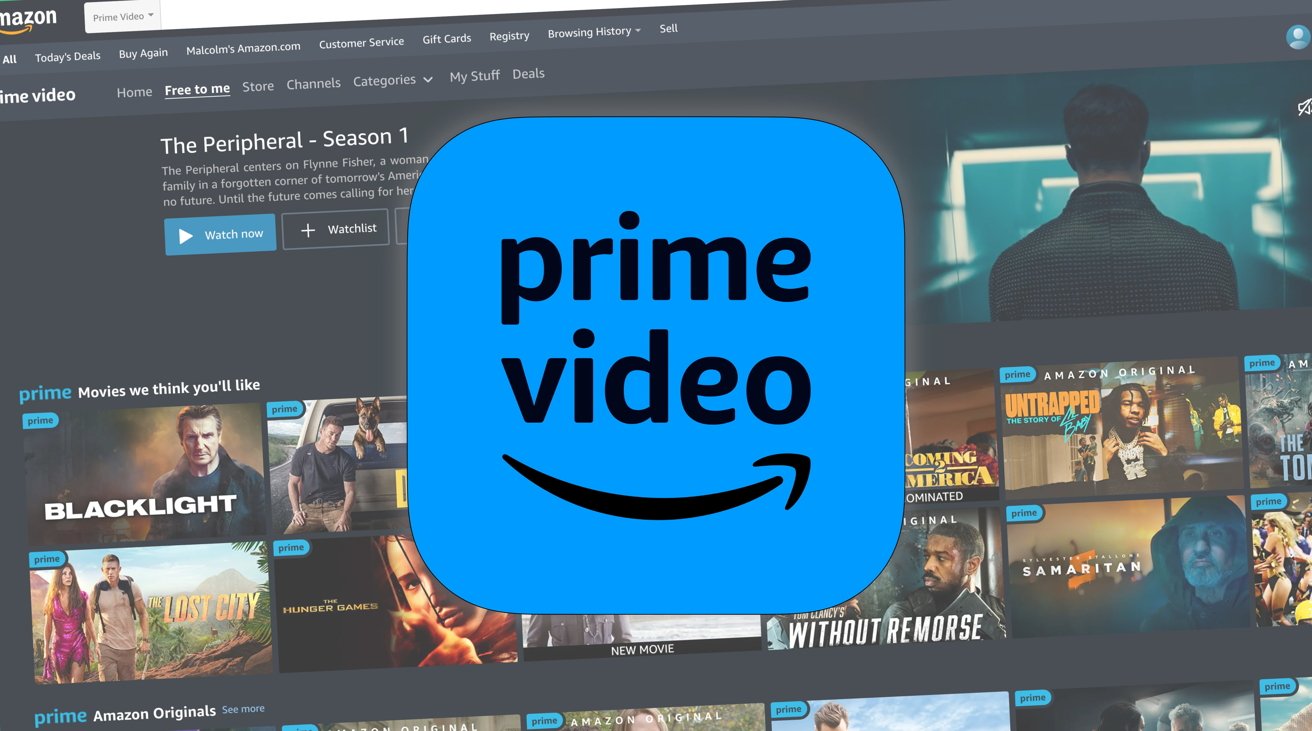
On the Web (primevideo.com): Accessing Prime Video through a web browser provides a comprehensive view of the library. Upon logging in with your Amazon credentials, you’ll typically be greeted with a personalized homepage featuring recommended titles, recently added content, and quick access to various categories (movies, TV shows, Amazon Originals). A search bar is prominently displayed, allowing you to find specific titles. Navigation menus often include sections for your watchlist, purchases & rentals, and channels. The web interface is excellent for browsing and managing settings, offering a full keyboard and mouse for interaction.
On Apps (Mobile, Smart TV, Streaming Devices): The Prime Video app, available on almost all major platforms, optimizes the experience for touchscreens or remote controls. While the core layout is similar to the web version, the design is often more streamlined for the specific device’s interaction method. On smart TVs and streaming sticks, for example, categories and carousels are designed for easy scrolling with a remote. Mobile apps often include additional features like offline downloads, making content accessible even without an internet connection. The app experience is generally tailored for direct consumption, prioritizing content display and playback over extensive account management. Understanding these subtle differences can help you choose the best interface for your current needs.
Getting Started: Initial Setup and Device Compatibility
The true versatility of Amazon Prime Video lies in its widespread device compatibility. Whether you prefer to watch on the go, in your living room, or at your desk, Prime Video has an option for you. The initial setup is typically a quick and straightforward process.
Signing Up for Amazon Prime
If you’re not already an Amazon Prime member, your first step is to sign up. This can be done directly through the Amazon website (amazon.com or your regional Amazon site). Look for the “Try Prime” or “Sign up for Prime” option, which is usually prominently displayed. You’ll be prompted to create an Amazon account if you don’t have one, and then choose between a monthly or annual Prime membership. Many regions offer a free trial period, typically 30 days, allowing you to experience all Prime benefits, including Prime Video, before your card is charged. Ensure your payment information is up-to-date, and once subscribed, you’re ready to start streaming.
Supported Devices for Prime Video
Amazon has made Prime Video available on an impressive array of devices, ensuring almost everyone can find a way to watch.
-
Smart TVs: Most modern smart TVs from brands like Samsung, LG, Sony, Vizio, and Panasonic have the Prime Video app pre-installed or available for download from their respective app stores.
-
Streaming Sticks & Boxes: Devices like Amazon’s own Fire TV Stick, Roku, Apple TV, Google Chromecast, and NVIDIA Shield TV are fully supported, offering dedicated Prime Video apps.
-
Gaming Consoles: PlayStation (PS3, PS4, PS5) and Xbox (Xbox One, Xbox Series X/S) consoles provide Prime Video apps, making them convenient entertainment hubs.
-
Mobile Devices: The Prime Video app is available for download on both Android and iOS smartphones and tablets, offering robust features like offline downloads.
-
Computers: You can watch directly through any modern web browser (Chrome, Firefox, Safari, Edge) on a PC, Mac, or Linux machine.
-
Blu-ray Players: Select Blu-ray players also offer the Prime Video app.
This broad compatibility means you likely already own a device capable of streaming Prime Video, minimizing the need for additional hardware purchases.
Installing and Launching the Prime Video App
Once you’ve identified your preferred viewing device, installing the app is usually a simple process.
-
Smart TVs/Streaming Devices/Consoles: Navigate to your device’s app store (e.g., Google Play Store on Android TVs, Apple App Store on Apple TV, Roku Channel Store, PlayStation Store). Search for “Amazon Prime Video” and select “Install” or “Download.” Once installed, the app icon will appear on your device’s home screen or app launcher.
-
Mobile Devices: Open the App Store (iOS) or Google Play Store (Android), search for “Amazon Prime Video,” and tap “Install.”
-
Computers: No installation is typically required; simply open your preferred web browser and go to
primevideo.com. While there is a Prime Video app for Windows 10/11 available in the Microsoft Store, it’s optional for desktop viewing.
Launching the app is as simple as clicking its icon from your device’s home screen or app list. For web browsers, enter the URL directly.
Registering Your Device
The final step before streaming is to link your device to your Amazon Prime account. Upon launching the Prime Video app for the first time on a new device, you’ll typically be presented with two options:
-
Sign in directly on the device: You’ll enter your Amazon email and password using the on-screen keyboard (which can be cumbersome with a remote control).
-
Register on the Amazon website: This is often the easier method. The app will display an alphanumeric code (e.g., “ABCD-EFGH”). On a computer or mobile phone, go to
primevideo.com/mytv(or the URL provided on your screen), sign in to your Amazon account, and enter the code. Your device should then automatically link and load the Prime Video interface, ready for streaming.
Once registered, the device remembers your account, so you won’t need to re-register unless you sign out or perform a factory reset.
Mastering the Viewing Experience: Features and Functionality
With your device set up and registered, it’s time to dive into the extensive features that make watching on Amazon Prime Video a truly rich experience. Beyond simple playback, the service offers numerous tools to enhance content discovery, control, and personalization.
Browsing and Discovering Content
Amazon Prime Video excels at content discovery. The homepage is often tailored to your viewing habits, suggesting titles based on what you’ve watched or added to your watchlist. You can browse by:
-
Categories/Genres: Movies, TV Shows, Documentaries, Comedy, Action, Drama, etc., often accessible through navigation menus.
-
Collections: Curated lists of content, such as “Award Winners,” “New Releases,” “Critically Acclaimed,” or seasonal selections.
-
Amazon Originals: A dedicated section highlights Amazon’s own productions, which are a major draw for many subscribers.
-
Search Function: A prominent search bar allows you to look up specific titles, actors, directors, or even keywords.
-
Watch Next/Continue Watching: A dedicated row ensures you can easily pick up where you left off on any show or movie.
The sheer volume of content can be overwhelming, but these navigation tools are designed to help you quickly find something to enjoy.
Understanding Content Types: Included, Rental, Purchase
Not all content on Prime Video is “free” with your Prime membership. It’s crucial to understand the different content tiers:
-
Included with Prime: These titles are available to stream at no additional cost as part of your Prime membership. They are usually clearly marked with a “Included with Prime” banner or badge.
-
Rentals: Many newer releases or premium titles can be rented for a specific period (typically 48 hours once you start watching). You pay a one-time fee, and the movie is available in your library for a limited time.
-
Purchases: You can buy digital copies of movies and TV shows, allowing you to own them indefinitely and watch them as many times as you like. These titles are added to your digital library.
-
Prime Video Channels: These are optional, paid add-on subscriptions to other streaming services (e.g., HBO, Showtime, Starz, Paramount+) directly through Prime Video. This consolidates your billing and viewing experience within the Prime Video app.
Always check the pricing and availability details on a title’s page before clicking “play” to avoid unexpected charges.

Playback Controls and Settings
Once a title is playing, you have a range of controls at your fingertips:
-
Basic Controls: Play, pause, fast-forward, rewind, and volume control are standard. On most devices, tapping or clicking the screen/remote will bring up these controls.
-
Resolution/Quality: Prime Video automatically adjusts stream quality based on your internet speed, but on some devices, you can manually select a lower resolution to conserve data or improve stability if experiencing buffering.
-
Subtitles/Closed Captions: Look for an icon (often a speech bubble or “CC”) to enable or disable subtitles and choose from available languages. You can often customize subtitle appearance (size, color, background).
-
Audio Tracks: For titles with multiple language options or descriptive audio, you’ll find an audio icon to switch between available tracks.
-
Picture-in-Picture (PiP): On some mobile devices, you can minimize the player to a small window while using other apps.
-
HDR/Dolby Vision/Dolby Atmos: If your device and internet connection support it, Prime Video automatically delivers content in high dynamic range (HDR10, HDR10+, Dolby Vision) and immersive audio (Dolby Atmos) for a superior visual and auditory experience.
Utilizing Watchlists and Downloads
-
Watchlist: This feature is invaluable for keeping track of content you want to watch later. When browsing, simply click the “Add to Watchlist” button or icon on a title’s page. Your watchlist is synchronized across all your devices, making it easy to pick up where you left off planning.
-
Downloads (Offline Viewing): A major advantage, especially for mobile users or those with limited internet access. On the Prime Video mobile app (Android and iOS) and the Windows app, you can download eligible Prime titles to your device for offline viewing. This is perfect for long flights, commutes, or areas with no Wi-Fi. Look for the “Download” icon (usually a down arrow) on a title’s page. Downloaded content remains available for a limited time (often 30 days, or 48 hours once you start watching) and may be restricted by storage space.
Parental Controls and Profiles
Prime Video offers robust parental control features to ensure a family-friendly viewing environment:
-
Viewing Restrictions: You can set age-based viewing restrictions (e.g., “G,” “PG,” “PG-13,” “R”) for content on your account. When enabled, a PIN will be required to watch content above the chosen rating. This is managed through your Amazon account settings, usually under “Prime Video Settings.”
-
Purchase Restrictions: A separate PIN can be set to restrict purchases or rentals, preventing accidental or unauthorized charges.
-
User Profiles: While not as extensively developed as some competitors, Prime Video does support user profiles, allowing different members of a household to have their own watch history and recommendations. This helps keep personalized content separate. You can manage profiles directly within the Prime Video app or website.
Prime Video Channels
Prime Video Channels allow you to subscribe to third-party streaming services directly through your Amazon account. Instead of managing multiple subscriptions and apps, you can access content from channels like Max, Paramount+, Starz, Showtime, and many others, all within the Prime Video app. This simplifies billing and offers a unified viewing experience. To subscribe, simply navigate to the “Channels” section in Prime Video and browse available options. Each channel typically offers a free trial period.
Optimizing Your Stream: Tips for a Smooth Experience
Even with the best content, a poor streaming experience can be frustrating. Here are some technical tips to ensure your Prime Video playback is consistently smooth and high quality.
Internet Connection Requirements
Your internet connection is the backbone of your streaming experience.
-
Bandwidth: Amazon recommends a minimum of 0.9 Mbps for standard definition (SD), 3.5 Mbps for high definition (HD), and 15 Mbps for 4K Ultra HD. However, these are minimums. For a truly buffer-free experience, especially with other devices connected, aim for 5-10 Mbps for HD and 25-50 Mbps for 4K.
-
Wi-Fi vs. Ethernet: While Wi-Fi is convenient, an Ethernet cable provides a more stable and faster connection directly to your streaming device (smart TV, gaming console, streaming box). If your device supports it, and your router is nearby, a wired connection can significantly reduce buffering.
-
Router Placement: Ensure your Wi-Fi router is centrally located and not obstructed by walls or furniture. Older routers might struggle with simultaneous high-bandwidth demands, so consider upgrading if you frequently experience issues.
Troubleshooting Common Issues
Despite optimizations, issues can arise. Here’s how to address common problems:
-
Buffering/Lagging:
-
Check internet speed: Use an online speed test.
-
Restart router: Unplug your internet router and modem for 30 seconds, then plug them back in.
-
Close other apps/devices: Reduce internet usage from other devices on your network.
-
Reduce quality: If available, manually lower the video quality setting in the Prime Video app.
-
Clear cache: On smart TVs/streaming devices/mobile, clear the app’s cache (check device settings).
-
-
App Crashes/Freezing:
-
Restart the app: Force close the Prime Video app and relaunch it.
-
Restart device: Turn off and on your streaming device, TV, or mobile phone.
-
Reinstall app: As a last resort, uninstall and reinstall the Prime Video app.
-
-
Login Problems:
-
Verify credentials: Double-check your Amazon email and password.
-
Reset password: If forgotten, use Amazon’s “Forgot Password” option.
-
Check Prime status: Ensure your Prime membership is active and hasn’t expired.
-
Managing Data Usage
If you have a limited data plan (e.g., mobile hotspot, cellular data), managing Prime Video’s data consumption is vital:
-
Mobile App Settings: In the Prime Video mobile app, go to Settings -> Stream & Download -> Stream Quality. You can select “Good” (lowest data), “Better,” or “Best” (highest data). Similar options exist for download quality.
-
Download Strategically: Whenever possible, download content over Wi-Fi when you have unlimited data, then watch it offline to avoid using cellular data.
-
Monitor Usage: Many mobile devices and operating systems allow you to track data usage per app. Keep an eye on Prime Video’s consumption.
Device Updates and Performance
Keeping your devices and apps updated is crucial for optimal performance and security:
-
App Updates: Regularly check for and install updates for the Prime Video app on all your devices. Updates often include bug fixes, performance enhancements, and new features.
-
Operating System Updates: Ensure your smart TV’s firmware, streaming stick’s OS, or mobile device’s operating system is up-to-date. Outdated software can lead to compatibility issues and reduced performance.
-
Clear Storage/Memory: On older or lower-spec devices, clearing unnecessary apps or files can free up memory and storage, improving the Prime Video app’s responsiveness.
Beyond the Basics: Advanced Features and Enhancements
Amazon Prime Video offers several unique features that elevate the streaming experience beyond simple playback, integrating technological insights and social aspects.
X-Ray Feature
One of Prime Video’s standout features is X-Ray, powered by IMDb (which is owned by Amazon). When watching a title, simply pause or tap the screen, and the X-Ray feature will instantly display relevant information about the scene, including:
-
Actors currently on screen: With links to their IMDb profiles.
-
Music playing in the scene: Identifying the song and artist.
-
Trivia: Interesting facts about the production, cast, or plot.
-
Goofs: Noteworthy errors in the film.
-
Bonus Content: Access to behind-the-scenes clips or interviews.
X-Ray is an incredible technological overlay that enriches the viewing experience by providing context and depth without requiring you to leave the app or perform a separate search. It’s available on most devices, enhancing immersion for curious viewers.
Live Events and Sports
Beyond its vast on-demand library, Prime Video is increasingly becoming a destination for live events, particularly sports in certain regions. In the US, for example, Prime Video is the exclusive home for “Thursday Night Football” during the NFL season. Other regions might offer local sports leagues, concerts, or special events. These live streams are seamlessly integrated into the Prime Video interface, often with dedicated sections for upcoming and ongoing events. Access to live content usually requires a Prime membership, and sometimes specific additional channel subscriptions.
Watch Parties
For a shared viewing experience across distances, Prime Video introduced Watch Parties. This feature allows Prime members (and anyone with a valid link in some regions, though they may need to sign up for a free trial or Prime membership to join) to watch select movies and TV shows together with up to 100 participants.
-
How it works: One host starts a Watch Party from a title’s detail page (on a desktop web browser). They share a link with friends, who can then join the party.
-
Synchronization: The playback is synchronized for all participants.
-
Chat Feature: A built-in chat window allows viewers to communicate and react in real-time.
Watch Parties leverage technology to bring a communal aspect back to watching content, making it a social activity even when physically apart.
Accessibility Features
Amazon Prime Video is committed to accessibility, offering features that make content enjoyable for a broader audience:
-
Audio Descriptions: For viewers who are blind or visually impaired, audio descriptions provide narration that explains visual elements of a scene (e.g., character actions, scene changes, on-screen text).
-
Closed Captions and Subtitles: As mentioned, these are widely available and often customizable in terms of size, font, and color, benefiting viewers who are deaf or hard of hearing, as well as those who prefer to watch content with text.
-
Navigation: The interface is generally designed to be compatible with screen readers and other assistive technologies.
These features underscore Prime Video’s commitment to inclusive technology, ensuring everyone can find their way to watch and enjoy their favorite content.
In conclusion, watching on Amazon Prime Video is far more than simply pressing play. It’s an intricate dance with a technologically advanced platform that offers a wealth of content and features. By understanding its interface, device compatibility, playback options, and advanced functionalities, you can transform a basic streaming experience into a truly seamless, personalized, and insightful journey through the world of digital entertainment. Whether you’re troubleshooting a minor glitch or exploring the depths of the X-Ray feature, mastering Prime Video means mastering a powerful piece of consumer technology designed for your enjoyment.
aViewFromTheCave is a participant in the Amazon Services LLC Associates Program, an affiliate advertising program designed to provide a means for sites to earn advertising fees by advertising and linking to Amazon.com. Amazon, the Amazon logo, AmazonSupply, and the AmazonSupply logo are trademarks of Amazon.com, Inc. or its affiliates. As an Amazon Associate we earn affiliate commissions from qualifying purchases.